

So you’ve heard about Docker’s MCP Catalog and Toolkit – now, let’s roll up our sleeves. The best way to appreciate how easy it is to use these new tools is to try the command-line interface (CLI) called docker mcp. This is your new remote control for AI agents and tools, and it brings Docker’s usual simplicity to the MCP world.
Step 1. Install Docker Desktop 4.42.0 or Later
First things: make sure you have Docker Desktop (v4.42.0 or newer) installed on your computer. The MCP CLI was introduced in version 4.42.0, so older versions won’t have it. You can download Docker Desktop from docker.com/get-started and follow the installation prompts.
Pro tip: You might already have Docker Desktop. If you’re not sure about your version, open Docker Desktop and check the version info. If it’s older than 4.42.0, update it so you can access Docker MCP.
Step 2. Verify the MCP CLI
Open your terminal or PowerShell. Type.
docker mcp --help
You should see output similar to,
Usage:  docker mcp [OPTIONS] COMMAND

Options:
  -v, --version   Print version information and quit

Available Commands:
  catalog    Manage MCP tool catalogs
  client     Connect/disconnect MCP clients
  secret     Manage secrets (API keys, tokens)
  policy     Manage access policies (coming soon)
This confirms that the Docker MCP Plugin is active. It’s labeled “experimental” because it’s new, but don’t worry – it’s ready for action. The output above (summarized) comes directly from the Docker tool. You’re seeing the main subcommands.
- catalog: Work with catalogs of tools (e.g., list, search, import).
- client: Connect or disconnect AI clients like Claude or VS Code.
- secret: Store and manage secrets (API tokens) for tools.
- policy: (Future) Define security policies for who can use what.
- Gateway server: Provides a single connection point for all enabled MCP tools
If you see something like “This Docker CLI plugin adds experimental features.”, it’s normal. The key is that you see the commands listed.
How does it work?
The Docker MCP Catalog transforms how you discover and access MCP servers.
- Centralized Discovery: Browse hundreds of ready-to-run MCP servers directly on Docker Hub
- Verified Tools: Access over 100 verified tools from leading partners, including Google, Stripe, GitHub, Slack, Atlassian, Notion, GitLab, Shopify, Grafana, Pulumi, and more
- Publisher Verification: Tools feature publisher verification and versioned releases
- Curated Collections: Find exactly what you need faster with organized tool collections
The Docker MCP Toolkit brings MCP servers to life with,
- One-Click Launch: Spin up MCP servers in seconds from Docker Desktop
- Seamless Client Connections: Connect to clients like Docker AI Agent, Claude, Cursor, VS Code, Windsurf, continue.dev, and Goose without complex setup
- Built-in Credential Management: Integrated OAuth support and secure credential storage for smooth authentication with easy credential revocation
- Gateway MCP Server: Dynamically exposes enabled tools to compatible clients
- Docker MCP CLI: Build, run, and manage MCP servers with the Docker MCP command
- Security by Default: Built-in memory, network, and disk isolation for production-ready security
Who's this for?
AI Agent Developers
If you're building AI-powered applications or agents, Docker MCP Catalog and Toolkit give you,
- A curated set of trusted servers to accelerate your development
- The ability to discover and use hundreds of containerized MCP servers from leading companies
- One-click connection to your favorite MCP clients
- The freedom to focus on your agent functionality while Docker handles setup, authentication, and security
MCP Tool Creators
If you're creating MCP tools, Docker MCP Catalog and Toolkit offer.
- A critical distribution channel to reach new users through Docker Hub
- Compatibility assurance with platforms like Claude, Cursor, OpenAI, and VS Code
- Enterprise-grade security and control for publishing, pulling, and managing your MCP servers
- The ability to build and share your own MCPs on Docker Hub, home to over 14 million images and millions of active users
Enterprise Developers
For enterprise development teams, Docker MCP Catalog and Toolkit bring.
- Standardized, secure access to AI tooling across the organization
- Containerized tools that integrate with existing Docker workflows
- Centralized credential management with proper security controls
- Integration with enterprise features like Registry Access Management and Image Access Management.
First Use: Installing the MCP Toolkit Extension
The first time you use Docker MCP, Docker may prompt you to install an extension (the MCP Toolkit). For example, if you try docker mcp client ls before anything is set up, you might see a prompt.
The Docker Desktop Extension to run the MCP Catalog is not installed.
Do you want to install the extension now? (Y/n): Y
Checking for latest version of MCP Catalog extension... Ok
Installing MCP Catalog extension... Ok
Type Y and hit Enter. Docker will automatically download and install the MCP Toolkit extension. This happens only once. Under the hood, Docker is setting up the local gateway server and the helpers you need. Once it’s done, you’ll see output showing available clients (likely “no MCP configured” until you connect them)
Friendly analogy: It’s like opening a new app on your phone for the first time and being asked for permissions. You just say “yes,” and it handles the rest.
Step 3. Check Your Version
You can always check what version of the MCP CLI you’re running. In the terminal, type.
docker mcp -v
Example output
Docker MCP Plugin
dev, commit 308f1d0f2add3d520bd076c3c669a1f9183ba3e1
This shows you’re on the development version. Don’t worry about the commit hash; it’s just a precise identifier for this build.
Using the Catalog Commands
The Docker MCP catalog command provides comprehensive tools for managing your MCP catalogs. This command set allows you to create, fork, import, list, remove, and update catalogs directly from the command line.
Key catalog management capabilities include.
- Create New Catalogs: Establish custom catalogs for your organization's tools with the catalog create
- Fork Existing Catalogs: Clone and customize public catalogs with a catalog fork
- Import Catalogs: Bring in catalogs from external sources using the catalog import
- List Configured Catalogs: View all your currently configured catalogs with catalog ls
- Remove Catalogs: Clean up unused catalogs with catalog rm
- Display Catalog Details: Get detailed information about specific catalogs using the catalog show
- Update Catalogs: Keep your catalogs current with the latest tools via catalog update
These catalog management features make it easy to customize your MCP environment to match your specific needs. Whether you're creating a private catalog for internal tools or leveraging the extensive public catalog, Docker MCP provides flexible options for discovery and organization.
Now let’s look at the catalog commands. These let you manage which catalogs of MCP tools you have configured. A “catalog” is basically a collection of tools (like a custom app store you create or pull). Docker provides a public catalog (the MCP Catalog on Docker Hub), but you can also create your own.
To see what you can do with catalogs, try.
docker mcp catalog --help
You’ll see options like,
Available Commands:
  create    Create a new catalog
  fork      Fork a catalog
  import    Import a catalog from a URL
  ls        List configured catalogs
  rm        Remove a catalog
  show      Show details of a catalog
  update    Update a catalog to latest version
For now, the public Docker MCP Catalog is automatically available, so you usually don’t need to create your own catalog to get started. But it’s powerful to know these are there if you ever want a private set of tools.
To list your catalogs, you’d run.
docker mcp catalog ls
This might show something like.
NAME         SOURCE
docker-catalog  https://hub.docker.com/catalogs/mcp
indicating the official catalog is listed. If you wanted to search for a tool (say “Stripe”), you would do,
docker mcp catalog search stripe
This will query the catalog and show matching tools by name or description. (If you find, say, “mcp/stripe”, you could then use it by following the Catalog’s instructions.)
- Bullet Example: To search the public catalog: docker mcp catalog search <keyword>.
- Bullet Example: To see all tools in a catalog: docker mcp catalog show <catalog-name>.
Each tool in the catalog is a Docker image (MCP server) that you can run. The beauty is you don’t install anything manually – Docker does it for you. After pulling a tool, you might use docker mcp catalog install <tool> (if such a command exists) or just docker run it – but many interactions are handled by the Toolkit GUI in Docker Desktop.
Client Management
The Docker MCP Toolkit enables seamless connection between AI assistant clients and the powerful tools available in the Docker MCP Catalog. Client management is a core functionality that allows you to connect, disconnect, and monitor the status of compatible AI clients like Claude, VS Code, Cursor, and more.
With the Docker MCP client commands, you can easily establish connections that allow these AI assistants to leverage the full power of Docker's MCP tools. Once connected, clients can perform actions through the MCP protocol without complicated setup or direct access to sensitive credentials.
The Client Management interface provides a straightforward way to,
- Connect compatible AI clients to Docker MCP
- Disconnect clients when access is no longer needed
- List and verify the connection status of all configured clients
- Set up connections at either the project or system-wide level
This unified approach to client management simplifies what was previously a complex and fragmented process, bringing Docker's philosophy of simplicity and security to the AI tooling ecosystem.
Client Commands: Connecting AI Assistants
One of the shining features is the client commands, which let you “plug in” AI clients to the MCP world. For example, Claude (the Anthropic AI assistant), VS Code, Cursor, and more can be connected.
In the terminal, run.
docker mcp client --help
You’ll see,
Available Commands:
  connect      Connect the Docker MCP Catalog to a client
  disconnect   Disconnect the Docker MCP Catalog from a client
  ls           List MCP client configurations
- docker mcp client ls: Lists which clients are known and whether they are connected. For example.
=== Project-wide MCP Configurations ===
 ● claude-desktop: no mcp configured
 ● cursor: no mcp configured
 ● vscode: no mcp configured
This means Docker detected these apps (Claude, Cursor, VS Code) on your system, but none are yet connected.
-
docker mcp client connect <client>: Connects a client. Supported names (clients) include Claude-Desktop, cursor, vscode, continue, etc. For example, to connect VS Code.
docker mcp client connect vscodeor to connect Claude system-wide (global), add -g
docker mcp client connect -g claude-desktopThe terminal will show a summary, like “● vscode: connected” and a reference to the “Docker MCP Catalog (gateway server)”
-
docker mcp client disconnect <client>: If you ever want to undo that connection, use disconnect. For example:
docker mcp client disconnect vscode
These commands simply set up the configuration so the client (your AI app) knows to talk to Docker’s MCP gateway. Under the hood, it might update a config file for Claude or set up a VS Code extension. But you don’t have to do any manual editing – the CLI does it for you. As Docker notes, “Once connected, clients can perform actions through the MCP protocol without complicated setup or direct access to sensitive credentials.”
Accessing the MCP Toolkit Extension
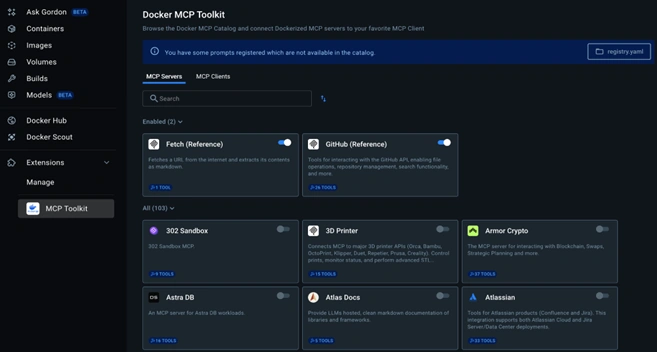
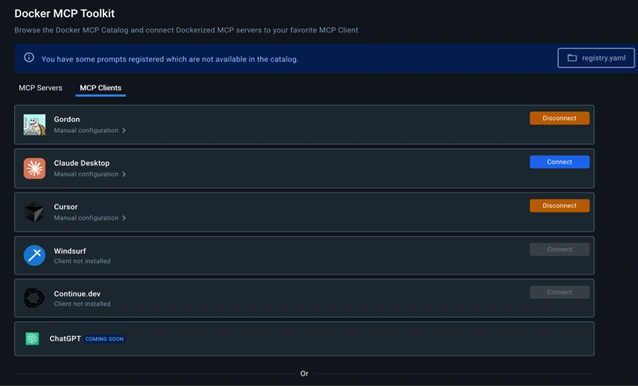
Connecting Clients
Currently, the supported clients are,
- claude-desktop
- continue
- cursor
- gordon
- vscode
In order to connect the clients to Docker, you use the following command.
docker mcp client connect --help
This Docker CLI plugin adds experimental features.

Usage: docker mcp client connect [OPTIONS] <mcp-client>

Supported clients: claude-desktop continue cursor gordon vscode

Flags:
  -g, --global   Change the system wide configuration or the clients setup in your current git repo.
  -q, --quiet    Only display errors.
Disconnecting the Clients
Remove a client's connection.
docker mcp client disconnect --help
This Docker CLI plugin adds experimental features.

Usage: docker mcp client disconnect [OPTIONS] <mcp-client>

Supported clients: claude-desktop continue cursor gordon vscode

Flags:
  -g, --global   Change the system wide configuration or the clients setup in your current git repo.
  -q, --quiet    Only display errors.
Managing Secrets (Credentials)
Most real tools need some secret key or token (like an API key) to work. Docker MCP handles this with the secret command. It stores secrets securely in Docker’s local secrets store instead of scattering them in text files. Here’s how:
- List secrets:
docker mcp secret ls - Set a new secret or update one:
docker mcp secret set MY_SECRET_NAME=MySecretValue - Remove a secret:
docker mcp secret rm MY_SECRET_NAME
For example, if a GitHub tool needs your token, you might run.
docker mcp secret set GITHUB_PERSONAL_ACCESS_TOKEN=ghp_abcd1234
Then the MCP GitHub tool can use it without you ever pasting the token in code. It’s analogous to storing a Wi-Fi password in your phone’s settings once, so apps can connect automatically.
Why this matters: Secret management keeps sensitive data out of scripts or environment variables you manually write. Docker encrypts these and only provides them to tools that need them.
Quick Practice Example
Let’s do a mini walkthrough: Suppose you want to try a Stripe payment tool. You might do,
- Search the catalog.
docker mcp catalog search stripe(Look for a tool called something like
mcp/stripeor similar.) -
Launch the tool: Often, you can just run it as a container.
docker run --rm -it mcp/stripe(This starts the Stripe MCP server locally.)
-
Connect a client (e.g., Claude) to MCP: If you want Claude to use it.
docker mcp client connect -g claude-desktop - Provide API key for Stripe, if needed.
docker mcp secret set STRIPE_API_KEY=sk_test_...
Now, Claude (once restarted) could call the Stripe tool to process a payment! And you did all that with simple commands. Of course, the actual details depend on the tool’s documentation, but this shows the general flow.
Summary
With the Docker MCP CLI, managing AI tools becomes much more structured.
- Installation: Get Docker Desktop (v4.42+). The first time you run Docker MCP, accept the extension install.
- Verify: Run docker mcp --help and docker mcp -v to check it’s working.
- Catalog: Use docker mcp catalog subcommands to list/search/import catalogs and tools.
- Client: Use Docker MCP client to connect or disconnect AI apps to the MCP gateway.
- Secrets: Store API keys securely with Docker MCP secret.
Docker’s design is all about simplicity, now in the AI agent ecosystem as well. Once you have the CLI set up, you can search for tools, run them in containers, and hook up your favorite AI clients quickly. No more manual config files or piecing together repos. It’s just a few friendly commands.
Join the conversation! Your thoughts help the community grow.