

Introduction
In this article, we will learn about getting approvals via team chat.
Let's start.
Step 1
Go to https://flow.microsoft.com/.
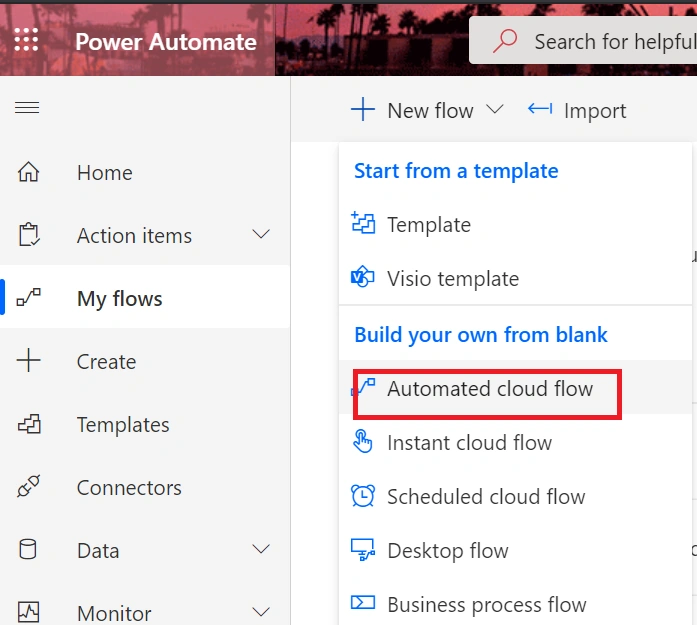
Click on Automated cloud flow.
Step 2
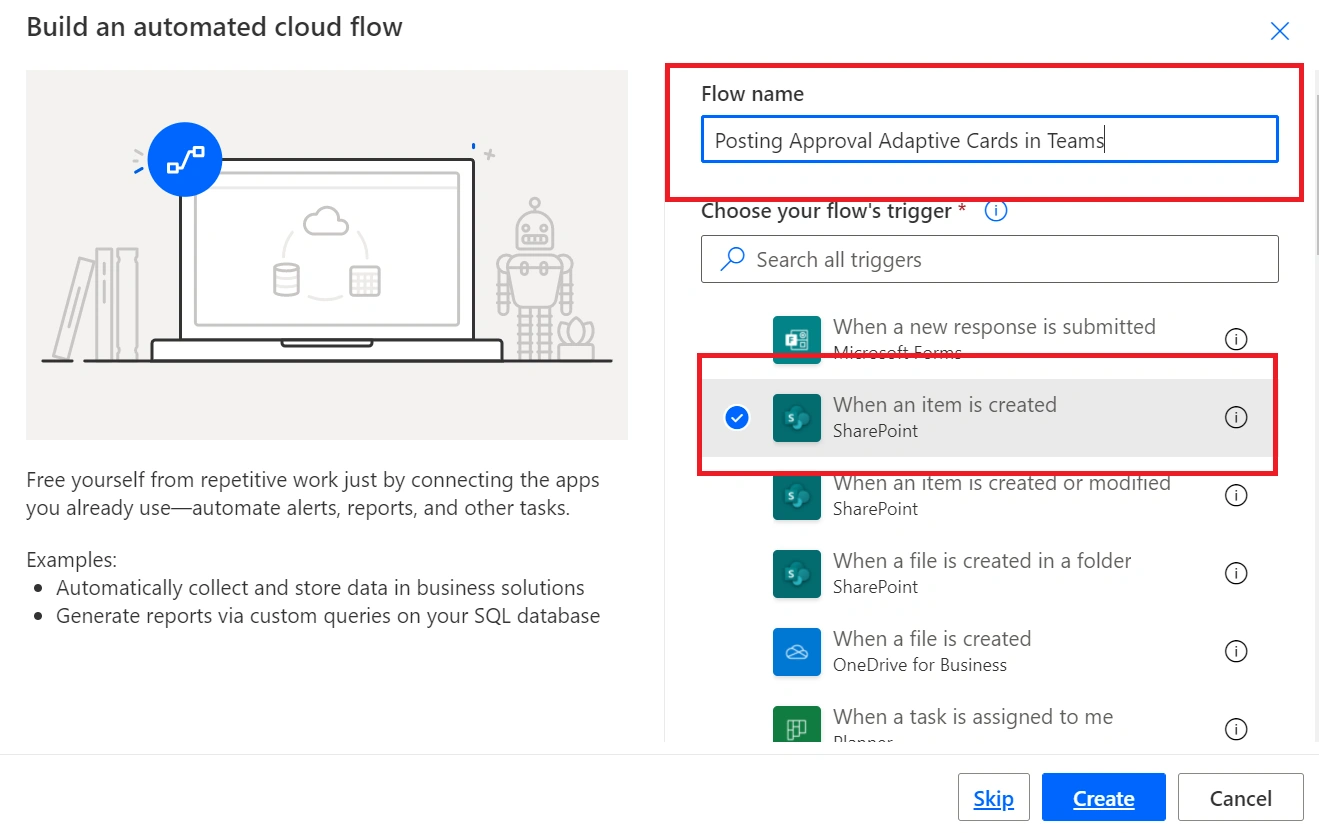
Step 3
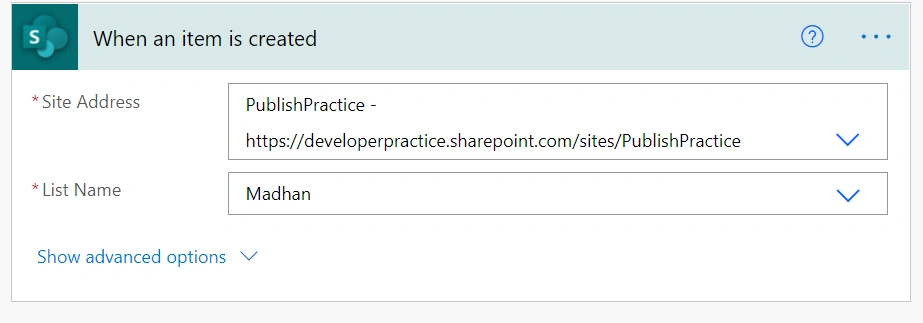
Configure the site address and the list name.
Step 4
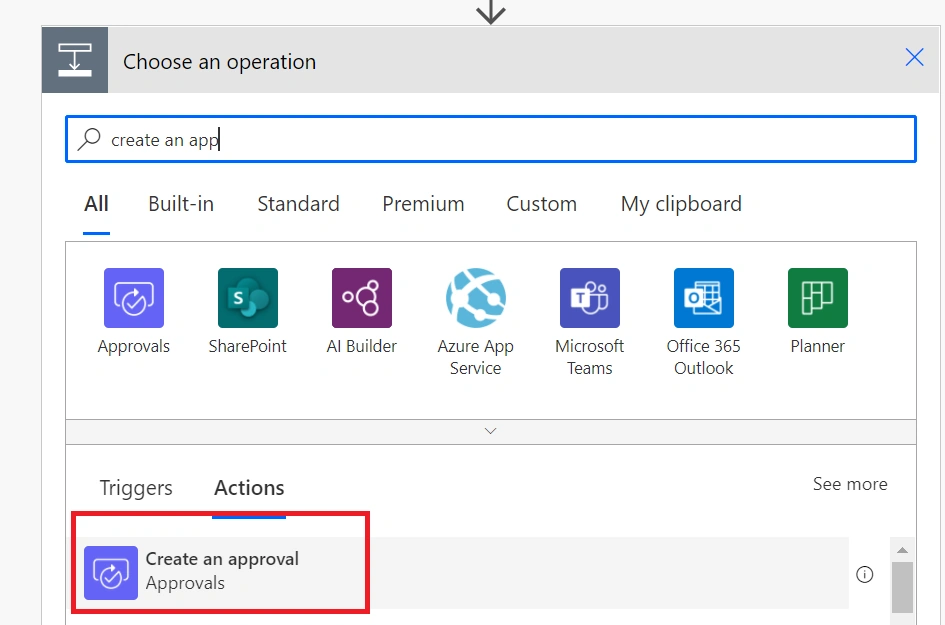
Click on next, find and select the “Create an Approval” action.
Step 5
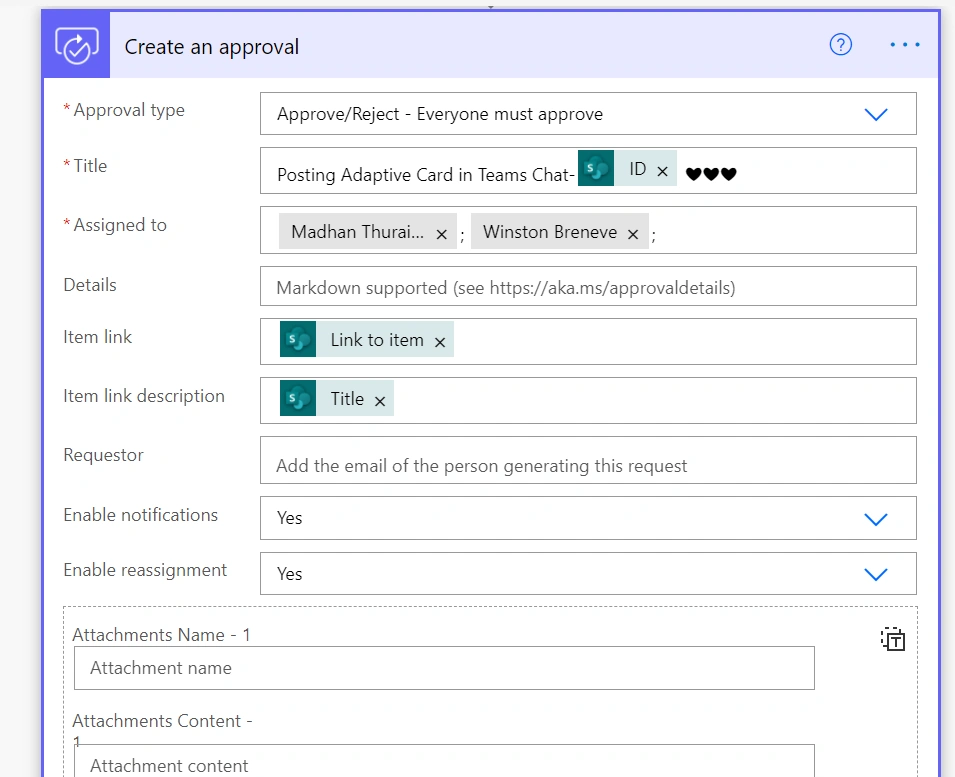
Expand "Create an Approval" connector box and provide,
- Approval type
- Title
- Assigned To
and the optional fields.
Step 6
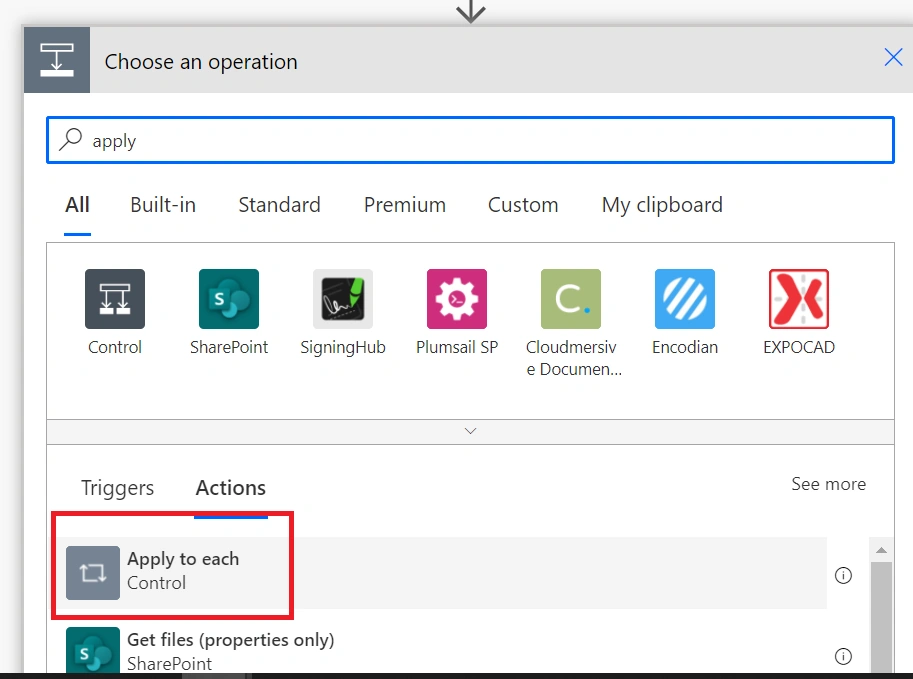
Click on next, find and select the “Apply to each” action.
Step 7
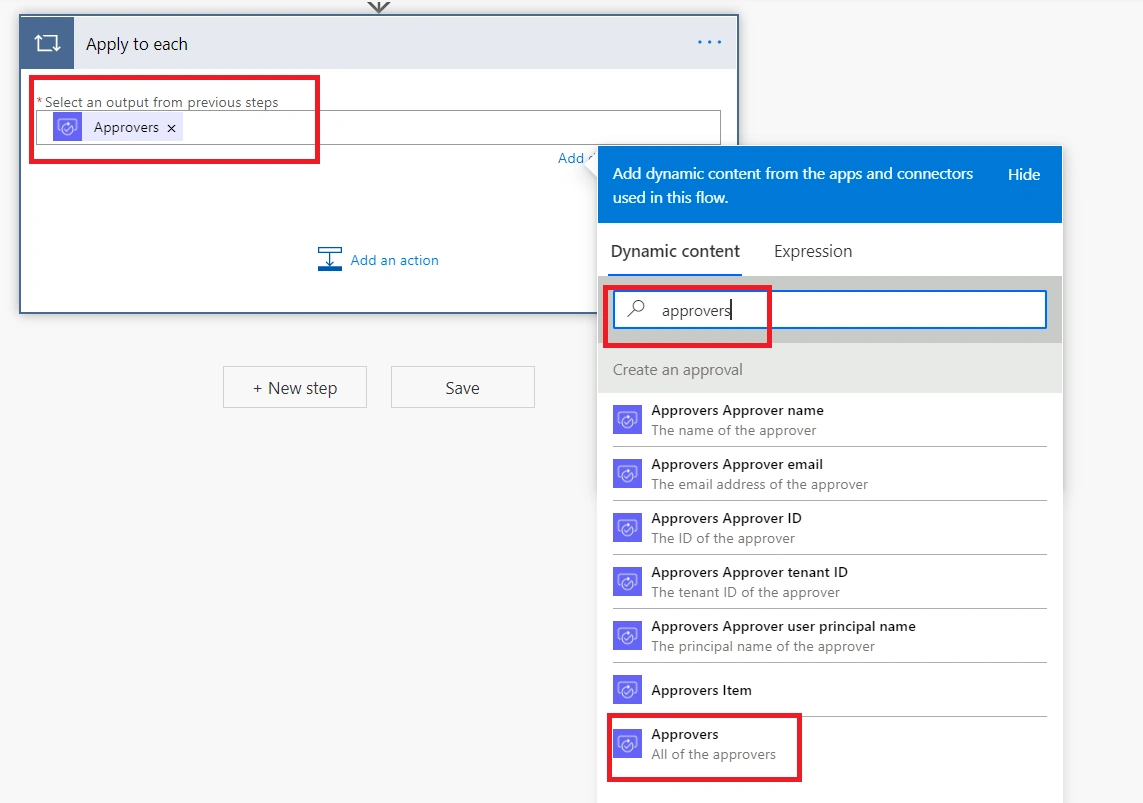
Expand "Apply to each" connector box and provide,
Approvers as input
Step 8
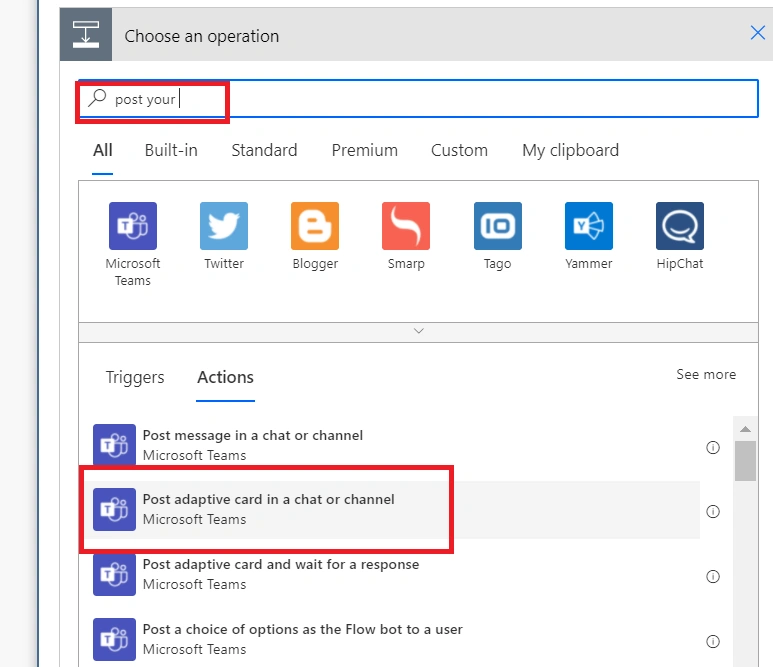
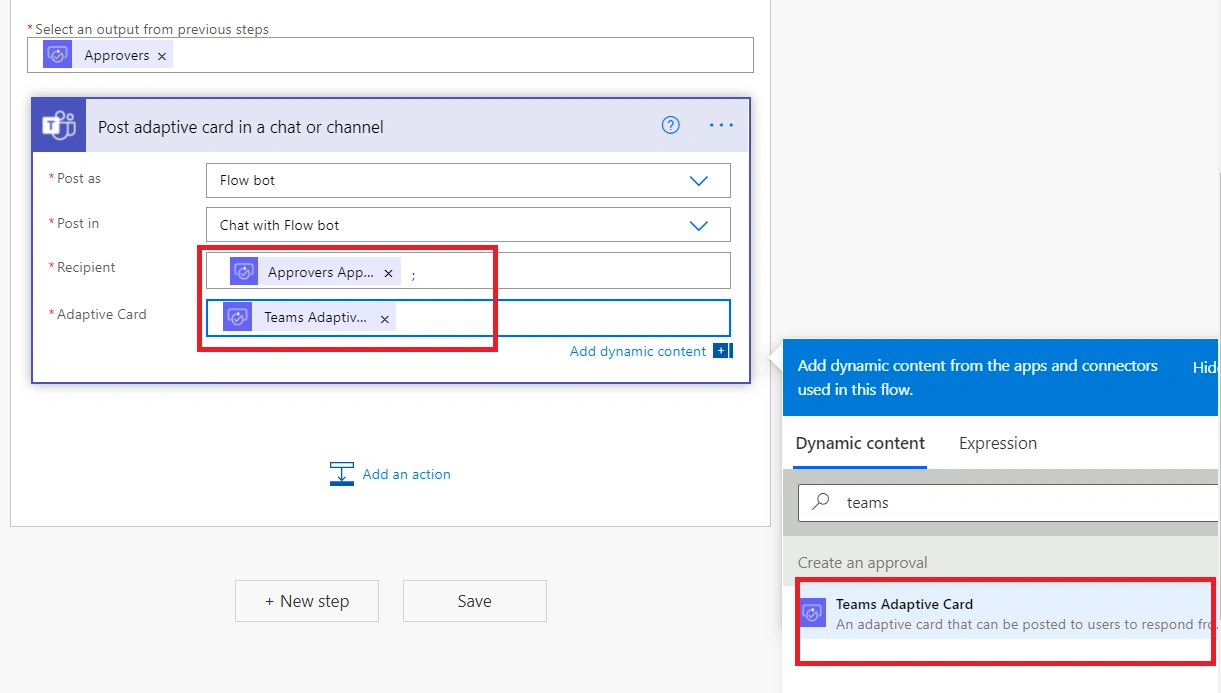
Inside apply to each action find and select the “Post adaptive card in a chat or channel” action.
Step 9
Expand "Post adaptive card in a chat or channel" connector box and provide,
Post as --> Flow bot
Post in --> Chat with flow bot
Reciepent--> Approver approvers email (items('Apply_to_each')?['email'])
Adaptive card --> Teams adaptive card
Step 10
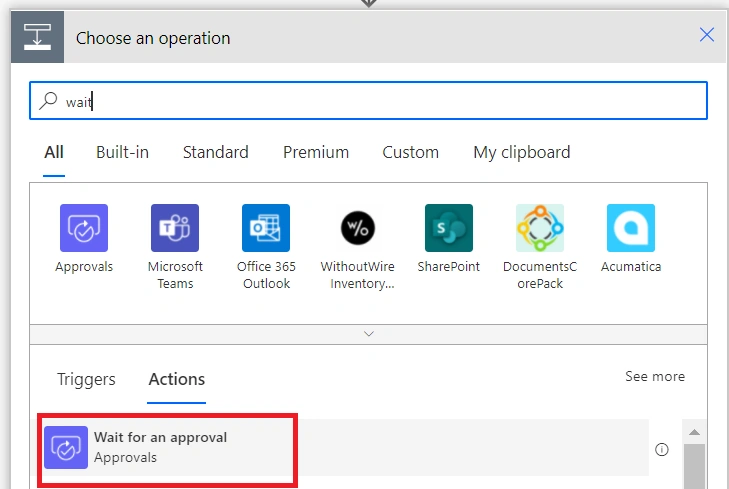
Click on next, find and select the “Wait for an approval” action.
Step 11
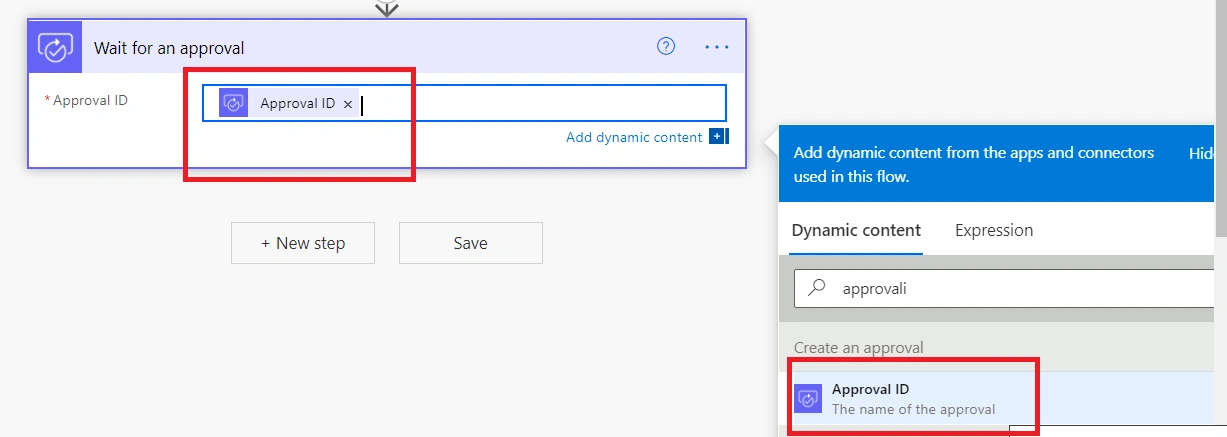
Expand "Wait for an approval" connector box and provide,
Approval ID --> Approval ID
Step 12
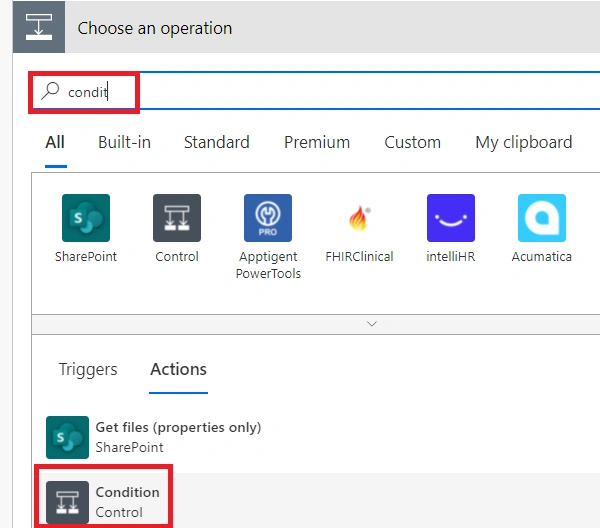
Click on next, find and select the “condition” action.
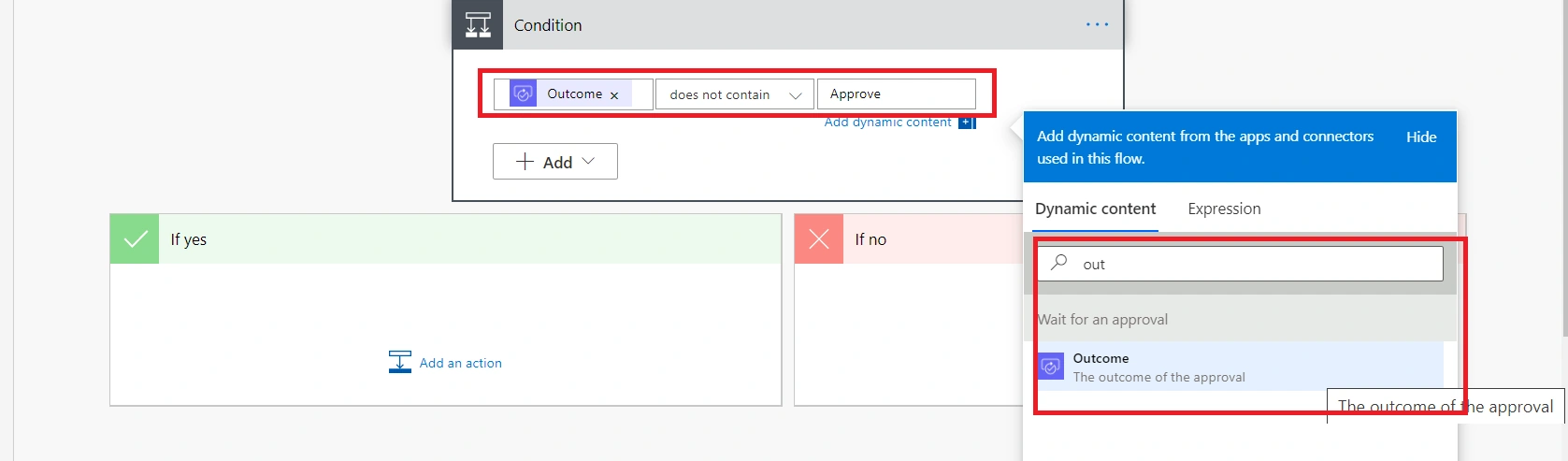
Step 13
Expand the "condition" action box and provide a condition,
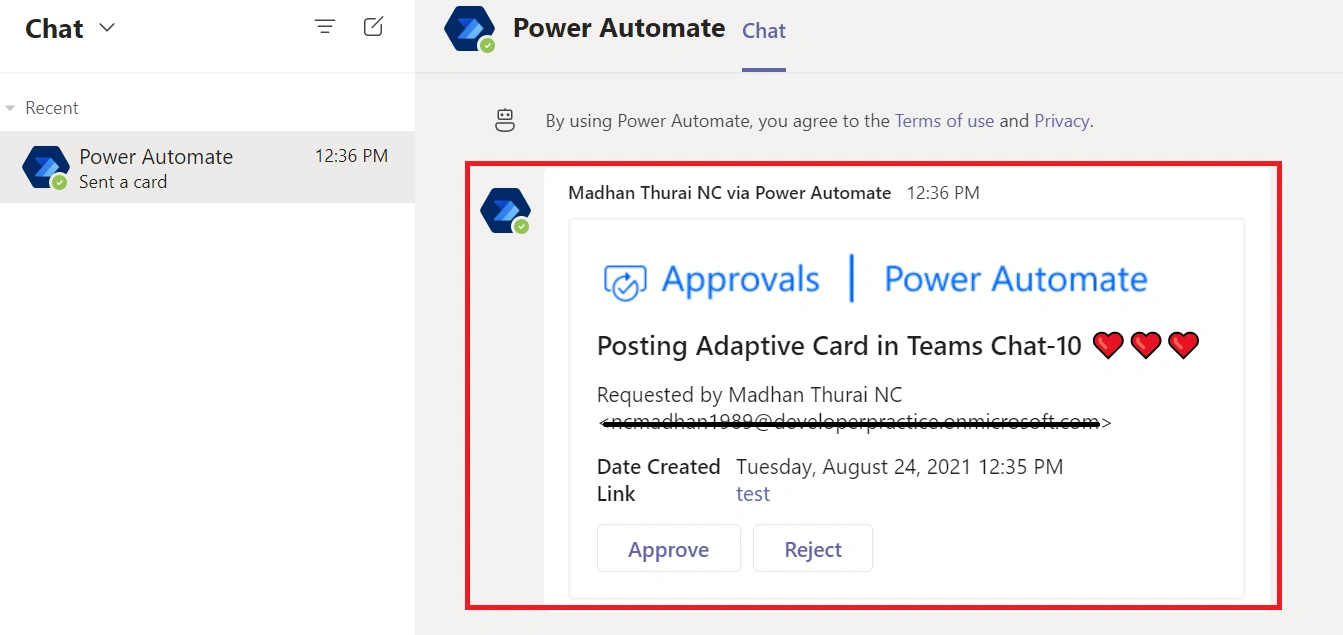
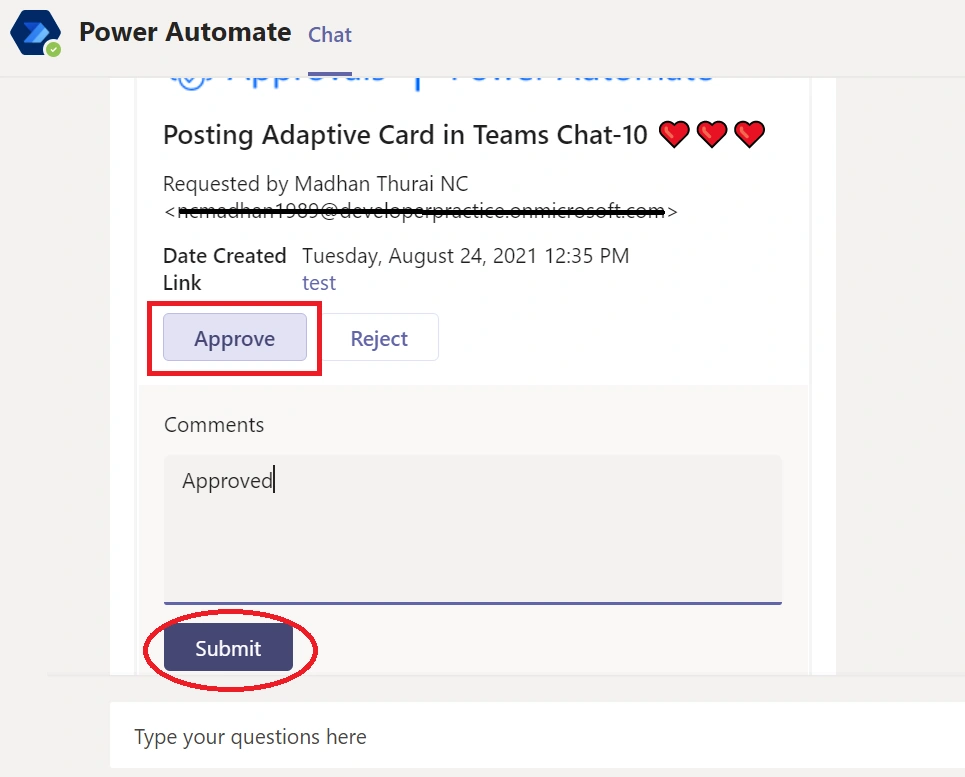
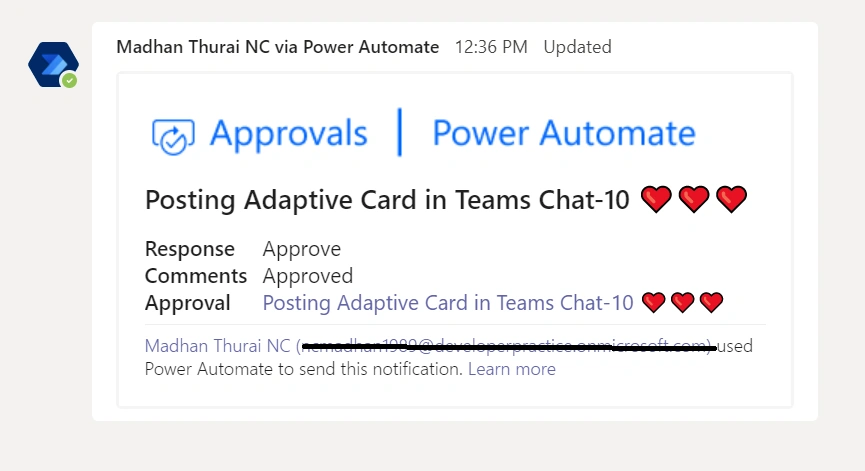
Expected outputs
Conclusion
Thus we learned how to post approval adaptive card in teams chat and get approval over it. I hope this helps someone and happy coding:)
jack blackPosted Feb 19, 2025, 1:17 PM
First of all thank you for the great tutorial! I did the same way, but the problem is, that if you approve in Outlook the Approval card in Teams do not synchronise with the one from outlook. But it works vice versa. Do you have any solution? Thanks.