

This article explains how to a row from a WebGrid in the Web API. We use a Grid with 4 rows and select the row from the WebGrid and get the desired row.
Let's see an example.
Step 1
Create a Web Application as in the following:
- Start Visual Studio 2012.
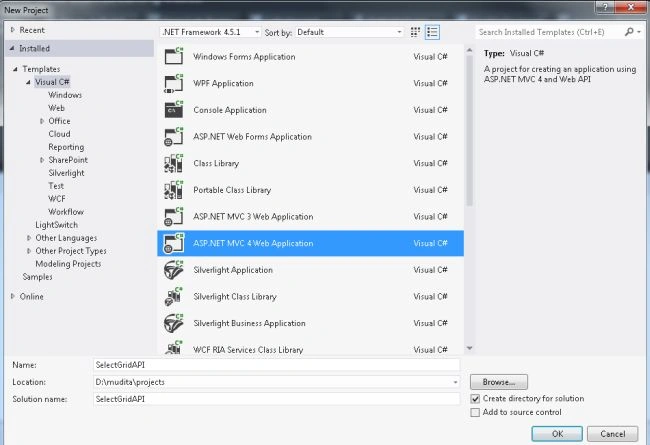
- From the Start window select "Installed" -> "Visual C#" -> "Web".
- Select "ASP.NET MVC4 Web Application" and click on the "Ok" button.
- From the "MVC4 Project" window select "Web API".
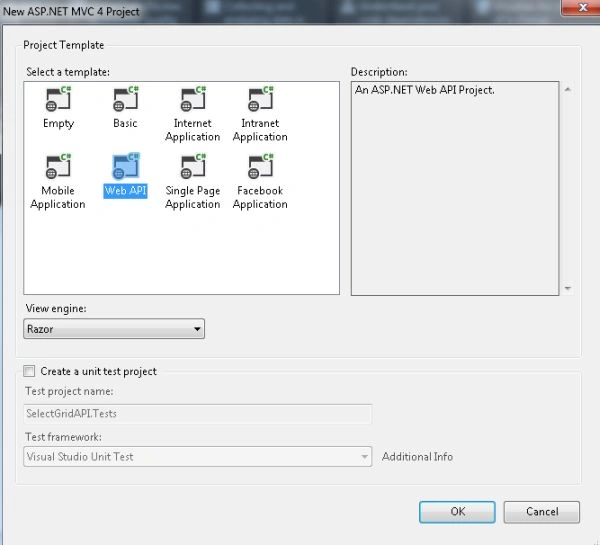
- Click on the "OK" button.
Step 2
Create a Model Class.
- In the "Solution Explorer".
- Right-click on the Model Folder.
- Select "Add" -> "Class".
- Select "Installed" -> "Visual C#" and select class.
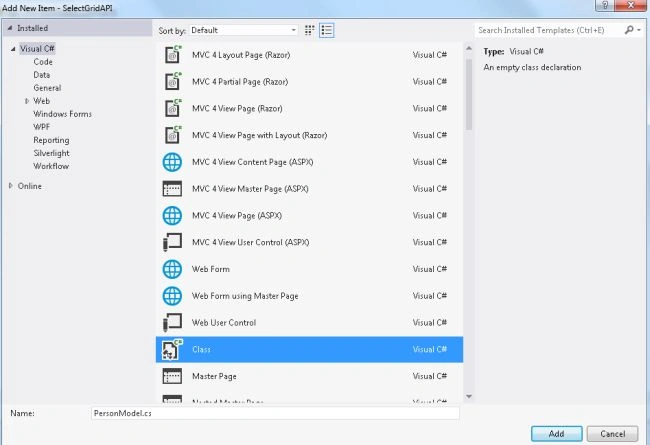
- Click on the "Add" button.
Add the following code:
- using System;
- using System.Collections.Generic;
- using System.Linq;
- using System.Web;
- namespace SelectGridAPI.Models
- {
- public class PersonModel
- {
- public int ID { get; set; }
- public string FirstName { get; set; }
- public string LastName { get; set; }
- public int Contact { get; set; }
- public static List<PersonModel> GetPersonDetail()
- {
- return new List<PersonModel>
- {
- new PersonModel { ID = 1, FirstName = "Joy", LastName = "Khanna", Contact = 87965 },
- new PersonModel { ID = 2, FirstName = "Piyush", LastName = "Mehra", Contact = 98754 },
- new PersonModel { ID = 3, FirstName = "Tanya", LastName = "Kapoor", Contact = 45678 },
- new PersonModel { ID = 3, FirstName = "Neha", LastName = "Jain", Contact = 48654 },
- };
- }
- }
- }
Step 3
Now select the "HomeController".
- In the "Solution Explorer".
- Expand the Controller folder.
- Select the "HomeController".
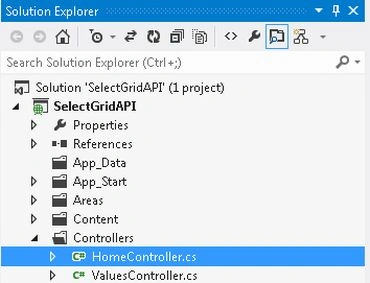
Add the following code:
- using System;
- using System.Collections.Generic;
- using System.Linq;
- using System.Web;
- using System.Web.Mvc;
- using SelectGridAPI.Models;
- namespace SelectGridAPI.Controllers
- {
- public class HomeController : Controller
- {
- public ActionResult Index()
- {
- return View(PersonModel.GetPersonDetail());
- }
- [HttpPost]
- public ActionResult Display(FormCollection Col)
- {
- return PartialView("~/Views/Home/DisplayDetail.cshtml" , new PersonModel {FirstName = "Priyanka",LastName = "Sinha",Contact = 73234});
- }
- }
- }
Step 4
Now write some HTML code in the "index.cshtml" file. This file exists:
-
In the "Solution Explorer".
-
Expand "Views" folder.
-
Select "Home" -> "index.cshtml".
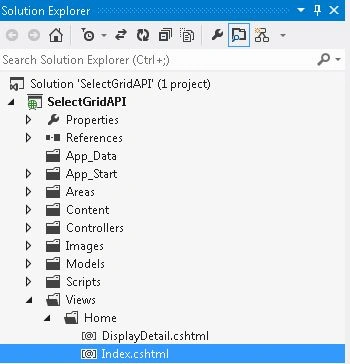
Add the following code.
- @model IEnumerable<SelectGridAPI.Models.PersonModel>
- @{
- ViewBag.Title = "Index";
- }
- <h2>Person Detail</h2>
- @{
- WebGrid grid = new WebGrid(Model, selectionFieldName: "SelectedRow");
- @grid.GetHtml(
- columns: grid.Columns(
- grid.Column("Select", header: null, format: @<text>@item.GetSelectLink("Select")</text>),
- grid.Column("Firstname", format: @<text>@item.FirstName</text>),
- grid.Column("LastName", format: @<text>@item.LastName</text>),
- grid.Column("Contact", format: @<text>@item.Contact</text>)
- )
- )
- }
- @if (grid.HasSelection)
- {
- @RenderPage("~/Views/Home/DisplayDetail.cshtml", new { PersonModel = grid.SelectedRow })
- }
Step 5
Create a Partial View:
-
In the HomeController.
-
Right-click on the "Index" Action method.
-
Select "Add View" and change the name to "DisplayDetail".
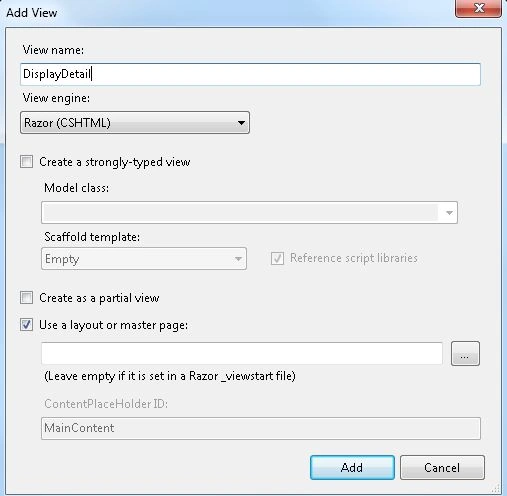
Click on the "Add" button.
Add the following code:
- @{
- ViewBag.Title = "DisplayDetail";
- }
- <h2>DisplayDetail</h2>
- <text>
- @Page.PersonModel.FirstName @Page.PersonModel.LastName @Page.PersonModel.Contact
- </text>
Step 6
Execute the application:
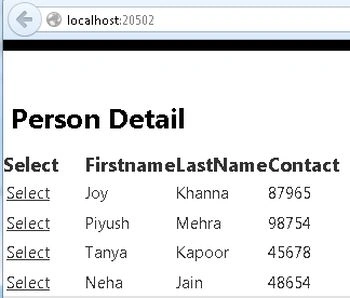
Select any row and click on the Select link:
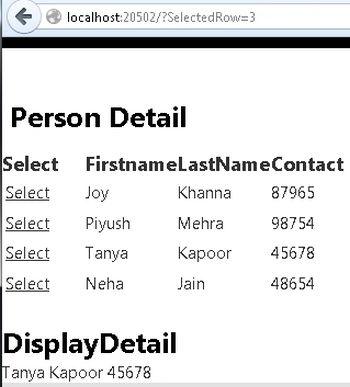
Join the conversation! Your thoughts help the community grow.