

Introduction
In this article, we will learn how to get an Image data URL within a canvas and how to load the image data URL of the canvas. We can get the Image Data URL of the canvas and convert it into a 64-bit encoded PNG URL. To load the canvas with an image data URL, we can use AJAX to get a data URL.
The dataURL is saved in a text file and we will get the data URL from that text file and create an image object with the URL.
Step 1:
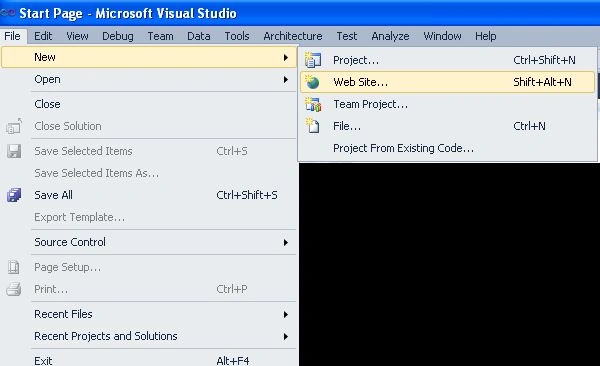
- Open the Visual Studio 2010.
- Go to file menu->> new->> website.
- Select an empty website.
- Go to Solution Explorer.
- Right-click on the application name.
- Select an HTML page and rename it.
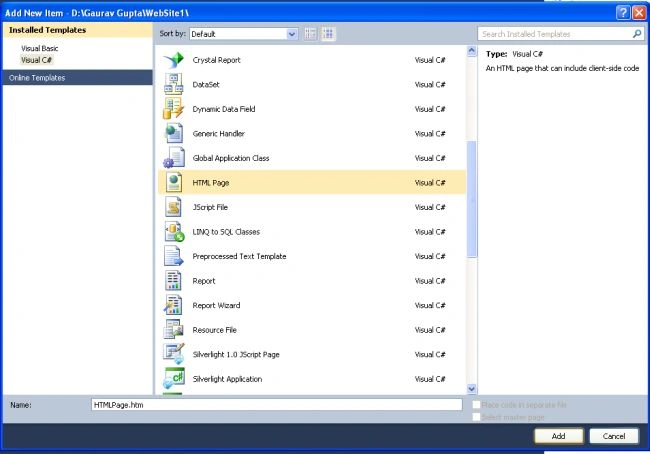
Step3: In this step, we will use JavaScript with HTML to get the Image Data URL of The Canvas.
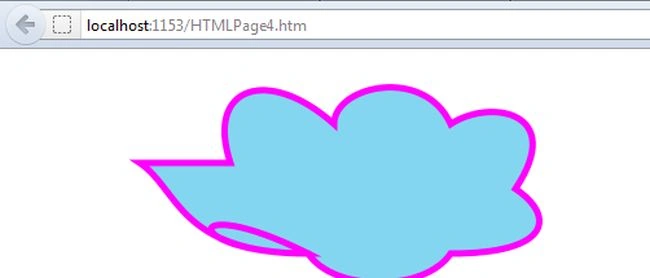
Example: In this example, we will get the Image Data URL of the canvas and show it in a message box using an alert.
Write down to code into first .htm page.
- <html xmlns="http://www.w3.org/1999/xhtml">
- <head>
- <title></title>
- </head>
- <script>
- window.onload = function () {
- var canvas = document.getElementById("getcanvas");
- var context = canvas.getContext("2d");
- // draw cloud
- context.beginPath(); // begin custom shape
- context.moveTo(100, 80);
- context.bezierCurveTo(130, 100, 130, 150, 230, 150);
- context.bezierCurveTo(130, 100, 130, 150, 230, 150);
- context.bezierCurveTo(250, 180, 320, 180, 340, 150);
- context.bezierCurveTo(420, 150, 420, 120, 390, 100);
- context.bezierCurveTo(430, 40, 370, 30, 340, 50);
- context.bezierCurveTo(320, 5, 250, 20, 250, 50);
- context.bezierCurveTo(200, 5, 150, 20, 170, 80);
- context.closePath(); // complete custom shape
- context.lineWidth = 5;
- context.fillStyle = "#84D6F0";
- context.fill();
- context.strokeStyle = "#ff00ff";
- context.stroke();
- // save canvas image as data url (png format by default)
- var dataURL = canvas.toDataURL();
- alert(dataURL);
- };
- </script>
- <body>
- <canvas id="getcanvas" width="1000" height="550">
- </canvas>
- </body>
- </html>
Output:
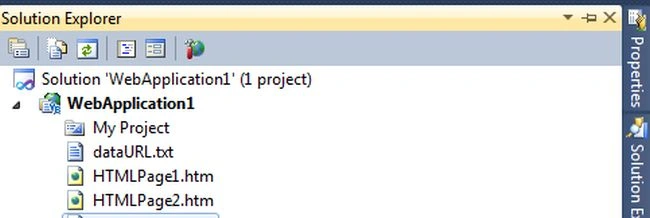
 Step 4: Copy the Data URL of the canvas from the message box, then Add a Text file in your Solution Explorer and paste it in the text file.
- <html xmlns="http://www.w3.org/1999/xhtml">
- <head>
- <title></title>
- </head>
- <script>
- function loadCanvas(dataURL){
- var canvas = document.getElementById("loadcanvas");
- var context = canvas.getContext("2d");
- // load image from data url
- var imageObj = new Image();
- imageObj.onload = function(){
- context.drawImage(this, 0, 0);
- };
- imageObj.src = dataURL;
- }
- window.onload = function(){
- // make ajax call to get image data url
- var request = new XMLHttpRequest();
- request.open("GET", "dataURL.txt", true);
- request.onreadystatechange = function(){
- if (request.readyState == 4) { // Makes sure the document is ready to parse.
- if (request.status == 200) { // Makes sure it's found the file.
- loadCanvas(request.responseText);
- }
- }
- };
- request.send(null);
- };
- </script>
- <body>
- <canvas id="loadcanvas" width="1000" height="1000">
- </canvas>
- </body>
- </html>
Join the conversation! Your thoughts help the community grow.