

In this article we will see how can we generate TreeView Nodes based on an XML file.
Creating Silverlight Project
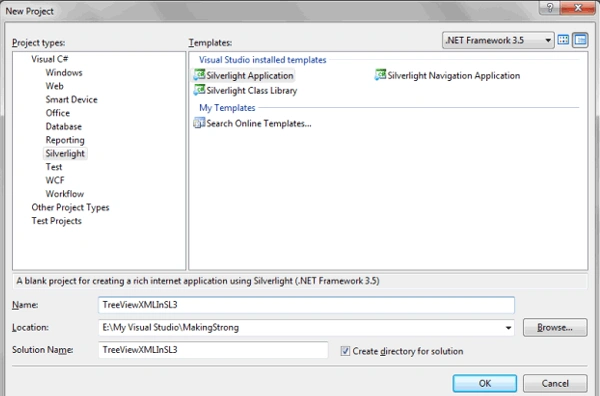
Fire up Visual Studio 2008 and create a Silverlight Application. Name it as TreeViewXMLInSL3.
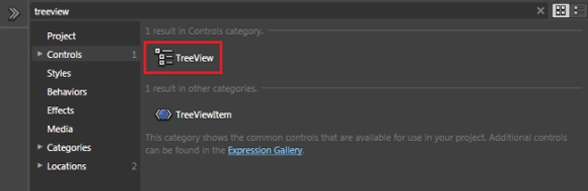
Go ahead and add a Tree View control to your application. You can find Tree View from the Asset Library. As shown below:
I have given the background of the Tree View for distinguishing.

Now create a Class called Category.cs and add it to the Silverlight Project.
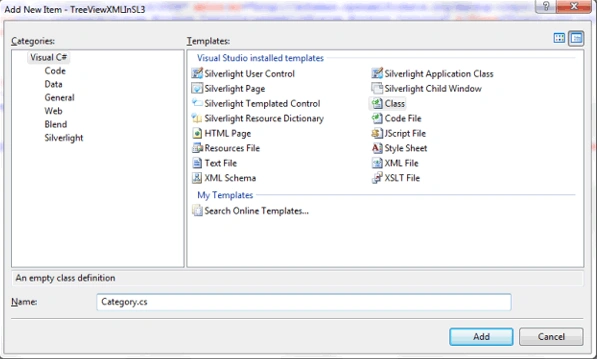
Add to Properties as Name and SubCategory.
public class Category
{
public string Name { get; set; }
public List<Category> SubCategory { get; set; }
}
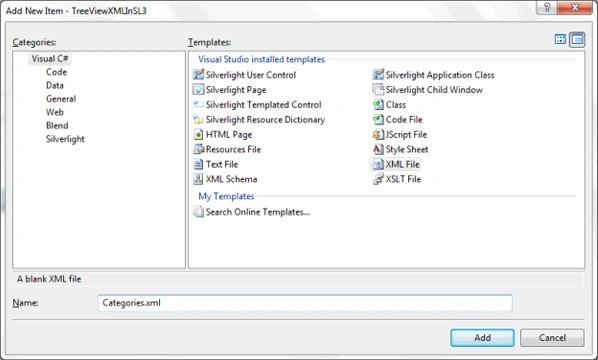
Now add an XML file to the Silverlight Project and name it as "Categories.xml".
Write the XML in the following format with the following Data:
<?xml version="1.0" encoding="utf-8" ?>
<categories>
<category name="Panels">
<category name="Grid"></category>
<category name="Border"></category>
<category name="Stack Panel"></category>
<category name="Canvas"></category>
<category name="Wrap Panel"></category>
</category>
<category name="Shape">
<category name="Rectangle"></category>
<category name="Elipse"></category>
<category name="Line"></category>
</category>
<category name="Others">
<category name="Button"></category>
<category name="Check Box"></category>
<category name="Radio Button"></category>
<category name="Text Block"></category>
<category name="Text Box"></category>
<category name="Password Box"></category>
</category>
</categories>
Now in the MainPage.xaml find the constructor and add the following code below InitializeComponent();
public MainPage()
{
InitializeComponent();
LoadData();
}
private void LoadData()
{
List<Category> categories = new List<Category>();
XDocument categoriesXML = XDocument.Load("Categories.xml");
categories = this.GetCategories(categoriesXML.Element("categories"));
}
private List<Category> GetCategories(XElement element)
{
return (from category in element.Elements("category")
select new Category()
{
Name = category.Attribute("name").Value,
SubCategory = this.GetCategories(category)
}).ToList();
}
Remember if you cannot find XDocument use the assembly System.Xml.Linq;
Now we will define the Item Template in Tree View. Go ahead in the XAML code behind and change the Tree View Template as following:
Don't forget to refer to the following assembly in xaml.
xmlns:myControl="clr-namespace:System.Windows;assembly=System.Windows.Controls"
Now the xaml for TreeView Data Template:
<controls:TreeView x:Name="MyTreeView" Height="200" VerticalAlignment="Center" Margin="0" Background="#FFF6E9BB" HorizontalAlignment="Center" Width="200">
<controls:TreeView.ItemTemplate>
<myControl:HierarchicalDataTemplate ItemsSource="{Binding SubCategory}">
<StackPanel>
<TextBlock Text="{Binding Name}" />
</StackPanel>
</myControl:HierarchicalDataTemplate>
</controls:TreeView.ItemTemplate>
</controls:TreeView>
Now at last you need to give the ItemsSource of the TreeView. Add the following code in the method LoadData()
private void LoadData()
{
List<Category> categories = new List<Category>();
XDocument categoriesXML = XDocument.Load("Categories.xml");
categories = this.GetCategories(categoriesXML.Element("categories"));
this.MyTreeView.ItemsSource = categories;
}
Now go ahead and run your application.
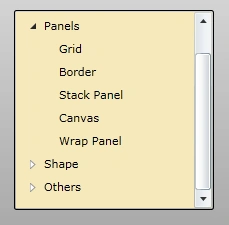
You have successfully generated the Tree View nodes from an XML file.
Enjoy Coding.
Raja SekharPosted Jan 23, 2013, 12:12 AM
Thanks a lot
Ayan ChaudhuriPosted Jan 1, 2010, 1:32 AM
That is really a nice example for recursive binding. But how to do it in VB ? I tried, but failed. Actually the problem is in the: private List<Category> GetCategories(XElement element) { return (from category in element.Elements("category") select new Category() { Name = category.Attribute("name").Value, SubCategory = this.GetCategories(category) }).ToList(); } I can't find : Name = category.Attribute("name").Value, SubCategory = this.GetCategories(category) Please Help.