
Introduction
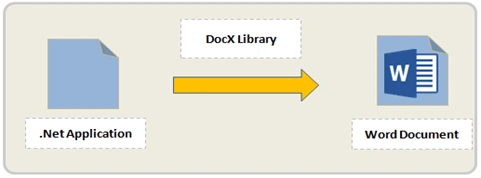
In this post, we will learn how to use DocX library to create a Word document from Visual Studio using C# language.
As we will see in this article, DocX is an open source library which is able to create a Word document from scratch by using a lot of methods and properties that help us to insert paragraphs, formatting text, style (color, size), images, tables etc… I hope it will be helpful for you.
Prerequisites
Make sure you have installed Visual Studio 2017 (.Net Framework 4.6.1).
In this post, we are going to:
- Install DocX library.
- Create Hello World using Docx library.
- Formatting text.
- Add image.
- Add table.
- Add Hyperlink.
So let’s discover DocX library.
Install DocX library
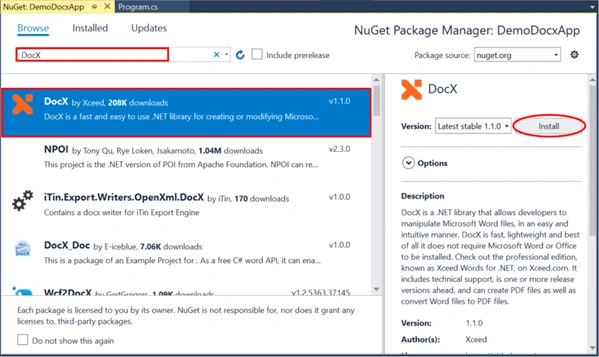
In solution explorer, right click on References >> Manage NuGet Packages.
Now, in search input, type Docx, then select the first line as shown below, and click Install.
Create Console application
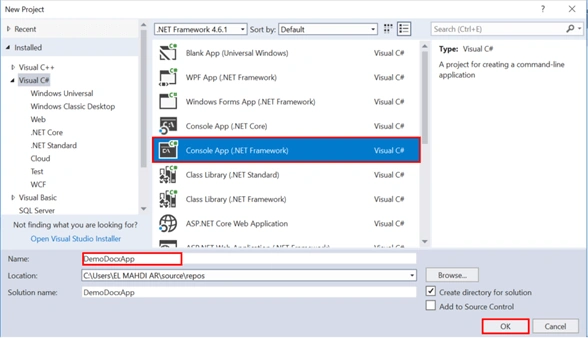
Open Visual Studio and select File >> New Project.
The "New Project" window will pop up. Select Console App (.NET Framework), name your project, and click OK.
Create Hello World using Docx library
- using System;
- using System.Collections.Generic;
- using System.Diagnostics;
- using System.Linq;
- using System.Text;
- using System.Threading.Tasks;
- using Xceed.Words.NET;
- namespace DemoDocxApp
- {
- class Program
- {
- static void Main(string[] args)
- {
- string fileName = @"D:\DocxExample\exempleWord.docx";
- var doc = DocX.Create(fileName);
- doc.InsertParagraph("Hello Word");
- doc.Save();
- Process.Start("WINWORD.EXE", fileName);
- }
- }
- }
Let’s describe step by step the code snippet above.
We are declaring fileName variable which contains the location path of our word document, then we called Create() method that accepts fileName as parameter.
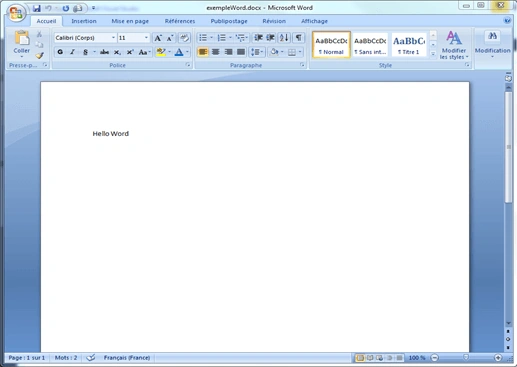
After creating the Word document, we proceeded to insert “Hello World” by using InsertParagraph() method. Finally, we saved the document with the new text.
To run the program, press on F5 and we will see the output as shown below.
Output
Formatting Text
- //Location Path
- string fileName = @ "D:\DocxExample\exempleWord.docx";
- //Title
- string title = "Vero eos et accusamus";
- //Text
- string textParagraph = "" + "Dear Friends, " + Environment.NewLine + "Lorem ipsum dolor sit amet, consectetur adipiscing elit, " + "sed do eiusmod tempor incididunt ut labore et dolore magna aliqua. " + Environment.NewLine + "Ut enim ad minim veniam, quis nostrud exercitation ullamco laboris nisi ut aliquip ex ea commodo consequat. " + "Duis aute irure dolor in reprehenderit in voluptate velit esse cillum dolore eu fugiat nulla pariatur. " + "Excepteur sint occaecat cupidatat non proident, sunt in culpa qui officia deserunt mollit anim id est laborum";
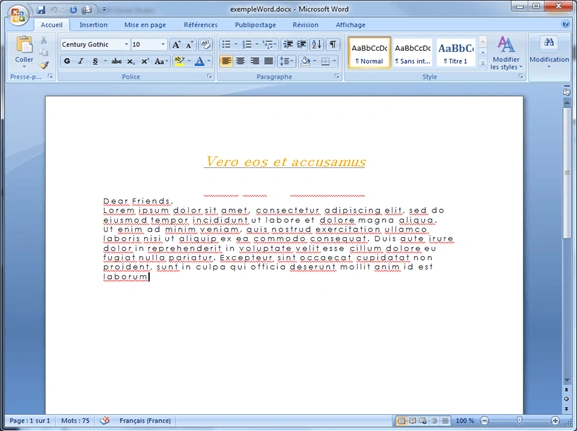
As you can see in the code snippet above. We have added variables for text and title.
Now, let’s formatting title and text by adding the following code snippet.
Formatting Title code snippet
- //Formatting Title
- Formatting titleFormat = new Formatting();
- //Specify font family
- titleFormat.FontFamily = new Font("Batang");
- //Specify font size
- titleFormat.Size = 18 D;
- titleFormat.Position = 40;
- titleFormat.FontColor = System.Drawing.Color.Orange;
- titleFormat.UnderlineColor = System.Drawing.Color.Gray;
- titleFormat.Italic = true;
Formatting Text code snippet
- //Formatting Text Paragraph
- Formatting textParagraphFormat = new Formatting();
- //font family
- textParagraphFormat.FontFamily = new Font("Century Gothic");
- //font size
- textParagraphFormat.Size = 10 D;
- //Spaces between characters
- textParagraphFormat.Spacing = 2;
Here, we have created an object of Formatting class which give us access to use some properties such as,
- Font Family: is used to specify Font Family style, such as (Calibri, Comic Sans Ms, Consolas etc…)
- Size: is responsible to set the size of text.
- Position: means the space between paragraphs.
- Font Color: Color of text, note that we use Drawing namespace to specify color.
- Underline Color: is used to specify color of underline text.
- Italics: Generally, we have two types of styles, either Italic or Bold,which accept Boolean value (True or False).
After specifying all the necessary properties, now it’s time to insert title and text by using InsertParagraph() method.
- //Create docx
- var doc = DocX.Create(fileName);
- //Insert title
- Paragraph paragraphTitle = doc.InsertParagraph(title, false, titleFormat);
- paragraphTitle.Alignment = Alignment.center;
- //Insert text
- doc.InsertParagraph(textParagraph, false, textParagraphFormat);
- doc.Save();
- Process.Start("WINWORD.EXE", fileName);
Here to center title, we used Alignment property.
Now, all it’s ready, just run the program and we will see the result as shown below.
Output
Add Image in Word document
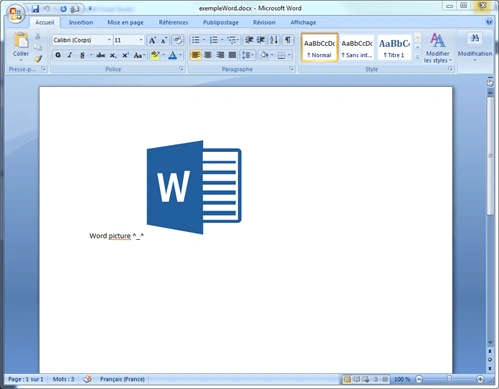
Now, we would like create an image and add it within our Word document.
To do that, we will use AddImage() method and we should provide as a parameter the path where the image is located. After that, we need to call CreatePicture() method which returns picture object.
Finally, we are calling AppendPicture() method in order to save our image within the Word document.
Code snippet to add image
- string fileName = @ "D:\DocxExample\exempleWord.docx";
- var doc = DocX.Create(fileName);
- //Create a picture
- Image img = doc.AddImage(@ "D:\DocxExample\word_picture.PNG");
- Picture p = img.CreatePicture();
- //Create a new paragraph
- Paragraph par = doc.InsertParagraph("Word picture ^_^");
- par.AppendPicture(p);
- doc.Save();
- Process.Start("WINWORD.EXE", fileName);
Output
Add Table in Word document
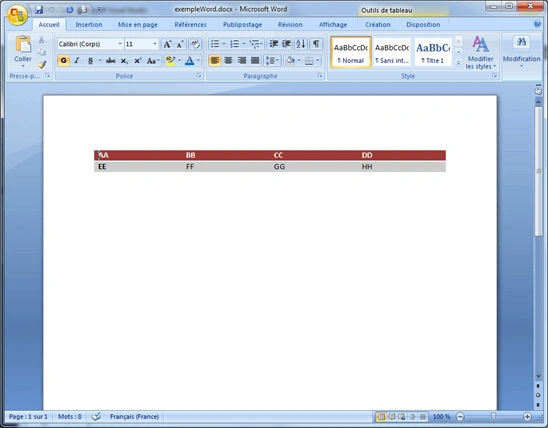
To add table, it’s very simple. We should use AddTable() method to specify the number of rows and columns, then we will add contents in different cells as shown below.
Finally, we need to insert table in document by using InsertTable() method.
Code snippet to add table
- string fileName = @ "D:\DocxExample\exempleWord.docx";
- var doc = DocX.Create(fileName);
- //Create Table with 2 rows and 4 columns.
- Table t = doc.AddTable(2, 4);
- t.Alignment = Alignment.center;
- t.Design = TableDesign.ColorfulList;
- //Fill cells by adding text.
- t.Rows[0].Cells[0].Paragraphs.First().Append("AA");
- t.Rows[0].Cells[1].Paragraphs.First().Append("BB");
- t.Rows[0].Cells[2].Paragraphs.First().Append("CC");
- t.Rows[0].Cells[3].Paragraphs.First().Append("DD");
- t.Rows[1].Cells[0].Paragraphs.First().Append("EE");
- t.Rows[1].Cells[1].Paragraphs.First().Append("FF");
- t.Rows[1].Cells[2].Paragraphs.First().Append("GG");
- t.Rows[1].Cells[3].Paragraphs.First().Append("HH");
- doc.InsertTable(t);
- doc.Save();
- Process.Start("WINWORD.EXE", fileName);
Output
Add Hyperlink
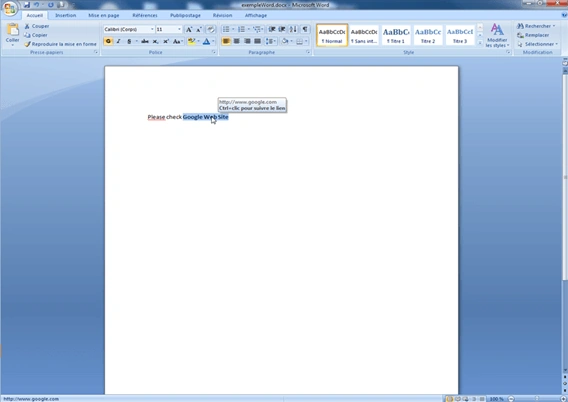
To add a hyperlink, we will use the following code snippet.
- Hyperlink url = doc.AddHyperlink("Google Web Site", new Uri("http://www.google.com"));
As you can see, AddHyperlink() method accepts string text and target url.
Code snippet Hyperlink
- string fileName = @"D:\DocxExample\exempleWord.docx";
- var doc = DocX.Create(fileName);
- //Hyperlink
- Hyperlink url = doc.AddHyperlink("Google Web Site", new Uri("http://www.google.com"));
- Paragraph p1 = doc.InsertParagraph();
- p1.AppendLine("Please check ").Bold().AppendHyperlink(url);
- doc.Save();
- Process.Start("WINWORD.EXE", fileName);
Output
Manoj KumarPosted Jul 12, 2022, 6:38 AM
How can i add a table with single row as a table heading need code for that any solution?
Larry VincentPosted Aug 12, 2021, 11:22 PM
Does openxml support SVG image insertion?
RadhaKrishna KotaPosted Aug 6, 2020, 3:26 AM
How open the document in same page
Yogev StrauberPosted Jul 22, 2020, 1:47 PM
Great article !
le hoai namPosted Mar 21, 2019, 4:24 AM
Please help me, I want to get Page Number of Paragraph which I set "Heading 1" of style. I want to get page number for create customize of table of content.
Tùng NguyễnPosted Sep 26, 2018, 2:31 AM
How to insert html to word ?
rajendra singhPosted Sep 15, 2018, 4:13 AM
Helpful, Thanks for sharing
Rajesh KumarPosted Sep 15, 2018, 4:10 AM
Nice article, Thanks for sharing...............
Helluva PrickPosted Jun 16, 2018, 5:09 PM
Greetings nice Library and very useful. I have a question though is it possible to save the image that you added say into a WMF or EMF file? Thanks!
Mohamed Idhris Sheik DawoodPosted Apr 6, 2018, 4:41 AM
Hi I am using the above tool in asp.net core 2.0. The document is created but the content is empty. Can I have your help?
Sagar Pandurang KapPosted Feb 14, 2018, 12:28 AM
Wow thats cool stuff...
Tridip BhattacharjeePosted Feb 12, 2018, 2:51 AM
Docx library is free ?