
Introduction
In this article we are going to create a fancy progress bar for an input form with limited characters using jQuery. We are using a script which allows you to restrict the number of characters inside a form element (ie: Textarea) while displaying a progress bar on the remaining characters beneath it.
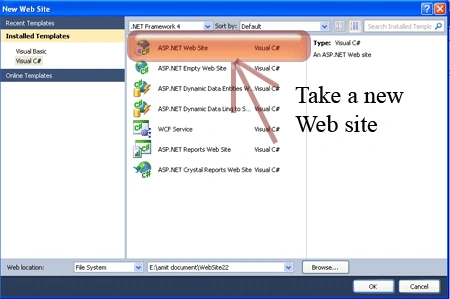
Step 1: First we have to create a web Application.
- Go to Visual Studio 2010.
- New--> And select the web Application.
- Give it's a name whatever you want.
- Click OK.
Step 2: Secondly you have to add a new page to the website.
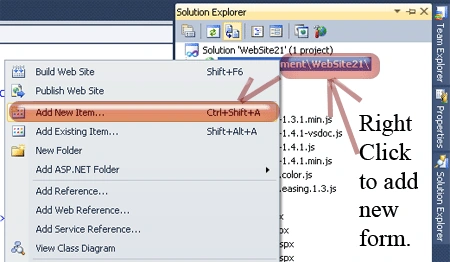
- Go to the Solution Explorer.
- Right-click on the Project name.
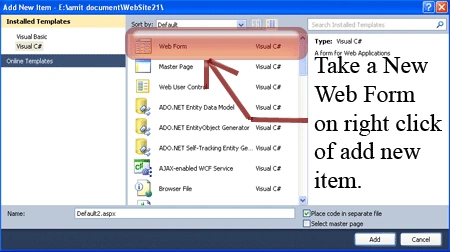
- Select add new item.
- Add new web page and give it a name.
- Click OK.
Step 3: In this step we will see how to add style sheet code. Whenever we write the style sheet code you have to be careful that it is written inside the <style></style> tags and you have to place it inside the head section.
Style Code:
<style type="text/css">
.progress
{
width: 2px;
height: 15px;
color: black;
font-size: 14px;
overflow: hidden;
background-color: red;
padding-left: 6px;
}
</style>
Step 4: In this step we have to write the script reference to the aspx page; let us see from where you have to write the script code.
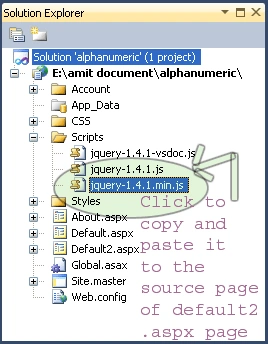
Step 5: Let us see the script code you have to add inside the <script></script> tags and will be paced either in the head section or body section as you prefer.
<script type="text/javascript" src="Scripts/jquery-1.4.1.min.js"></script>
Step 6: In this step we have to write the jQuery code which is given below.
<script type="text/JavaScript">
function textCounter(field, counter, maxlimit, linecounter) {
// text width//
var fieldWidth = parseInt(field.offsetWidth);
var charcnt = field.value.length;
// trim the extra text
if (charcnt > maxlimit) {
field.value = field.value.substring(0, maxlimit);
}
else {
// progress bar percentage
var percentage = parseInt(100 - ((maxlimit - charcnt) * 100) / maxlimit);
document.getElementById(counter).style.width = parseInt((fieldWidth * percentage) / 100) + "px";
document.getElementById(counter).innerHTML = "Limit: " + percentage + "%"
// color correction on style from CCFFF -> CC0000
setcolor(document.getElementById(counter), percentage, "background-color");
}
}
function setcolor(obj, percentage, prop) {
obj.style[prop] = "rgb(80%," + (100 - percentage) + "%," + (100 - percentage) + "%)";
}
</script>
Step 7: Let us see the Body code of the Default2.aspx page.
Body Code:
<body bgcolor="#0000FF">
<form>
<textarea rows="5" cols="40" name="maxcharfield" id="maxcharfield" onkeydown="textCounter(this,'progressbar1',20)"
onkeyup="textCounter(this,'progressbar1',20)" onfocus="textCounter(this,'progressbar1',20)"></textarea><br />
<div id="progressbar1" class="progress">
</div>
<script>textCounter(document.getElementById("maxcharfield"), "progressbar1", 20)</script>
</form>
</body>
Step 8: In this step we will see the complete code of the Default2.aspx page which is given below.
Code:
<%@ Page Language="C#" AutoEventWireup="true" CodeFile="Default2.aspx.cs" Inherits="Default2" %>
<!DOCTYPE html PUBLIC "-//W3C//DTD XHTML 1.0 Transitional//EN" "http://www.w3.org/TR/xhtml1/DTD/xhtml1-transitional.dtd">
<html xmlns="http://www.w3.org/1999/xhtml">
<head runat="server">
<title>Textarea input progress bar using jQuery</title>
<script type="text/javascript" src="Scripts/jquery-1.4.1.min.js"></script>
<script type="text/JavaScript">
function textCounter(field, counter, maxlimit, linecounter) {
// text width//
var fieldWidth = parseInt(field.offsetWidth);
var charcnt = field.value.length;
// trim the extra text
if (charcnt > maxlimit) {
field.value = field.value.substring(0, maxlimit);
}
else {
// progress bar percentage
var percentage = parseInt(100 - ((maxlimit - charcnt) * 100) / maxlimit);
document.getElementById(counter).style.width = parseInt((fieldWidth * percentage) / 100) + "px";
document.getElementById(counter).innerHTML = "Limit: " + percentage + "%"
// color correction on style from CCFFF -> CC0000
setcolor(document.getElementById(counter), percentage, "background-color");
}
}
function setcolor(obj, percentage, prop) {
obj.style[prop] = "rgb(80%," + (100 - percentage) + "%," + (100 - percentage) + "%)";
}
</script>
<style type="text/css">
.progress
{
width: 2px;
height: 15px;
color: black;
font-size: 14px;
overflow: hidden;
background-color: red;
padding-left: 6px;
}
</style>
</head>
<body bgcolor="#0000FF">
<form>
<textarea rows="5" cols="40" name="maxcharfield" id="maxcharfield" onkeydown="textCounter(this,'progressbar1',20)"
onkeyup="textCounter(this,'progressbar1',20)" onfocus="textCounter(this,'progressbar1',20)"></textarea><br />
<div id="progressbar1" class="progress">
</div>
<script>textCounter(document.getElementById("maxcharfield"), "progressbar1", 20)</script>
</form>
</body>
</html>
Step 9: In this step we are going to run the Default2.aspx page by pressing F5.
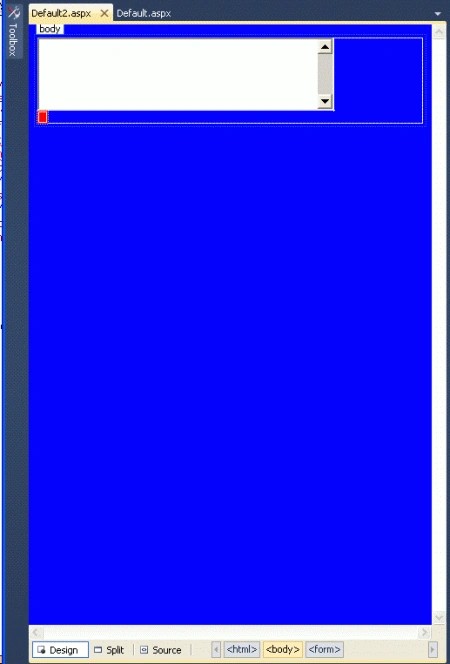
Now enter text inside the Textarea; you will see.
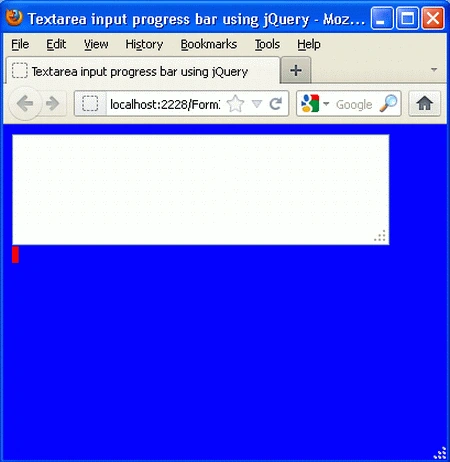
See the effect.
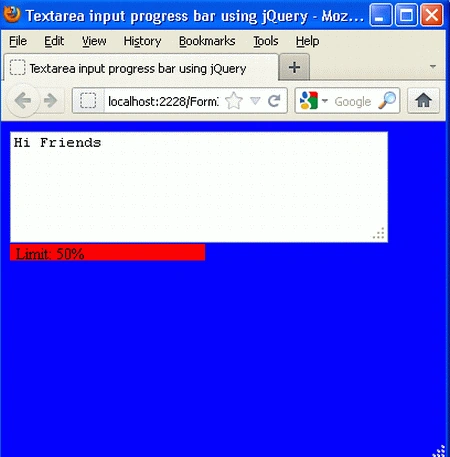
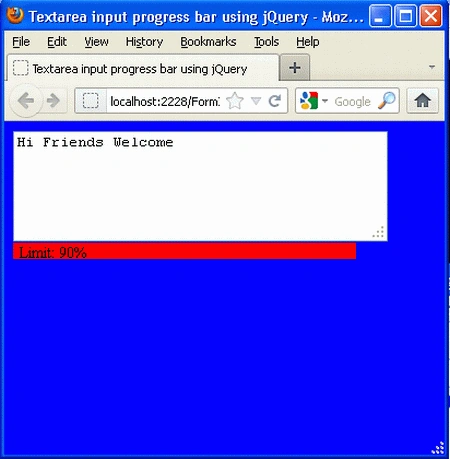
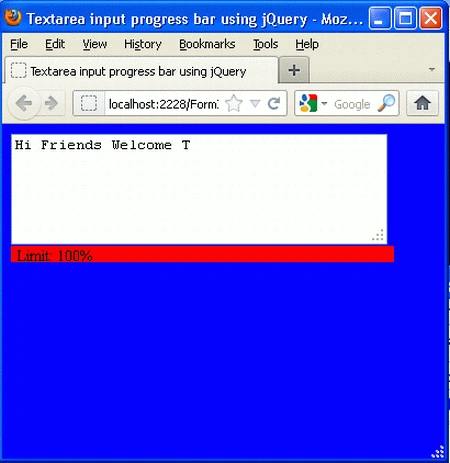
Once the progress bar is completed 100% you can not write anything inside the Textarea.
Resources
Stelia JacksonPosted Feb 23, 2012, 11:28 PM
u have presented your article very nicely....
Maria JohnsonPosted Feb 23, 2012, 11:10 PM
Great what a presentation. You have presented your article in such a way that everyone will love to read it.