

Introduction
Let’s develop a simple C# console application that will find the perfect square count in the list.
Getting Started
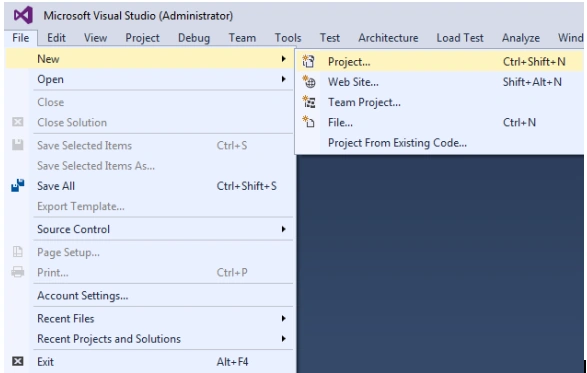
In ASP.NET 5 we can create console applications. To create a new console application, first, open Visual Studio 2015. Create using File -> New -> Project.
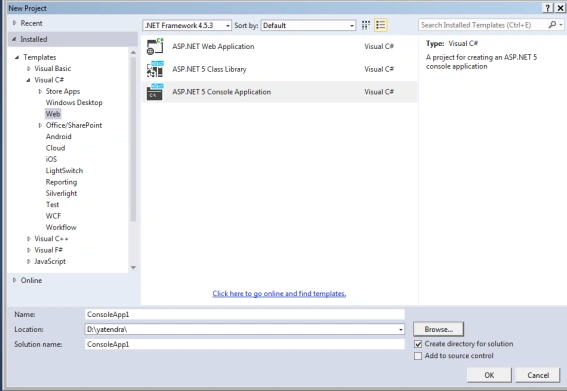
Now we will select the ASP.NET 5 Console Application, then click on the OK button.
We need to include the following references in our application:
- using System;
- using System.Collections.Generic;
- using System.Linq;
In the main method, I have created 1 method.
- CheckPerfactSquare – To find the perfect square in given input.
Please refer to the code snippet below:
- static void Main(string[] args) {
- try {
- List < int > ArrList = new List < int > ();
- List < bool > FinalCount = new List < bool > ();
- int ListCount = Convert.ToInt32(Console.ReadLine().Trim());
- for (int i = 0; i < ListCount; i++) {
- int ListItem = Convert.ToInt32(Console.ReadLine());
- ArrList.Add(ListItem);
- }
- for (int j = 0; j < ArrList.Count; j++) {
- FinalCount.Add(CheckPerfactSquare(ArrList[j]));
- }
- Console.WriteLine("Result:" + FinalCount.Where(x => x.Equals(true)).Count());
- } catch (Exception oEx) {
- Console.WriteLine("Error:" + oEx.Message);
- }
- Console.ReadKey();
- }
Find the perfect square
The method definition for the CheckPerfactSquare() is given below.
Here I am using 1 as the parameter for the method.
Here I am using 1 as the parameter for the method.
- public static bool CheckPerfactSquare(int number)
- {
- double result = Math.Sqrt(number);
- bool isSquare = result % 1 == 0;
- return isSquare;
- }
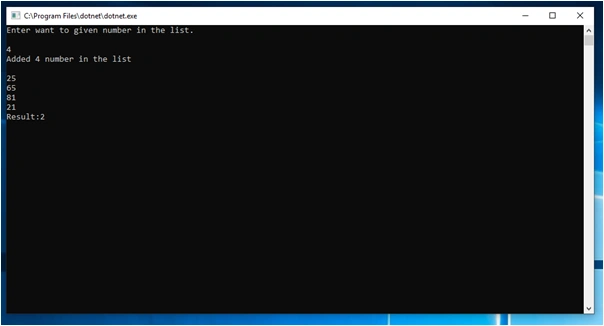
Click on F5, execute the project and follow the console window. The output will be:
Summary
In this article, we learned how to find the perfect square when you want to begin work in the ASP.NET 5 console applications.
Mageshwaran RPosted Nov 14, 2019, 11:49 PM
Nice Article...
Sourav Kumar DasPosted Nov 14, 2019, 10:38 PM
Nice Article Sir.