

In this article we will see how we can filter a Textbox on Keyboard inputs. We will see how we can block Numeric input from Keyboard.
Creating Silverlight Project
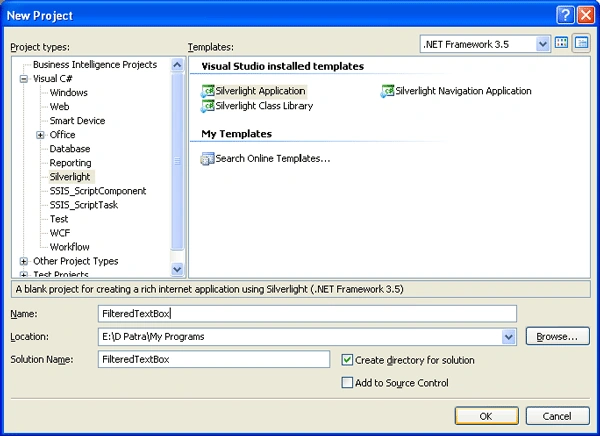
Fire up Visual Studio 2008 and create a new Silverlight 3 Project. Name it as FilteredTextBox.
Add a TextBox to the Application.
Our aim is to block the Numerical key inputs, so have a event handler for KeyDown for the TextBox and add the following code in place.
private void txtNumericFiltered_KeyDown(object sender, KeyEventArgs e)
{
switch (e.Key)
{
case Key.D0:
case Key.D1:
case Key.D2:
case Key.D3:
case Key.D4:
case Key.D5:
case Key.D6:
case Key.D7:
case Key.D8:
case Key.D9:
e.Handled = true;
break;
default:
break;
}
}
That's it. Run your application to test it.
If you press any numeric value and special characters associated with it won't be typed. Anything else is allowed.
Hope this article helps.
kilativPosted Nov 27, 2009, 8:28 PM
you can still paste the number from the clipboard or use numeric keys from the right side of the keyboard. Not a very reliable implementation.