

Introduction
This article explains how to set up a database connection with a Swing GUI in Java. The NetBeans IDE is used to create the sample examples.
Fetching Records from Database using Swing GUI
For creating this app we need the following files:
- Java file (SwingDatabaseApp.java)
- SQL table (emp.sql)
1. SwingDatabaseApp.java
This Java consists of the entire logic. First of all we initialize JFrame components using a constructor then create a database connection and finally set the database value to the textfield and display it using a constructor.
2. emp.sql
For fetching records we need a database table; for that we create an "emp" table in our database.
Syntax
emp.sql
create table emp
(
uname varchar2(20), umail varchar2(30),
upass varchar2(20), ucountry varchar2(20)
);
Insert some rows
The following SQL will insert some rows in it:
1. insert into emp values ('sandeep', '[email protected]', 'welcome', 'India');
2. insert into emp values ('rahul', '[email protected]' , '123', 'India');
Now let's start creating this app. Use the following procedure to do that in the NetBeans IDE.
Step 1
Open the NetBeans IDE.
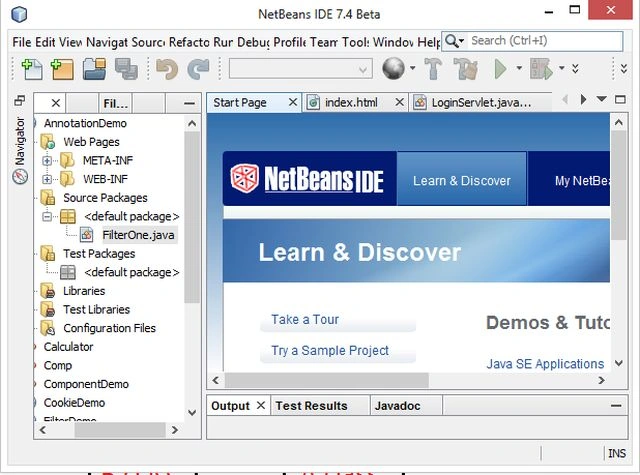
Step 2
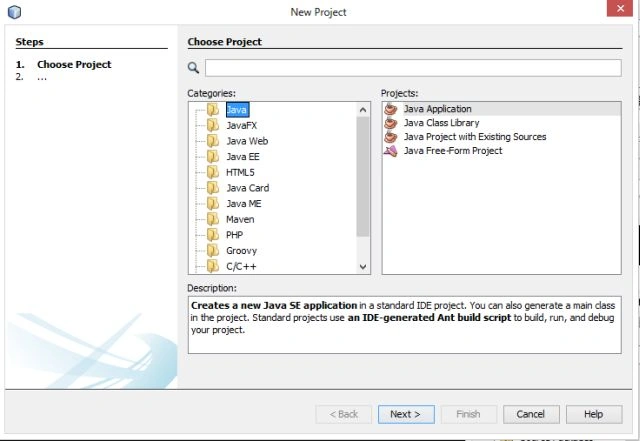
Choose "Java" -> "Java application" as shown below.
Step 3
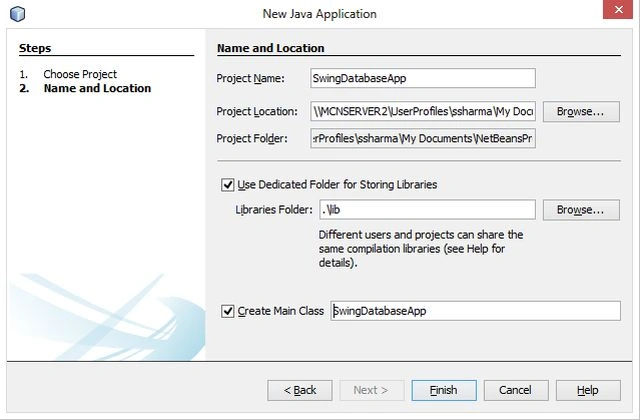
Type your project name as "SwingDatabaseApp" as in the following.
Step 4
Now provide the following code in the "SwingDatabaseApp.java" file.
SwingDatabaseApp.java
import javax.swing.*;
import java.awt.event.*;
import java.awt.*;
import java.sql.*;
public class SwingDatabaseApp extends JFrame {
//Initializing Components
JLabel lb, lb1, lb2, lb3, lb4;
JTextField tf1, tf2, tf3, tf4;
//Creating Constructor for initializing JFrame components
SwingDatabaseApp() {
//Providing Title
super("Fetching Student Information");
lb = new JLabel("Fetching Student Information From Database");
lb.setBounds(20, 50, 450, 20);
lb.setForeground(Color.red);
lb.setFont(new Font("Serif", Font.BOLD, 20));
setVisible(true);
setDefaultCloseOperation(JFrame.EXIT_ON_CLOSE);
setSize(500, 500);
lb1 = new JLabel("U_Name:");
lb1.setBounds(50, 105, 100, 20);
tf1 = new JTextField(50);
tf1.setBounds(160, 105, 100, 20);
lb2 = new JLabel("U_Mail:");
lb2.setBounds(50, 135, 100, 20);
tf2 = new JTextField(100);
tf2.setBounds(160, 135, 200, 20);
lb3 = new JLabel("U_Pass:");
lb3.setBounds(50, 165, 100, 20);
tf3 = new JTextField(50);
tf3.setBounds(160, 165, 100, 20);
lb4 = new JLabel("U_Country:");
lb4.setBounds(50, 200, 100, 20);
tf4 = new JTextField(50);
tf4.setBounds(160, 200, 100, 20);
setLayout(null);
//Add components to the JFrame
add(lb);
add(lb1);
add(tf1);
add(lb2);
add(tf2);
add(lb3);
add(tf3);
add(lb4);
add(tf4);
//Set TextField Editable False
tf1.setEditable(false);
tf2.setEditable(false);
tf3.setEditable(false);
tf4.setEditable(false);
//Create DataBase Coonection and Fetching Records for uname='sandeep'
try {
String str = "sandeep";
Class.forName("oracle.jdbc.driver.OracleDriver");
Connection con = DriverManager.getConnection("jdbc:oracle:thin:@mcndesktop07:1521", "sandeep", "welcome");
PreparedStatement st = con.prepareStatement("select * from emp where uname=?");
st.setString(1, str);
//Excuting Query
ResultSet rs = st.executeQuery();
while (rs.next()) {
String s = rs.getString(1);
String s1 = rs.getString(2);
String s2 = rs.getString(3);
String s3 = rs.getString(4);
//Sets Records in TextFields.
tf1.setText(s);
tf2.setText(s1);
tf3.setText(s2);
tf4.setText(s3);
}
} //Create Exception Handler
catch (Exception ex) {
System.out.println(ex);
}
}
//Running Constructor
public static void main(String args[]) {
new SwingDatabaseApp();
}
}Step 5
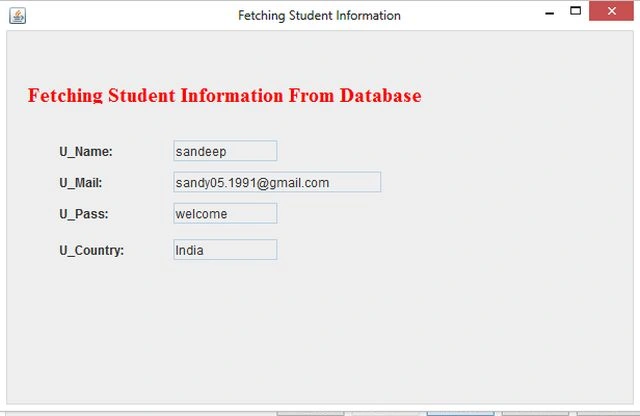
Now our project is ready to run. Right-click on the project menu, then choose "Run". The following output will be generated.
Step 6
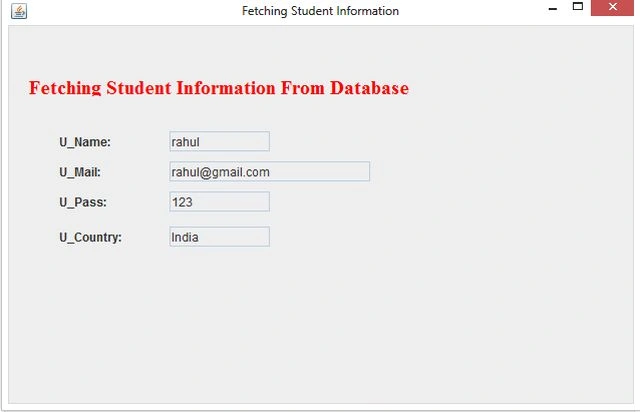
Now change the uname and this time we are fetching records for "rahul".
String str = "rahul";
Mohan PawarPosted Aug 8, 2014, 1:29 AM
java.lang.ClassNotFoundException : oracle.jdbc.driver.OracleDriver exception. Why this exception occurs ?