

In this article, I want to demonstrate face detection, using Microsoft Cognitive Service. You all know that Microsoft Cognitive Service is becoming more flexible day by day.
Lets get started.
First of all, go to Azure portal and create a Cognitive Service API for Face Detection. Choose pricing tier. You can choose any tier from the available list. I am choosing S0 Standard.
At the resource group field, you can either create a new resource or choose an existing one. Here, I am creating a new resource group. Subsequently, agree with the legal terms. Check the pin to dashboard, so that it will be easier to access and click on create. It will take some time to create, as shown below.

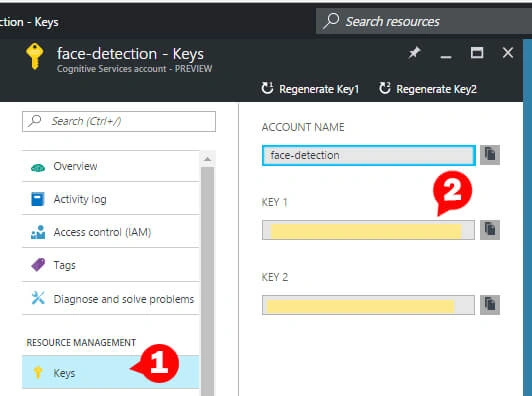
After successful deployment of API, go to keys in the Resource Management and copy the key from there, as shown below.
Now, lets open Visual Studio. Create new project as choose WPF Application inside Classic Desktop in Visual C#.
In MainWindow.xaml, add an Image holder and a button inside the grid or simply replace the grid with the code, mentioned below.
- <Grid x:Name="BackPanel">
- <Image x:Name="FacePhoto" Stretch="Uniform" Margin="0,0,0,30" />
- <Button x:Name="BrowseButton" Margin="20,5" Height="20" VerticalAlignment="Bottom" Content="Browse Image..." Click="BrowseButton_Click" />
- </Grid>
- private async void BrowseButton_Click(object sender, RoutedEventArgs e) {
- var openDlg = new Microsoft.Win32.OpenFileDialog();
- openDlg.Filter = "JPEG Image(*.jpg)|*.jpg";
- bool ? result = openDlg.ShowDialog(this);
- if (!(bool) result) {
- return;
- }
- string filePath = openDlg.FileName;
- Uri fileUri = new Uri(filePath);
- BitmapImage bitmapSource = new BitmapImage();
- bitmapSource.BeginInit();
- bitmapSource.CacheOption = BitmapCacheOption.None;
- bitmapSource.UriSource = fileUri;
- bitmapSource.EndInit();
- FacePhoto.Source = bitmapSource;
- Title = "Detecting...";
- FaceRectangle[] faceRects = await UploadAndDetectFaces(filePath);
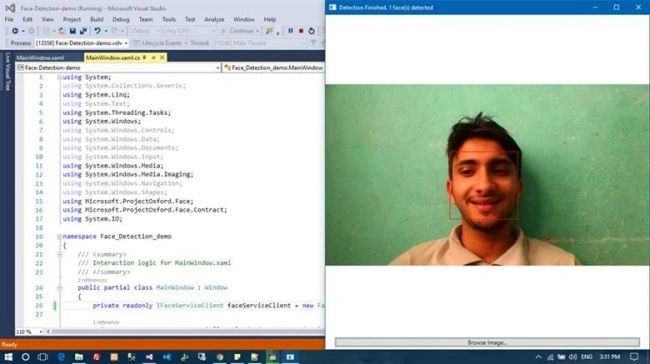
- Title = String.Format("Detection Finished. {0} face(s) detected", faceRects.Length);
- if (faceRects.Length > 0) {
- DrawingVisual visual = new DrawingVisual();
- DrawingContext drawingContext = visual.RenderOpen();
- drawingContext.DrawImage(bitmapSource,
- new Rect(0, 0, bitmapSource.Width, bitmapSource.Height));
- double dpi = bitmapSource.DpiX;
- double resizeFactor = 96 / dpi;
- foreach(var faceRect in faceRects) {
- drawingContext.DrawRectangle(
- Brushes.Transparent,
- new Pen(Brushes.Red, 2),
- new Rect(
- faceRect.Left * resizeFactor,
- faceRect.Top * resizeFactor,
- faceRect.Width * resizeFactor,
- faceRect.Height * resizeFactor
- )
- );
- }
- drawingContext.Close();
- RenderTargetBitmap faceWithRectBitmap = new RenderTargetBitmap(
- (int)(bitmapSource.PixelWidth * resizeFactor),
- (int)(bitmapSource.PixelHeight * resizeFactor),
- 96,
- 96,
- PixelFormats.Pbgra32);
- faceWithRectBitmap.Render(visual);
- FacePhoto.Source = faceWithRectBitmap;
- }
- }
- private readonly IFaceServiceClient faceServiceClient = new FaceServiceClient("PASTE_THE_KEY_HERE");
- private async Task < FaceRectangle[] > UploadAndDetectFaces(string imageFilePath) {
- try {
- using(Stream imageFileStream = File.OpenRead(imageFilePath)) {
- var faces = await faceServiceClient.DetectAsync(imageFileStream);
- var faceRects = faces.Select(face => face.FaceRectangle);
- return faceRects.ToArray();
- }
- } catch (Exception) {
- return new FaceRectangle[0];
- }
- }
Happy coding.
Akshayrao VPosted Mar 11, 2017, 7:57 PM
Very useful thanks for sharing