

In this article, I will:
- Provide a brief overview of image content analysis
- Share the list of available APIs to analyze the image
- Provide the overview of Microsoft Computer Vision API
- Share code to extract text from image using Microsoft Computer Vision API
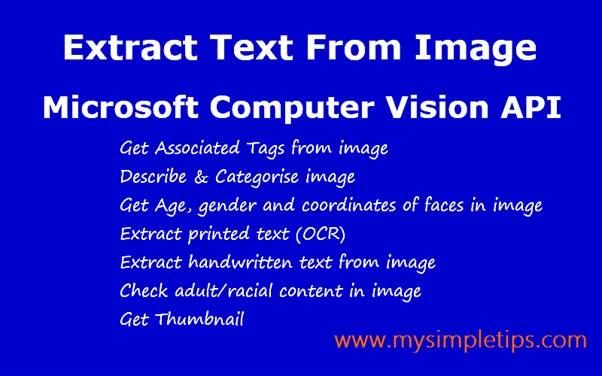
Image Visual Content Analysis: Overview
To analyze the image content, you no longer need to be a Ph.D. in computer science or be a computer scientist or machine learning expert. Tech giants like Microsoft, Google, and Amazon have developed machine learned artificial intelligence cloud-based products to analyze the visual content of the image.
It allows the developer to add image processing capability to application easily.
As developers, we just need to integrate the API into the application simply by REST API call using HttpClient to extract the image content.
For articles on other Microsoft Cognitive Service, please visit the below link https://www.mysimpletips.com/category/cognitive-services/
Available Image Content Analysis API
The following Vision APIs are available to extract the visual content of the image:
Microsoft Computer Vision API overview
It is a part of Microsoft Cognitive Service - a suite of Artificial Intelligent products built using Machine Learning.
Microsoft Computer Vision API is cloud-based pre-trained machine learning model. Its advanced algorithm enables the developer to integrate the image processing capability in the application.
By analyzing the image, Vision API extracts the following visual content of the images
- Tags associated with the image
- A full description of the image content
- Age, gender, and coordinates of faces in the image
- Whether the image contains any adult/racy content
Apart from the above information, Computer Vision API performs the following
- Identity & extract printed text from the image by Optical Character Recognition (OCR).
- Identity & extract handwritten text from image
- Identify celebrities and landmarks by using Domain-Specific Trained Model.
- Creates Thumbnail method by cropping an image.
Prerequisite
- Visual Studio Community Edition 2017
- Azure subscription: If you do not have the Azure subscription, please create 30 days free trial account here.
- Microsoft Cloud Vision API URL and Key from Azure portal.
Microsoft Computer Vision API In Action
To view the Vision API in action to extract text from image,
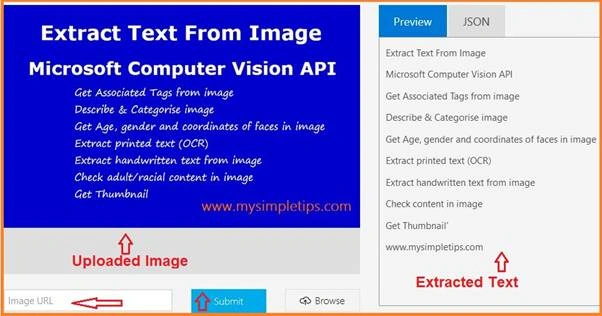
Please go to https://azure.microsoft.com/en-in/services/cognitive-services/computer-vision/ and upload the image.
In the right side of the panel, it will display the extracted text. Here I have uploaded the image that I created for the article. It extracted almost every text except the "adult/racy" text.
Microsoft Computer Vision API In Action [/caption]
Please note the below terms and conditions by Microsoft while uploading and testing:
By uploading data for this demo, you agree that Microsoft may store it and use it to improve Microsoft services, including this API. To help protect your privacy, we take steps to de-identify your data and keep it secure. We shall not publish your data or let other people use it.
Approach for API integration
- Create console/web application
- Call Cloud Vision API using HttpClient
- Provide the image URL as input
- Extract the response from the API.
Get Vision API and Key from the Azure portal
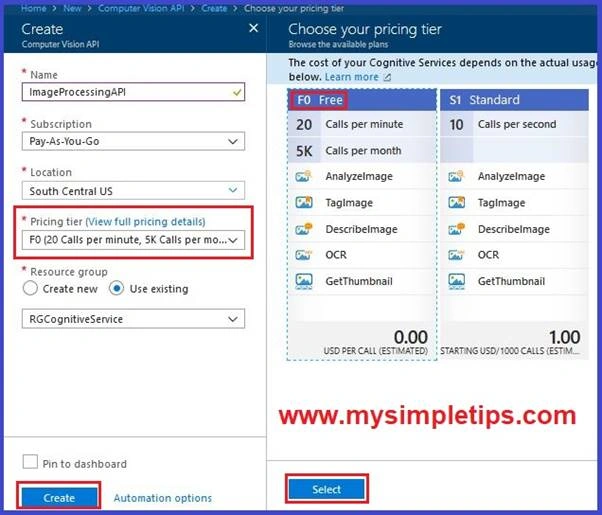
Go to Azure portal and to create Cloud Vision API, please follow the below steps
- Click on [+ Create a resource]; Next
- Click on [AI + Cognitive Services]; Next
- Click on [Computer Vision API] and get API URL and key:
Or click on the below link to create the Cloud Vision API in the Azure portal.
https://portal.azure.com/#create/Microsoft.CognitiveServicesComputerVision
Microsoft Cognitive Service: Create Computer Vision API [/caption]
There are 2 pricing tiers, Free and Standard, available to create Vision API.
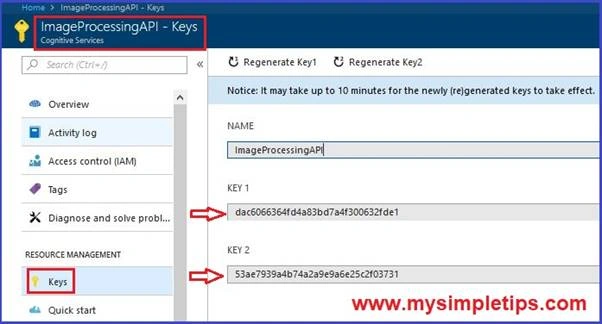
Here I have created API using a Free pricing tier. The below screen shows the available Keys to access Cloud Vision API.
Microsoft Cognitive Service: Computer Vision API Keys[/caption]
Code Snippet
It required 2 REST API Calls:
- First API call to submit image to process image.
- Second API call to get the text from the image.
- In between 2 calls, it stores the API location to call the 2nd API to get text
- const string subscriptionKey = "dac6066364fd4a83bd7a4f300632fde1";
- const string uriBase = "https://southcentralus.api.cognitive.microsoft.com/vision/v1.0/recognizeText";
- string imagePath = @ "Image.JPG";
- string imageTextContent;
- HttpClient httpclient = new HttpClient();
- // Add Subscription Key in Request headers.
- httpclient.DefaultRequestHeaders.Add("Ocp-Apim-Subscription-Key", subscriptionKey);
- //Set "handwriting" to true in case handwritin text else true for printed text.
- string requestParams = "handwriting=false & detectOrientation=true";
- // Final URI
- string uri = uriBase + "?" + requestParams;
- HttpResponseMessage httpresponse = null;
- string resultStorageLocation = null;
- // Get the image as byte array; this method is defined below
- byte[] imagebByteData = GetByteArrayOfImage(imagePath);
- ByteArrayContent imageContent = new ByteArrayContent(imagebByteData);
- //Set content type: "application/octet-stream" or "application/json"
- imageContent.Headers.ContentType = new MediaTypeHeaderValue("application/octet-stream");
- //The 1st REST APT call to start the async process by submitting the image.
- httpresponse = await httpclient.PostAsync(uri, imageContent);
- //Get location of result from response
- if (httpresponse.IsSuccessStatusCode) resultStoragelocation = httpresponse.Headers.GetValues("Operation-Location").FirstOrDefault();
- //2nd REST API call to get the text content from image
- httpresponse = await httpclient.GetAsync(resultStorageLocation);
- imageTextContent = await httpresponse.Content.ReadAsStringAsync();
- //TO DO: This imageTextContent is raw JSON string; Need to format this JSON string for further processing.
- //Returns the byte array of input image
- private byte[] GetByteArrayOfImage(string imagePath) {
- FileStream filestreamObj = new FileStream(imagePath, FileMode.Open, FileAccess.Read);
- BinaryReader binaryreaderObj = new BinaryReader(filestreamObj);
- return binaryreaderObj.ReadBytes((int) filestreamObj.Length);
- }
Microsoft Computer Vision API Use Case
- Identity if any images contain any adult content and restrict the uploading to website or to cloud.
- Categorize the images from a large collection of image records.
- Using IOT device, this API can detect the cleanliness of a room.
- Workplace Safety: Using existing camera, people and objects can be monitored in real-time in chemical plants and construction sites. The camera takes pictures and sends the picture to Cognitive Service like Vision API to identify the objects and their position. Based on the response, the app alerts the security team.
Please subscribe to my blog www.mysimpletips.com to get the latest articles on Azure, Chatbot, Cognitive Service. Please go to "Email Subscription" section and provide name/email address and submit.
vijay guptaPosted Oct 1, 2018, 6:42 AM
The name 'resultStoragelocation' does not exist in current context