

Introduction
This article introduces how to export data in an Excel file. Most of the back-end applications have report functionality that show the data in the grid. So, we are required to export this grid data into an Excel file. The export to Excel functionality is implemented using the EPPlus nuGet package, as shown in this example.
Configuration and Process
We install EPPlus nuGet package in the application. The EPPlus is a library to manage Excel spreadsheets using OOXML. The OOXML stands for Office Open Extended Markup Language and is also called Open XML. The OOXML is developed by Microsoft. It has by default target file formats for Microsoft office.
The EPPlus is a NuGet package and can be installed from Manage NuGet Packages window, as shown in figure 1. The package is available here also.
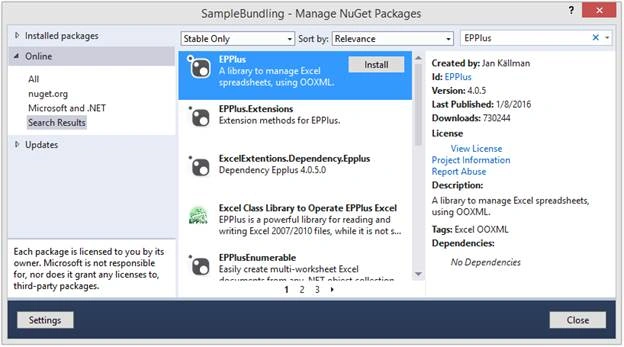
Figure 1: Install EPPlus nuget
When we use ORM in our application, we keep most of the data inthe collection which easily converts it in a list. The list can’t be exported to the Excel directly. That’s why we need to convert this list in data table first. After that, this data table can be exported in the Excel file as shown in figure 2.
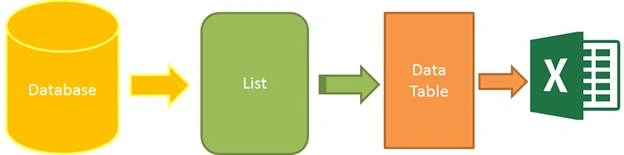
Figure 2: Process Export to Excel
Using the Code
As per the above process, we need four operations here. These are as follows,
- Data: We use static data to keep this example simple.
- List: Static data store in a List<T>.
- Data Table : Convert List<T> in to DataTable.
- Export: DataTable exports to excel file.
First of all, we create a class, so that we can have a collection of similar data. The following code snippet is for Technology class.
- namespace ExportExcel.Code
- {
- public class Technology
- {
- public string Name { get; set; }
- public int Project { get; set; }
- public int Developer { get; set; }
- public int TeamLeader { get; set; }
- }
- }
- using System.Collections.Generic;
- namespace ExportExcel.Code
- {
- public class StaticData
- {
- public static List<Technology> Technologies
- {
- get
- {
- return new List<Technology>{
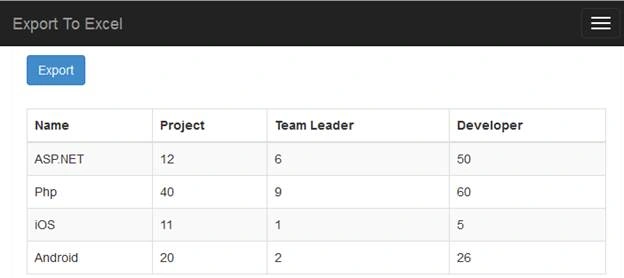
- new Technology{Name="ASP.NET", Project=12,Developer=50, TeamLeader=6},
- new Technology{Name="Php", Project=40,Developer=60, TeamLeader=9},
- new Technology{Name="iOS", Project=11,Developer=5, TeamLeader=1},
- new Technology{Name="Android", Project=20,Developer=26, TeamLeader=2}
- };
- }
- }
- }
- }
- Convert List<T> to DataTable method
- Customize the columns which need to export means dynamically choose columns which will be export from list to Excel.
- Serial number in Excel sheet.
- Add and Remove functionality for the custom heading in Excel sheet.
- Excel sheet heading with colors.
- Dynamic name for worksheet.
The following code snippet is used for the class ExcelExportHelper .
- using OfficeOpenXml;
- using OfficeOpenXml.Style;
- using System;
- using System.Collections.Generic;
- using System.ComponentModel;
- using System.Data;
- using System.Linq;
- namespace ExportExcel.Code
- {
- public class ExcelExportHelper
- {
- public static string ExcelContentType
- {
- get
- { return "application/vnd.openxmlformats-officedocument.spreadsheetml.sheet"; }
- }
- public static DataTable ListToDataTable<T>(List<T> data)
- {
- PropertyDescriptorCollection properties = TypeDescriptor.GetProperties(typeof(T));
- DataTable dataTable = new DataTable();
- for (int i = 0; i < properties.Count; i++)
- {
- PropertyDescriptor property = properties[i];
- dataTable.Columns.Add(property.Name, Nullable.GetUnderlyingType(property.PropertyType) ?? property.PropertyType);
- }
- object[] values = new object[properties.Count];
- foreach (T item in data)
- {
- for (int i = 0; i < values.Length; i++)
- {
- values[i] = properties[i].GetValue(item);
- }
- dataTable.Rows.Add(values);
- }
- return dataTable;
- }
- public static byte[] ExportExcel(DataTable dataTable, string heading = "", bool showSrNo = false, params string[] columnsToTake)
- {
- byte[] result = null;
- using (ExcelPackage package = new ExcelPackage())
- {
- ExcelWorksheet workSheet = package.Workbook.Worksheets.Add(String.Format("{0} Data",heading));
- int startRowFrom = String.IsNullOrEmpty(heading) ? 1 : 3;
- if (showSrNo)
- {
- DataColumn dataColumn = dataTable.Columns.Add("#", typeof(int));
- dataColumn.SetOrdinal(0);
- int index = 1;
- foreach (DataRow item in dataTable.Rows)
- {
- item[0] = index;
- index++;
- }
- }
- // add the content into the Excel file
- workSheet.Cells["A" + startRowFrom].LoadFromDataTable(dataTable, true);
- // autofit width of cells with small content
- int columnIndex = 1;
- foreach (DataColumn column in dataTable.Columns)
- {
- ExcelRange columnCells = workSheet.Cells[workSheet.Dimension.Start.Row, columnIndex, workSheet.Dimension.End.Row, columnIndex];
- int maxLength = columnCells.Max(cell => cell.Value.ToString().Count());
- if (maxLength < 150)
- {
- workSheet.Column(columnIndex).AutoFit();
- }
- columnIndex++;
- }
- // format header - bold, yellow on black
- using (ExcelRange r = workSheet.Cells[startRowFrom, 1, startRowFrom, dataTable.Columns.Count])
- {
- r.Style.Font.Color.SetColor(System.Drawing.Color.White);
- r.Style.Font.Bold = true;
- r.Style.Fill.PatternType = OfficeOpenXml.Style.ExcelFillStyle.Solid;
- r.Style.Fill.BackgroundColor.SetColor(System.Drawing.ColorTranslator.FromHtml("#1fb5ad"));
- }
- // format cells - add borders
- using (ExcelRange r = workSheet.Cells[startRowFrom + 1, 1, startRowFrom + dataTable.Rows.Count, dataTable.Columns.Count])
- {
- r.Style.Border.Top.Style = ExcelBorderStyle.Thin;
- r.Style.Border.Bottom.Style = ExcelBorderStyle.Thin;
- r.Style.Border.Left.Style = ExcelBorderStyle.Thin;
- r.Style.Border.Right.Style = ExcelBorderStyle.Thin;
- r.Style.Border.Top.Color.SetColor(System.Drawing.Color.Black);
- r.Style.Border.Bottom.Color.SetColor(System.Drawing.Color.Black);
- r.Style.Border.Left.Color.SetColor(System.Drawing.Color.Black);
- r.Style.Border.Right.Color.SetColor(System.Drawing.Color.Black);
- }
- // removed ignored columns
- for (int i = dataTable.Columns.Count - 1; i >= 0; i--)
- {
- if (i == 0 && showSrNo)
- {
- continue;
- }
- if (!columnsToTake.Contains(dataTable.Columns[i].ColumnName))
- {
- workSheet.DeleteColumn(i + 1);
- }
- }
- if (!String.IsNullOrEmpty(heading))
- {
- workSheet.Cells["A1"].Value = heading;
- workSheet.Cells["A1"].Style.Font.Size = 20;
- workSheet.InsertColumn(1, 1);
- workSheet.InsertRow(1, 1);
- workSheet.Column(1).Width = 5;
- }
- result = package.GetAsByteArray();
- }
- return result;
- }
- public static byte[] ExportExcel<T>(List<T> data, string Heading = "", bool showSlno = false, params string[] ColumnsToTake)
- {
- return ExportExcel(ListToDataTable<T>(data), Heading, showSlno, ColumnsToTake);
- }
- }
- }

Lakshmi NNairPosted Apr 5, 2019, 5:09 AM
Hai sir how to export graph from aspx page to excel
Alice NguyenPosted Dec 14, 2018, 1:04 AM
Thanks, Sandeep so great
Alice NguyenPosted Dec 14, 2018, 1:03 AM
Thanks Sandeep
Jagath WanniarachchiPosted Nov 22, 2018, 9:48 PM
I tried this but my data-set has DateTime fields, instead of proper values it shows me random numbers like, '43399'. How to resolve this?
Chetan SharmaPosted Jul 26, 2018, 2:28 AM
Hello Sir, I have one query: What is the best way to export data to Excel and Export Data to PPT using Asp.Net MVC 5 application.Any help will be appreciated.
Marcelino ValenzuelaPosted May 9, 2018, 2:00 PM
Hello thanks for the examplebut I have a problem with the dates format in the excel
Dan GomolaPosted Feb 8, 2018, 10:49 AM
Thanks Sandeep, can you tell me how to do cell formatting. I'm interested especially in date fields.
Nick WagnerPosted Feb 2, 2018, 5:10 PM
This fails to autofit columns if there is a null value. Change line 73 to int maxLength = columnCells.Max(cell => (cell.Value "" ).ToString().Length); will address this issue
haz mohdPosted Jan 2, 2018, 9:35 PM
Hi, what if I want to export data from database instead of declared data ?
Shelby PostonPosted Nov 7, 2017, 1:18 PM
How does this work with a single record
Muhammad AhmedPosted Oct 10, 2017, 4:29 AM
What if the data that I want to export isnt as simple as this is. I mean what if my list contains another list like a parent-child relation. How can I process it?
Bebins VPosted Mar 7, 2017, 11:12 AM
Hi In the same excel if i want to add additional sheet, could you please share code for that?
Noman ChaliPosted Jan 3, 2017, 1:36 AM
If ms office is not installed on machine then style, bold, alignment are not working why ?
Vineeth GeeverPosted Dec 18, 2016, 8:20 AM
How to edit the column names in excel file?
Cao FangshengPosted Dec 8, 2016, 3:15 AM
Nice,thanks.......................
Humayun Kabir MamunPosted Jul 24, 2016, 12:47 AM
Nice...
Sandeep Singh ShekhawatPosted Jul 23, 2016, 7:30 AM
Thanks a lot
Vivek TripathiPosted Jul 23, 2016, 6:55 AM
Gr8
Hanif HefazPosted Jul 22, 2016, 3:04 AM
Thank You Sir
Shridhar SharmaPosted Jul 22, 2016, 1:55 AM
Good one sir
Pankaj Kumar ChoudharyPosted Jul 22, 2016, 1:39 AM
Nice example Sir...........
kalu singh raoPosted Jul 22, 2016, 1:22 AM
Nice Share
Debendra DashPosted Jul 13, 2016, 1:58 AM
Good one..
Munesh SharmaPosted Jul 12, 2016, 7:25 AM
Good one
Vignesh ManiPosted Jul 11, 2016, 12:37 PM
Nice
Sandeep Singh ShekhawatPosted Jul 11, 2016, 11:30 AM
Thanks all :)
Raja TPosted Jul 11, 2016, 7:10 AM
Nice, Thanks for sharing
Humayun Kabir MamunPosted Jul 11, 2016, 1:03 AM
Nice...
Debasis SahaPosted Jul 11, 2016, 12:44 AM
Nice one..
RakeshPosted Jul 10, 2016, 12:31 PM
Good share