

This article explains how to export ASP.Net grid data to a PDF with custom width using iTextSharp.
What ITextSharp is: iTextSharp is a free and open source assembly that helps to convert page output or HTML content in PDF file.
You can download it from here:
http://sourceforge.net/projects/itextsharp/
Now add that DLL to the application.
Getting Started
Start Visual Studio and create a new website in ASP.Net and add these 2 DLLs to the solution:
- Itextsharp.dll
- itextsharp.pdfa.dll
Now add these namespaces:
- using iTextSharp.text;
- using iTextSharp.text.pdf;
- using iTextSharp.text.html;
- using iTextSharp.text.html.simpleparser;
This is my GridView HTML:
- <div>
- <asp:gridview id="gvEmployees" runat="server" emptydatatext="No data found" autogeneratecolumns="False"
- datakeynames="EmployeeID" datasourceid="SqlDataSource1" allowpaging="False" backcolor="White"
- bordercolor="#DEDFDE" borderstyle="None" borderwidth="1px" cellpadding="4" forecolor="Black"
- gridlines="Vertical" height="165px" width="678px">
- <AlternatingRowStyle BackColor="White" />
- <Columns>
- <asp:BoundField DataField="EmployeeID" HeaderText="EmployeeID" InsertVisible="False" ReadOnly="True" SortExpression="EmployeeID" />
- <asp:BoundField DataField="LastName" HeaderText="LastName" SortExpression="LastName" />
- <asp:BoundField DataField="FirstName" HeaderText="FirstName" SortExpression="FirstName" />
- <asp:BoundField DataField="City" HeaderText="City" SortExpression="City" />
- <asp:BoundField DataField="Region" HeaderText="Region" SortExpression="Region" />
- <asp:BoundField DataField="PostalCode" HeaderText="PostalCode" SortExpression="PostalCode" />
- <asp:BoundField DataField="Country" HeaderText="Country" SortExpression="Country" />
- </Columns>
- <FooterStyle BackColor="#CCCC99" />
- <HeaderStyle BackColor="#6B696B" Font-Bold="True" ForeColor="White" />
- <PagerStyle BackColor="#F7F7DE" ForeColor="Black" HorizontalAlign="Right" />
- <RowStyle BackColor="#F7F7DE" />
- <SelectedRowStyle BackColor="#CE5D5A" Font-Bold="True" ForeColor="White" />
- <SortedAscendingCellStyle BackColor="#FBFBF2" />
- <SortedAscendingHeaderStyle BackColor="#848384" />
- <SortedDescendingCellStyle BackColor="#EAEAD3" />
- <SortedDescendingHeaderStyle BackColor="#575357" />
- </asp:gridview>
- </div>
- <asp:sqldatasource id="SqlDataSource1" runat="server" connectionstring="<%$ ConnectionStrings:NorthwindConnectionString %>"
- selectcommand="SELECT [EmployeeID], [LastName], [FirstName], [Title], [BirthDate], [City], [Region], [PostalCode], [Country] FROM [Employees]"></asp:sqldatasource>
- <asp:button id="btnExport" runat="server" text="Export To PDF" onclick="btnExport_Click" />
Now let's work on the code behind part.
- protected void btnExport_Click(object sender, EventArgs e)
- {
- Response.ContentType = "application/pdf";
- Response.AddHeader("content-disposition", "attachment;filename=EmployeeList.pdf");
- Response.Cache.SetCacheability(HttpCacheability.NoCache);
- StringWriter stringWriter = new StringWriter();
- HtmlTextWriter htmlTextWriter = new HtmlTextWriter(stringWriter);
- gvEmployees.DataBind();
- gvEmployees.RenderControl(htmlTextWriter);
- gvEmployees.HeaderRow.Style.Add("width", "10%");
- gvEmployees.HeaderRow.Style.Add("font-size", "15px");
- gvEmployees.Style.Add("text-decoration", "none");
- gvEmployees.Style.Add("font-family", "Arial, Helvetica, sans-serif;");
- gvEmployees.Style.Add("font-size", "8px");
- StringReader sr = new StringReader(stringWriter.ToString());
- Document doc = new Document(PageSize.A2, 7f, 7f, 7f, 0f);
- HTMLWorker htmlparser = new HTMLWorker(doc);
- PdfWriter.GetInstance(doc, Response.OutputStream);
- doc.Open();
- htmlparser.Parse(sr);
- doc.Close();
- Response.Write(doc);
- Response.End();
- }
- public override void VerifyRenderingInServerForm(Control control)
- {
- }
Now run the application. When the button is clicked the PDF will show in the grid view data like this:
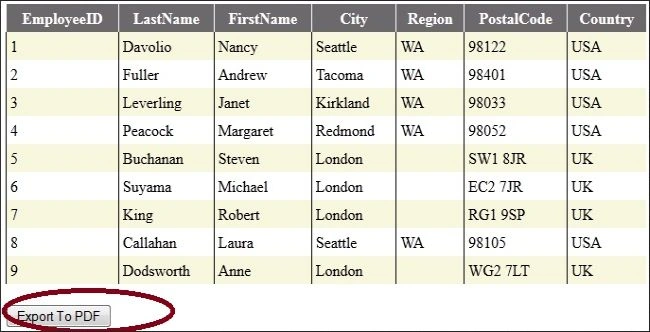
Image 1.
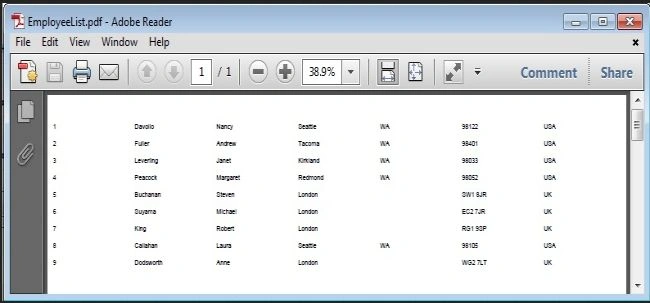
Image 2.
For more help, download the attached sample application.
AKSHAY HARSHAPosted Jan 7, 2015, 5:47 AM
Dear Raj Kumar Beniwal.. in above code i want export header also. i.e. EmployeeID, LastName etc ... How to write code for my query.