

In this article, we will focus on the Copilot Virtual Agent, a powerful tool designed to streamline user interactions and automate tasks in Microsoft 365. Let's get started!
Prerequisites
To get started, you’ll need either of the following subscriptions.
- Microsoft 365 Copilot
- Platform: m365.cloud.Microsoft
- Features: Seamless integration with Microsoft 365 apps, user-friendly interface, and task automation capabilities.
- Copilot Studio
- Platform: copilotstudio.microsoft.com
- Features: Highly customizable with a no-code interface, enabling advanced functionalities for creating virtual agents.
Key Differences Between Microsoft 365 Copilot and Copilot Studio
- Integration vs. Customization
- Microsoft 365 Copilot: Focuses on seamless integration within Microsoft 365 apps.
- Copilot Studio: Offers more customization with advanced features to build sophisticated agents.
- User Experience
- Microsoft 365 Copilot: Provides a user-friendly environment within the Microsoft 365 ecosystem.
- Copilot Studio: Enables detailed agent-building with a no-code interface for deeper customization.
- Billing
- Microsoft 365 Copilot: Subscription-based with flexible billing options.
- Copilot Studio: Pay-as-you-go, message-based pricing structure.
For a detailed guide on how to access these tools, refer to the official documentation: Microsoft Copilot Studio Licensing Requirements.
Setting Up Your Copilot Virtual Agent
I have a Microsoft 365 Copilot license, so let’s begin by logging into the platform.
Agents can be found in Microsoft Teams, the Microsoft 365 Copilot app, or the Web and Work tabs of Copilot Chat.
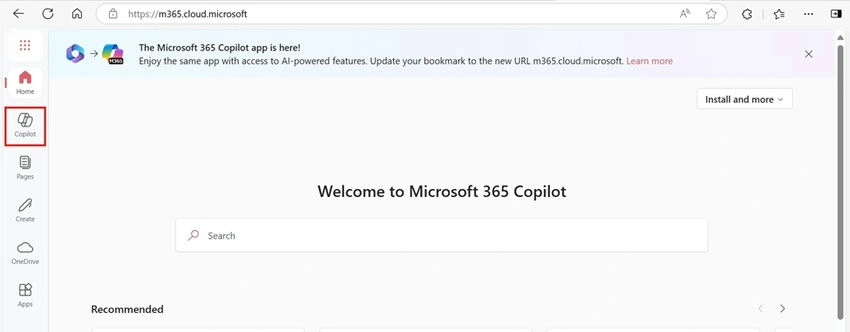
Using Agents in Copilot Chat (Web and Work tabs)
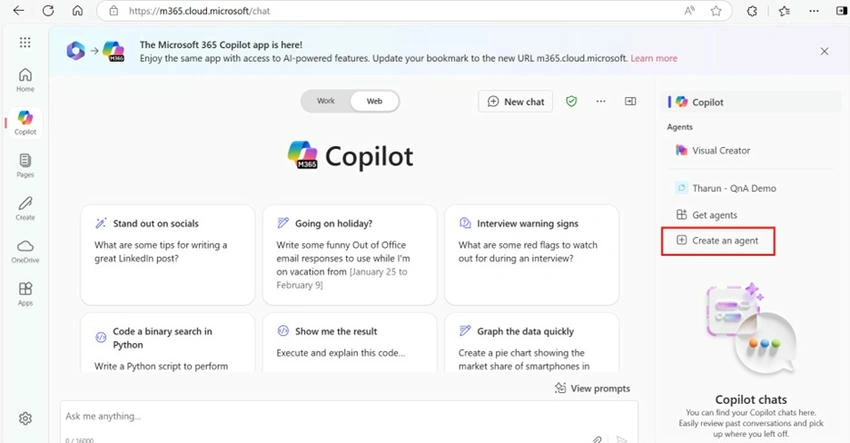
Create an Agent
- Click Create Agent to start the process.
- Microsoft provides a variety of templates to help you create your agent, or you can choose to configure one from scratch.
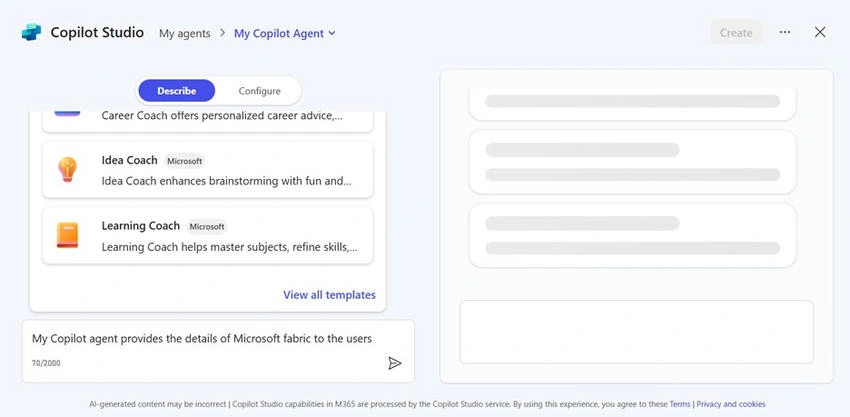
Describe Your Agent
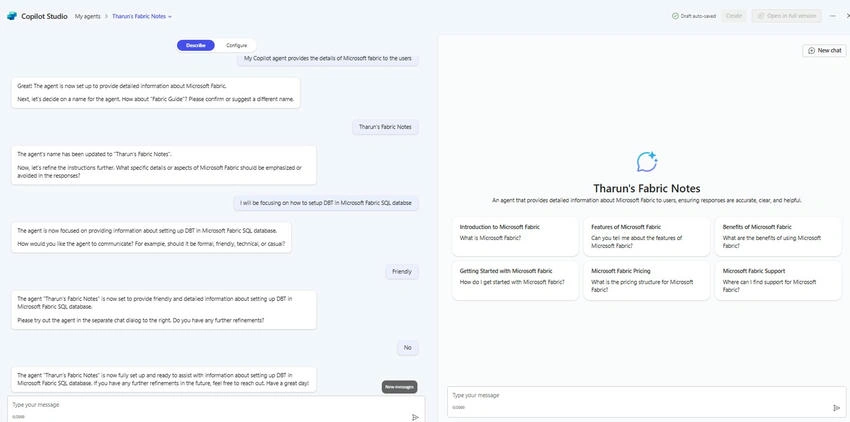
- In the Describe tab, provide details about the agent. The description will appear on the right side of the screen.
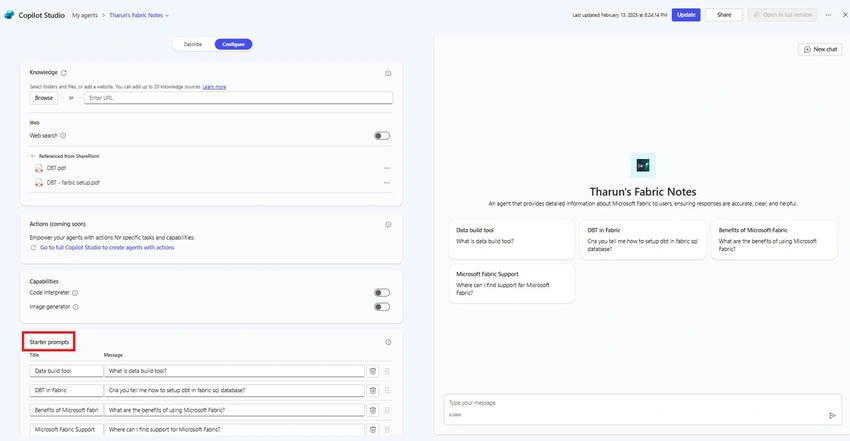
Configure Your Agent
- In the Configure tab, set up your agent according to your needs. You can define how the agent will function and what data sources it will interact with.
Add Knowledge Sources
- Currently, you can add up to 20 knowledge sources.
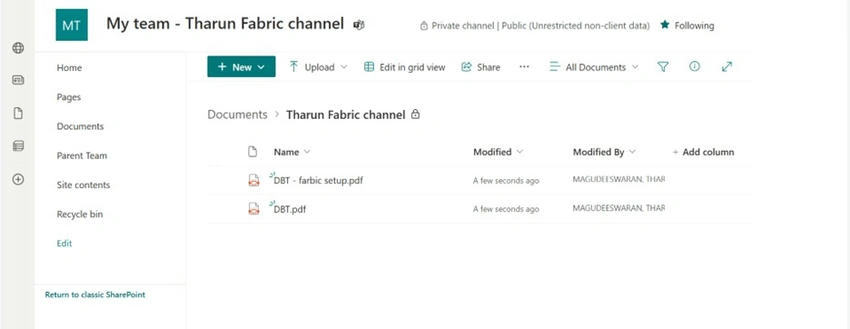
- These can be website URLs or SharePoint sites. For this demonstration, I used a SharePoint site and uploaded my files as the knowledge source.
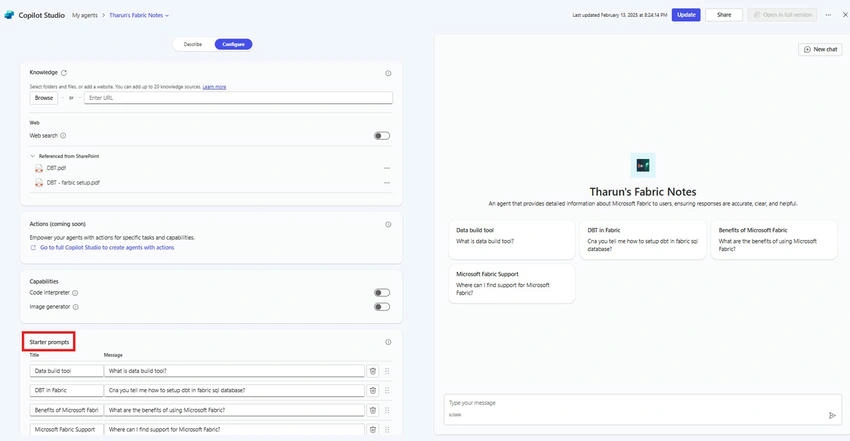
- Actions: Actions are a feature that is coming soon for Microsoft 365 Copilot. If you want to add actions now, you can use the full version of Copilot Studio.
- Web Search: If enabled, your agent will use websites added as knowledge sources. If you don't add a specific URL and enable web search, your agent will search public websites for information.
Capabilities
- Code Interpreter: This allows your agent to convert natural language into code, enabling it to create visualizations, solve math problems, and analyze data.
- Image Generator: Generate visual aids such as images and artwork in response to user prompts.
Starter Prompts
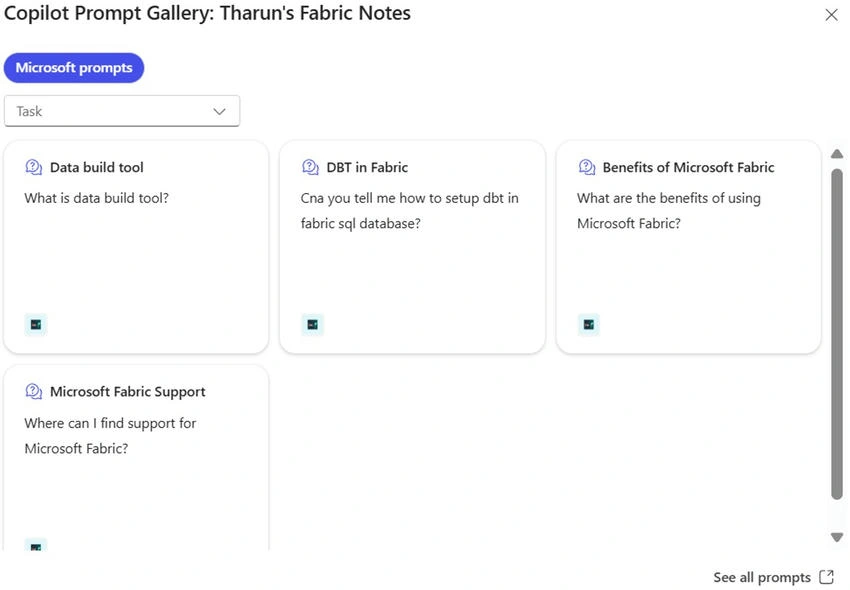
You can configure starter prompts to make it easier for users to interact with your agent. These prompts can guide the user in providing the necessary input for the agent to function effectively.
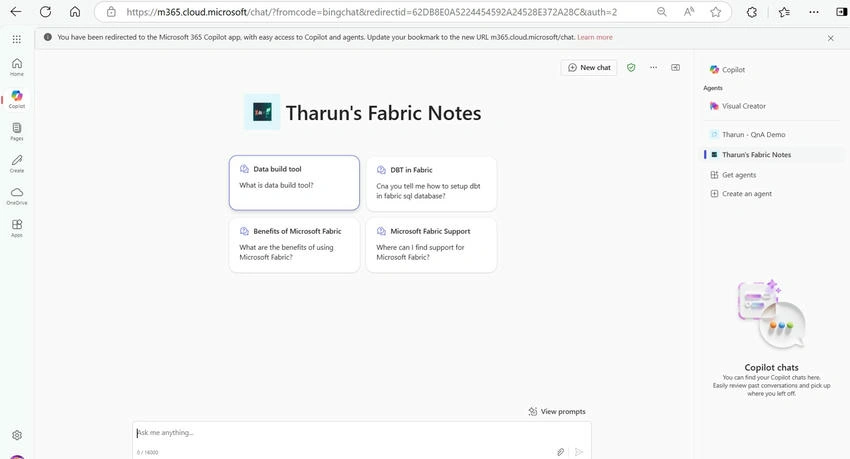
Once you’ve configured everything, click Create. You will then be able to view your agent in full-screen mode, where prompts will be provided for assistance.
Testing Your Agent
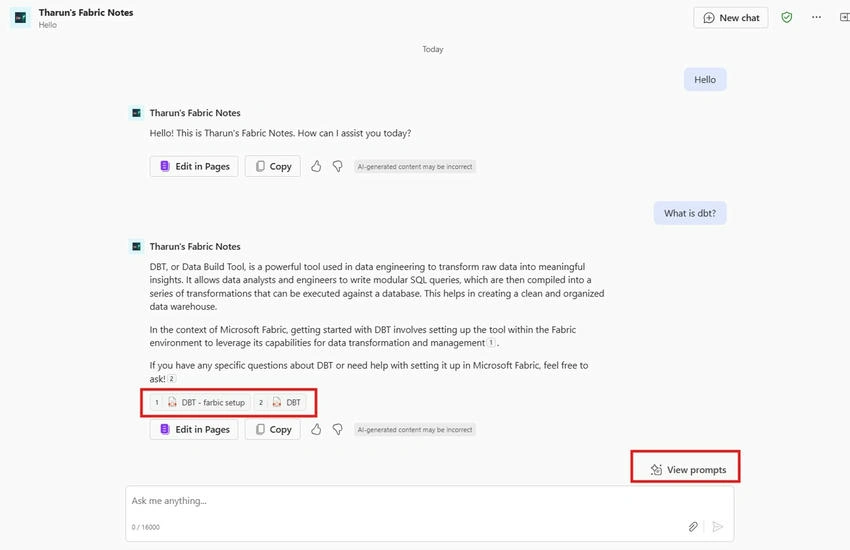
Since my knowledge source consists of my previous articles on Data Build Tools (DBT) and DBT setup for Fabric SQL Database, I’ll ask the agent questions related to these topics. The agent will reference the content in my source files and provide detailed responses, along with links to the relevant documents.
Adding Your Copilot Agent to Microsoft Teams
Once your Copilot agent is created, you can easily integrate it into Microsoft Teams for seamless use within your team's workflow. Here's how.
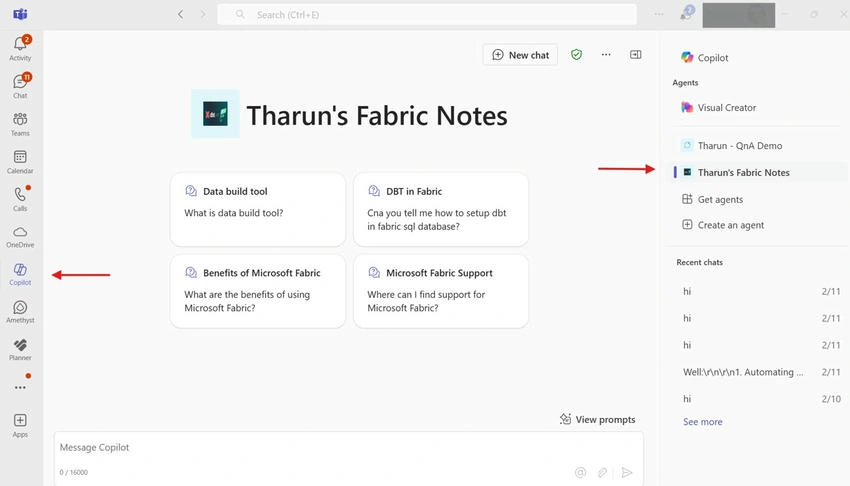
- After creating the agent, navigate to Teams.
- Go to the Apps section on the left sidebar and search for the Microsoft 365 Copilot app.
- Select the app and click Add to integrate it with your Teams environment.
- Once added, you can search for your created agent within Teams and interact with it just like any other Microsoft Teams app.
- You can also pin your agent to the Teams sidebar for quick and easy access at any time.
By adding your Copilot agent to Teams, you ensure that team members can easily access it and benefit from its capabilities directly within the Teams interface.
Sharing Your Agent
Once you’ve created your Copilot agent, you may want to share it with others in your organization. Here’s how,
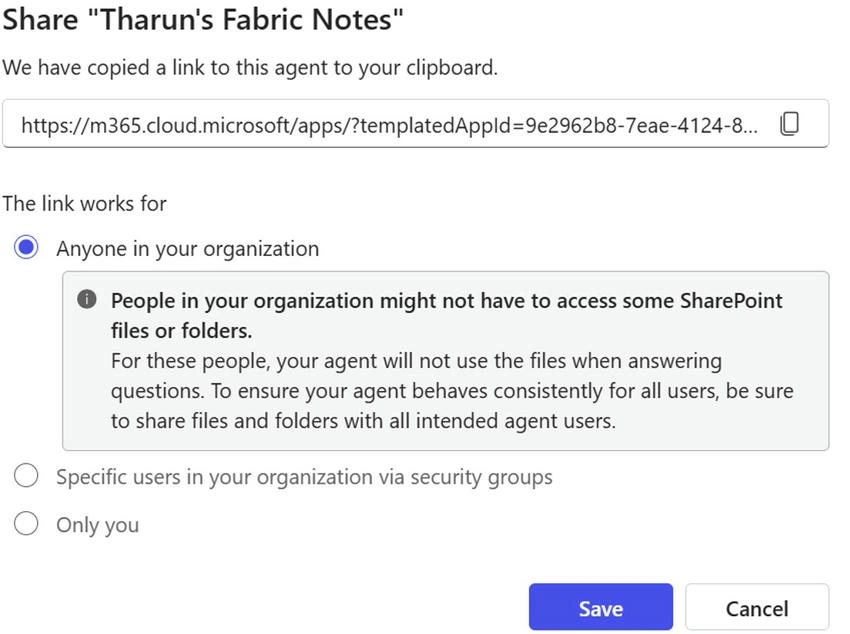
- Click Create an Agent → My Agents → Select your agent → Click Share.
- Choose one of the following sharing options.
- Anyone in your organization: Ensure users have access to the SharePoint site for consistency in the agent's responses, else your agent will not use the files when answering questions.
- Specific users: Share with specific users through security groups.
- Only You: Keep the agent private.
- Click Save.
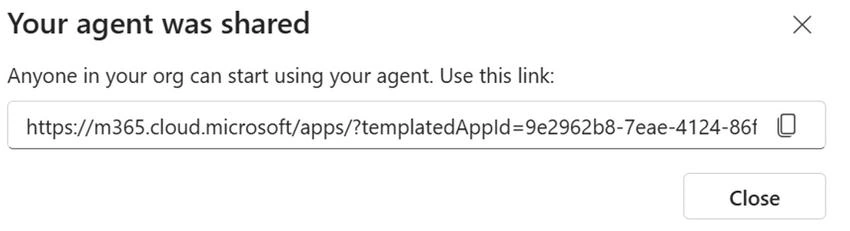
You can then copy the link and share it with the intended users.
Conclusion
Congratulations! You’ve now successfully created and shared a Copilot Virtual Agent. This tool empowers you to automate processes, integrate knowledge sources, and provide personalized assistance to users.
Join the conversation! Your thoughts help the community grow.