

Introduction
In this article I will make an application in which we can filter records, such as where we first add some products to a list and then filter the data on the basis of the product cost.
Let's see how to create the application:
- Create the web application as in the following:
- Start Visual Studio 2013.
- From the Start window select "New Project".
- Select "Installed" -> "Template" -> "Visual Studio" -> "Web" -> "Visual Studio 2012" and select {see the following}.
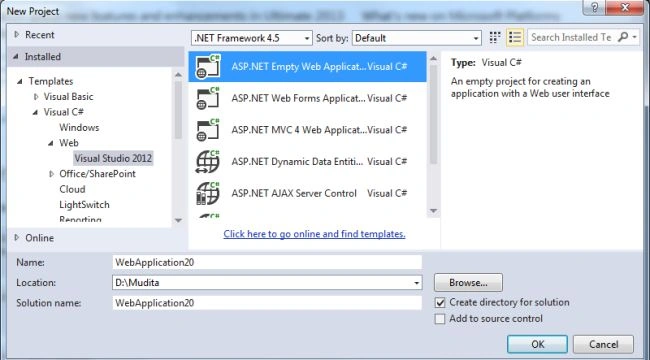
- Click on the "OK" button.
- Now we need to add the HTML page to our project.
- In the Solution Explorer.
- Right-click on the project then select "Add" -> "HTML page".
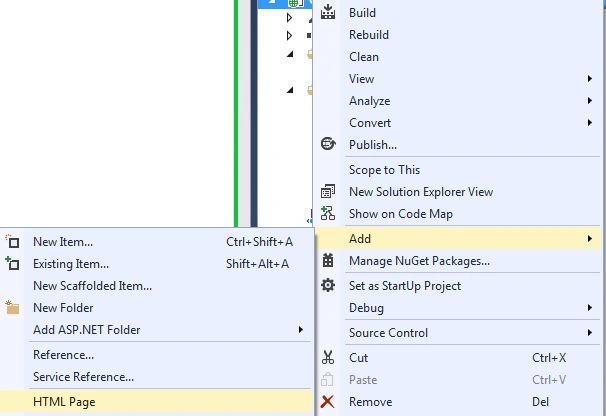
- Change the name of the page.
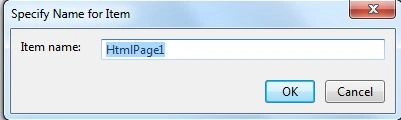
- Click on the "OK" button.
Add the following code:
<!DOCTYPE html>
<html>
<head>
<title>Backbone.js</title>
<link rel="stylesheet" type="text/css" href="style.css">
</head>
<body>
<form id="add">
<label>Product</label>
<input id="product" type="text" />
<label>Cost</label>
<input id="cost" type="text" />
<input type="submit" value="save" />
</form>
<form id="filter">
<label>Less Than</label>
<input type="text" id="less-than" />
<input type="submit" value="Filter" />
</form>
<a href="#" id="clear-filter">Remove Filter</a>
<div id="yourcart"></div>
<script id="productTemplate" type="text/template">
<img src="<%= photo %>" alt="<%= product %>">
<div>
<h2><%= product %></h2>
<h4>₹<%= cost %></h4>
</div>
</script>
<script src="https://ajax.googleapis.com/ajax/libs/jquery/1.7.2/jquery.min.js"></script>
<script src="Scripts/underscore.js"></script>
<script src="Scripts/backbone.js"></script>
<script src="Scripts/main.js"></script>
</body>
</html>
- Now to add a JavaScript file.
- In the Solution Explorer.
- Right-click on the project then select "Add" -> "New Item" -> "JavaScript".
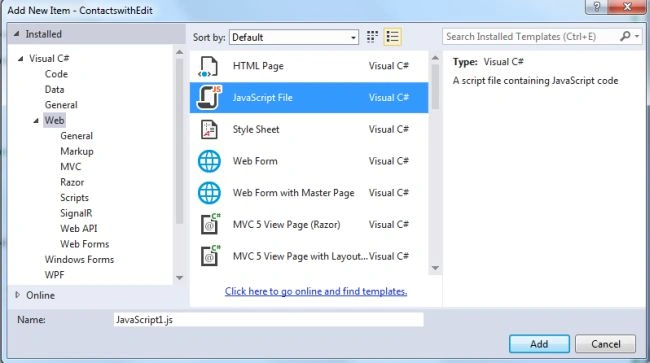
- Click on the "Add" button.
Add the following code:
var Product = Backbone.Model.extend({
defaults: {
cost: 35,
photo: "img/pic.jpg"
}
});
var Cart = Backbone.Collection.extend({
model: Product,
initialize: function () {
this.on("add", this.updateSet, this);
},
updateSet: function () {
products = this.models;
}
});
var products = [
{ product: "Mouse", cost: 200 },
{ product: "Keyboard", cost: 999 },
{ product: "Monitor", cost: 1500},
{ product: "CPU", cost: 50 },
{ product: "UPS", cost: 799 }
];
var cartCollection = new Cart(products);
var ProductView = Backbone.View.extend({
tagName: "div",
className: "product-wrap",
template: _.template($("#productTemplate").html()),
render: function () {
this.$el.html(this.template(this.model.toJSON()));
return this;
}
});
var ProductCollectionView = Backbone.View.extend({
el: '#yourcart',
initialize: function () {
this.collection = cartCollection;
this.render();
this.collection.on("reset", this.render, this);
},
render: function () {
this.$el.html("");
this.collection.each(function (product) {
this.renderProduct(product);
}, this);
},
renderProduct: function (product) {
var productView = new ProductView({ model: product });
this.$el.append(productView.render().el);
},
addProduct: function () {
var data = {};
$("#add").children("input[type='text']").each(function (i, el) {
data[el.id] = $(el).val();
});
var newProduct = new Product(data);
this.collection.add(newProduct);
this.renderProduct(newProduct);
},
filterByCost: function () {
// first reset the collection
// but do it silently so the event doesn't trigger
this.collection.reset(products, { silent: true });
var max = parseFloat($("#less-than").val(), 10);
var filtered = _.filter(this.collection.models, function (product) {
return product.get("cost") < max;
});
// trigger reset again
// but this time trigger the event so the collection view is rerendered
this.collection.reset(filtered);
},
clearFilter: function () {
$("#less-than").val("");
this.collection.reset(products);
}
});
var CartCollectionView = Backbone.View.extend({
el: "body",
events: {
"submit #add": "addProduct",
"submit #filter": "filterProducts",
"click #clear-filter": "clearFilter"
},
initialize: function () {
this.productView = new ProductCollectionView();
},
addProduct: function (e) {
e.preventDefault();
this.productView.addProduct();
},
filterProducts: function (e) {
e.preventDefault();
this.productView.filterByCost();
},
clearFilter: function (e) {
e.preventDefault();
this.productView.clearFilter();
}
});
$(function () {
var app = new CartCollectionView();
});
- Now we add a style sheet:
- In the Solution Explorer.
- Right-click on the project then select "Add" -> "New Item" -> "Style Sheet".
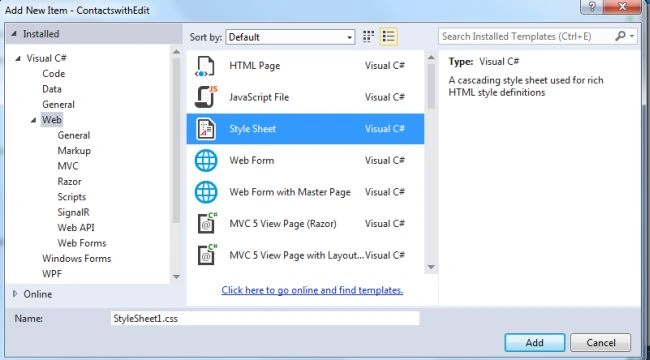
- Click on the "Add" button.
Add the following code:
body {
}
.product-wrap {
float: left;
width: 100px;
height: 200px;
border: 1px solid #111;
padding: 10px;
margin-right: 30px;
margin-bottom: 20px;
margin: 0 30px 20px 0;
background:#ccc6c6;
}
.product-wrap h2 {
font-style: italic;
font-weight: normal;
font-size: 20px;
text-align: center;
}
.product-wrap h4 {
text-align: center;
font-size: 40px;
}
form {
margin-bottom: 20px;
}
.product-wrap img{
width:100px;
height:50px;
}
- Now execute the application:
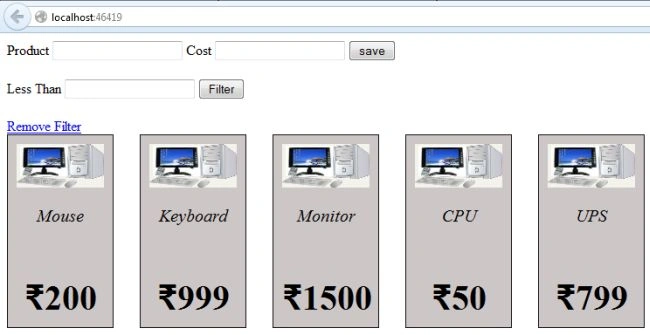
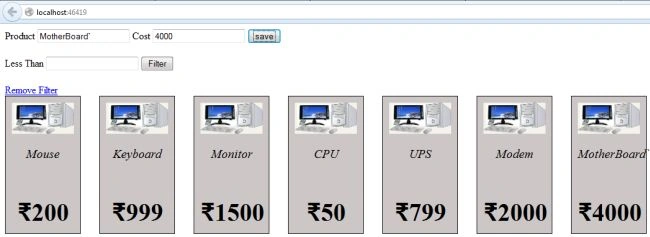
Add the new products.
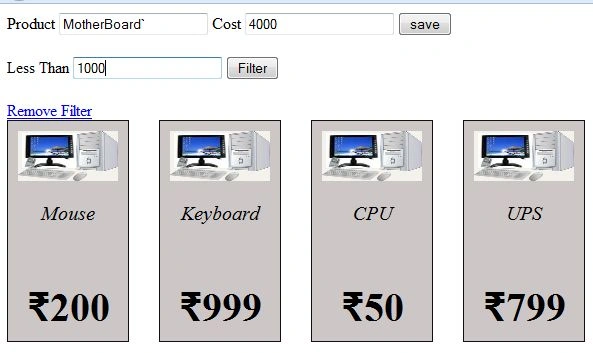
Filter the products.
Join the conversation! Your thoughts help the community grow.