

Binding is the main feature of the WPF. For understanding binding, we take two controls - Source control and Target control. WPF has four types of binding modes -
- One Way
- Two Way
- One Way to source
- One Time
Here, for understanding these all bindings, let's take one example. Make one WPF application which has two controls - slider and textbox, as shown below.
- <Grid>
- <StackPanel Orientation="Vertical">
- <Slider Name="mySlider" Maximum="100" Minimum="0" Margin="20"></Slider>
- <TextBox Name="txtValue" Margin="20" Width="50" Height="30"></TextBox>
- </StackPanel>
- </Grid>
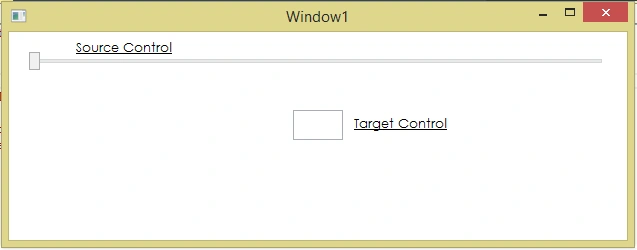
Now, let's learn all the bindings, one by one.
- One Way
In One Way binding, source control updates the target control, which means if you change the value of the source control, it will update the value of the target control. So, in our example, if we change the value of the slider control, it will update the textbox value, as shown below.
Here, we use the binding property on target control and we specify the element name and path (or whatever things you want to update), and mode of binding. So, full code is.- <TextBox Name="txtValue" Text="{Binding ElementName=mySlider, Path=Value, Mode=OneWay}"
- Margin="20" Width="50"
- Height="30">
- </TextBox>
Now, run the application and check if you change the value of the slider (source), it will update the value in textbox. Yes it will. But, if you update the value in text box, then it will not update the slider value. So, it's called one way binding.- <Grid>
- <StackPanel Orientation="Vertical">
- <Slider Name="mySlider" Maximum="100" Minimum="0" Margin="20"></Slider>
- <TextBox Name="txtValue" Text="{Binding ElementName=mySlider, Path=Value, Mode=OneWay}" Margin="20" Width="50" Height="30"></TextBox>
- </StackPanel>
- </Grid>
- Two Way
In two way binding, source control updates the target control as well as the target control also updates the source control. That means if you change the value of the source control, it will update the value of the target control and if you change value of target control, it changes the value of the source control. So, in our example, if we change value of the slider control, it will update the textbox value and also vice versa is working, as shown below.
Here we use one more property: UpdateSourceTrigger, which is for instantly (immediately) updating the control value. If you change the value in text box then it will directly affect the slider -- no need to press tab or any other action.- <TextBox Name="txtvalue" Text="{Binding ElementName=mySlider, Path=Value, Mode=TwoWay, UpdateSourceTrigger=PropertyChanged}"
- Margin="20" Width="50"
- Height="30">
- </TextBox>
Here, we use the binding property on target control and we specify the element name, path (whatever things you want to update), and mode of binding as shown in the above example. Now, run full code.
Now, run the application and check if you change the value of the slider (source), whether it updates the value in textbox and also vice versa. So, it's called two way binding.- <Grid>
- <StackPanel Orientation="Vertical">
- <Separator BorderThickness="20" BorderBrush="Black"></Separator>
- <Slider Name="mySlider3" Maximum="100" Minimum="0" Margin="20"></Slider>
- <TextBox Name="txtvalue3" Text="{Binding ElementName=mySlider3, Path=Value, Mode=TwoWay, UpdateSourceTrigger=PropertyChanged}" Margin="20" Width="50" Height="30"></TextBox>
- </StackPanel>
- </Grid>
- One Way to source
In One way to source binding, target control updates the source control which means if you change the value of the target control, it will update the value of the source control. It is just the opposite to One way binding. So, in our example, if we change the value of the slider control, it will update the textbox value; as shown below.
Here, we use the binding property on target control and specify the element name, path, and mode of binding, as shown in the above example. Now, run the full code.- <TextBox Name="txtvalue4" Text="{Binding ElementName=mySlider4, Path=Value, Mode=OneWayToSource, UpdateSourceTrigger=PropertyChanged}" Margin="20" Width="50" Height="30">
- </TextBox>
Now, run the application and check if you change the value of the textbox (target), whether it updates the value in slider. But, if you update the value in text box, then it will not update the slider value. So, it's called one way to source binding.- <Grid>
- <StackPanel Orientation="Vertical">
- <Separator BorderThickness="20" BorderBrush="Black"></Separator>
- <Slider Name="mySlider4" Maximum="100" Minimum="0" Margin="20"></Slider>
- <TextBox Name="txtvalue4" Text="{Binding ElementName=mySlider4, Path=Value, Mode=OneWayToSource, UpdateSourceTrigger=PropertyChanged}" Margin="20" Width="50" Height="30"></TextBox>
- </StackPanel>
- </Grid>
- One Time
In one time binding, control value is updated only when the application is initialized. This means you cannot change the value from source to control; as for changing the value, you have to write code in code behind file, so that you can change value from the back-end programming.
- txtvalue.Text = "50";
- mySlider.Value = Convert.ToInt32(txtvalue.Text);
hossein rezaeiPosted Sep 6, 2019, 5:56 AM
Your explain about One Way to source Example is incorrect!! You must write "when change TextBox value as Target Element Should Value of Slider Change automatically!!"
Vignesh ManiPosted Oct 2, 2016, 3:38 PM
Nice One