

In JavaScript, events are actions or occurrences that happen within the browser, triggered by users (like clicking, typing, or hovering) or by the system (like page load or media playback). These events are central to creating dynamic, interactive web applications. To respond to these events, JavaScript uses event handlers, which are functions specifically designed to execute when an event occurs. This relationship is what powers everything from button clicks to real-time form validation.
Think of it like a smart home system.
The event is pressing a doorbell. The event handler is the system that plays a sound and turns on the porch light.
JavaScript provides multiple ways to handle events, such as using addEventListener() for clean separation between HTML and logic, and inline onclick attributes for quick demo setups.
What is an Event Listener in JavaScript?
An event listener is a JavaScript mechanism that waits for a specific event to occur on a webpage, such as a user clicking a button, pressing a key, or resizing the window, and then executes a function (called an event handler) in response.
How does it work?
- We attach an event listener to an element using the addEventListener() method.
- It listens for a specific type of event (e.g., "click", "keydown", "submit").
- When the event occurs, it triggers the associated function.
How Events and Event Handlers Work in JavaScript?
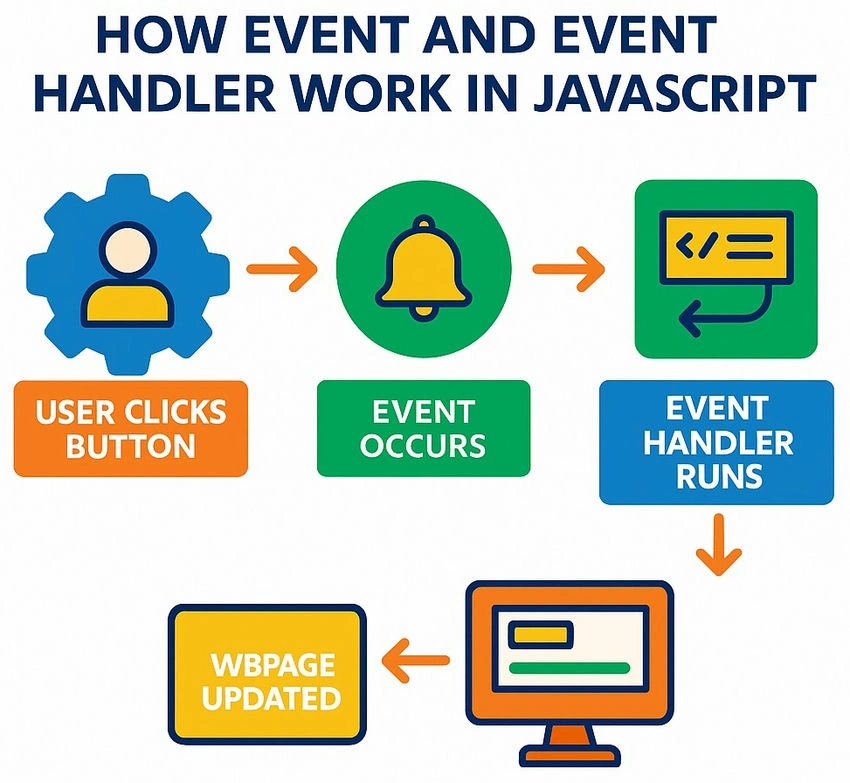
- Browser Waits for Events: The browser constantly listens for user interactions like clicks, keypresses, form submissions, etc.
- JavaScript Registers a Handler: We use addEventListener() to tell JavaScript, “When this specific event happens on this element, run this function.”
- Event Occurs: When the event (like a button click) happens, the browser detects it and notifies JavaScript.
- Event Handler Executes: The assigned handler function runs, performing your custom logic (e.g., showing a message, updating the UI, sending data).
Example
<!DOCTYPE html>
<html>
<head>
  <title>JavaScript Event Example</title>
</head>
<body>

  <!-- A button element the user can interact with -->
  <button id="clickMeBtn">Click Me!</button>

  <script>
    // Step 1: Access the button element by its ID
    const button = document.getElementById('clickMeBtn');

    // Step 2: Define the event handler function
    function handleClick() {
      // This code runs when the button is clicked
      alert("Welcome to C# corner!");
    }

    // Step 3: Attach the 'click' event and bind it to the handler function
    button.addEventListener('click', handleClick);
  </script>

</body>
</html>
JavaScript Event Types and Handlers
| Event Type | Definition | Syntax Example | Event Handlers & Usage Description | Real-World Analogy | Use Case | Best Practice |
|---|---|---|---|---|---|---|
| Mouse Events | Triggered by the user’s mouse actions like clicks, hovers, or presses. | element.addEventListener("click", handler) | onclick: Element is clicked ondblclick: Double-click onmouseover: Mouse enters onmouseout: Mouse leaves onmousedown, onmouseup, onmousemove, oncontextmenu |
Flipping a light switch | Buttons, image zooms, and toggles | Use for interactive elements; debounce mousemove |
| Keyboard Events | Triggered when keys are pressed or released. | document.addEventListener("keydown", handler) | onkeydown: Key is pressed onkeyup: Key is released onkeypress: Key is pressed and held (deprecated) |
Typing on a keypad | Hotkeys, form input, games | Use event.key or event. code; sanitize input |
| Form Events | Triggered when form elements are interacted with or submitted. | form.addEventListener("submit", handler) | onsubmit: Form is submitted onchange: Value is changedoninput: Live typing onreset: Form resetoninvalid: Input is invalid |
Sending a message in a mailbox | Data validation, login/register forms | Use preventDefault() to stop reload |
| Window Events | Browser-level or document-related events. | window.addEventListener("load", handler) | onload: Page fully loaded onresize: Window size changedonscroll: Scrolling onunload: Leaving page onbeforeunload, onerror, onhashchange, onpopstate |
Curtain opening on stage | Responsive layout, analytics, transitions | Throttle resize/scroll; attach listeners early |
| Touch Events | Mobile or touchscreen finger gestures. | element.addEventListener("touchstart", handler) | ontouchstart: Finger touches ontouchmove: Finger moves ontouchend: Finger lifts ontouchcancel: Touch interrupted |
Swiping through photos | Mobile menus, swipes, drawing apps | Combine with mouse events for better device support |
| Focus & Blur Events | Happens when elements like inputs or buttons gain/lose focus. | input.addEventListener("focus", handler) | onfocus: Element gains focus onblur: Loses focus onfocusin, onfocusout: Bubble/capture versions |
Spotlight on a speaker | Highlight inputs, guide users | Enhance UX; improve accessibility |
| Clipboard Events | Copy, paste, or cut actions inside editable fields. | textarea.addEventListener("paste", handler) | oncopy: Copy content oncut: Cut content onpaste: Paste content |
Copying from a book | Restrict/mod content, custom paste actions | Use event.clipboardData; sanitize pasted data |
| Media Events | Audio or video state changes (play, pause, load). | video.addEventListener("play", handler) | onplay: Media starts onpause: Media pauses onended: Finished onvolumechange, onloadeddata, onerror, onwaiting, oncanplay, ontimeupdate, onseeked, onseeking |
Pressing play on a music player | Custom player controls, analytics | Attach handlers after media element loads |
| Drag and Drop Events | Dragging and dropping elements across the screen. | element.addEventListener("dragstart", handler) | ondragstart: Start dragging ondrag: While dragging ondragover: Drag over targetondragenter, ondragleave, ondrop, ondragend |
Moving files on the desktop | File uploads, reorderable items | Prevent default for ondrop, add drag visual cues |
| Animation Events | CSS animations starting, ending, or repeating. | element.addEventListener("animationend", handler) | onanimationstart: Animation startsonanimationend: Endsonanimationiteration: Repeats | Watching the loading bar finish | Trigger after animations for further actions | Pair with classes or transitions |
| Transition Events | CSS transitions are completing or being canceled. | element.addEventListener("transitionend", handler) | ontransitionstart: Starts ontransitionend: Ends ontransitioncancel: Interrupted |
A door sliding shut | UI feedback after transition ends | Attach only to animated elements |
| Pointer Events | Unified event for mouse, pen, and touch input. | element.addEventListener("pointerdown", handler) | onpointerdown, onpointerup, onpointermove, onpointerenter, onpointerleave, onpointercancel | Finger or stylus on a screen | Drawing apps, multi-device support | Preferred for modern devices over mouse/touch separately |
The Importance of Events and Event Handlers in JavaScript.
- To Make Web Pages React to Users Without events, a website just shows information and does nothing. Events like onclick let the page react when someone clicks a button or types something. This is how we make websites feel alive and interactive.
- To Check What Users Type. With events like oninput and onsubmit, we can check what the user types into a form. We can show error messages or stop the form from being sent if something is wrong. This helps make forms easier and smarter.
- To Keep Code Clean and Organized, instead of mixing JavaScript inside HTML, we can use addEventListener() to keep the JavaScript separate. This makes the code neater and easier to manage, especially when a project gets bigger.
- To Handle Things the Browser Does. Some events happen without user input, like when the page loads or the window is resized. We can use events like onload or onresize to adjust content, load images, or make the page work better on different devices.
- To Reuse Code for Many Elements, we can use the same event handler for many buttons or elements. For example, one function can work for all "Delete" buttons in a list. This helps us write less code and makes it easier to update later.
Conclusion
From what I’ve learned, JavaScript events and event handlers are the key to making web pages interactive and user-friendly. They allow the website to respond to user actions like clicking, typing, scrolling, or submitting a form. Without events, a web page would just sit there, doing nothing. Using event handlers like onclick or onchange, we can write code that runs only when something important happens. This makes the page smarter and easier to use. Overall, events solve real problems like form validation, live updates, and responsive UI changes. They help us build dynamic websites where the user feels in control. Understanding how and why to use them is a big step toward becoming a better frontend developer.
Join the conversation! Your thoughts help the community grow.