

To use SQL Azure with your Entity Framework, first create an SQL database first in your Azure account. If you want learn more about SQL Azure then follow the following links:
So, let’s make an SQL database. Here are the steps,
Go to your Azure account find New, Data + Storage, then click SQL Databases.
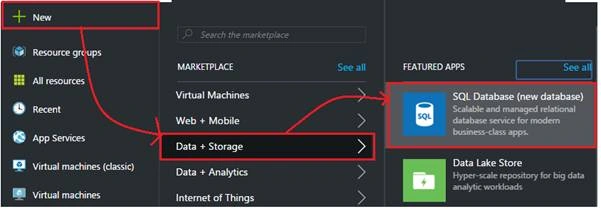
Fill the details and proceed to next.
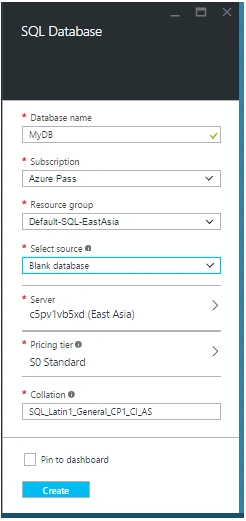
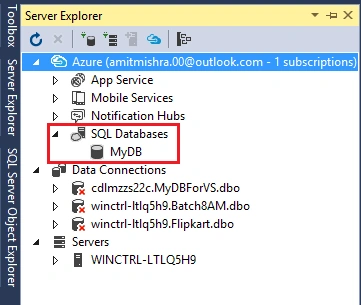
After creating SQL Azure database successfully, then just go to Visual Studio and open Server Explorer. Just login with Azure Account and find the database created in Azure.
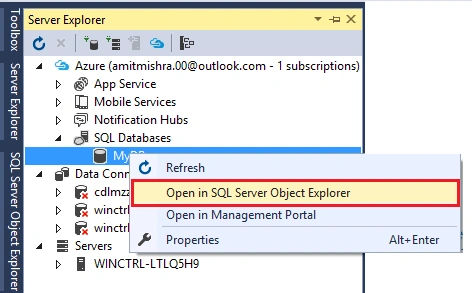
Right click on it and open it with SQL server Object Explorer so that we can create table and manage my database from wizard.
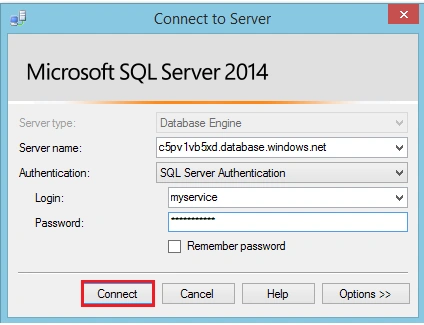
Just enter your database authentication details which were entered by you on the Azure portal to create a database and make sure that a client IP address has been added in to server configurations.
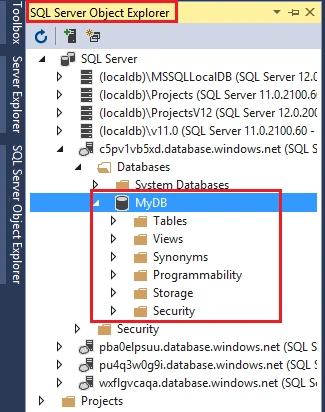
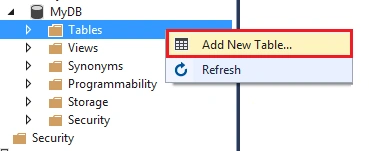
After connection with SQL Azure database into Server Explorer, you can see the database and all its tables and other things but I am not having any table yet, so make a table first. For that, right click on tables section and add a new table.
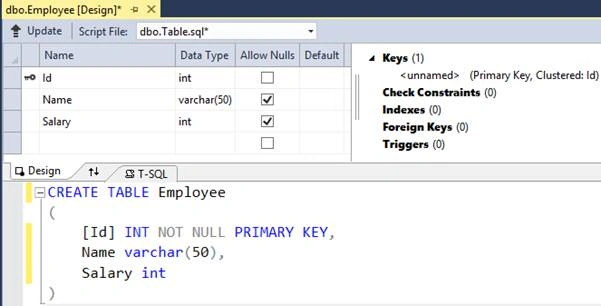
Just write your create table script on the script section and at last just click on update button.
Now, you’ll get dialog where you have to click on “Update Database” button.
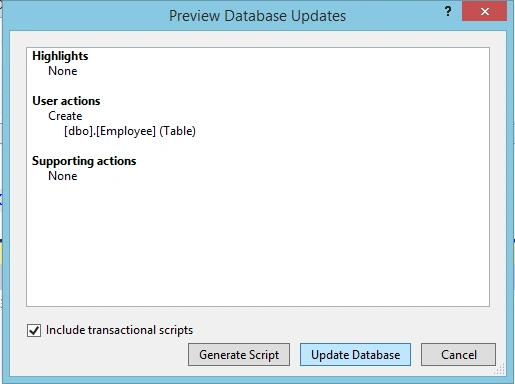
Now it’s creating a table you see your query updates in Data tools options.
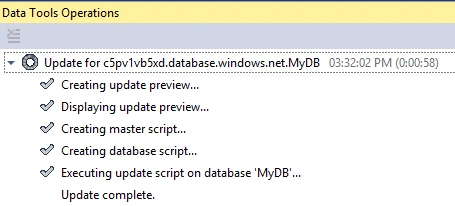
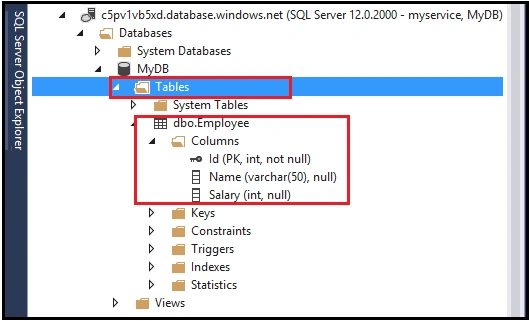
Just go to back on SQL Server object explorer and refresh tables. You’ll get the new table created by your query.
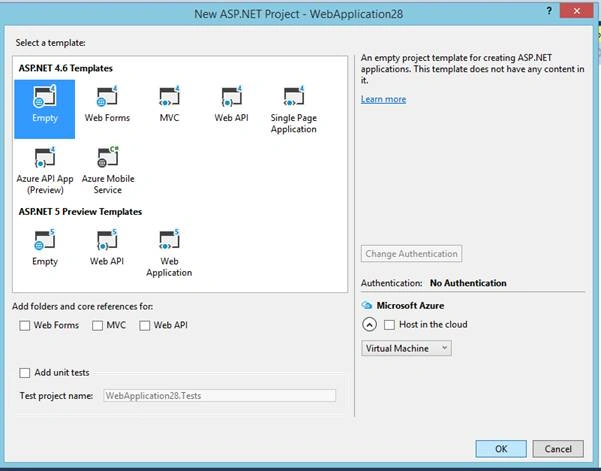
Now just add an ASP.NET or any other application where you want to use this database. I am going to use an ASP.NET project to use this database with entity framework.
Now just add an Entity framework.
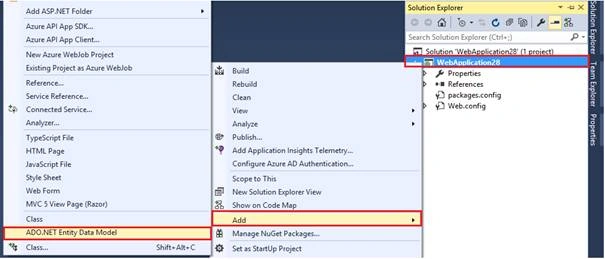
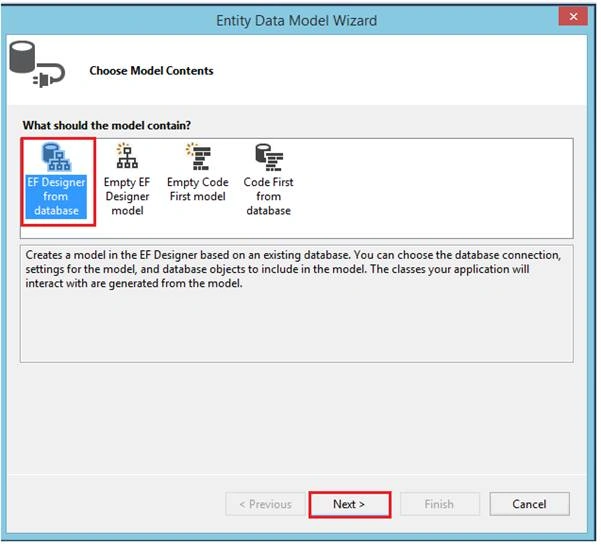
Select any one, but I am going to use Database first with entity.
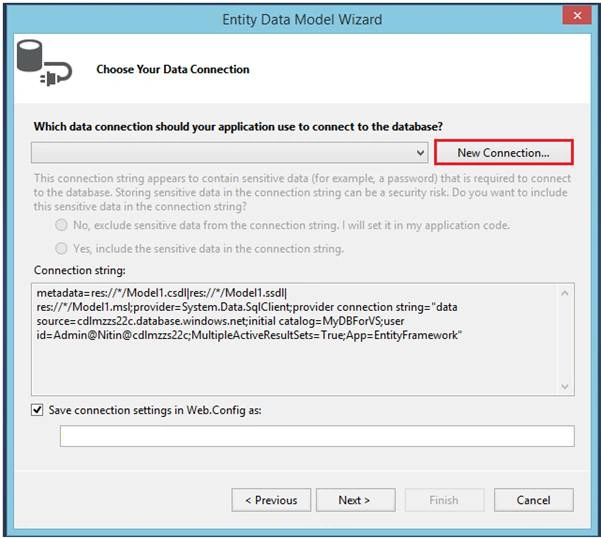
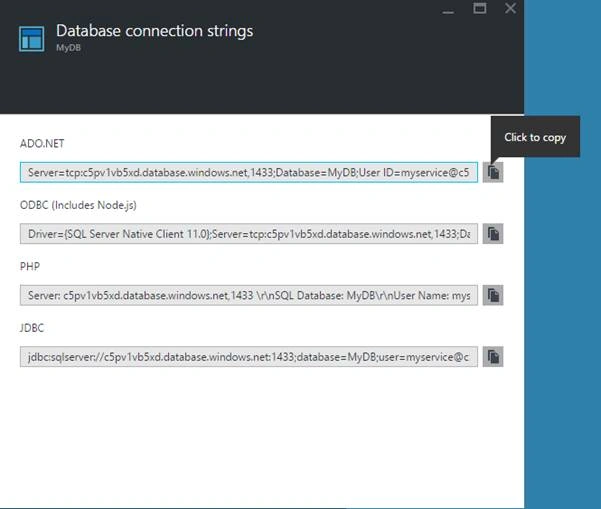
Now just make connection with Azure cloud service where your SQL Azure is hosted. For that you can go to your portal and get connection string.
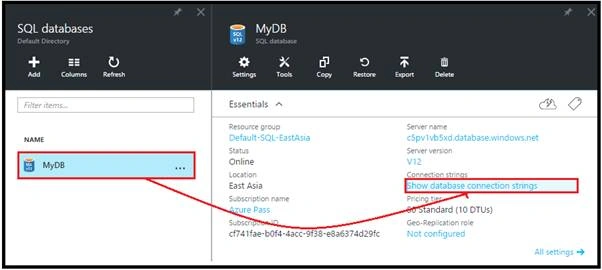
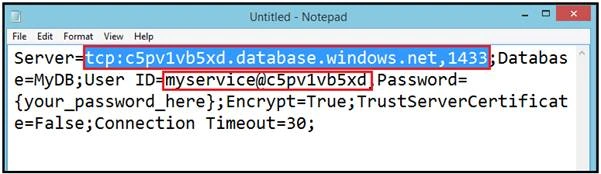
Copy that and open it in text file and find server name.
Copy Server name and user id,
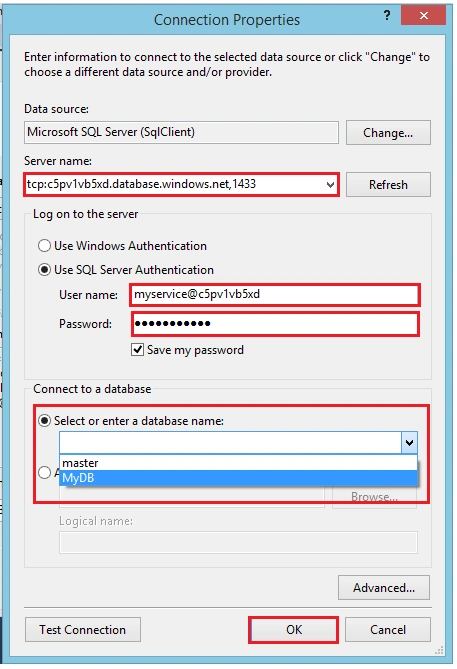
Use them and make a successful connection.
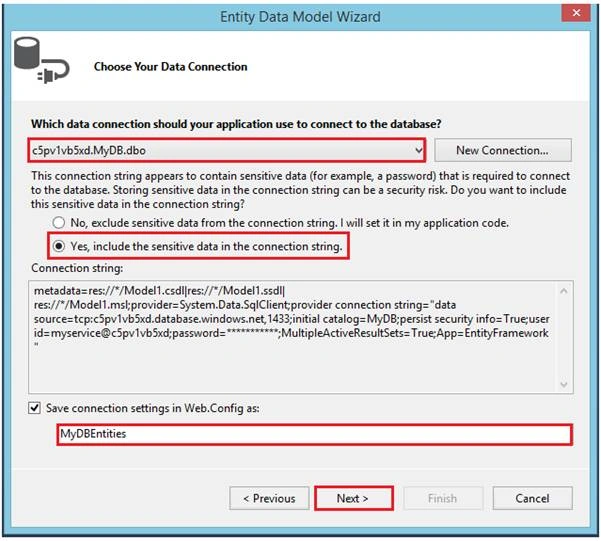
Give a name to your entity and select your tables which you want to use.
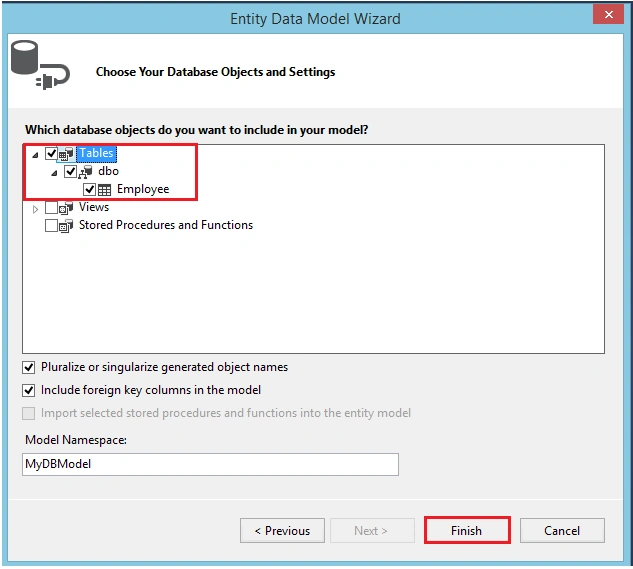
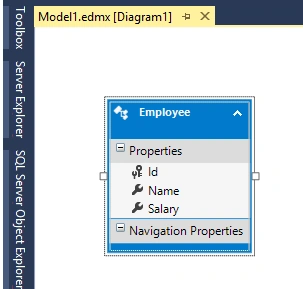
Now this is your model file.
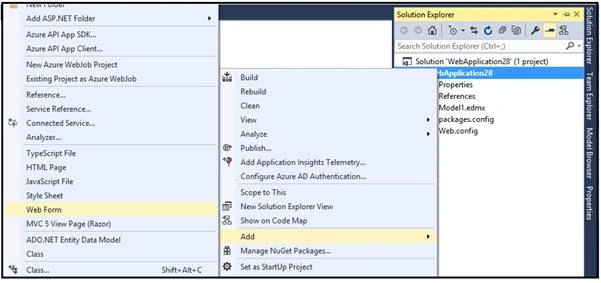
Now just add a ASP Web Form to write operations.
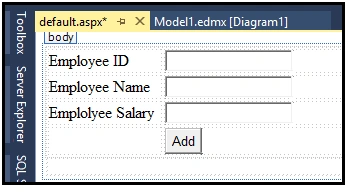
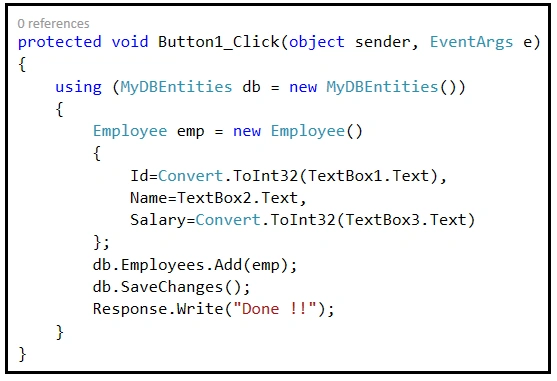
Just use some textbox to get the test information from page and a button. On button click event write code to add an object to an entity table as in the following code.
Test code to save an object information to table.
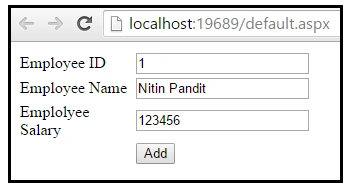
Now at last just run this application and enter some details and click on button.
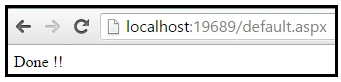
After that, you’ll get the message “Done !!” as I use to notify all done successfully.
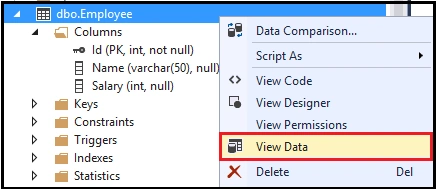
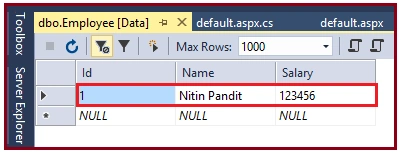
Go to table and right click on table in SQL server object explorer and find View Data option.
So this is the data entered by you from ASP form.
I hope you enjoyed this article. Stay tuned with me for more articles on Azure and other Microsoft technologies.
Thanks.
nawaz uddinPosted Nov 14, 2018, 2:45 AM
I got an error under Entity Model wizard when I select new Connection It will open with an error: An unexpected error occurred in the .net framework data provider for MySQL please contact the provider vendor to resolve this problem.
Jaco ZwartsPosted Dec 12, 2016, 1:47 AM
Thank you for sharing, this is really helpful
Prasanna MuraliPosted May 10, 2016, 10:43 AM
Nice
Vivek KumarPosted Apr 28, 2016, 2:58 PM
Good one
Humayun Kabir MamunPosted Apr 17, 2016, 2:27 AM
Nice...
Kuppurasu NagarajPosted Apr 14, 2016, 9:27 AM
Nice Sharing..
Vignesh ManiPosted Apr 14, 2016, 8:15 AM
Nice
Rahul Kumar SaxenaPosted Apr 14, 2016, 6:27 AM
Good Show...
Debasis SahaPosted Apr 13, 2016, 1:37 PM
Nice one..
Mohammed IbrahimPosted Apr 13, 2016, 1:17 PM
nice
Saurabh RaiPosted Apr 13, 2016, 10:12 AM
Very descriptive and useful. Thanks for sharing!
Gowtham RajamanickamPosted Apr 13, 2016, 7:17 AM
good article...
Shakti Singh DulawatPosted Apr 13, 2016, 6:06 AM
Screen shot mentions in article explain every thing in well format
vikash kumarPosted Apr 13, 2016, 5:52 AM
Nice Work....