

Note: this article is published on 07/21/2024.
After I wrote several articles on this site, I found out it seemed almost for every article, I needed to set up a sample application associated with an entity framework if accessing the database. And, every time, I needed to rewrite the setup process from scratch in order for a new reader to follow along easily. Even for introducing a very simple concept, such as Caching, I needed to spend 80% of the time setting up the sample app, and only 20% on introducing the Caching concept itself.
Therefore, I think it is better to write a basic model such as entity framework sample for various approaches, and then I can reuse them when needed. I made a list of the series of articles below, I will write them one by one, while the Entity framework overview and concept will be covered in the article (0):
- Entity Framework (0), Overview
- Entity Framework (1), with .Net MVC, Code-First
- Entity Framework (2), with .Net MVC, Database-First
- Entity Framework (3), with .Net MVC, Model-First
- Entity Framework (4), with .Net Core MVC, Code-First
- Entity Framework (5), with .Net Core MVC, Database-First
- Entity Framework (6), with .Net Core MVC, Model-First
- Entity Framework (7), with .Net WPF, Database-First
- Entity Framework (8), with .NET Core Web API, Stored Procedure
- Entity Framework (9), with .NET Core Web API, Stored Procedure Implementation
- Entity Framework (10), with .Net WebForms, Database-First
- Entity Framework (11), with .Net Core Razor Pages Code-First --- this article
- Entity Framework (12), with New .Net Core MVC Code-First
- Entity Framework (13), with .Net Core Code-First Summary
Note
We write the Entity Framework for MVC module, but the pattern is the same or similar when applying to Web Application or Web API.
Introduction
This article is about Entity Framework with .Net Core Razor Pages Code-First approach. I will have a brief introductions on Razor (syntax) and Razor Pages.
- Razor is an ASP.NET programming syntax used to create dynamic web pages with the C# or VB.NET programming languages. Razor was in development in June 2010 and was released for Microsoft Visual Studio 2010 in January 2011. Razor is a simple-syntax view engine and was released as part of MVC 3 and the WebMatrix tool set. --- ASP.NET Razor - Wikipedia
- What Is Razor Pages? Introduced as part of ASP.NET Core, and now included in .NET 5, ASP.NET Razor Pages is a server-side, page-focused framework that enables building dynamic, data-driven web sites with clean separation of concerns. --- An Introduction To ASP.NET Razor Pages | Learn Razor Pages
- Razor Pages is designed to make common patterns used with web browsers easy to implement when building an app. Model binding, Tag Helpers, and HTML helpers work with the properties defined in a Razor Page class. --- Introduction to Razor Pages in ASP.NET Core | Microsoft Learn
This article will have the same structure with, such as
- Entity Framework (1), with .Net MVC, Code-First
- Entity Framework (4), with .Net Core MVC, Code-First
They have a lot of similar features. We try to emphasize the differences. However, in order for reader to have a consistent reading, we will keep the similar ones as is. This article will based on this Microsoft Tutorial: Get started with Razor Pages in ASP.NET Core | Microsoft Learn.
We will make a sample app step by step,
- Step 1 - Create a .Net Core Razor Page app
- Step 2 - Add a Model
- Step 3 - Scaffold the Movie Model (Set up DbContext and Data Connection)
- Step 4 - Migrate and Update database
- Step 5 - Run the App and Test
At the end, we will have an .Net Core Razor Pages that can consume a database directly through entity framework.
Step 1 - Create a .Net Core Razor Page app
We use the current version of Visual Studio 2022 17.10.3 and .NET Core 8.0 to build the app:
- Start Visual Studio and select Create a new project.
- In the Create a new project dialog, select ASP.NET Core Web App (Razor Page) > Next.
- In the Configure your new project dialog, enter RazorPagesMovie for Project name > Next.
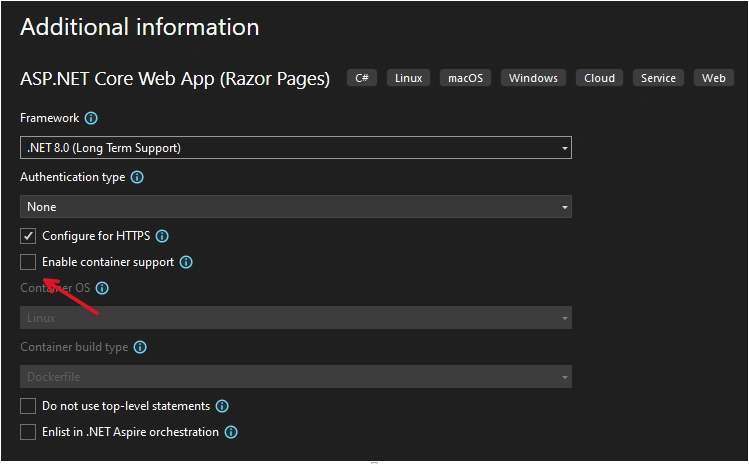
- In the Additional Information dialog, select .NET 8.0 (Long Term Support) in the target framework dropdowns > Create
Note
- In the Additional Information Page, do not select Enable container support. if you do, you might get this kind of error,
- Platform not supported exception localdb is not supported on this platforms
- that is probably required to use linux container to held the database.
- Platform not supported exception localdb is not supported on this platforms
- For details, you may reference here.
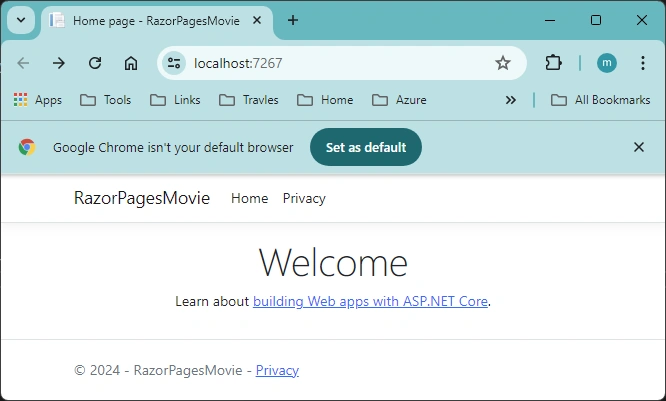
Build and run the app, you will see the following image showing the app,
Step 2 - Add a Data Model
Add a data model, an entity class, into the app, with name as Movie:
- In Solution Explorer, right click the Project > Add => New Folder, Name the folder as Models
- Right click Models folder, > Add
- In the Add New item dialog, Select Class, Enter the class name Movie > Add.
- Add the code to the
using System.ComponentModel.DataAnnotations;

namespace RazorPagesMovie.Models;

public class Movie
{
    public int Id { get; set; }
    public string? Title { get; set; }
    [DataType(DataType.Date)]
    public DateTime ReleaseDate { get; set; }
    public string? Genre { get; set; }
    public decimal Price { get; set; }
}
The Movie class contains:
-
The
IDfield is required by the database for the primary key. -
A [DataType] attribute that specifies the type of data in the
ReleaseDateproperty. With this attribute:- The user isn't required to enter time information in the date field.
- Only the date is displayed, not time information.
-
The question mark after
stringindicates that the property is nullable.
Step 3 - Scaffold the Movie Model (Set up DbContext and Data Connection)
This step is different from the previous, both
- Entity Framework (1), with .Net MVC, Code-First
- Entity Framework (4), with .Net Core MVC, Code-First
for them, we needed to add DbContext and Data Connection code manually, then did the Scaffolding. Now, we go to scaffolding directly after setup the data model:
From Solution Explorer:
-
Create the Pages/Movies folder:
- Right-click on the Pages folder > Add > New Folder.
- Name the folder Movies.
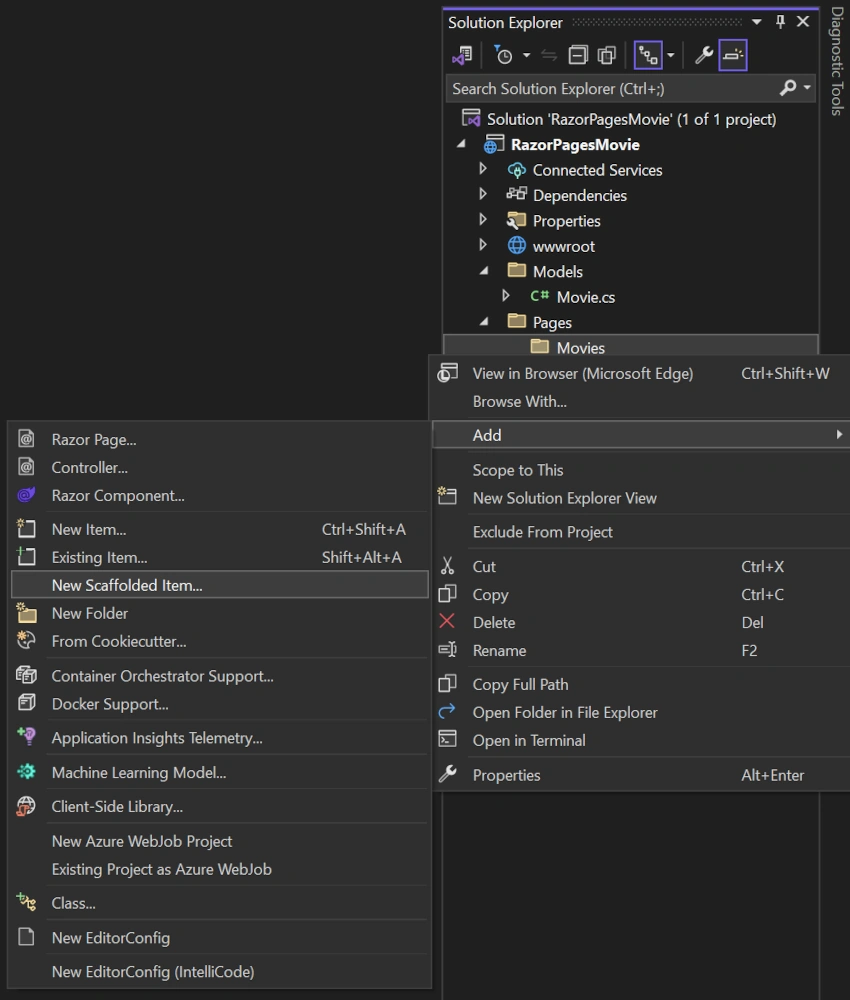
- Right-click on the Pages/Movies folder > Add > New Scaffolded Item.
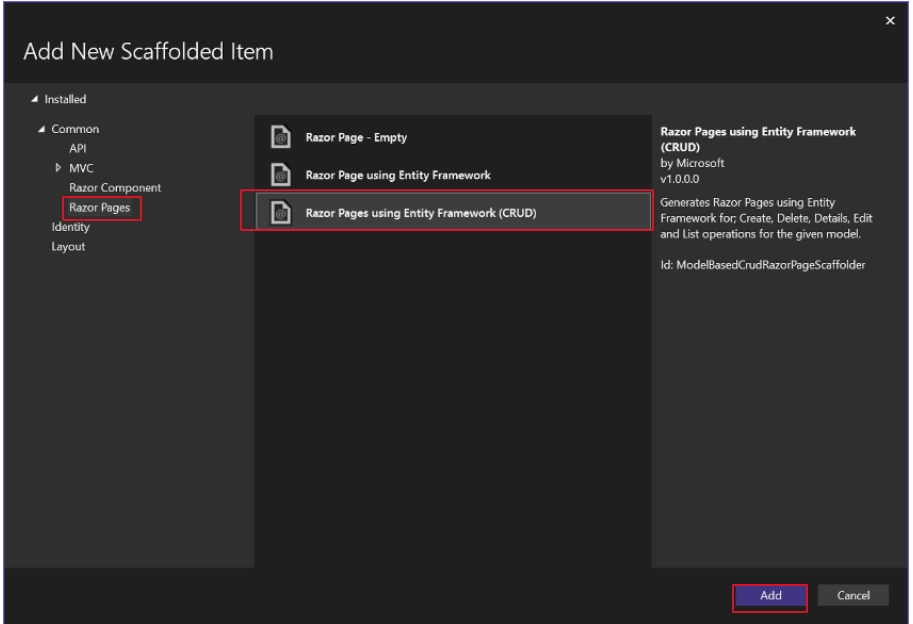
- In the Add New Scaffold Item dialog, select Razor Pages using Entity Framework (CRUD) > Add.
-
Complete the Add Razor Pages using Entity Framework (CRUD) dialog:
-
In the Model class drop down, select Movie (RazorPagesMovie.Models).
-
lIn the Data context class row, select the + (plus) sign.
- In the New Add Data Context dialog, the class name
RazorPagesMovie.Data.RazorPagesMovieContextis generated. - In the Database provider drop down, select SQL Server.
- In the New Add Data Context dialog, the class name
-
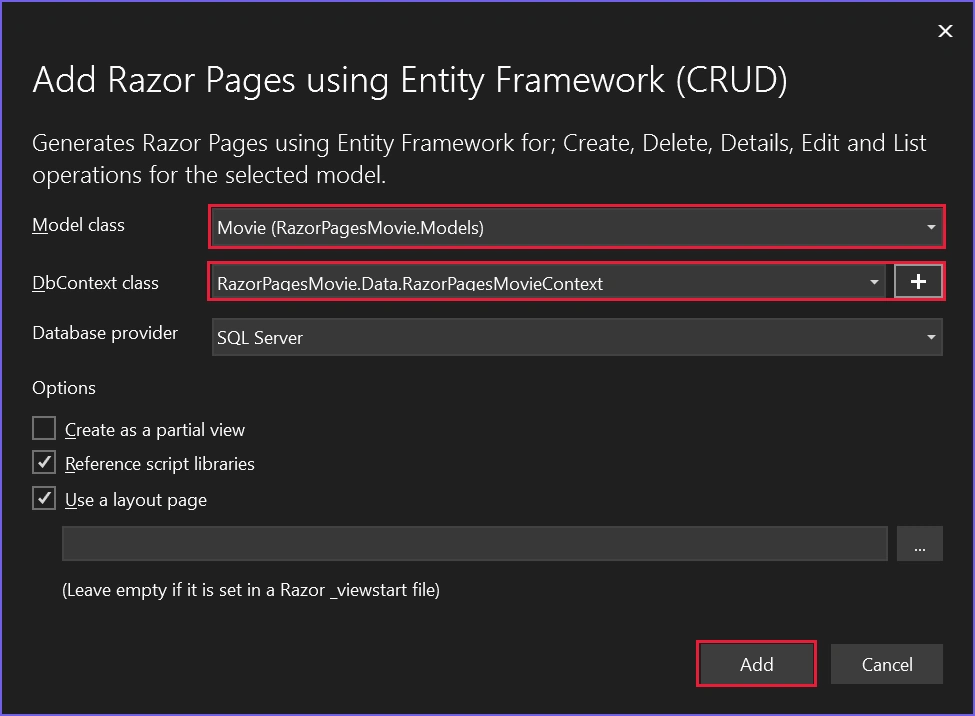
Files created and updated
The scaffold process creates the following files:
- Pages/Movies: Create, Delete, Details, Edit, and Index.
Data/RazorPagesMovieContext.cs
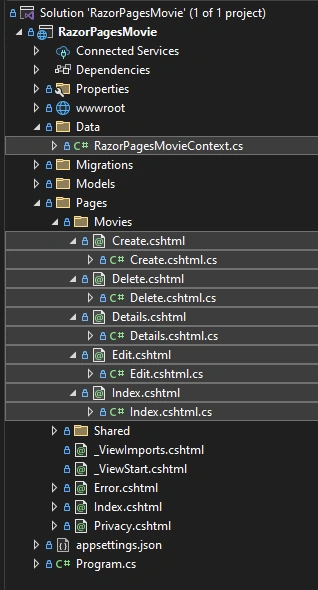
Noted the difference between Razor pages and MVC module: MVC creates controller to handle the code while Razor pages create code behind .cshtml.cs files to handle the logic.
The scaffold process adds the following highlighted code to the Program.cs file:
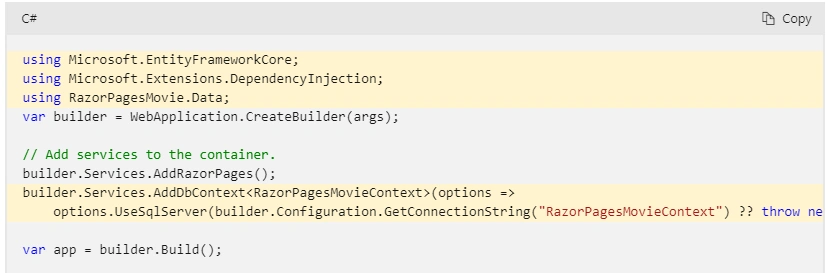
that registers the database connection context, RazorPagesMovieContext class:
builder.Services.AddDbContext<RazorPagesMovieContext>(options =>
    options.UseSqlServer(builder.Configuration.GetConnectionString("RazorPagesMovieContext") ?? throw new InvalidOperationException("Connection string 'RazorPagesMovieContext' not found.")));
Note
As in .Net Framework MVC, you don't actually need to add connection string manually, even no need for DbContext, Entity Framework will create a LocalDB database in the users directory with the fully qualified name of the DbContext class.
Remember for the previous .Net Core version, say, 5.0, you have to create a DbContext manually in code, and add a connection string in the appsettings.json file and have to register it in Startup file. Otherwise, it will not work.
Step 4 - Migrate and Update database
This is the same as .Net Core 5.0, you have to Migrate and Update database before to make the app work.
Click "Tools->NuGet Package Manager->Package Manager Console", and run the PMC command
Add-Migration InitialCreate
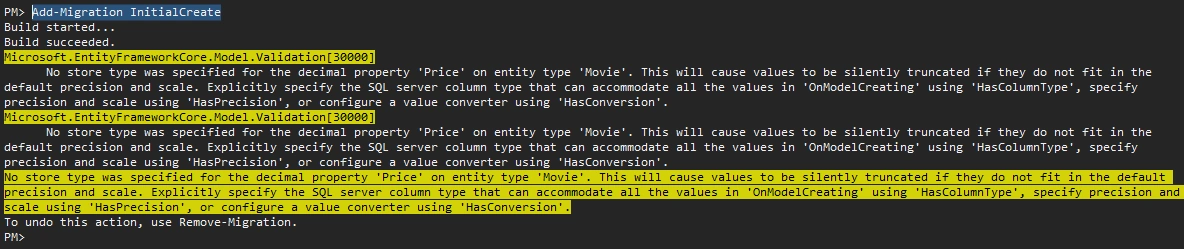
Two files created under Migration folder:
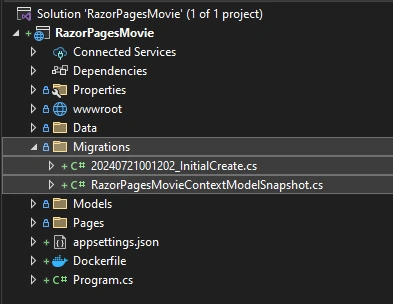
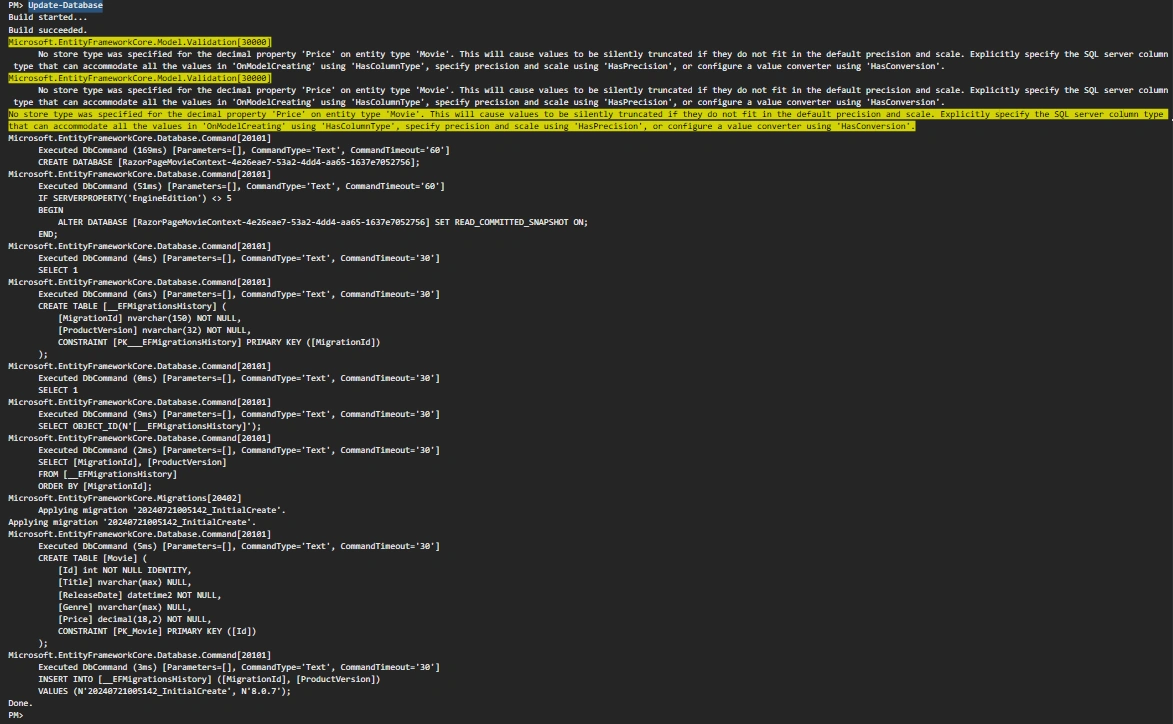
Run PMC command,
update-database
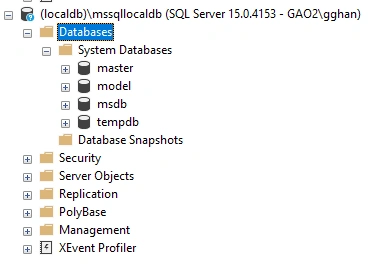
Examine the database, before running the command:
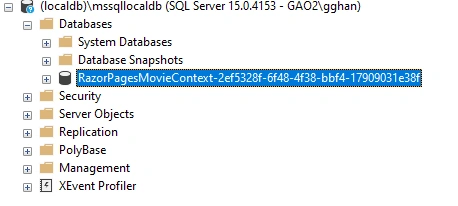
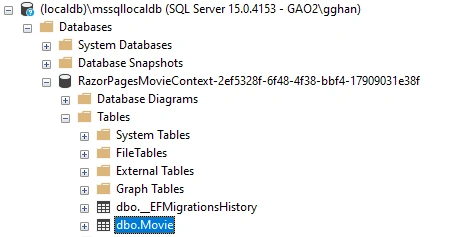
After, the database RazorPagesMovieContext-.... is created:
Tables created:
Seed the database
Create a new class named SeedData in the Models folder with the following code:
using Microsoft.EntityFrameworkCore;
using RazorPagesMovie.Data;

namespace RazorPagesMovie.Models;

public static class SeedData
{
    public static void Initialize(IServiceProvider serviceProvider)
    {
        using (var context = new RazorPagesMovieContext(
            serviceProvider.GetRequiredService<
                DbContextOptions<RazorPagesMovieContext>>()))
        {
            if (context == null || context.Movie == null)
            {
                throw new ArgumentNullException("Null RazorPagesMovieContext");
            }

            // Look for any movies.
            if (context.Movie.Any())
            {
                return;   // DB has been seeded
            }

            context.Movie.AddRange(
                new Movie
                {
                    Title = "When Harry Met Sally",
                    ReleaseDate = DateTime.Parse("1989-2-12"),
                    Genre = "Romantic Comedy",
                    Price = 7.99M
                },

                new Movie
                {
                    Title = "Ghostbusters ",
                    ReleaseDate = DateTime.Parse("1984-3-13"),
                    Genre = "Comedy",
                    Price = 8.99M
                },

                new Movie
                {
                    Title = "Ghostbusters 2",
                    ReleaseDate = DateTime.Parse("1986-2-23"),
                    Genre = "Comedy",
                    Price = 9.99M
                },

                new Movie
                {
                    Title = "Rio Bravo",
                    ReleaseDate = DateTime.Parse("1959-4-15"),
                    Genre = "Western",
                    Price = 3.99M
                }
            );
            context.SaveChanges();
        }
    }
}
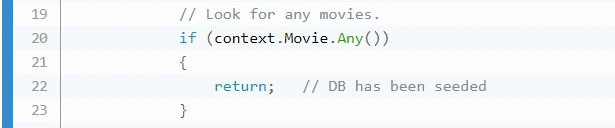
If there are any movies in the database, the seed initializer returns and no movies are added.
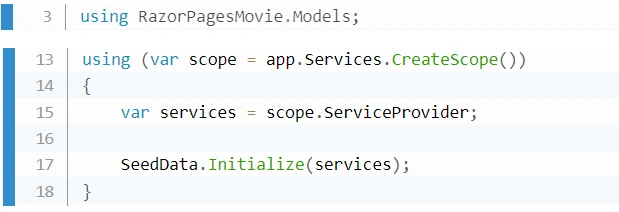
Add the seed initializer into program.cs page:
using Microsoft.EntityFrameworkCore;
using RazorPagesMovie.Data;
using RazorPagesMovie.Models;

var builder = WebApplication.CreateBuilder(args);

builder.Services.AddRazorPages();
builder.Services.AddDbContext<RazorPagesMovieContext>(options =>
    options.UseSqlServer(builder.Configuration.GetConnectionString("RazorPagesMovieContext") ?? throw new InvalidOperationException("Connection string 'RazorPagesMovieContext' not found.")));

var app = builder.Build();

using (var scope = app.Services.CreateScope())
{
    var services = scope.ServiceProvider;

    SeedData.Initialize(services);
}

if (!app.Environment.IsDevelopment())
{
    app.UseExceptionHandler("/Error");
    app.UseHsts();
}

app.UseHttpsRedirection();
app.UseStaticFiles();

app.UseRouting();

app.UseAuthorization();

app.MapRazorPages();

app.Run();
such as
Step 5 - Run the App and Test
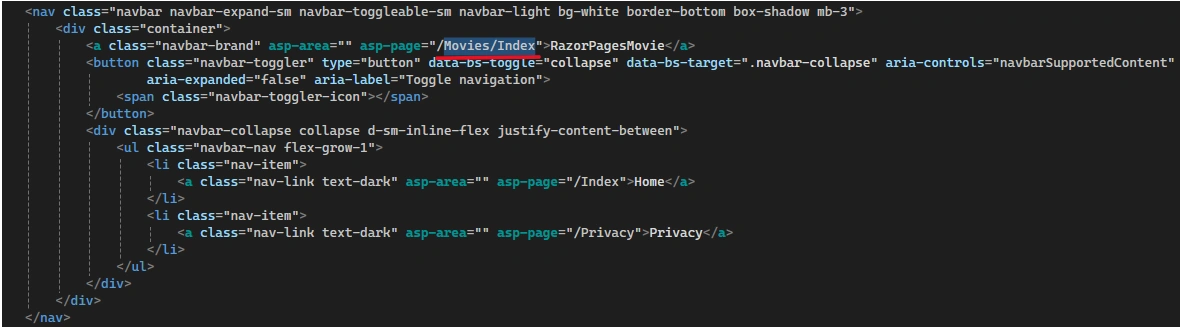
Setup the link in main page:
For convenience, you can update one line code in file Pages/Shared/_Layout.chtml, replace /index:
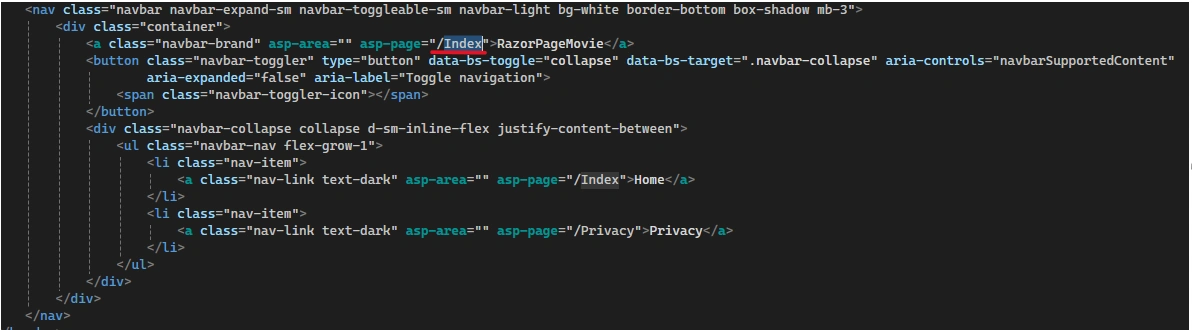
to /Movies/Index
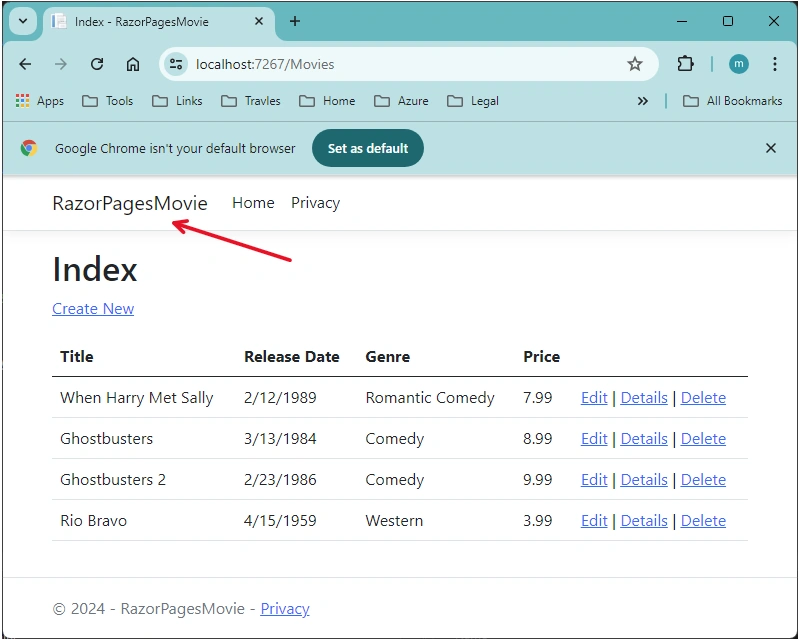
Run the App, the final result will be:
Summary
The .NET Core Razor Pages module for Code-First approach is very similar to the MVC module and the .Net Core MVC Module, except something new
- No need to setup DbContext and Connection String manually, no need to register DbContext to Framework, all of them are auto done by Scaffolding
- Need to Migrate and Update database.
Comparing Razor with MVC, Core MVC modules, Razor is simply divide the long code first approach into thre major steps:
- Modle to set up front end data entity
- Scaffolding to setup front end code;
- PMC command to handle data migration and update.
Razor Pages:
- Step 1 - Create a .Net Core Razor Page app
- Step 2 - Add a Model
- Step 3 - Scaffold the Movie Model (Set up DbContext and Data Connection)
- Step 4 - Migrate and Update database
- Step 5: Run the App and Test
MVC module:
- Step 1: Create an ASP.NET MVC application
- Step 2: Add a Model
- Step 3: Set up DbContext
- Step 4: Set up Data Connection
- Step 5: Create Controller to access data from entity framework
- Step 6: Run the App and Test
.Net Core MVC Module:
- Step 1: Create an ASP.NET Core MVC application
- Step 2: Add a Model
- Step 3: Set up DbContext
- Step 4: Set up Data Connection
- Step 4.5: Migrate and Update database (this step is not necessary for .Net Framework MVC)
- Step 5: Create Controller to access data from entity framework
- Step 6: Run the App and Test
Reference
- Gemeral for Code First:
- ASP.Net Core Web API using code-first entity framework, --- c-sharpcodedestination
- Consume Web API By MVC In .NET Core (1), Server And Framework --- Mine
- Tutorial: Get started with EF Core in an ASP.NET MVC web app. --- MS
- Major Ref for this article
- Razor
Join the conversation! Your thoughts help the community grow.