

You can enable the enhanced email attachment control for forms to provide a consistent email attachment experience to agents.
When you're composing an email, you can drag files and add them as attachments and copy attachments from one email to another.
Step 1. Log into CRM and select the your solution.
Step 2. Select Tables> Email> Forms and then select the required form.
Step 3. Add Attachments control to Components in the Attachment subgrid properties.
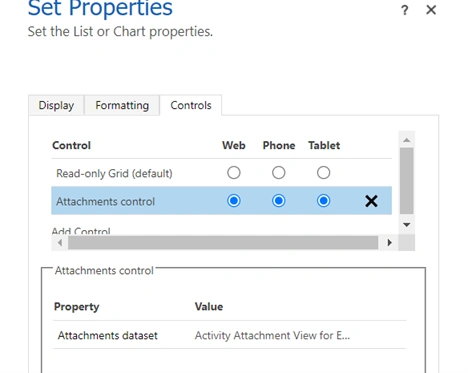
Step 4. Save and publish the form.
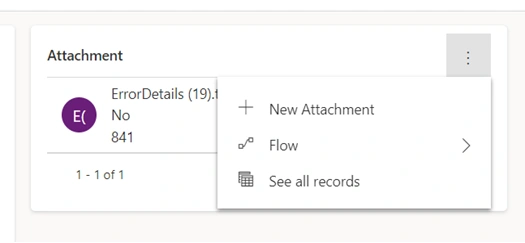
Before adding the attachment control to attachment grid see below screenshot.
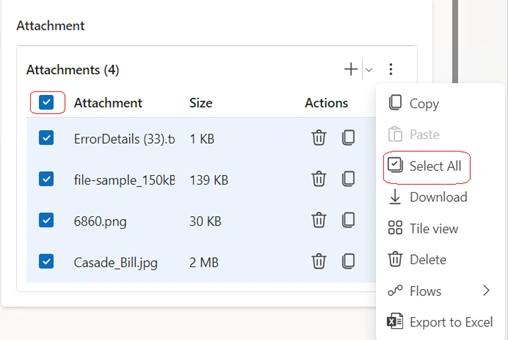
After adding attachment control.
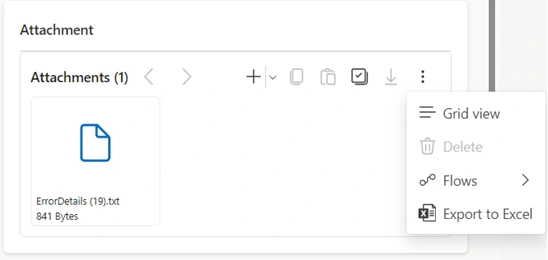
Perform the following actions using the enhanced email attachment control
- Add files.
- Select the dropdown to add existing attachments from previous emails. In the Select attachment window, you can perform the following actions:
- Select the required attachments.
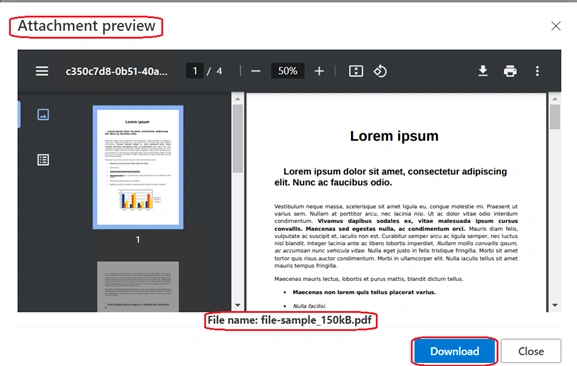
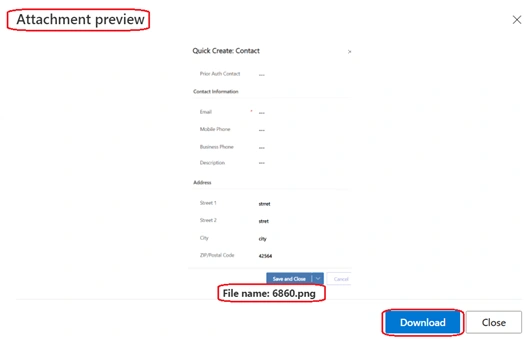
- Select the attachment link to preview it in the Attachment preview popup.
- Search for attachments by attachment name.
- Drag files to the attachment control to be added as attachments.
- Select Flows to create and select your existing flows.
- Export attachments that you uploaded. The .csv file contains the name and size of the attachments.
- View the size of the uploaded attachment in the nearest unit of its size.
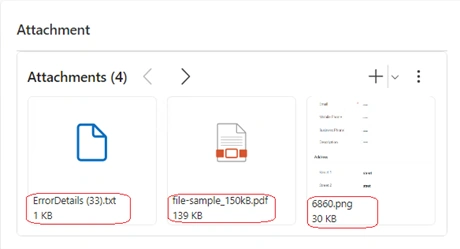
- Hover over the attachment to copy, delete, or select an attachment.
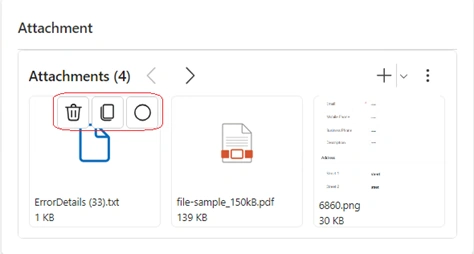
- Select the file to launch the preview. Preview is available only for image and pdf attachments
.
- Switch between the grid and list views.
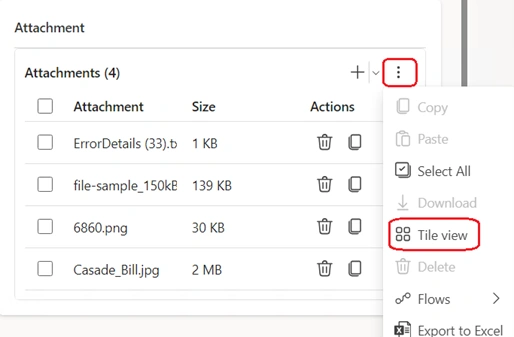
- Select all the attachments.
Join the conversation! Your thoughts help the community grow.