

Introduction
In the world of app development, handling and displaying data efficiently is crucial. Power Apps offers a variety of functions to help developers manage data dynamically. One such function is the Split function, which can be particularly useful when working with complex data fields. In this article, we will explore how to use the Split function in Power Apps to extract and display the first name from a full name stored in a SharePoint list's people picker column. We'll walk through the process of creating a canvas app with a gallery control to demonstrate this functionality.
Features of the Split Function
The Split function in Power Apps is designed to divide a text string into an array of substrings based on a specified delimiter. This function is highly versatile and can be used in various scenarios, such as,
- Extracting specific parts of a text string.
- Handling dynamic data fields.
- Simplifying data manipulation and display.
Advantages and Disadvantages
Advantages
- Flexibility: Can be used to handle various text manipulation tasks.
- Efficiency: Simplifies the process of extracting specific data from complex fields.
- Versatility: Applicable in multiple scenarios, from simple text splitting to complex data handling.
Disadvantages
- Learning Curve: This may require some practice to use effectively.
- Complexity: Can become complex when dealing with nested or multiple delimiters.
Steps to Use the Split Function in a Canvas App
Step 1. Login.
First, log in to your Microsoft 365 account and navigate to Power Apps.
Step 2. Create a Canvas App.
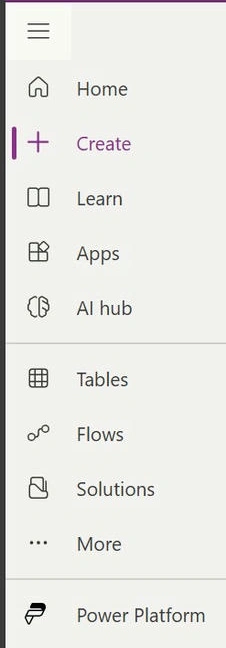
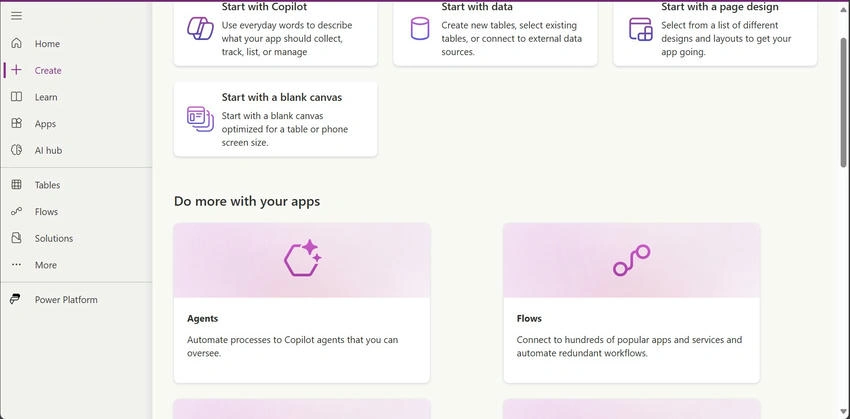
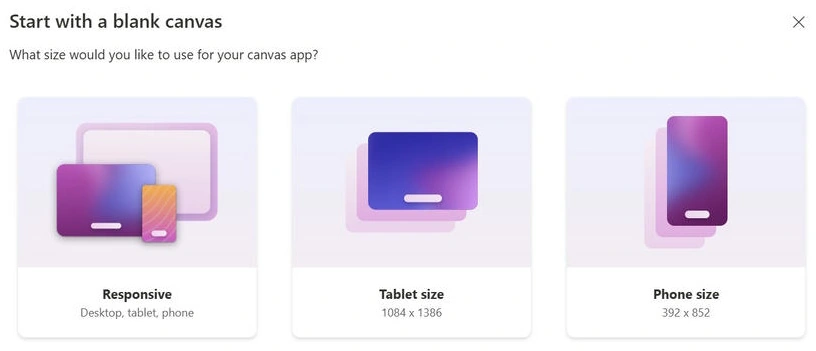
Click on "Create" and select "Canvas app from blank."
Step 3. Name Your App.
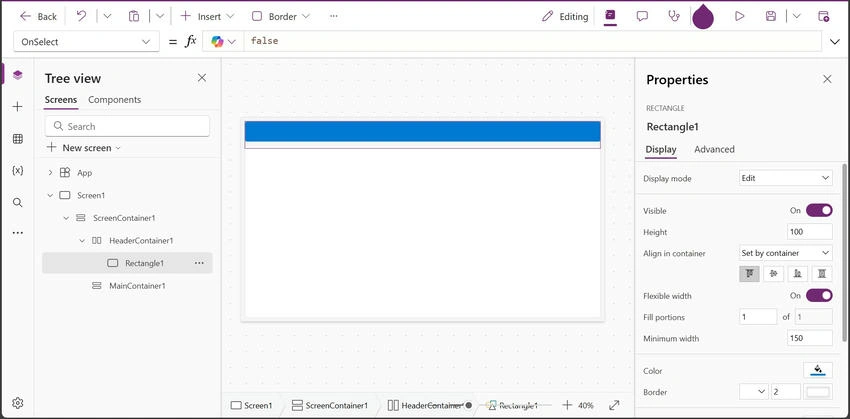
Give your app a meaningful name, such as "Name Split Demo," and click "Create."
Step 4. Insert a Gallery.
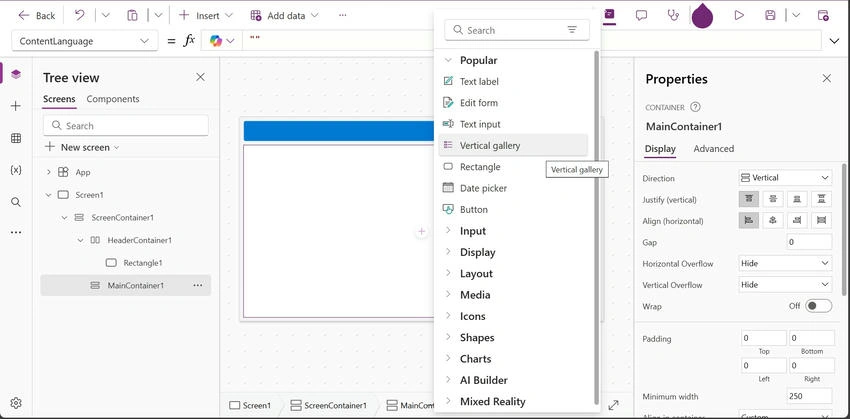
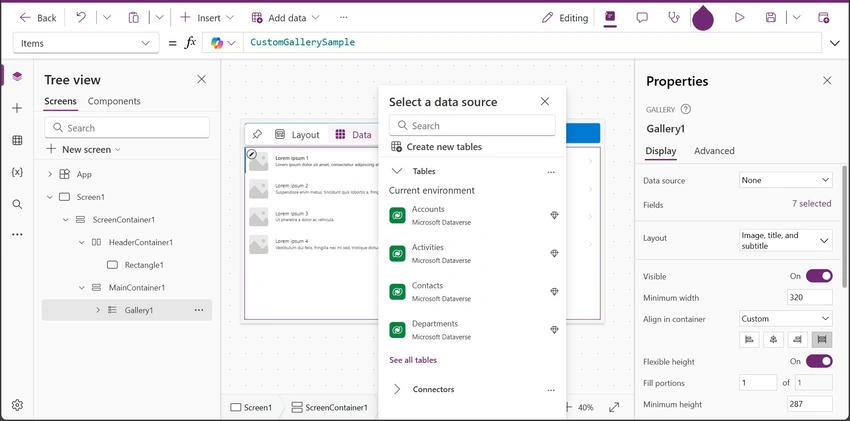
In the app's design view, insert a gallery control. This can be done by selecting "Insert" from the menu, then "Gallery," and choosing the type of gallery you prefer (e.g., vertical gallery).
Step 5. Connect to Your SharePoint List.
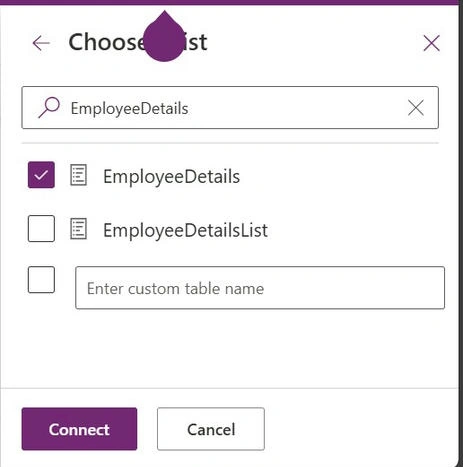
Connect the gallery to your SharePoint list that contains the people picker column "SpeakerFullName." This can be done by selecting the gallery, then choosing "Data source" from the properties pane, and connecting to your SharePoint list.
Step 6. Update the Label.
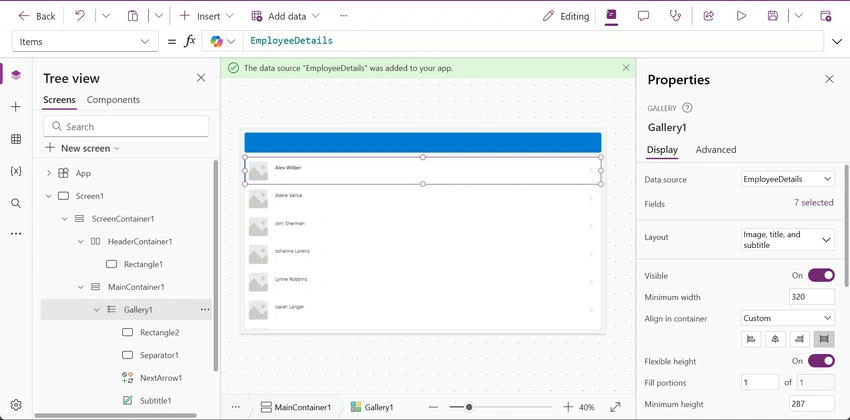
In the gallery, update the label that displays the full name. Instead of using the default text formula this item.SpeakerFullName.DisplayName, use the following formula to display only the first name.
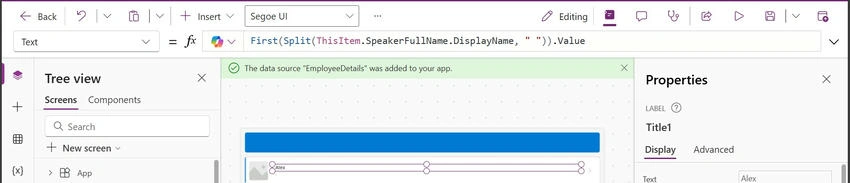
First(Split(ThisItem.SpeakerFullName.DisplayName, " ")).Value
This formula splits the full name by spaces and extracts the first part of the split result, which is the first name.
Example
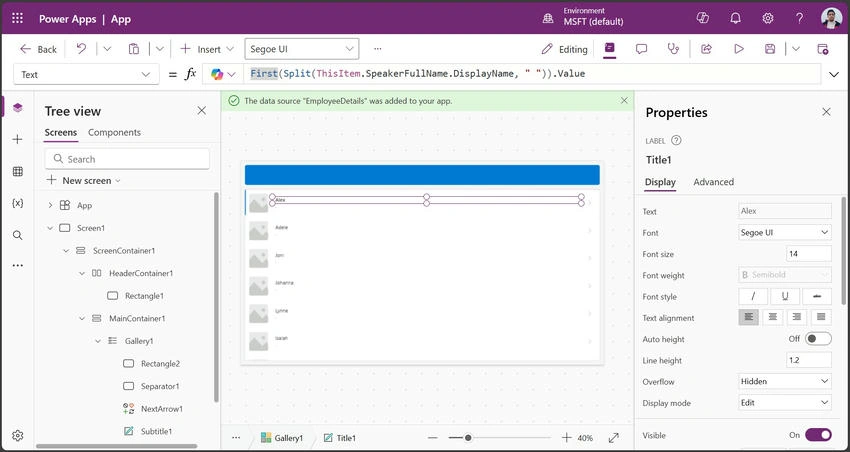
Let's say your SharePoint list has a people picker column "SpeakerFullName" with values like "John Doe." By using the formula First(Split(ThisItem.SpeakerFullName.DisplayName, " ")).Value, the gallery will display "John" as the first name.
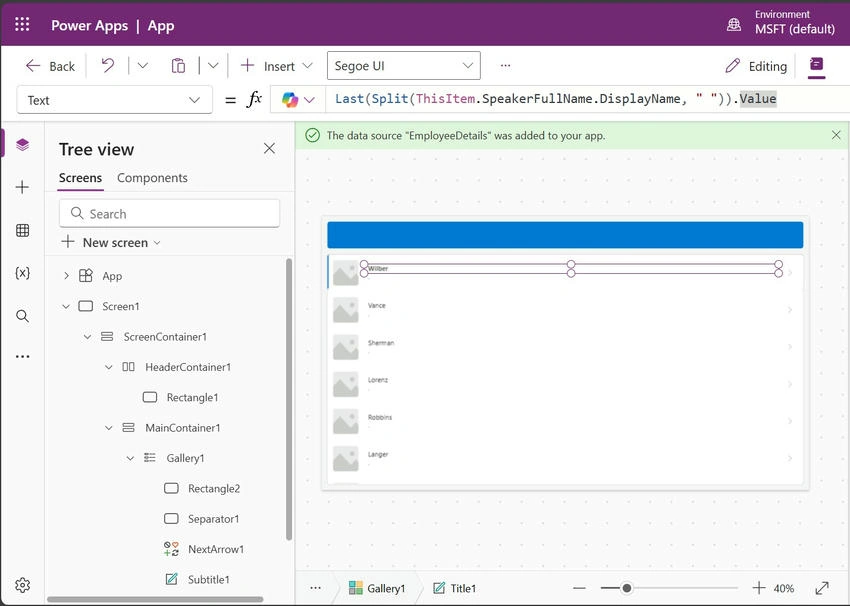
Similarly for Last name last(Split(ThisItem.SpeakerFullName.DisplayName, " ")).Value
Conclusion
The Split function in Power Apps is a powerful tool for handling and displaying dynamic data. By following the steps outlined in this article, you can create a canvas app that efficiently extracts and displays specific parts of a text string, such as the first name from a full name. This functionality can greatly enhance the usability and efficiency of your apps, making data management simpler and more effective.
Join the conversation! Your thoughts help the community grow.