

This article has been
excerpted from book "Graphics Programming with GDI+".
Sometimes we need to draw objects on top of images- and these objects may need
to be transparent. As we discussed earlier, color in GDI+ has four components:
alpha, red, green, and blue. The value of each component varies from 0 to 255.
The alpha component represents the transparency in GDI+ color. Zero represents a
fully transparent color; 255, a fully opaque color.
An application must create transparent pens and brushed to draw transparent
graphics objects. An application can use the Color.FromArgb method to specify
the ratio of all four components in a color. For example, the following code
snipped creates a fully opaque green pen and brush.
Pen solidPen =
new Pen(Color.FromArgb(255,
0, 255, 0), 10);
SolidBrush SolidColorBrush =new
SolidBrush(Color.FromArgb(255,
0, 255, 0));
The following code snippet creates semitransparent colors and brushes.
Pen transPen =
new Pen(Color.FromArgb(128,
0, 255, 0), 10);
SolidBrush semiTransBrush =
new SolidBrush(Color.FromArgb(60,
0, 255, 0));
Listing 7.24 views an image and draws lines and a rectangle with different
transparencies.
LISTING 7.24: Drawing transparent graphics objects
private void
Form1_Paint(object sender,
PaintEventArgs e)
{
Graphics g = e.Graphics;
//Create an image from a file
Image curImage =
Image.FromFile ("C:/Documents
and Settings/Manu/Desktop/16864z.Bmp");
//Draw image
g.DrawImage(curImage, 0, 0, curImage.Width, curImage.Height);
//Create pens with different opacity
Pen opqPen =
new Pen(Color.FromArgb(255,
0, 255, 0), 10);
Pen TransPen =
new Pen(Color.FromArgb(128,
0, 255, 0), 10);
Pen totTransPen =
new Pen(Color.FromArgb(40,
0, 255, 0), 10);
//Draw Graphics object using transparent
pens
g.DrawLine(opqPen, 10, 10, 200, 10);
g.DrawLine(TransPen, 10, 30, 200, 30);
g.DrawLine(totTransPen, 10, 50, 200, 50);
SolidBrush semiTransBrush = new
SolidBrush(Color.FromArgb(60,
0, 255, 0));
g.FillRectangle(semiTransBrush, 20, 100, 200, 100);
}
Figure 7.39 shows the output from Listing 7.24.
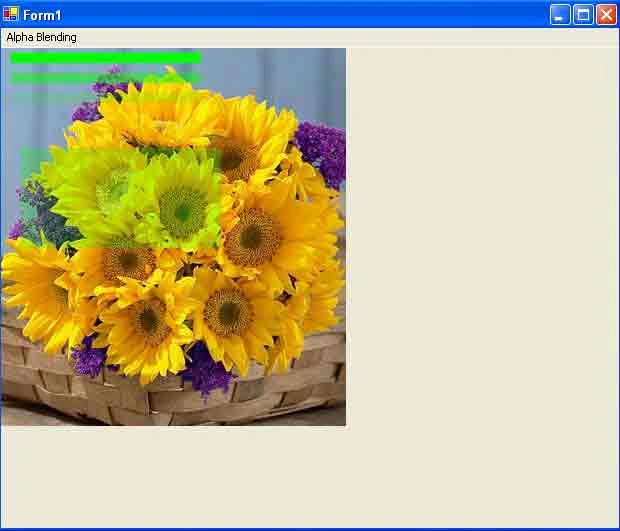
FIGURE 7.39: Drawing transparent graphics objects
Conclusion
Hope the article would have helped you in understanding
Drawing Transparent Graphics Objects in GDI+. Read other articles on GDI+ on the website.
 |
This book teaches .NET developers how to work with GDI+ as they develop applications that include graphics, or that interact with monitors or printers. It begins by explaining the difference between GDI and GDI+, and covering the basic concepts of graphics programming in Windows. |
Join the conversation! Your thoughts help the community grow.