

In current applications, drag and drop has become a popular interface approach. It's popular in productivity software; outstanding examples include Trello, JIRA, and Notion. It can undoubtedly offer a little "eye-candy" to a program in addition to providing an intuitive interface for the user.
We've been thinking about incorporating drag and drop into some product screens. This has provided me with an excellent opportunity to see how drag and drop can be accomplished with Blazor.
We will start working on a Blazor Server project. To learn more about the creation of the Blazor Server project and the debut of Blazor. Now, let's go over the instructions below.
Step 1
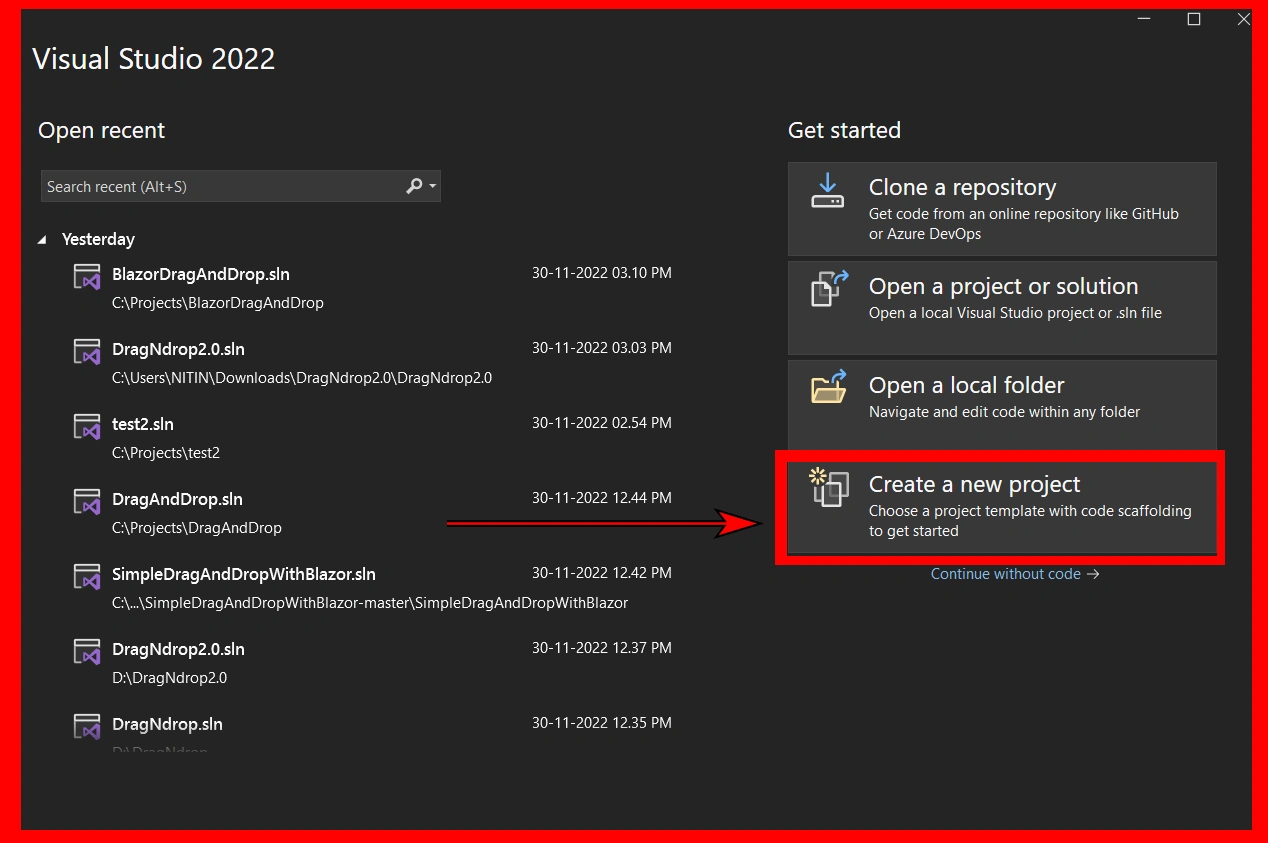
Open Visual Studio 2022 Preview and select New Project, as seen below.
Step 2
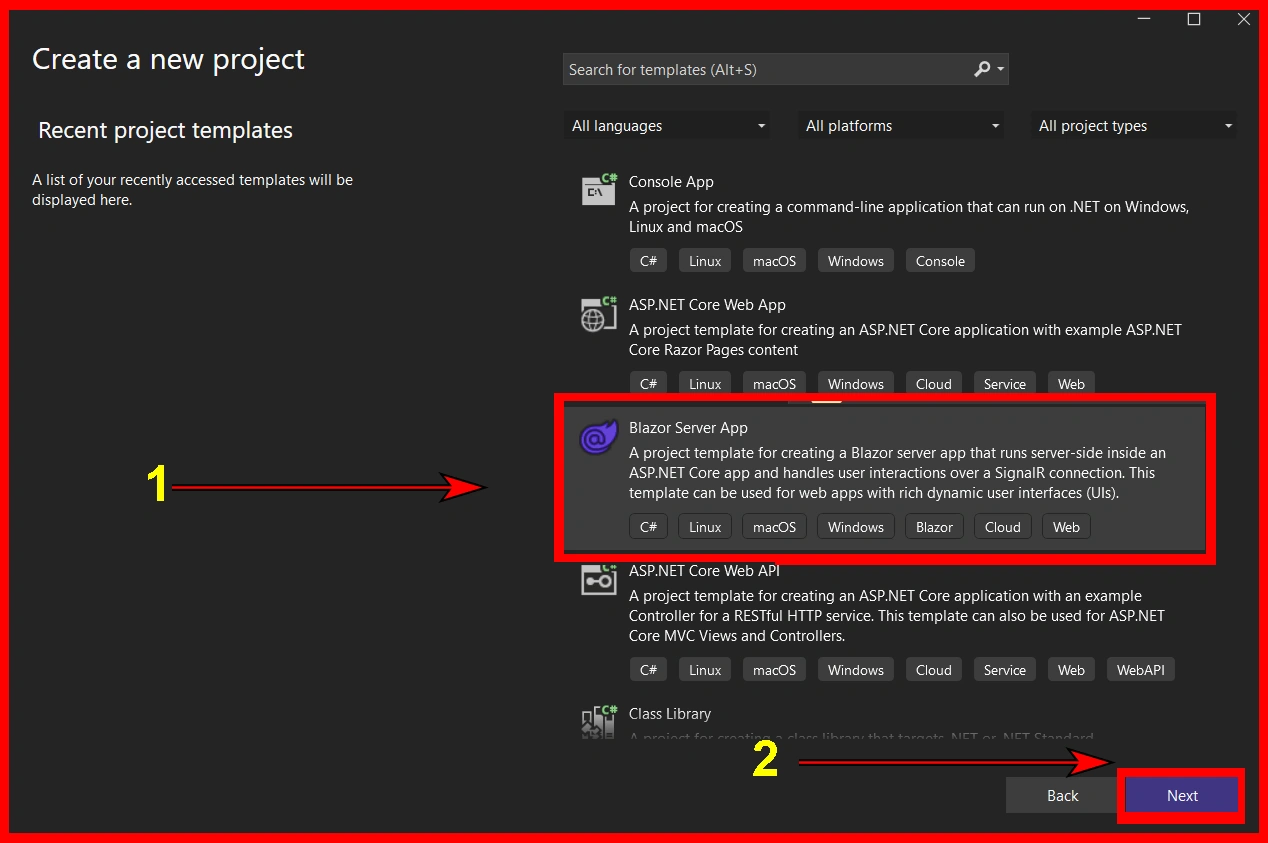
Select the Blazor Server App option and then click the next button, as seen below.
Step 3
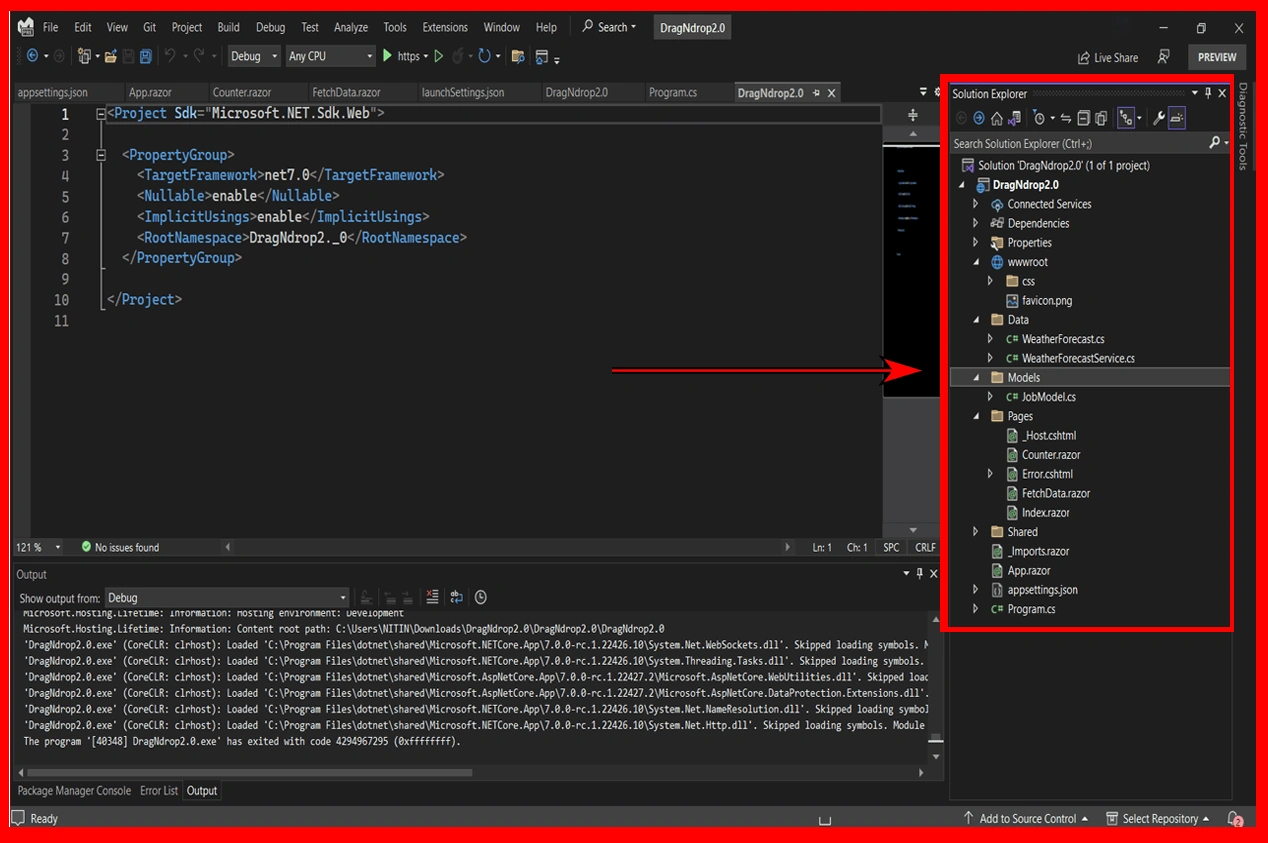
You will now see the screen shown below.
Step 4
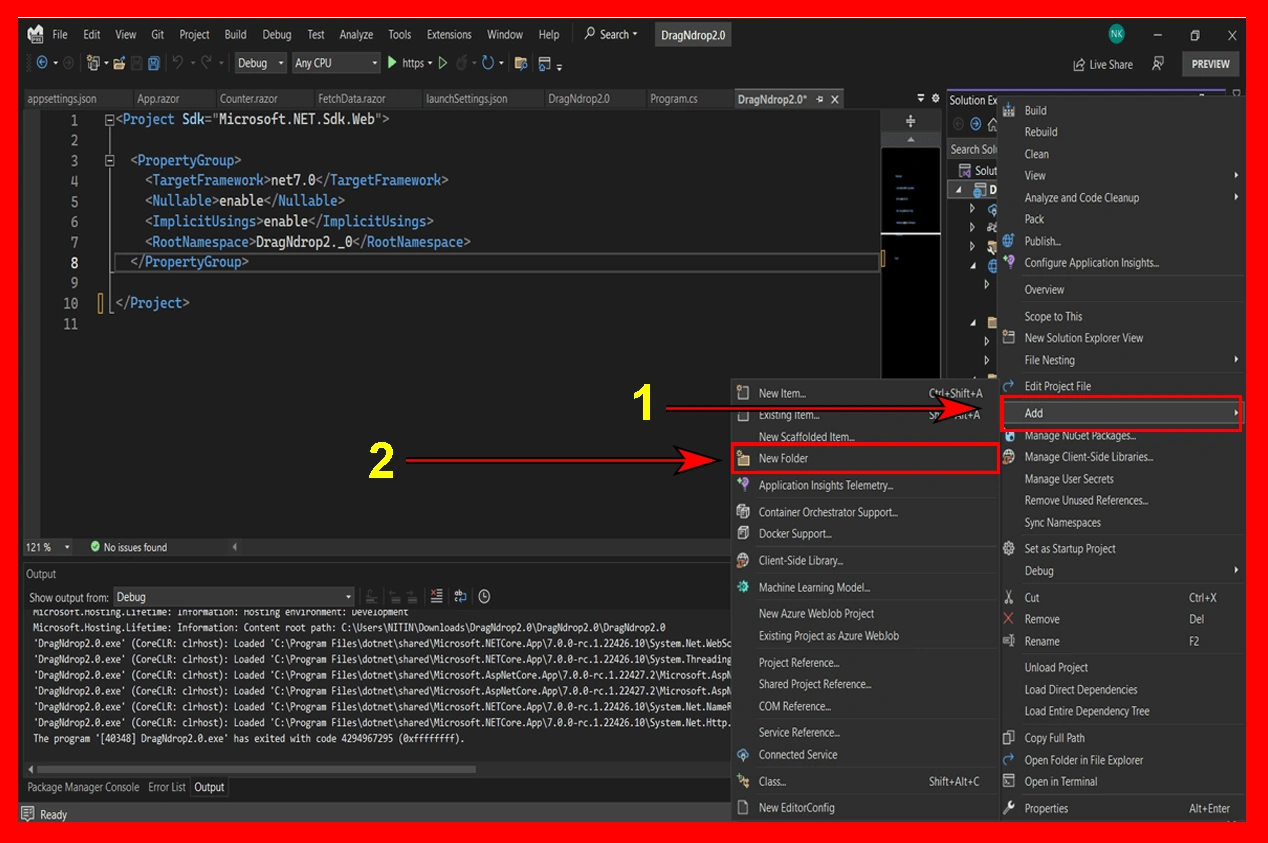
Select the project and right-click>> Add >> New Folder, and enter the name of the folder as Models.
Step 5
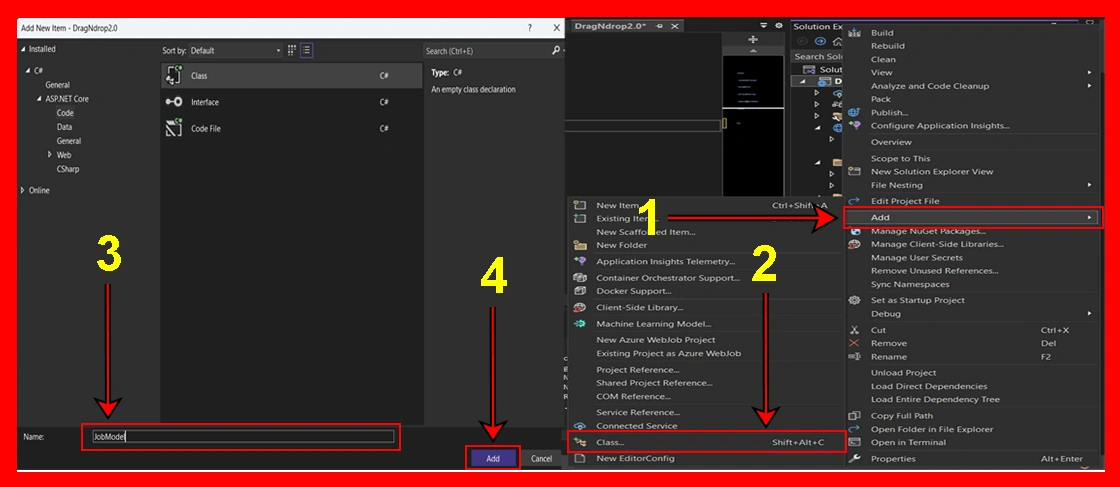
Select the Models folder and right-click>> Add >> Class, enter the name of the class as JobModel, and click on add button.
namespace DragNdrop2._0.Models {
    public class JobModel {
        public int Id {
            get;
            set;
        }
        public JobStatuses Status {
            get;
            set;
        }
        public string Description {
            get;
            set;
        }
        public DateTime LastUpdated {
            get;
            set;
        }
    }
    public enum JobStatuses {
        Todo,
        Started,
        Progress,
        Completed
    }
}
Step 6
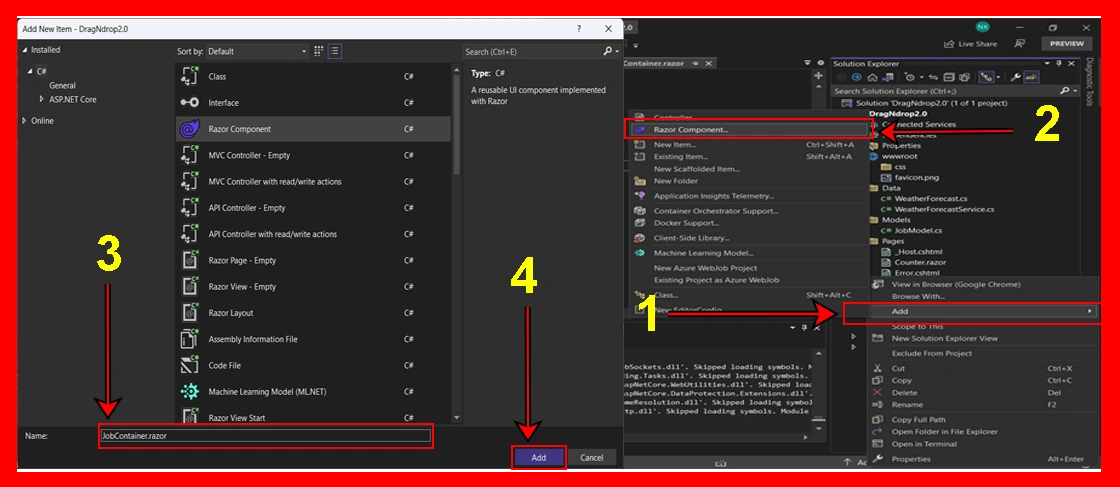
Select the Shared and right-click>> Add >> Razor Component, enter the name of the razor component as JobContainer, and click on add button.
@using DragNdrop2._0.Models;
<div class="jobs-container">
    <CascadingValue Value="this">
        @ChildContent
    </CascadingValue>
</div>
@code {
    [Parameter] public List < JobModel > Jobs {
            get;
            set;
        }
        [Parameter] public RenderFragment ChildContent {
            get;
            set;
        }
        [Parameter] public EventCallback < JobModel > OnStatusUpdated {
            get;
            set;
        }
    public JobModel Payload {
        get;
        set;
    }
    public async Task UpdateJobAsync(JobStatuses newStatus) {
        var task = Jobs.SingleOrDefault(x => x.Id == Payload.Id);
        if (task != null) {
            task.Status = newStatus;
            task.LastUpdated = DateTime.Now;
            await OnStatusUpdated.InvokeAsync(Payload);
        }
    }
}
Step 7
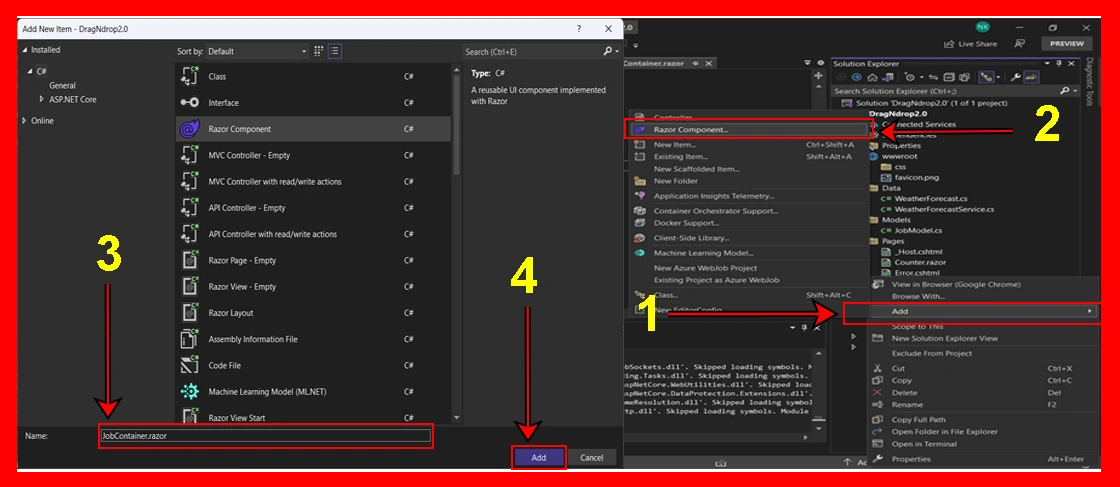
Select the Shared and right-click>> Add >> Razor Component, enter the name of the razor component as JobList, and click on add button.
@using DragNdrop2._0.Models;
<div class="job-status">
    <h3>@ListStatus (@Jobs.Count())</h3>
    <ul class="dropzone @dropClass"
        ondragover="event.preventDefault();"
        ondragstart="event.dataTransfer.setData('', event.target.id);"
        @ondrop="HandleDrop"
        @ondragenter="HandleDragEnter"
        @ondragleave="HandleDragLeave">
        @foreach (var job in Jobs)
        {
            <Job JobModel="job" />
        }
    </ul>
</div>
@code {
    [CascadingParameter] JobsContainer Container {
        get;
        set;
    }
    [Parameter] public JobStatuses ListStatus {
        get;
        set;
    }
    [Parameter] public JobStatuses[] AllowedStatuses {
        get;
        set;
    }
    List < JobModel > Jobs = new List < JobModel > ();
    string dropClass = "";
    protected override void OnParametersSet() {
        Jobs.Clear();
        Jobs.AddRange(Container.Jobs.Where(x => x.Status == ListStatus));
    }
    private void HandleDragEnter() {
        if (ListStatus == Container.Payload.Status) return;
        if (AllowedStatuses != null && !AllowedStatuses.Contains(Container.Payload.Status)) {
            dropClass = "no-drop";
        } else {
            dropClass = "can-drop";
        }
    }
    private void HandleDragLeave() {
        dropClass = "";
    }
    private async Task HandleDrop() {
        dropClass = "";
        if (AllowedStatuses != null && !AllowedStatuses.Contains(Container.Payload.Status)) return;
        await Container.UpdateJobAsync(ListStatus);
    }
}
Step 8
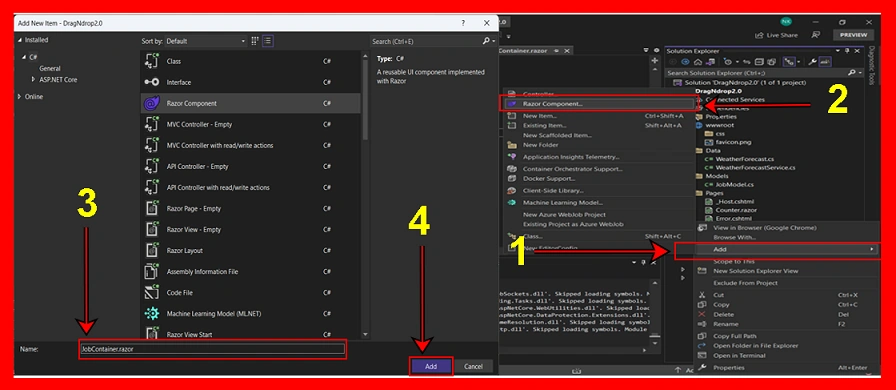
Select the Shared and right-click>> Add >> Razor Component, enter the name of the razor component as Job, and click on add button.
@using DragNdrop2._0.Models;
<li class="draggable" draggable="true" title="@JobModel.Description" @ondragstart="@(() => HandleDragStart(JobModel))">
    <p class="description">@JobModel.Description</p>
    <p class="last-updated"><small>Last Updated</small> @JobModel.LastUpdated.ToString("HH:mm.ss tt")</p>
</li>
@code {
    [CascadingParameter] JobsContainer Container {
        get;
        set;
    }
    [Parameter] public JobModel JobModel {
        get;
        set;
    }
    private void HandleDragStart(JobModel selectedJob) {
        Container.Payload = selectedJob;
    }
}
Step 9
I am using an Index.razor page which is provided by default in the server project.
@page "/"
@using DragNdrop2._0.Models;
<JobsContainer Jobs="Jobs" OnStatusUpdated="HandleStatusUpdated">
    <JobList ListStatus="JobStatuses.Todo" AllowedStatuses="@(new JobStatuses[] { JobStatuses.Started, JobStatuses.Progress})" />
    <JobList ListStatus="JobStatuses.Started" AllowedStatuses="@(new JobStatuses[] { JobStatuses.Todo})" />
    <JobList ListStatus="JobStatuses.Progress" AllowedStatuses="@(new JobStatuses[] { JobStatuses.Started})" />
    <JobList ListStatus="JobStatuses.Completed" AllowedStatuses="@(new JobStatuses[] { JobStatuses.Progress })" />
</JobsContainer>
<hr />
<p>Last updated job was: <strong>@lastUpdatedJob</strong></p>
<hr />
@foreach (var task in Jobs)
{
    <p>@task.Description - <strong>@task.Status</strong></p>
}
@code {
    List < JobModel > Jobs = new List < JobModel > ();
    string lastUpdatedJob = "";
    protected override void OnInitialized() {
        Jobs.Add(new JobModel {
            Id = 1, Description = " Creating Database", Status = JobStatuses.Todo, LastUpdated = DateTime.Now
        });
        Jobs.Add(new JobModel {
            Id = 2, Description = " Designing UI", Status = JobStatuses.Todo, LastUpdated = DateTime.Now
        });
        Jobs.Add(new JobModel {
            Id = 3, Description = " Data Binding", Status = JobStatuses.Todo, LastUpdated = DateTime.Now
        });
        Jobs.Add(new JobModel {
            Id = 4, Description = " Fix All Error", Status = JobStatuses.Todo, LastUpdated = DateTime.Now
        });
        Jobs.Add(new JobModel {
            Id = 5, Description = " Finish blog", Status = JobStatuses.Todo, LastUpdated = DateTime.Now
        });
    }
    void HandleStatusUpdated(JobModel updatedJob) {
        lastUpdatedJob = updatedJob.Description;
    }
}

Here I have used all components and models which a have created in our project and the result is here.
Output
Conclusion
I had a lot of fun using Blazor and exploring with drag and drop. As usual, I found that getting things up and running was quick and simple. I would definitely want to iterate on this code before implementing it in a real project, but I hope it provides folks with a solid starting point.
Michael SatkevichPosted Jan 24, 2024, 4:29 AM
This is really good - do you have a version you can re-order the cards in the list?
Tommy ZarenPosted May 26, 2023, 5:57 AM
If anyone is struggling with anything the original author to this project has a much better guide and also a public github repo. @Nitin maybe you should read the C-sharpcorner "AUTHOR COPYRIGHT AGREEMENT " again. "As an author, you AGREE that you have not copied article contents, images, ideas or other material from somewhere else and you are solely responsible for these contents..." https://chrissainty.com/investigating-drag-and-drop-with-blazor/
Abdul MannanPosted Mar 19, 2023, 5:22 PM
Does it works for android device ? I mean if i browse from andriod device does it works? I have created a blazor server project where i used drag and drop but it did not work in andriod or tab. But its work fine in iphone , ipad, desktop,Mac etc.
Absar RashidPosted Mar 8, 2023, 3:51 AM
Can you send me CSS classes to handle the layout?
MinJie SunPosted Feb 27, 2023, 7:35 PM
Could you please provide a link to the complete source code? I tried to follow the steps listed here but still not able to run the project.
Enrico VillaPosted Jan 27, 2023, 9:38 AM
Thank you for the article, Nitin! However, I could only make your code work by using the DropZone library and, still, I feel there is missing info on the CSS classes needed to handle layout and the different colours in containers. Please could you provide any cue on this?
Uday DodiyaPosted Dec 19, 2022, 7:21 AM
Nice article