

Introduction
We can use multiple approaches to export multiple Excel files. Here's how you can achieve that.
- Zip file download.
- multiple worksheets in a single Excel file.
- Using base64string, download multiple files next article.
- API calls were made multiple times to get multiple files next article.
Download multiple files using Approach Zip file download.
In this example, we demonstrate how to generate multiple Excel files dynamically based on data, compress them into a ZIP archive, and return the ZIP file as a byte array. This is a common use case in applications where we need to export data in bulk, compress it, and make it downloadable via a web API or service. We'll use the EPPlus library to generate Excel files and System.IO.Compression to handle the ZIP compression.
Web API .Net
Step 1. Install nuget package.
- EPPlus: For Excel file creation.
- System.IO.Compression: For zipping files.
Step 2. Code Breakdown.
1. Method Overview: ExportZipFile().
public byte[] ExportZipFile()
{
    // Data for the first Excel file
    List<Info> infos = new List<Info>()
    {
        new Info { Name = "sfas", Description = "Dev", Address = "LA" },
        new Info { Name = "VK", Description = "Man", Address = "IND" },
        new Info { Name = "LAL", Description = "Dev", Address = "NW" }
    };

    // Data for the second Excel file
    List<Info> files = new List<Info>()
    {
        new Info { Name = "sfas1", Description = "Dev", Address = "LA" },
        new Info { Name = "VK1", Description = "Man", Address = "IND" },
        new Info { Name = "LAL1", Description = "Dev", Address = "NW" },
        new Info { Name = "LAL2", Description = "Dev", Address = "NW" }
    };

    // Generate the Excel files
    var excelFiles = new List<(string fileName, byte[] content)>
    {
        ("File1.xlsx", GenerateExcelFile(infos)),
        ("File2.xlsx", GenerateExcelFile(files))
    };

    // Create a ZIP archive in memory and add the Excel files to it
    using (var zipStream = new MemoryStream())
    {
        using (var archive = new ZipArchive(zipStream, ZipArchiveMode.Create, true))
        {
            foreach (var excelFile in excelFiles)
            {
                // Create a ZIP entry for each Excel file
                var zipEntry = archive.CreateEntry(excelFile.fileName, CompressionLevel.Fastest);
                using (var entryStream = zipEntry.Open())
                using (var fileStream = new MemoryStream(excelFile.content))
                {
                    // Write the Excel file content to the ZIP entry
                    fileStream.CopyTo(entryStream);
                }
            }
        }

        // Return the ZIP file as a byte array
        return zipStream.ToArray();
    }
}
2. Generating Excel Files: GenerateExcelFile(List<Info> infos).
This method uses the EPPlus library to generate an Excel file from a list of Info objects. It adds the data into an Excel worksheet and returns the generated Excel file as a byte array.
private byte[] GenerateExcelFile(List<Info> infos)
{
    var currentRowIndex = 2; // Start at row 2 to leave row 1 for headers

    // Set the license context for EPPlus (required since version 5)
    ExcelPackage.LicenseContext = LicenseContext.NonCommercial;

    // Create a new Excel package
    using var package = new OfficeOpenXml.ExcelPackage();
    var worksheet = package.Workbook.Worksheets.Add("Info");

    // Create headers in the first row
    worksheet.Cells["A1"].Value = "Name";
    worksheet.Cells["B1"].Value = "Description";
    worksheet.Cells["C1"].Value = "Address";

    // Fill the worksheet with data from the 'infos' list
    infos.ForEach(info =>
    {
        worksheet.Cells[currentRowIndex, 1].Value = info.Name;
        worksheet.Cells[currentRowIndex, 2].Value = info.Description;
        worksheet.Cells[currentRowIndex, 3].Value = info.Address;
        currentRowIndex++;
    });

    // Convert the Excel package to a byte array
    return package.GetAsByteArray();
}
Controller
- Service Call: _fileExportService.ExportZipFile() generates a ZIP file in memory (likely returning a byte[] array as you implemented earlier).
- File Return: The File() method is used to send the generated file as a response to the client. It accepts three parameters:
- zipFile: The byte array representing the ZIP file.
- "application/zip": The content type of the response (MIME type).
- Filename: The name of the file as it will appear when the user downloads it.
  [HttpGet("export-zip")]
  public IActionResult ExportZipFile()
  {
      var zipFile = _fileExportService.ExportZipFile();
      var fileName = "ExportFiles.zip";
      return File(zipFile, "application/zip", fileName);
  }
Explanation of the Process
- Data Preparation: Two lists of Info objects are created, representing data for two different Excel files. Each Info object contains a Name, Description, and Address.
- Excel File Generation: The GenerateExcelFile() method takes a list of Info objects and generates an Excel file with that data. This method creates an Excel worksheet, adds column headers (Name, Description, Address), and populates each row with the data from the list.
- ZIP File Creation: The method ExportZipFile() then uses System.IO.Compression.ZipArchive to create an in-memory ZIP archive. It iterates over the generated Excel files and adds each one to the ZIP file using the CreateEntry() method.
- Returning the ZIP File: Finally, the method converts the entire ZIP archive into a byte array and returns it. This byte array can be returned as a file download in a web API or saved to disk.
Use Cases
- Bulk Data Export: You can export multiple sets of data as Excel files and offer them as a single ZIP file download to the end-user.
- Automated Report Generation: If your application generates different reports, each report can be generated as a separate Excel file and compressed into a ZIP file.
- Efficient File Transmission: Instead of sending multiple files individually over a network, compressing them into a ZIP file reduces the overhead and simplifies the user experience.
Sample Output

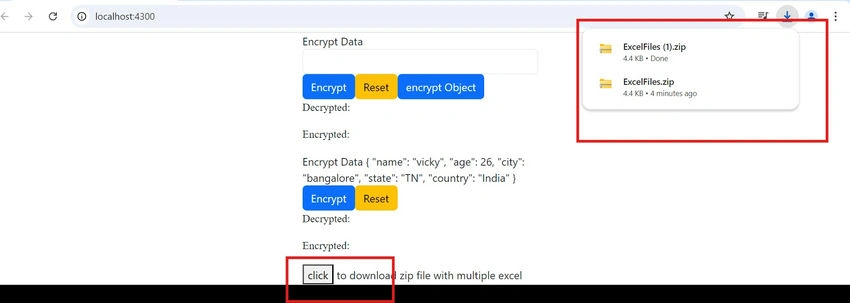
The downloaded sample output is attached in the above article as file name, ExportFiles.zip.
Front End Angular
step 1. Install the package to download the file.
npm install --save @progress/kendo-file-saver
Step 2
- HTTP Request: The downloadZip() method makes a GET request to the backend (api/export-zip). The responseType: 'blob' is critical for downloading binary data (like a ZIP file).
- Save As: Once the data is received as a blob, the saveAs function from the @progress/kendo-file-saver package is used to trigger the file download.
import { saveAs } from '@progress/kendo-file-saver';
constructor(private http:HttpClient) {}
  downloadExcelZip(): void {
    this.http.get('http://localhost:5003/api/FileExport/export-zip', {
      responseType: 'blob'  // We expect a binary (zip) response
    }).subscribe((blob: Blob) => {
      const fileName = 'ExcelFiles.zip';
      saveAs(blob, fileName);  // Trigger download
    });
  }
Output Sample
Approach 2. Multiple worksheets in a single Excel file.
In many web applications, there is a need to export data into Excel files for reporting or data analysis purposes. In .NET Core, you can create an API endpoint to generate and return an Excel file with multiple worksheets. This example demonstrates how to implement such an endpoint using ASP.NET Core and the EPPlus library.
[HttpGet("export-with-Multiple-worksheet")]
public IActionResult ExportWithMultipleSheet()
{
    // Generate the Excel file with multiple worksheets
    var excelFile = _fileExportService.ExportWithMultipleSheet();

    // Define the file name for the downloaded file
    var fileName = "ExportFiles.xlsx";

    // Return the file as a response with the appropriate content type
    return File(excelFile, "application/vnd.openxmlformats-officedocument.spreadsheetml.sheet", fileName);
}
Returning the File
- return File(excelFile, "application/vnd.openxmlformats-officedocument.spreadsheetml.sheet", fileName);
- The File() method is used to return the file to the client. It takes three parameters:
- File Content: excelFile (the byte array containing the Excel file data).
- Content-Type: "application/vnd.openxmlformats-officedocument.spreadsheetml.sheet" (the MIME type for Excel files).
- File Name: fileName (the name of the file to be saved on the client side).
ExportWithMultipleSheet method
ExcelPackage.LicenseContext = LicenseContext.NonCommercial;
Sets the license context for EPPlus. You must set this property to comply with EPPlus licensing requirements.
Full function
public byte[] ExportWithMultipleSheet()
{
    // Initialize the starting row index for data entry, skipping the header row
    var currentRowIndex = 2;

    // Set the license context for EPPlus library to NonCommercial (required by EPPlus)
    ExcelPackage.LicenseContext = LicenseContext.NonCommercial;

    // Create a new instance of ExcelPackage which represents an Excel file
    using var package = new OfficeOpenXml.ExcelPackage();

    // Add a new worksheet named "sheet 1" to the Excel package
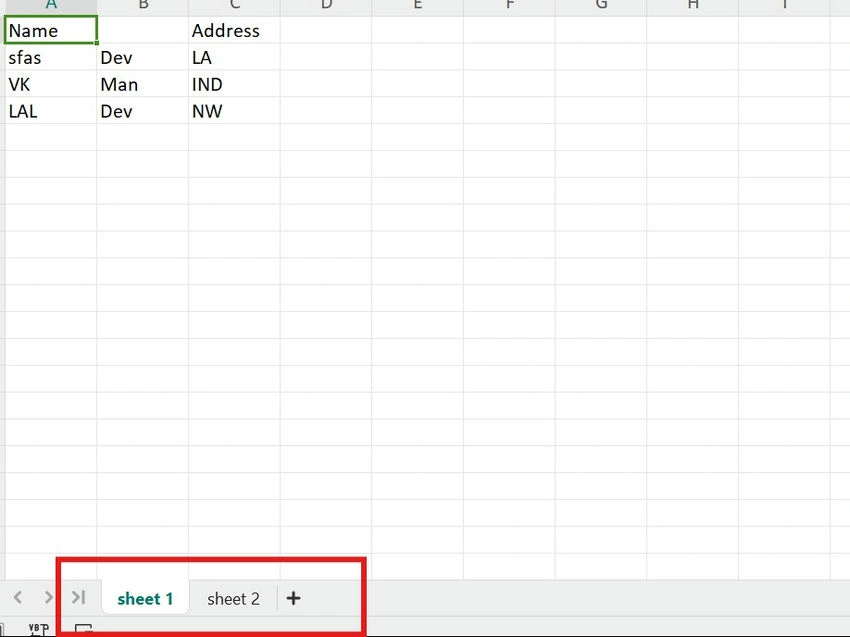
    var worksheet = package.Workbook.Worksheets.Add("sheet 1");

    // Set the header values in the first worksheet
    worksheet.Cells["A1"].Value = "Name";          // Set cell A1 to "Name"
    worksheet.Cells["B1"].Value = "Description";   // Set cell B1 to "Description" (corrected from B2 to B1)
    worksheet.Cells["C1"].Value = "Address";       // Set cell C1 to "Address"

    // Populate the worksheet with data from the 'infos' list
    infos.ForEach(info =>
    {
        // Set cell values for each row based on the data from 'infos'
        worksheet.Cells[currentRowIndex, 1].Value = info.Name;          // Set column A to Name
        worksheet.Cells[currentRowIndex, 2].Value = info.Description;   // Set column B to Description
        worksheet.Cells[currentRowIndex, 3].Value = info.Address;       // Set column C to Address

        // Move to the next row for the next entry
        currentRowIndex += 1;
    });

    // Reset the row index for the next worksheet
    currentRowIndex = 2;

    // Add a second worksheet named "sheet 2"
    var worksheet2 = package.Workbook.Worksheets.Add("sheet 2");

    // Set the header values in the second worksheet
    worksheet2.Cells["A1"].Value = "Name";          // Set cell A1 to "Name"
    worksheet2.Cells["B1"].Value = "Description";   // Set cell B1 to "Description" (corrected from B2 to B1)
    worksheet2.Cells["C1"].Value = "Address";       // Set cell C1 to "Address"

    // Populate the second worksheet with data from the 'files' list
    files.ForEach(info =>
    {
        // Set cell values for each row based on the data from 'files'
        worksheet2.Cells[currentRowIndex, 1].Value = info.Name;          // Set column A to Name
        worksheet2.Cells[currentRowIndex, 2].Value = info.Description;   // Set column B to Description
        worksheet2.Cells[currentRowIndex, 3].Value = info.Address;       // Set column C to Address

        // Move to the next row for the next entry
        currentRowIndex += 1;
    });

    // Convert the ExcelPackage to a byte array and return it
    return package.GetAsByteArray();
}
For the front end, we can use the same code as used in the download zip file.
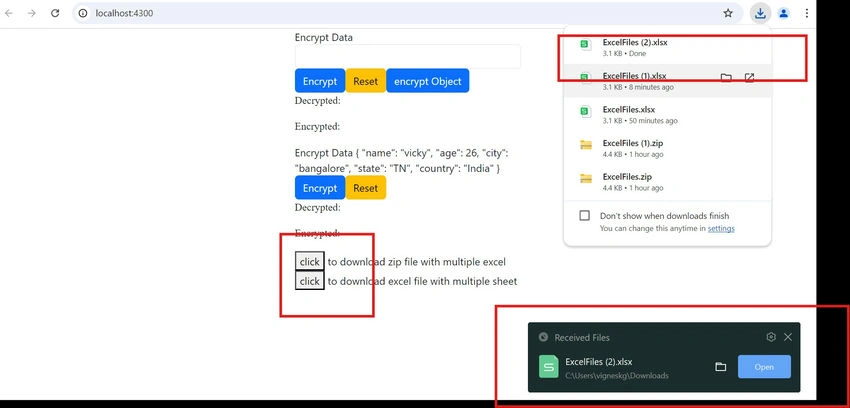
Sample Output
Other two types of approaches we will continue in other articles.
Join the conversation! Your thoughts help the community grow.