
In today's digital world, effective collaboration is key, and Microsoft SharePoint's document libraries offer a powerful way to store, manage, and share files across teams. This article breaks down what document libraries are, how they differ from OneDrive, and the benefits they bring to team collaboration.
What is a Document Library?
A document library is a centralized storage location within SharePoint where you can store various types of files, such as Word documents, Excel spreadsheets, images, and more. These files are then easily accessible by your team members, making it an ideal solution for collaborative work. Think of it as a shared drive in the cloud, where everyone can access, edit, and contribute to the content.
Document Library vs. OneDrive
What’s the Difference?
While SharePoint document libraries and OneDrive might sound similar, they serve different purposes.
- OneDrive is designed for personal cloud storage. It's where you keep your own files and documents, which can be shared with others when needed.
- SharePoint Document Libraries focus on team storage, providing a shared space where team members can store and collaborate on documents. It’s a key tool for organizing project files, team resources, and other group materials.
Getting Started with SharePoint Document Libraries
To start using a document library in SharePoint, follow these steps.
- Access SharePoint: The easiest way to reach SharePoint is by visiting office.com and logging in with your credentials. Once logged in, you’ll find SharePoint in the list of apps on the left-hand side.
- Navigating the SharePoint Home Page: When you open SharePoint, you’ll see all the sites you have access to. If you’re part of a team, there’s likely an existing SharePoint site you can navigate to. Use the search function to find any specific sites or teams.
- Creating a New SharePoint Site: If you need a new site for a project or initiative, click on "Create site" in the top left corner. SharePoint will guide you through the setup process.
Using an Existing Document Library
Once you're on a SharePoint site, you'll typically find a document library already set up. Here's how to make the most of it.
- Access the Default Document Library: On the left-hand side, you'll find a "Documents" option. Clicking on it will take you to the default document library.
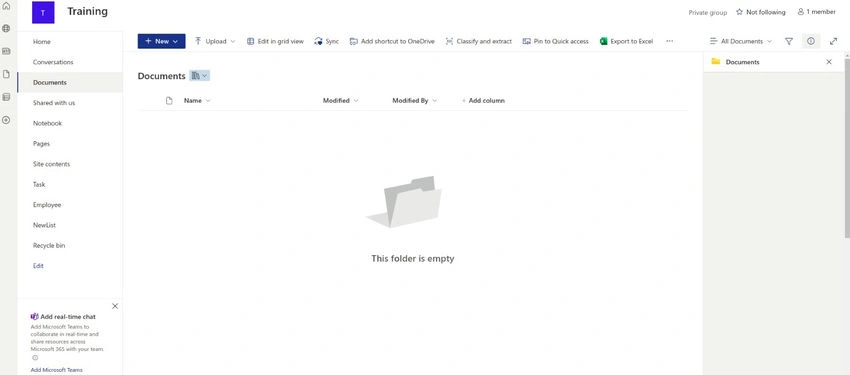
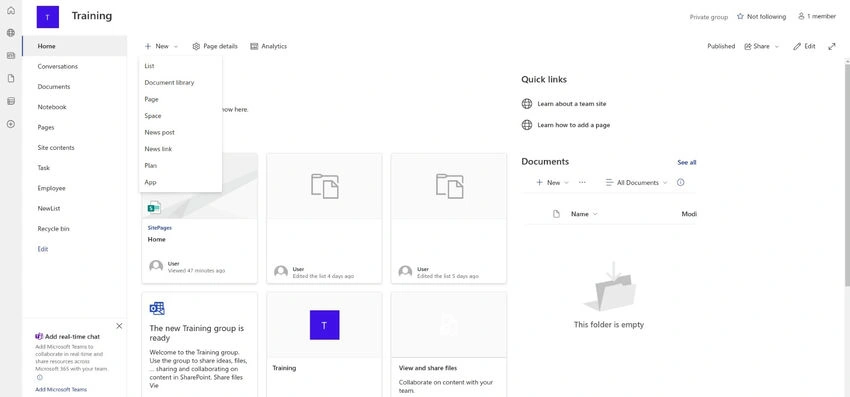
- Creating Additional Document Libraries: If you need more libraries to organize files by category or purpose, click "New" and select "Document Library." Give it a name (e.g., "Training") and decide whether to add it to the site's navigation.
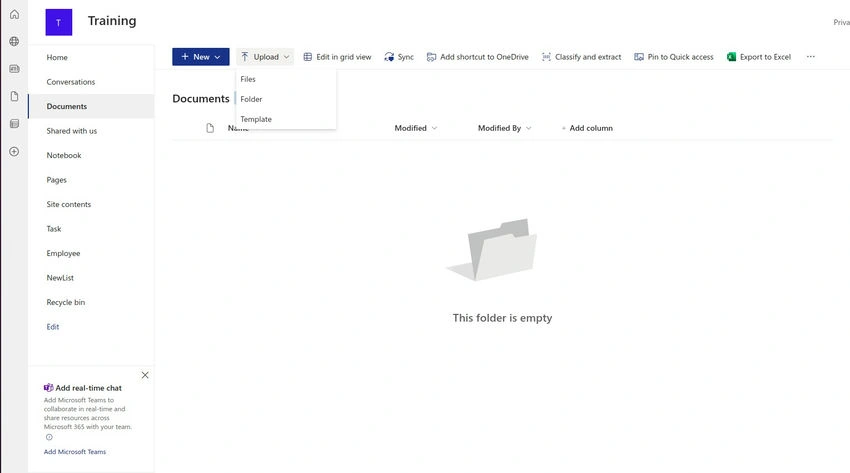
- Adding Content to a Document Library: You can upload files by clicking "Upload" or simply drag and drop files from your local device. SharePoint supports various file types, making it versatile for different team needs.
Advantages of Using Document Libraries
Here are some of the key benefits of using SharePoint document libraries.
- Real-Time Collaboration: Once files are in the document library, multiple people can work on them simultaneously. For example, if you upload a Word document, team members can open it, make edits, and see changes in real time. This functionality extends to other Microsoft Office files like Excel and PowerPoint.
- Version History: SharePoint automatically tracks changes to documents, allowing you to view previous versions. If a change is made that you want to undo, you can easily revert to a prior version by accessing the "Version History" from the document's menu. From the below menu, select "Version History".
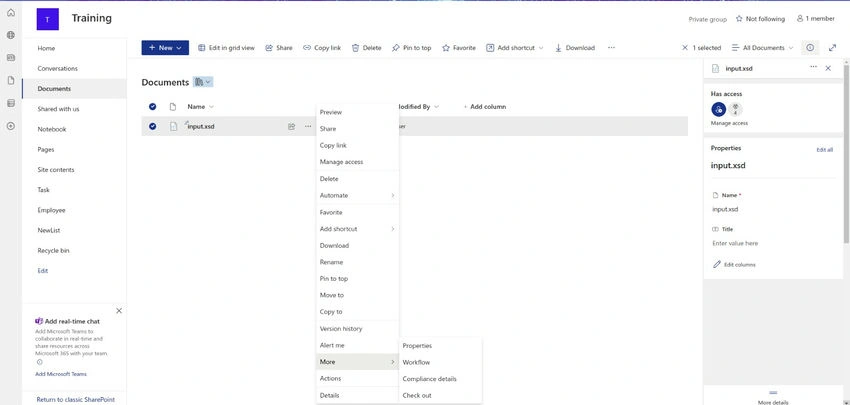
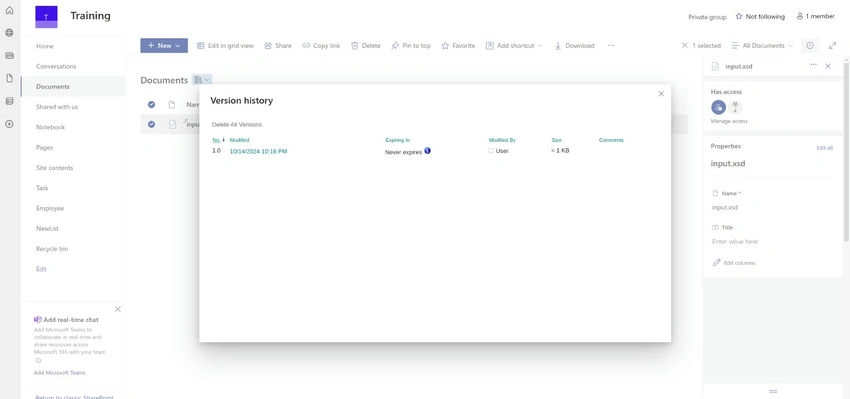
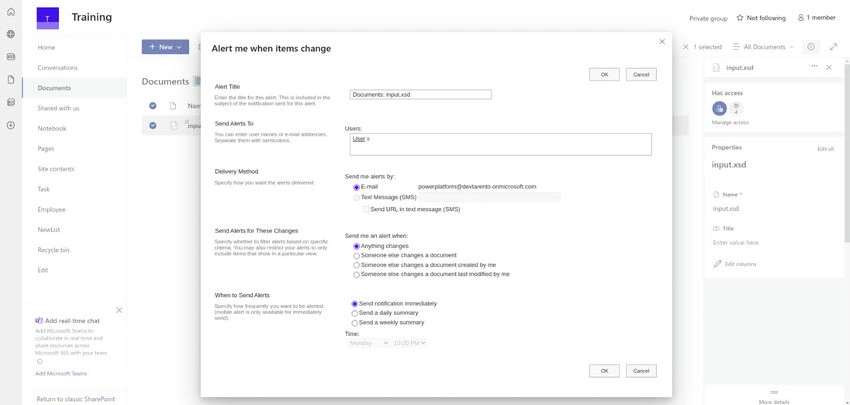
- Setting Up Alerts: You can set up alerts to receive notifications when changes are made to files in the document library. This is helpful if you want to stay updated on edits or reviews without manually checking the files.
Working with SharePoint Document Libraries in Microsoft Teams
Document libraries in SharePoint integrate seamlessly with Microsoft Teams, making file sharing even more straightforward. When you add a SharePoint document library as a tab in a Teams channel, team members can access the same files directly from Teams.
Creating and Organizing Files within Document Libraries
You can organize your document library just like a file system on your computer.
- Create Folders: Use folders to categorize documents for easy navigation.
- Add New Files: You can create new documents directly within the library (Word, Excel, PowerPoint, etc.), upload existing files, or import templates.
Real-Time Editing and Co-Authoring
One of the standout features of SharePoint document libraries is the ability to edit files with your team. When multiple people are in a document, their presence is indicated in the upper right corner, and edits appear in real time. This functionality fosters a more dynamic and collaborative work environment.
Managing Document Permissions and Sharing
Document libraries allow you to control access to your files.
- Sharing Files: You can share files with others inside or outside your organization by setting appropriate permissions. Decide whether they can view or edit the document and share links via email.
- Restricting Access: SharePoint allows you to manage who can see and edit files, providing options to limit sharing to specific people or groups.
Monitoring and Reverting Changes with Version History
If a document undergoes unwanted changes, the version history feature lets you review all previous versions and restore a prior one if necessary. This ensures that important work isn’t lost or overwritten.
Automating Alerts for Document Updates
Setting up alerts helps keep you informed of any changes. You can choose to receive an email when documents are added, edited, or deleted.
Conclusion
Document libraries in Microsoft SharePoint are a powerful tool for teams, enabling efficient file storage, collaboration, and management. By understanding how to create, organize, and share content within document libraries, teams can streamline their workflows and enhance productivity.
Baibhav KumarPosted Oct 16, 2024, 9:23 AM
Nice article! How is SharePoint better than OneDrive for team use?