

Hello guys!
This article is the second in this series. In this I am explaining how to setup the environments for Python scripts in several environments.
Getting Theme
For getting the Python theme, kindly go through my previous articles:
Environment and setups
As we already know, we need various types of setups and environments for a specific type of programming language and so it is Python. So let's have a look at how you can do that step-by-step in your machine.
Local Environment Setup
Here are some environments, where you run your Python scripts easily. It's a long list consisting of many environments. Let's have a look:
- Windows
- Mac
- Linux
- Solaris
- Amiga
- Plam OS
And several others too.
(This article will explain how you can easily create an environment in Windows, Mac and Linux environments. So lets's explore them.)
Finding Python
Looking for Python? Don't panic, simply visit http://www.python.org/
And you will get each and every piece of information regarding Python, like tutorials, documentations, snippet, latest news, version details and so on.
Getting Things Done
Now to explain how to set the environment up in several environments.
Python | In Windows
Just use the following simple procedure and let Python do everything for you:
- Just visit http://www.python.org/
- Just look for the "Download" option there
- Select your preferable version of Python for your Windows PC
- Click on that version and install the ".msi" extension file (Like Python 3.4.2.msi)
- Follow the simple instructions and your done.
(Now let's go through the installation in a Mac.)
Python | In Mac
Just use the following simple procedure and let Python do everything for you:
- Just visit http://www.python.org/
- Or you can directly go to http://www.python.org/download/mac/
- Look for the current or your preferable version and go for it
- Install that version in your Mac Machine
- Follow the instructions and your done.
(Let's now have a look at getting things done in a Linux Machine.)
Python | In Linux
Just use the following simple procedure and let Python do everything for you:
- Just visit http://www.python.org/
- Just look for the "Download" option there
- Follow the link and download your preferable version (Zip File)
- Extract all those and setup
- Now, run the configuration script
- Follow the instructions and your done.
Setting up Path in Environments
Path | In Windows
You can find the path name in Windows as "PATH" (it isn't case sensitive in Windows).
Use the following procedure,
- Open Command Prompt
- Type- path%path%;C:\python
- Press Enter and its done.
Path | In Mac
In a Mac machine, the installer itself handles the Path details for you. So you don't need to worry about that if you are having Mac with you.
But one needs to invoke the Python Interpretar. You can invoke the Python interpretar from any directory (but you must add the Python Directory to your Path).
Path | In Linux
You can find the path name in Linux the same as for "PATH" in Windows (but here it will be case sensitive).
Use the following procedure:
- In the "Bash Shell"
- Type- PATH=”$PATH:/user/local/bin/python”
- Press Enter and its done.
Running Python
There are three approaches for this, I'll explain all but the choice will be always yours.
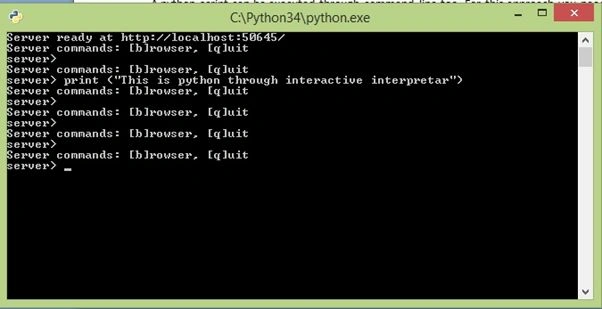
- Interactive Interpretar
You can do that using your command line or shell window.
- Using Command Line
A Python script can be executed using a command line too. For this approach you need to invoke the Python interpreter on your application.
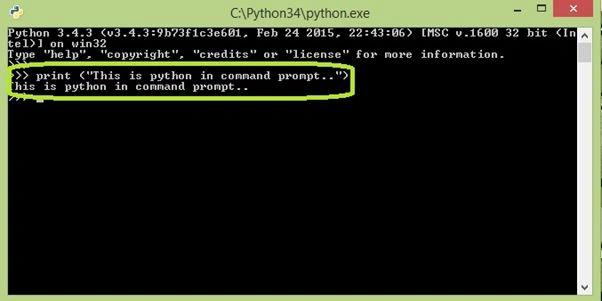
For invoking you can do any of the following.
In Windos: C:>python script.py
In Linux: $python script.py
- GUI Enviroment
This environment is also called an Integrated Development Environment (IDE). You can run your script in this environment too.
Here's a look.
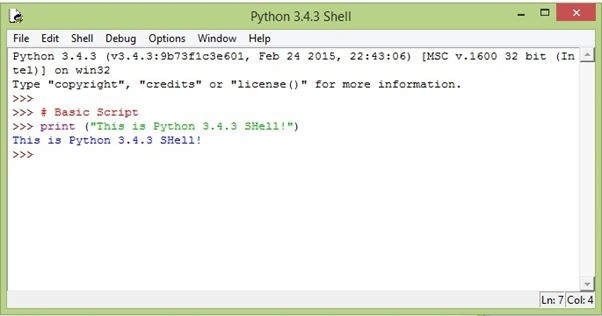
So let's have a look at various IDEs.
IDE | Windows
PythonWin, PyScripter are windows interfaces for Python in Windows. Both of these are GUI based.
IDE | MAC
The MAC version of Python is avilabe from the official Python website.
IDE | Linux
IDLE is the best GUI basd IDE for Python in Linux.
Guidelines from my side
- Do as much as code you can.
- Code anything you want, it is the best way to learn
- Don't just study things, try to learn them.
- Work on your Concepts
- Work on the fundamentals of any technology or stuff you want to learn.
Moto
“Keep calm and code Python”
“Keep calm and code Python”
I tried to make this an interesting and interactive article and wish you guys will like that, meanwhile if you have any suggestions then your welcome.
Until the next part, keep sharing!
Happy Learning.
Akhil MittalPosted May 19, 2015, 5:42 AM
One correction : To set path in windows, we use "set" command. Please correct.
Akhil MittalPosted May 19, 2015, 3:37 AM
Things nicely explained. I think your posts 1,2 and 3 would have been combined into one complete Chapter, rather that segregating it into 3 articles.
vanama saishanthanPosted May 13, 2015, 5:50 AM
nice presentation
Abhishek JaiswalPosted May 10, 2015, 1:10 AM
Glad, that you guys are showing interest towards this series and python. :)
Gopi ChandPosted May 9, 2015, 2:27 PM
Its getting very interesting day by day Abhishek Jaiswal thank you so much for providing this python series... :)
Santhakumar MunuswamyPosted May 9, 2015, 2:15 PM
Thanks for nice article