

Now let's see how to how to display XML file data in a GridView control in 6 easy steps.
Step 1: Create an ASP.NET empty Web Application.
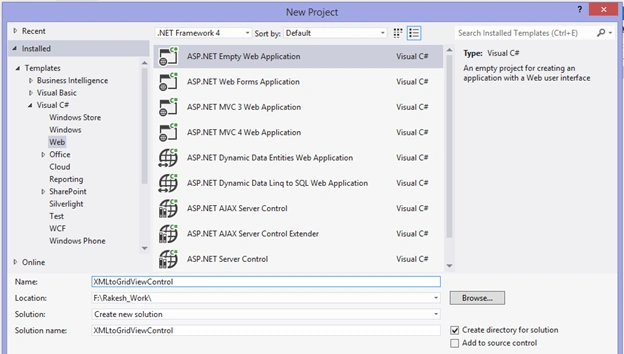
Step 2: Create an XML file.
Right-click on the project then select Add -> New Item then select Data in the installed templates then select XML file then provide a name then click on Add.
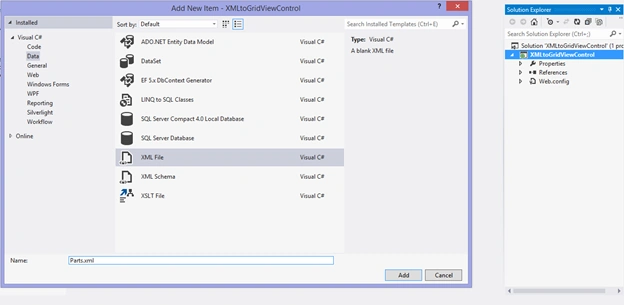
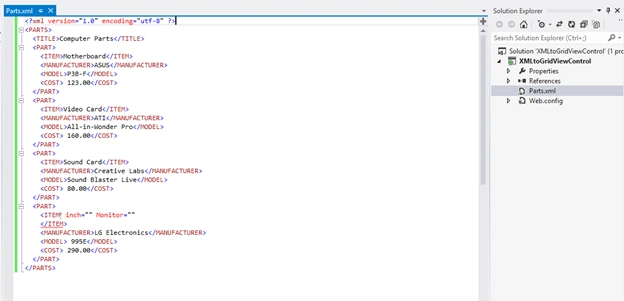
Step 3: Provide the code for the XML file.
Step 4: Create an ASP.NET web form.
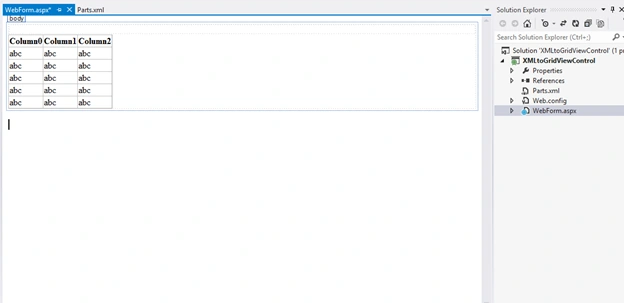
Right-click on the project then select Add -> New Item then select Web in the installed templates then select Web form then provide a name then select Add.
Once you have added the web from, the next step is to add a data grid control to your web form (just simply drag and drop from the Toolbox) as shown below.
Step 5: Write Code in Web form
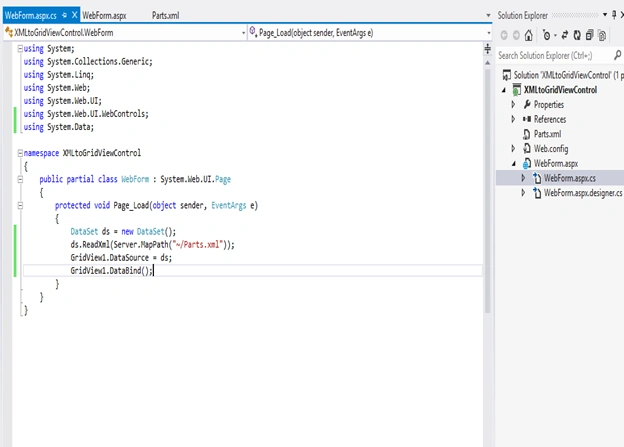
Understanding the code
It's just four lines of code and easy to understand.
I created a DataSet object in the first line (in the Page_Load event).
Invoke the ReadXml method to read the XML file and store it in ds (DataSet object).
Using the ds (DataSet object) as the DataSource for the GridView1.
Invoke the DataBind method as in the following:
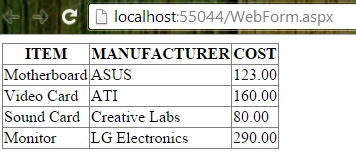
Step 6: Run the Web form
Here is the data from our XML file.
We can also do this without writing even a single line of code (using XMLDataSource).
Step 2: Create an XML file.
Right-click on the project then select Add -> New Item then select Data in the installed templates then select XML file then provide a name then click on Add.
Step 3: Provide the code for the XML file.
Step 4: Create an ASP.NET web form.
Right-click on the project then select Add -> New Item then select Web in the installed templates then select Web form then provide a name then select Add.
Once you have added the web from, the next step is to add a data grid control to your web form (just simply drag and drop from the Toolbox) as shown below.
Step 5: Write Code in Web form
Understanding the code
It's just four lines of code and easy to understand.
I created a DataSet object in the first line (in the Page_Load event).
- DataSet ds=new DataSet();
- ds.ReadXml(Server.MapPath (“~/Parts.Xml”));
- GridView1.DataSource=ds;
- GridView1.DataBind ();
Here is the data from our XML file.
We can also do this without writing even a single line of code (using XMLDataSource).
Gowtham RajamanickamPosted Mar 16, 2015, 2:27 AM
good...