

Introduction
Dear Friends,
A few months ago, I wrote an article here that displayed how to display Tweets from your timeline using HTML. Recently, Twitter updated its API and now allows users to create Widgets from your Twitter profile. This post illustrates displaying your Twitter timeline to your visitors on your website using Twitter Widgets.
What a Widget is?
Benefits of Twitter Widgets
- Your users can follow you directly from your website
- Your users can tweet to you directly from your website
- Ease of Use. Create widgets within seconds
- Create as many widgets as you want
- No width required for the timeline. It automatically fits the parent container of the timeline on your website
- Links open in new windows by default
Configure Twitter Widgets
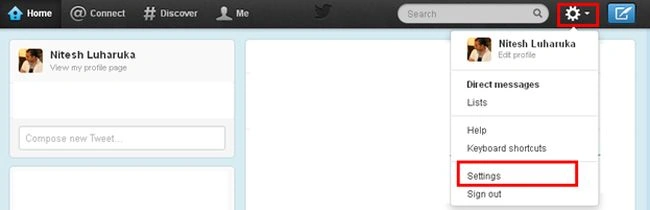
- Log into your Twitter Account and go to the Settings Page.
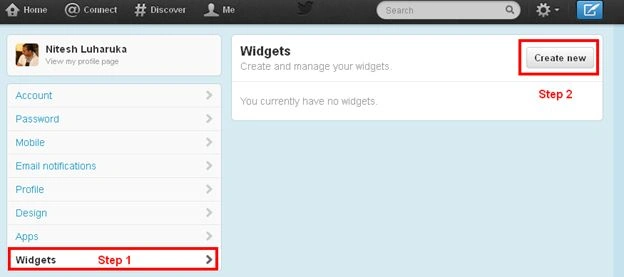
- Go to Widgets and Click "Create New" from the screen.
- Configure your widget from this screen.
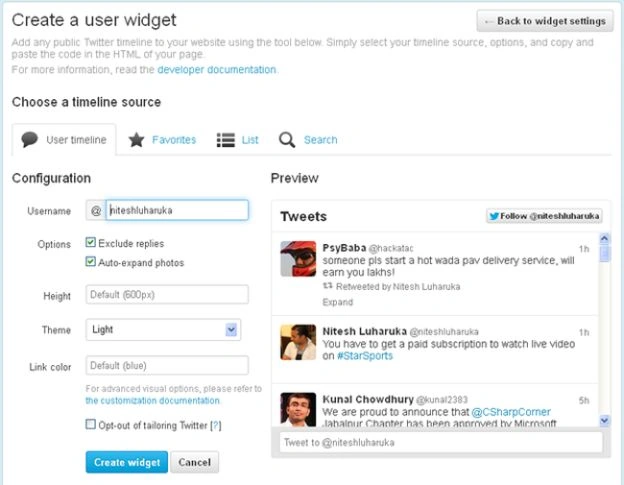
- The various options present on this screen are explained below.
1. Username: Enter the username you want to create the widget for
2. Exclude Replies: Check this option for not showing any replies from your Twitter account
3. Height: Set the default height of the widget
4. Theme: Choose a theme as suited for your website, there are 2 options, Light and Dark
5. Link Color: The color of links present in the timeline.
- Click "Create Widget" and your widget is created.
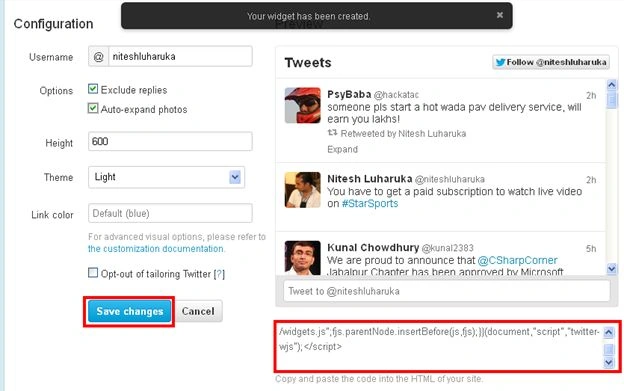
- Copy the code provided by Twitter.
Work required on your website
- Log in to your Website
- Paste the code copied from Twitter into the area (widget/sidebar/footer) where you want to display the Tweets and save the page.
- Open the page and go to the place in the code where you want to put the widget.
- Paste the widget code, save the file and upload it to your server.
- <html>
- <body>
- <a class="twitter-timeline" href="https://twitter.com/niteshluharuka" data-widget-id="343005309226323970">Tweets by @niteshluharuka</a>
- <script>!function(d,s,id){var js,fjs=d.getElementsByTagName(s)[0],p=/^http:/.test(d.location)?'http':'https';if(!d.getElementById(id)){js=d.createElement(s);js.id=id;js.src=p+"://platform.twitter.com/widgets.js";fjs.parentNode.insertBefore(js,fjs);}}(document,"script","twitter-wjs");</script>
- </body>
- </html>
Hope you like this article.
In case you encounter any issues, please let me know via comments.
Join the conversation! Your thoughts help the community grow.