

In this article, we are going to build an application to display SharePoint List or Library items using DataTable JS.

Application Demo [Gif Format]
Introduction
DataTables JS, advanced interaction controls to your HTML tables is free, open-source software that you can download and use for whatever purpose you wish, on any and as many sites you want.
Let's get started.
The Application
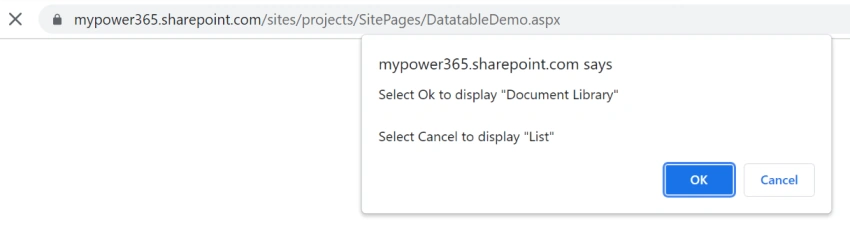
As I displayed the demo GIF, based on the user confirmation in the alert box DataTable is generated.
Step 1 - Building the UI
<!DOCTYPE html>
<html>
<head>
	<link rel="stylesheet" href="../SiteAssets/style.css">
</head>
<body>
	<div id="tableDiv">
		<p id="toDisplay"></p>
		<table id="EmployeeListID">

		</table>
	</div>
</body>
</html>
Step 2 - The CDN files
Here, I'm referring to Bootstrap 5, for more details refer to https://datatables.net/download/
<link href="https://cdn.datatables.net/1.11.3/css/jquery.dataTables.min.css" rel="stylesheet" type="text/css">
<link href="https://maxcdn.bootstrapcdn.com/bootstrap/3.3.7/css/bootstrap.min.css" rel="stylesheet" type="text/css">
<link href="https://cdn.datatables.net/1.11.3/css/dataTables.bootstrap.min.css" rel="stylesheet" type="text/css">
<script src="https://code.jquery.com/jquery-3.5.1.js" type="text/javascript"></script>
<script src="https://cdn.datatables.net/1.11.3/js/jquery.dataTables.min.js" type="text/javascript"></script>
<script src="https://cdn.datatables.net/1.11.3/js/dataTables.bootstrap.min.js" type="text/javascript"></script>
Step 3 - Onload Event
Call the function using the onload event attribute in the <script> tag. Like below,
<script src="../SiteAssets/script.js" onload="getUsingRest()"></script>
As the function name says, data is loaded using the REST API Get method.
Alternative Method: Load data using Fetch API (to demonstrate fetch API to get items from SharePoint List/Library).
To know the basics of the fetch() method refer to my other post here.
Step 4 - The GET Method
Define the query URL for List and Library.
Start with the confirm alert, which prompts the user to select OK/Cancel, which returns true for Ok and false for cancel.
var queryURL = _spPageContextInfo.webAbsoluteUrl + "/_api/web/lists/GetByTitle('EmployeesList')/items";
var queryURLLib = _spPageContextInfo.webAbsoluteUrl + "/_api/web/lists/getbytitle('EmployeeDocuments')/items?$select=FileLeafRef,FileRef,Created,Author/ID,Author/Title&$expand=Author/ID,Author/Title";

function getUsingRest() {
    var confirmVal = confirm(`Select Ok to display "Document Library"\n\nSelect Cancel to display "List"`);
    if(confirmVal === true){
        var getURL = queryURLLib;
        var toDisplay = 'Document Library';
    } else{
        var getURL = queryURL;
        var toDisplay = 'List';
    }
}
In the success function, call fnDisplayDataTable() method.
function getUsingRest() {
    var confirmVal = confirm(`Select Ok to display "Document Library"\n\nSelect Cancel to display "List"`);
    if(confirmVal === true){
        var getURL = queryURLLib;
        var toDisplay = 'Document Library';
    } else{
        var getURL = queryURL;
        var toDisplay = 'List';
    }
    $.ajax({
        url: getURL,
        method: "GET",
        headers: {
            "Accept": "application/json; odata=verbose"
        },
        async: false,
        success: function (data) {
            let items = data.d.results;
            fnDisplayDataTable(items, toDisplay);// Datatable JS
        },
        error: function (error) {
            console.log(error);
        }
    });
}
Step 4(Alternative) - Using Fetch API
To know the basics of the fetch() method refer to my other post here.
var queryURL = _spPageContextInfo.webAbsoluteUrl + "/_api/web/lists/GetByTitle('EmployeesList')/items";
var queryURLLib = _spPageContextInfo.webAbsoluteUrl + "/_api/web/lists/getbytitle('EmployeeDocuments')/items?$select=FileLeafRef,FileRef,Created,Author/ID,Author/Title&$expand=Author/ID,Author/Title";

function getUsingFetch() {
    //Confirm alert goes here
    let payload = {
        method: 'GET',
        headers: {
            "Accept": "application/json; odata=verbose"
        },
        credentials: 'same-origin'
    }
    fetch(queryURL, payload)
        .then(response => response.json())
        .then((data) => {
            let items = data.d.results;
            fnDisplayDataTable(items, 'List');
        })
}
Step 5 - DataTable JS
Here I'm gonna create an array of objects for the columns with the data and title.
Where, data - List/Library internal name and title - Display Name
Sample syntax,
var datatableColumns = [
    {data: "Title", title: "Employee Full Name"},
    {data: "Designation", title: "Designation"}
];
To format the column based on the requirement use render, a function returns with the formatted style.
Here to display the Author name which returns an array, the profile image, and the download link image I have used the render callback function.
function fnDisplayDataTable(tableData, type) {
    if(type === 'List'){
        var datatableColumns = [
            {title: "S. No", className: 'dt-body-center'},
            {data: "Title", title: "Employee Full Name"},
            {data: "Designation", title: "Designation"},
            {data: "ProfileImage", title: "Profile Image",
                className: 'dt-body-center',
                render: function (data, type, row) {
                    return formatProfileImage(data)
                }
            }
        ];
    } else{
        var datatableColumns = [
            {title: "S. No", className: 'dt-body-center'},
            {data: "FileLeafRef", title: "Document"},
            {data: "Author", title: "Modified By",
                className: 'dt-body-center',
                render: function (data, type, row) {
                    return formatUser(data)
                }},
            {data: "FileRef", title: "Download",
                className: 'dt-body-center',
                render: function (data, type, row) {
                    return formatView(data)
                }
            }
        ];
    }
    $('#EmployeeListID').DataTable({
        "language": {
            "emptyTable": "No Records available"
        },
        "autoWidth": false,
        data: tableData,
        columns: datatableColumns,
        "columnDefs": [{
            "render": function (data, type, full, meta) {
                tableData[meta.row].id = meta.row + 1; // adds id to dataset
                return meta.row + 1; // adds id to serial no
            },
            "targets": 0
        }]
    });
    $("#toDisplay").text(type);
    $("#EmployeeListID th").css({
        "text-align": "center",
        "background-color": "#476f96",
        "color": "white",
        "padding": "5px",
        "font-weight": "400"});
}

function formatProfileImage(data) {
    return '<img src="' + data + '" style="width:50px">';
}

function formatView(data){
    return '<a href="'+data+'"><img src="../SiteAssets/download.png"></a>'
}

function formatUser(data){
    return '<span>'+data.Title+'</span>'
}
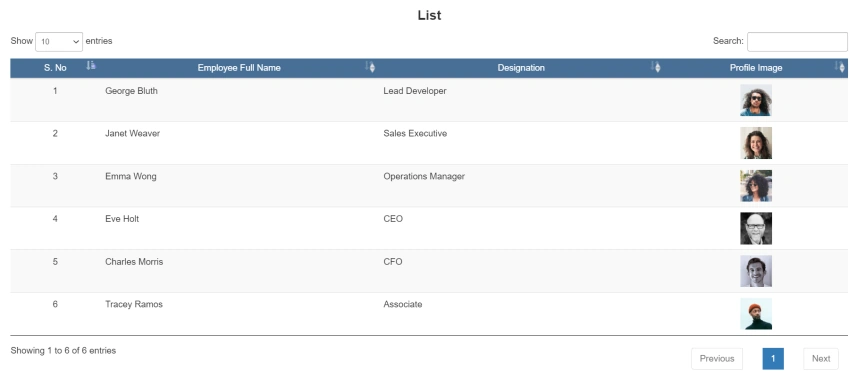
Screenshots

Conclusion
And that's it, a generic code for any user requirement is here.
Refer to my GitHub repository for full code.
Happy learning!
Madhan ThuraiPosted Oct 13, 2021, 5:43 AM
How you inject this code in modern page other than spx? bit confused
Sagar LadPosted Oct 8, 2021, 2:47 PM
Nice Article, Thanks for sharing