

In this article, we are going to see how to insert a notification button in our SharePoint page using HTML and display the count of custom list item as a notification number using REST API methodology.
As a first step, we need to create an HTML source to display the notification button, so here, I am using the bell icon to display as a notification button on my SharePoint Page.
- <html>
- <head>
- <meta name="viewport" content="width=device-width, initial-scale=1">
- <link rel="stylesheet" href="https://cdnjs.cloudflare.com/ajax/libs/font-awesome/4.7.0/css/font-awesome.min.css">
- <style>
- .btn {
- background-color: #eb94d0;
- color: white;
- text-decoration: none;
- padding: 8px 10px;
- position: relative;
- display: inline-block;
- border-radius: 2px;
- }
- .btn:hover {
- background: red;
- }
- .btn .badge {
- position: absolute;
- top: -10px;
- right: -10px;
- padding: 2px 5px;
- border-radius: 50%;
- background-color: red;
- color: white;
- }
- </style>
- </head>
- <body>
- <a href="#" class="btn">
- <span class="fa fa-bell"></span>
- <span class="badge">0</span>
- </a>
- </body>
- </html>
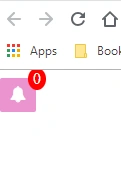
The result of the above HTML code is as below.
Here, I have created one custom list called “Test” and I have added some items in that.
Before proceeding, we need to verify that we are getting the expected result by using the below given URL structure.
- https://SharePointUrl.com/sites/Subsites/_Vti_bin/ListData.SVC/ListName/$Count
- https://SharePointUrl.com/sites/Subsites/_api/web/lists/GetByTitle('ListName')/ItemCount
Once you got the item count, then you can implement this REST API URL to the below given code.
- <script src="https://code.jquery.com/jquery-1.11.3.min.js" type="text/javascript" unselectable="on"></script>
- <script type="text/javascript" unselectable="on">
- $(document).ready( function() {
- var itemCont = 0;
- var requestUri = "https://sharepoint.com/sites/subsite/_vti_bin/ListData.svc/Test/$count";
- $.ajax({
- url: requestUri,
- method: "GET",
- headers: { "Accept": "text/plain;odata=verbose" },
- success: function (data) {
- $("#Count").html(data);
- },
- error: function (data) {
- console.log(data);
- }
- });
- });
- </script>
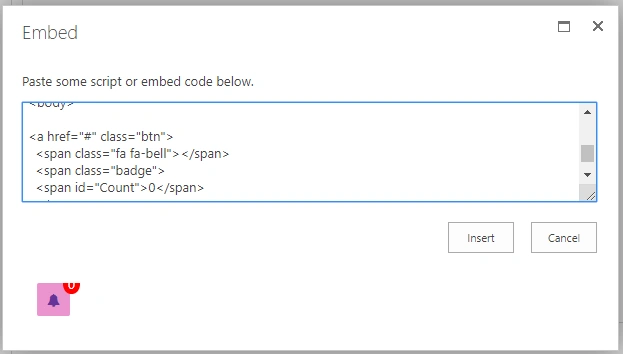
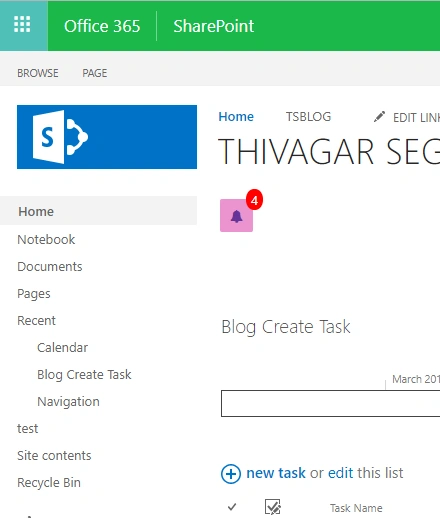
And, the final code will be generated by combining the HTML and REST API code below.
- <!DOCTYPE html>
- <html>
- <head>
- <meta name="viewport" content="width=device-width, initial-scale=1">
- <link rel="stylesheet" href="https://cdnjs.cloudflare.com/ajax/libs/font-awesome/4.7.0/css/font-awesome.min.css">
- <style>
- .btn {
- background-color: #eb94d0;
- color: white;
- text-decoration: none;
- padding: 8px 10px;
- position: relative;
- display: inline-block;
- border-radius: 2px;
- }
- /* Darker background on mouse-over */
- .btn:hover {
- background: red;}
- .btn .badge {
- position: absolute;
- top: -10px;
- right: -10px;
- padding: 2px 5px;
- border-radius: 50%;
- background-color: red;
- color: white;
- }
- </style>
- <script src="https://code.jquery.com/jquery-1.11.3.min.js" type="text/javascript" unselectable="on"></script>
- <script type="text/javascript" unselectable="on">
- $(document).ready( function() {
- var itemCont = 0;
- var requestUri = "https://sharepoint.com/sites/subsite/_vti_bin/ListData.svc/Test/$count";
- $.ajax({
- url: requestUri,
- method: "GET",
- headers: { "Accept": "text/plain;odata=verbose" },
- success: function (data) {
- $("#Count").html(data);
- },
- error: function (data) {
- console.log(data);
- }
- });
- });
- </script>
- </head>
- <body>
- <a href="#" class="btn">
- <span class="fa fa-bell"></span>
- <span class="badge">
- <span id="Count">0</span>
- </span>
- </a>
- </body>
- </html>
fred adobePosted Jan 28, 2022, 4:11 PM
It doesn't work with 2 buttons on the same page with 2 different lists