

Introduction
This article explains the PictureBox Control and how to display an image from the database in a Windows Forms application.
PictureBox Control
The PictureBox Control is generally used to display an image in a Windows Forms application. The Image can be of any type, like jpg, jpeg, .png, bitmap and so on. The PictureBox control is a control of the PictureBox class. You can specify the image by the "ImageLocation" property of the PictureBox class.
Create Database and Table
Create Database ImageManipulation
use ImageManipulation
create table ImageData (Name varchar(max),ImageLogo varbinary(max))
Insert Values in Field Columns
INSERT INTO ImageData (Name, ImageLogo)
SELECT 'C#-Corner', BulkColumn
FROM Openrowset( Bulk 'C:\Pankaj\csharp.png', Single_Blob) as CPicture
Write the following query to execute the table schema:
select * from ImageData

Openrowset
Openrowset is a funtion for reading data from many sources, including using the SQL Server's "Bulk" import capability.
Bulk
The Bulk rowset provider is used for Openrowset to read data from a file. The Bulk provider has various keywords for reading the individual file from the file system.
-
SINGLE_BLOB: For reading a file as a varbinary(max)
-
SINGLE_CLOB: For reading a file as a varchar(max)
-
SINGLE_NCLOB: For reading a file as a nvarchar(max)
Now I will show you how to display the image from the database in a Windows Forms application. Let's use the following procedure.
Step 1:
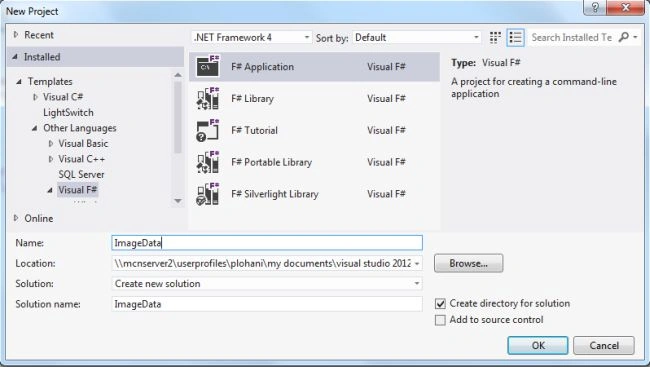
Open Visual Studio then select "Create New Project" --> "F# Console Application".
Step 2:
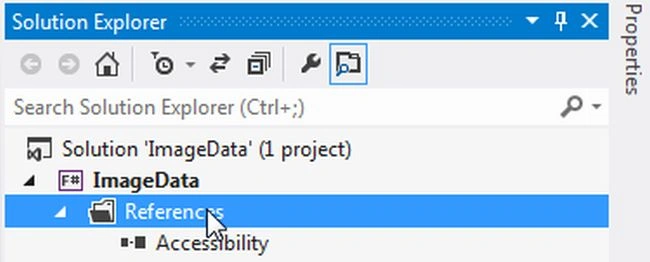
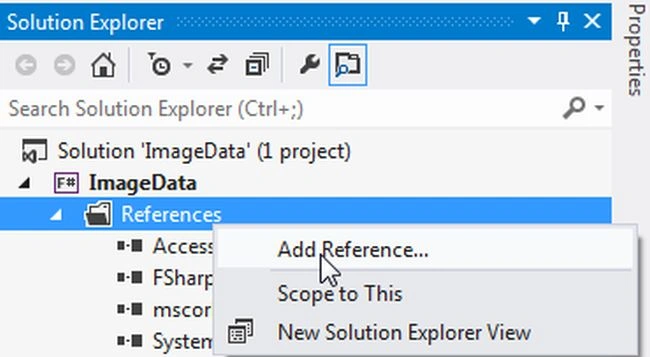
Now go the Solution Explorer on the right side of the application. Right-click on "References" and select "Add references".
Step 3:
After selecting "Add References", in the framework template you need to select "System.Windows.Forms", "System.Drawing" and "System.Data" while holding down the Ctrl key and click on "Ok".

Step 4:
Write the following code for getting the image from the database in F#.
open System
open System.Windows.Forms
open System.Data
open System.Data.SqlClient
open System.Drawing
let constring = @"Data Source=MCNDESKTOP34;Initial Catalog=ImageManipulation;User ID=; Password="
let dataadpter = new SqlDataAdapter("Select * from ImageData", constring)
let ffont=new Font("Arial", 9.75F,FontStyle.Regular, GraphicsUnit.Point)
let ds = new DataSet()
dataadpter.Fill(ds,"ImageData")|>ignore
let imageform = new Form(Text="Display Image")
let lblappname=new Label(Top=20,Left=10,Width=120)
lblappname.Text<-"WebsiteName"
let lblicon=new Label(Top=60,Left=10)
lblicon.Text<-"ImageLogo"
let webnamelbl=new Label(Top=20,Left=140,BorderStyle=BorderStyle.FixedSingle)
let webimage=new PictureBox(SizeMode=PictureBoxSizeMode.Zoom,Top=60,Left=120)
imageform.Font<-ffont
imageform.Controls.Add(lblappname)
imageform.Controls.Add(lblicon)
imageform.Controls.Add(webnamelbl)
imageform.Controls.Add(webimage)
webnamelbl.DataBindings.Add(new Binding("Text",ds,"ImageData.Name"))
webimage.DataBindings.Add(new Binding("Image",ds,"ImageData.ImageLogo",true))
imageform.Show()
Application.Run(imageform)
Step 5 :
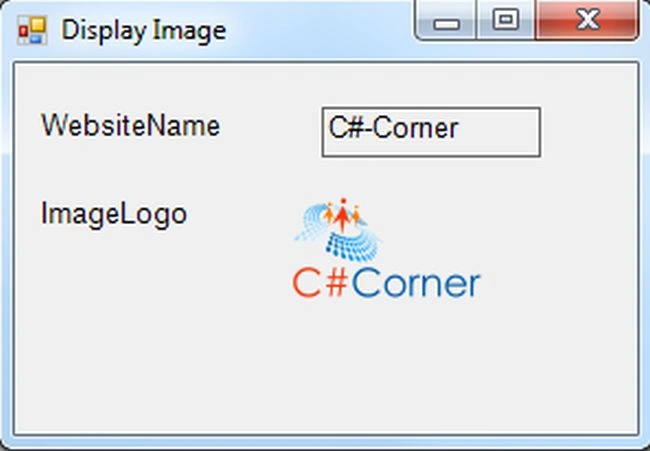
Debug the application by pressing F5 to execute the Windows Forms application. After debugging the application the output will be as in the following figure:
Summary
This article has explained the PictureBox Control, then you saw how to display an image from SQL Server to a Windows Forms application.
Join the conversation! Your thoughts help the community grow.