

There are several ways to populate a dropdown control with data. In this article, I have shown you simple ways to populate a dropdown, like directly by hardcoding in the view, using viewdata, viewbag and Ajax.
Procedure
- Add MVC3 application project
- Add Area “DropdownDemo”
- Add a controller to the preceding area “DropdownDemo”
An Index is a default action created when you add a controller. Add a view page for this index action by right-clicking on Index and add View (Index). In this Index action, I have written code for loading the data in a viewdata and a viewbag. ViewData and ViewBag is used to pass data from a controller to a view. In both of them the difference is typecasting. ViewData requires typecasting when used in a view, whereas a Viewbag doesn't require type casting.
Controller Code
- commEntities DB = new commEntities();// DB Entity Object
- public ActionResult Index()
- {
- //using viewdata
- var dropdownVD = new SelectList(DB.tblStuds.ToList(), "studid", "stud_name");
- ViewData["StudDataVD"] = dropdownVD;
- //using viewbag
- ViewBag.dropdownVD = new SelectList(DB.tblStuds.ToList(), "studid", "stud_name");
- return View();
- }
- public JsonResult GetStudents()//ajax calls this function which will return json object
- {
- var resultData = DB.tblStuds.Select(c => new { Value = c.studid, Text = c.stud_name }).ToList();
- return Json(new { result = resultData },JsonRequestBehavior.AllowGet);
- }
- @model projStudentInfo.Models.tblStud
- @{
- ViewBag.Title = "Index";
- Layout = "~/Views/Shared/_Layout.cshtml";
- }
- <h2>
- Different ways of populating dropdown</h2>
- <table border="0" cellpadding="0" cellspacing="0">
- <thead>
- <tr>
- <th>
- Type
- </th>
- <th>
- Result
- </th>
- <th>
- Code
- </th>
- <th>
- Description
- </th>
- </tr>
- </thead>
- <tr>
- <td>
- In Design Mode
- </td>
- <td>
- @Html.DropDownListFor(c => c.stud_name, new SelectList(
- new List<Object>{
- new { value = 0 , text = "Red" },
- new { value = 1 , text = "Blue" },
- new { value = 2 , text = "Green"}
- },
- "value",
- "text", 2))
- </td>
- <td>
- <pre style="color:brown;"> @@Html.DropDownListFor(c => c.stud_name, new SelectList(
- new List
- <object>{
- new { value = 0 , text = "Red" },
- new { value = 1 , text = "Blue" },
- new { value = 2 , text = "Green"}
- },
- "value",
- "text", 2))</pre>
- </td>
- <td>
- Hardcoded values in design mode only in View, 2 is selected value
- </td>
- </tr>
- <tr>
- <td>
- Using ViewData
- </td>
- <td>
- @Html.DropDownListFor(c => c.studid, ViewData["StudDataVD"] as SelectList)
- </td>
- <td>
- <pre style="color:brown;"> @@Html.DropDownListFor(c => c.studid, ViewData["StudDataVD"] as SelectList)</pre>
- </td>
- <td>
- ViewData requires type casting
- </td>
- </tr>
- <tr>
- <td>
- Using ViewBag
- </td>
- <td>
- @Html.DropDownList("dropdownVD") @*String must be same as ViewBag.dropdownVD*@
- </td>
- <td>
- <pre style="color:brown;">@@Html.DropDownList("dropdownVD")</pre>
- </td>
- <td>
- ViewBag doesnt require type casting. DropDownList name must be same as ViewBag name(in
- controller)
- </td>
- </tr>
- <tr>
- <td>
- Using Ajax on page load
- </td>
- <td>
- <select id="ajaxDropdown">
- </select>
- </td>
- <td>
- <pre style="color:brown;">$(document).ready(function () {
- $.getJSON('@@Url.Action("GetStudents", "DropdownDemo")', function (result) {
- PopulateDDList("ajaxDropdown", result.result)
- });</pre>
- });
- </td>
- <td>
- Json calling GetStudents action which returns json object to jquery result and FillDropdown
- is a function for filling dropdown
- </td>
- </tr>
- </table>
- <script>
- $(document).ready(function () {
- $.getJSON('@Url.Action("GetStudents", "DropdownDemo")', function (result) {
- FillDropdown("ajaxDropdown", result.result)
- });
- });
- // Generic code for any dropdown to fill called by ajax
- function FillDropdown(selector, vData) {
- if (vData.length > 0) {
- var vItems = [];
- for (var i in vData) {
- if (vData[i].Selected)
- vItems.push('<option selectedselected=selected value="' + vData[i].Value + '">' + vData[i].Text + '</option>');
- else
- vItems.push('<option value="' + vData[i].Value + '">' + vData[i].Text + '</option>');
- }
- $('#' + selector).empty();
- $('#' + selector).append(vItems.join(''));
- return true;
- }
- else {
- $('#' + selector).empty();
- return false;
- }
- }
- </script>
- <style>
- table th {padding:5px; background:#aaa;}
- table td { padding:5px; background:#fff; border:1px solid #ddd; }
- </style>
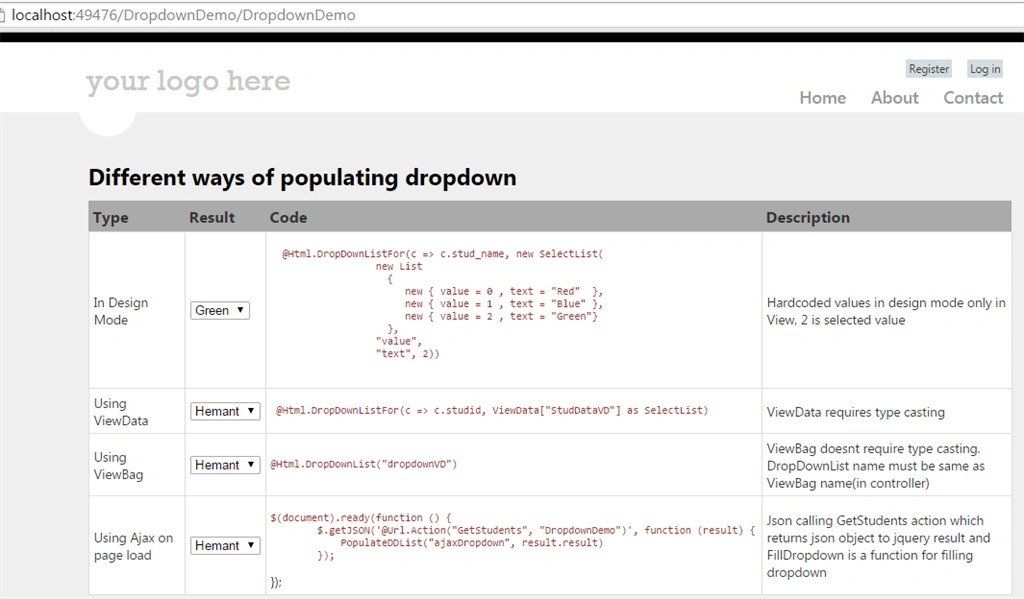
Figure 1: Output
If you know more than the preceding methods then feel free to share in the comments section.
Thanks a lot!
Hemant PanchalPosted May 26, 2015, 1:36 PM
Thanks all :) :)
Santhakumar MunuswamyPosted May 25, 2015, 2:41 PM
Thanks for nice one
Vivek TripathiPosted May 25, 2015, 12:32 PM
Good
Upendra Pratap ShahiPosted May 25, 2015, 8:58 AM
nice..
Paulo DiasPosted May 25, 2015, 8:36 AM
Thaks for that !