

Introduction
A dialog box, like a frame, is a pop-up window on which user interface components can be laid out. Typically, they are used to communicate with users and solicit information from them. Though a dialog resembles and behaves like a frame, there are some major differences between the two. They are:
- Unlike frames, a dialog has a parent (or an owner) window. When the parent window is closed, the dialogue closes automatically as well.
- The dialog box usually contains a number of UI components suitably arranged (laid out). Letting the user adjust the size of the dialog may affect the layout of the components in the dialog.
- A dialog box can be made modal. A modal dialog prevents user inputs to other windows in the application until the dialog is closed.
Dialog Constructors
- Dialog(Frame, boolean): Creates a brand-new dialogue that is initially invisible. The Frame acts as the parent of the dialog. When the parent dialogue closes, the dialogue also does. Whether or not the dialogue is modal is determined by the boolean value.
- Dialog(Frame, String, boolean): Creates a new dialog with the specified String as the title. The other two parameters are the same as in the previous constructor.
Note. Both Dialog constructors require a Frame as a parameter. This frame window acts as the parent of the dialog.
The dialog, like a frame, can act as a container. The layout of the dialog can be set using the setLayout() method, and components can be added to it using the add() method.
Methods used
- setResizable(boolean): Sets the resizable flag of the dialog. If the boolean value passed is true, the dialog is made resizable.
- isModal(): Returns true if the dialog is modal. A modal dialog prevents the user input to other windows in the application until the dialog is closed.
- isResizable(): Returns true if the dialog is resizable.
Create a MessageBox dialog class that displays a Message in a dialog window.
import java.awt.*;
import java.awt.event.*;

public class MessageBox extends Dialog {
    MessageBox(Frame fm, String lab) {
        super(fm, "Message", true);
        setLayout(new GridLayout(2, 1, 0, 0));

        Panel p1 = new Panel();
        Panel p2 = new Panel();

        Button b1, b2;

        p1.setFont(new Font("TimesRoman", Font.BOLD, 18));
        p1.setLayout(new FlowLayout(FlowLayout.CENTER, 20, 15));
        p2.setLayout(new FlowLayout(FlowLayout.CENTER, 20, 20));

        p1.add(new Label(lab));

        b1 = new Button("Ok");
        b1.addActionListener(new B1());
        p2.add(b1);

        b2 = new Button("Cancel");
        b2.addActionListener(new B1());
        p2.add(b2);

        add(p1);
        add(p2);

        setSize(350, 125);
        setTitle("Message Box");

        addWindowListener(new WindowAdapter() {
            public void windowClosing(WindowEvent w) {
                System.exit(0);
            }
        });
    }

    class B1 implements ActionListener {
        public void actionPerformed(ActionEvent e) {
            try {
                Button Ok = (Button) e.getSource();
                String s = Ok.getLabel();
                if (s.equals("Ok") || s.equals("Cancel")) {
                    dispose();
                    System.exit(0);
                }
            } catch (Exception n) {
            }
        }
    }
}
Create a separate file for the source code and save it as MessageApplication.java.
import java.awt.*;

public class MessageApplication extends Frame {
    boolean a;

    MessageApplication() {
        MessageBox mb = new MessageBox(this, "Java Alert! This is Ashish Bhatnagar Message Box");
        mb.setLocation(200, 200);
        mb.setVisible(true);
        a = false;
    }

    public static void main(String args[]) {
        MessageApplication fm = new MessageApplication();
        System.out.println("Popping Out Message Box");
        fm.setVisible(true);
    }
}
Compile the two files using Javac and run the MessageApplication class using the Java interpreter.
Output
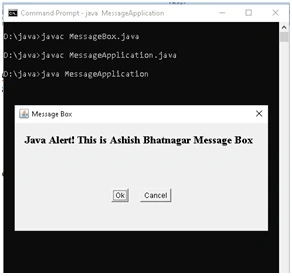
The constructor of MessageApplication creates a new object of type MessageBox and displays it. The MessageBox is a dialog that displays the message passed to it in a window.
Note: The MessageBox is a generic class that can be used from any application (which uses frames). The MessageApplication is a stand-alone frame application that creates a MessageBox and pops it up.
File Dialog
File Dialog provides a platform-specific dialog that lets us choose a file and save or open it.
To create a file dialog, use one of the constructors as follows:
- FileDialog(Frame, String): Creates an Open file dialog that lets the user select a file name from a file listing. The Frame acts as the parent (owner) of the dialog. The String is the title of the file dialog.
- FileDialog(Frame, String, int): This constructor behaves exactly the same way as the previous one, except that the int parameter is used to determine whether the dialog is for loading or saving a file. The two options are FileDialog.LOAD and FileDialog.SAVE
Note. The file dialog does not actually load or save files. It is used only to select a file from the file listing. The file dialog is a modal dialog.
The following code fragment creates a file dialog and displays it.
FileDialog f=new FileDialog(this, “Select File”);
f.setVisible(true);
The user can select a file from the file dialog or dismiss it by clicking on the “Cancel” button. When the setVisible method returns, the getFile() and getDirectory() methods can be used to get the name of the file chosen by the user. If the user dismisses the dialog without selecting a file, the getFile() method returns a null string.
if(f.getFile()!=null){
String filename=f.getFileName();
String directory=f.getdirectory();
//perform some action (like opening the file selected)
}
Methods used
getDirectory(): Returns the directory of the file selected as a string.
getFile(): Returns the name of the file selected as a String. This method returns a null string if the user dismisses the dialog without selecting a file.
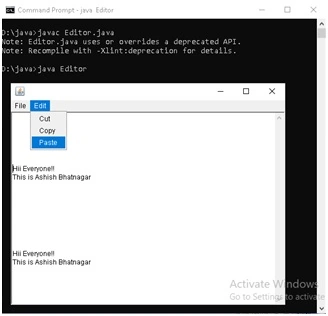
Example: The Company AS Info have built its menu; they would prefer to get their file operations done through the FileDialog UI.
Source Code
import java.awt.*;
import java.awt.event.*;
import java.awt.datatransfer.*;
import java.io.*;

public class Editor extends Frame {
    String filename;
    TextArea tx;
    Clipboard clip = getToolkit().getSystemClipboard();

    public Editor() {
        setLayout(new GridLayout(1, 1));
        tx = new TextArea();
        add(tx);

        MenuBar mb = new MenuBar();

        Menu F = new Menu("File");
        MenuItem n = new MenuItem("New");
        MenuItem o = new MenuItem("Open");
        MenuItem s = new MenuItem("Save");
        MenuItem e = new MenuItem("Exit");
        n.addActionListener(new New());
        F.add(n);
        o.addActionListener(new Open());
        F.add(o);
        s.addActionListener(new Save());
        F.add(s);
        e.addActionListener(new Exit());
        F.add(e);
        mb.add(F);

        Menu E = new Menu("Edit");
        MenuItem cut = new MenuItem("Cut");
        MenuItem copy = new MenuItem("Copy");
        MenuItem paste = new MenuItem("Paste");
        cut.addActionListener(new Cut());
        E.add(cut);
        copy.addActionListener(new Copy());
        E.add(copy);
        paste.addActionListener(new Paste());
        E.add(paste);
        mb.add(E);

        setMenuBar(mb);

        MyListener myListener = new MyListener();
        addWindowListener(myListener);
    }

    class MyListener extends WindowAdapter {
        public void windowClosing(WindowEvent e) {
            System.exit(0);
        }
    }

    class New implements ActionListener {
        public void actionPerformed(ActionEvent e) {
            tx.setText(" ");
            setTitle(filename);
        }
    }

    class Open implements ActionListener {
        public void actionPerformed(ActionEvent e) {
            FileDialog fd = new FileDialog(Editor.this, "Select File", FileDialog.LOAD);
            fd.show();
            if (fd.getFile() != null) {
                filename = fd.getDirectory() + fd.getFile();
Output
Summary
Dialog is a pop-up window on which UI components can be laid out. A modal dialogue blocks user input into other application windows until closed. The file dialog provides a platform-specific dialog that allows the user to choose a file to save or open.
Join the conversation! Your thoughts help the community grow.