

We have already heard a lot about AngularJS and SPA (Single Page Application). But when we start thinking to develop an SPA application, we have a lot of confusion ie: how to develop SAP application, what steps should I take to develop SAP etc. So here I am going to explain step by step development of a SPA (Single Page Application).
So for SPA we have ng-route and ng-view directive. Ng-route manage the routing of a web application and ng-view allows us to render different view depending on the router.
Now open Visual Studio
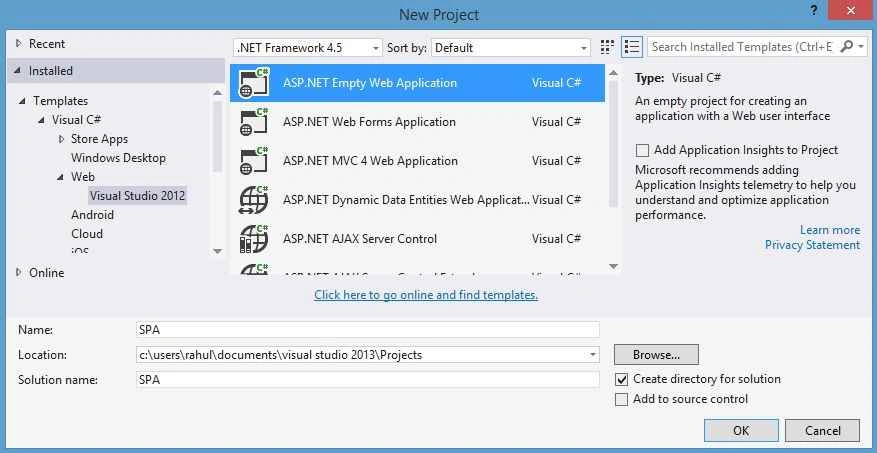
Figure 1: New Project
Now we need to add AngularJS reference into our application. So right click on Solution Explorer, then select Manage Nuget Packages...
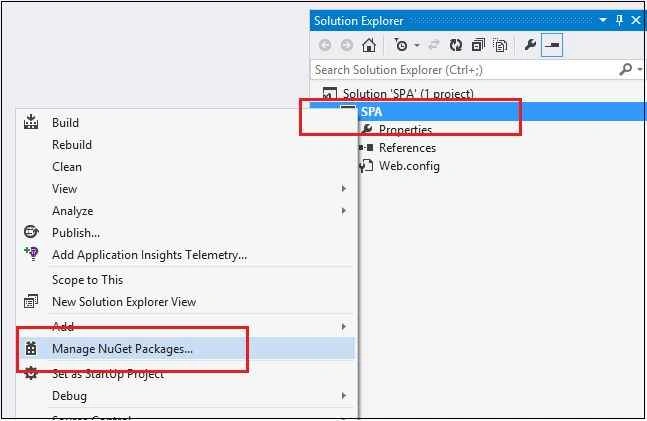
Figure 2: Manage Nuget
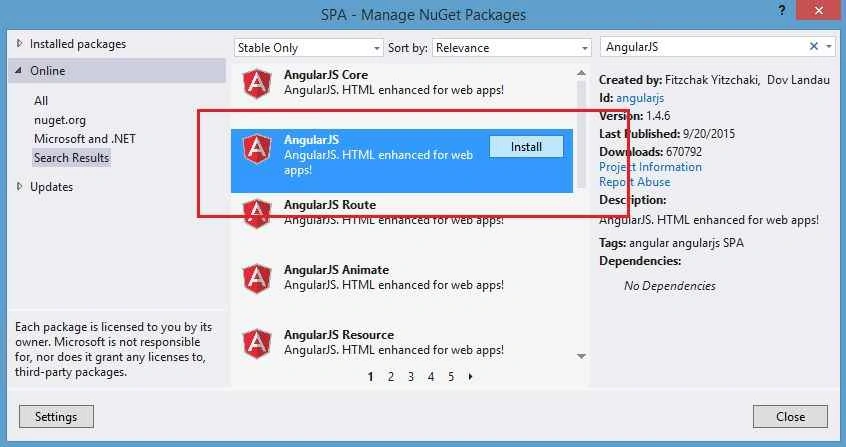
Figure 3: AngularJS
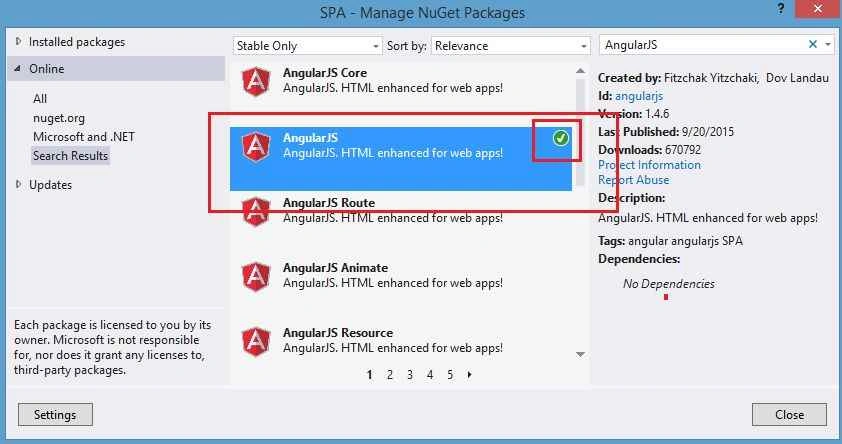
Figure 4: AngularJS Installed
Now again right click on Project’s Solution Explorer, then Add New Item.
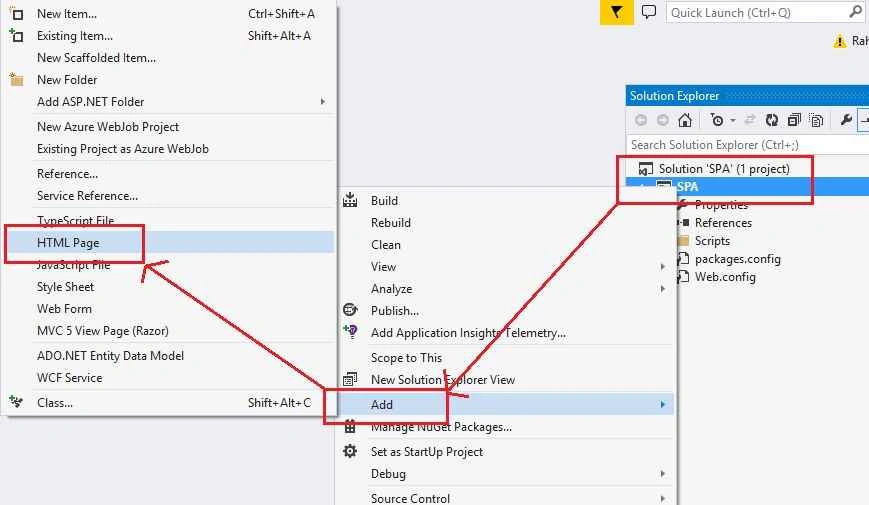
Figure 5: Add New Item
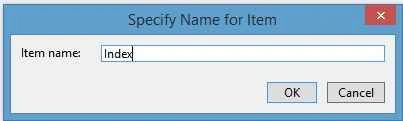
Figure 6: Item Name
Now add a JavaScript file in your project, so right click on project’s Solution Explorer and Add New Item.
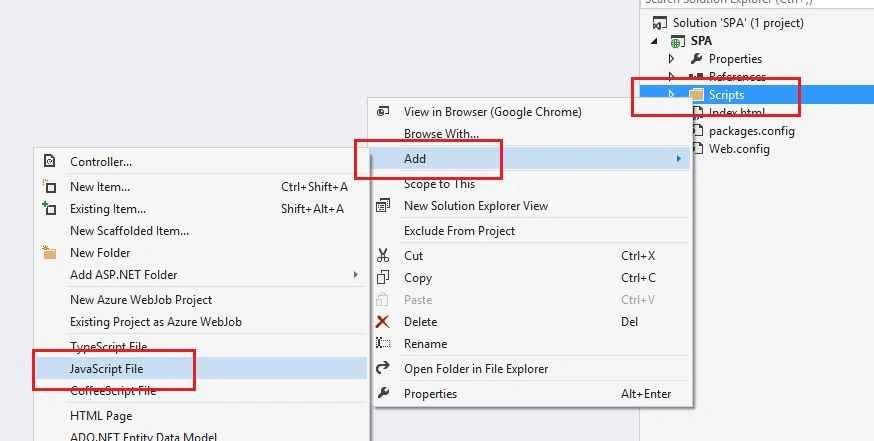
Figure 7: Add JavaScript
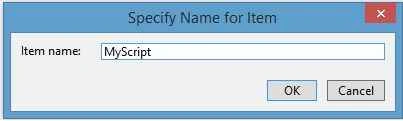
Figure 8: MyScript
Here's your MyScript.js file with the following code:
- var app = angular.module('single-page-app', ['ngRoute']);
- app.config(function ($routeProvider) {
- $routeProvider
- .when('/', {
- templateUrl: 'Home.html'
- })
- .when('/Article', {
- templateUrl: 'Article.html'
- })
- .when('/Blog', {
- templateUrl: 'Blog.html'
- })
- .when('/ContactUs', {
- templateUrl: 'ContactUs.html'
- })
- .when('/AboutUs', {
- templateUrl: 'AboutUs.html'
- });
- });
- app.controller('cfgController', function ($scope) {
- /*
- Here you can handle controller for specific route as well.
- */
- });
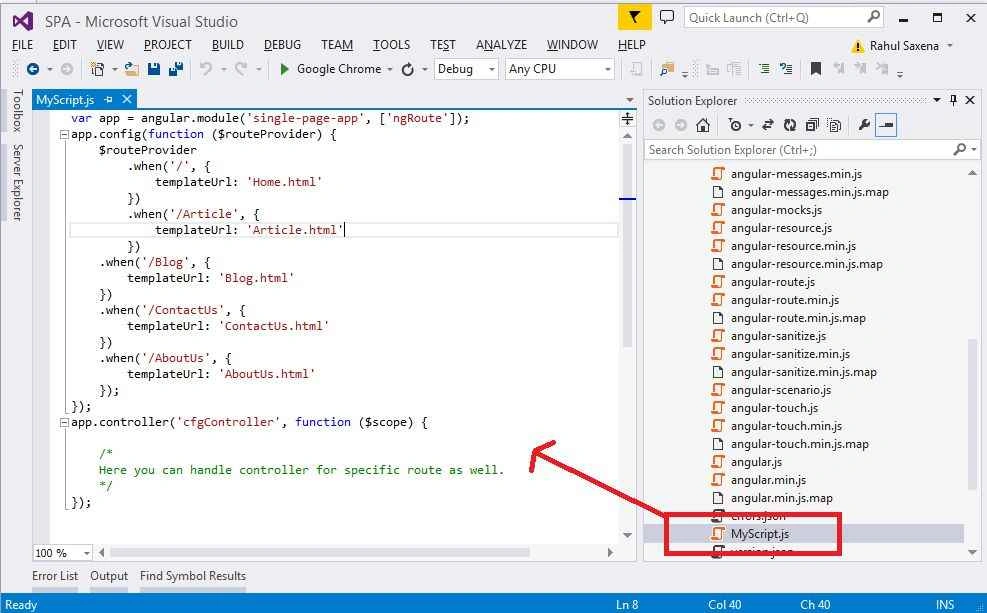
Figure 9: Code Image
Now Add Home.html, Article.html, Blog.html, ContactUs.html & AboutUs.html in your application.
Home.html
- <div style="padding-left:130px;padding-right:200px;">
- <h1> Welcome RS - To the SPA World! - HOME</h1>
- <p>Develop SPA (Single Page Application Step By Step.)</p>
- </div>
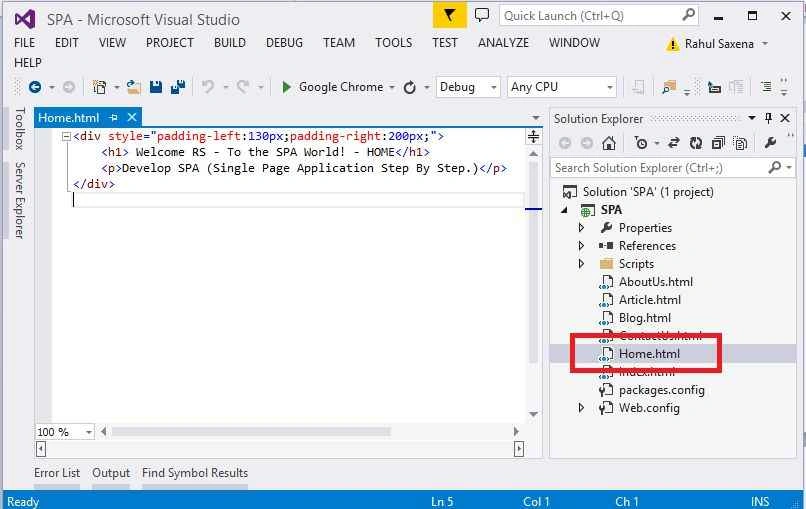
Figure 10: Html
Article.html
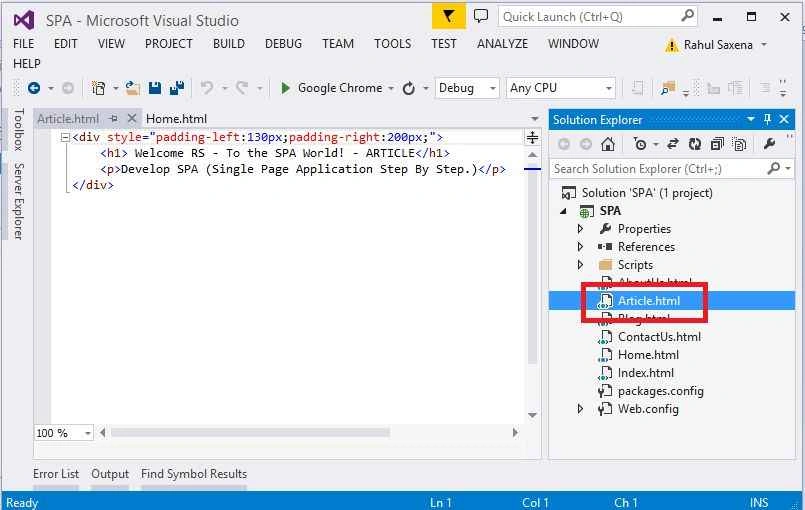
Figure 11: Article.html
Blog.html
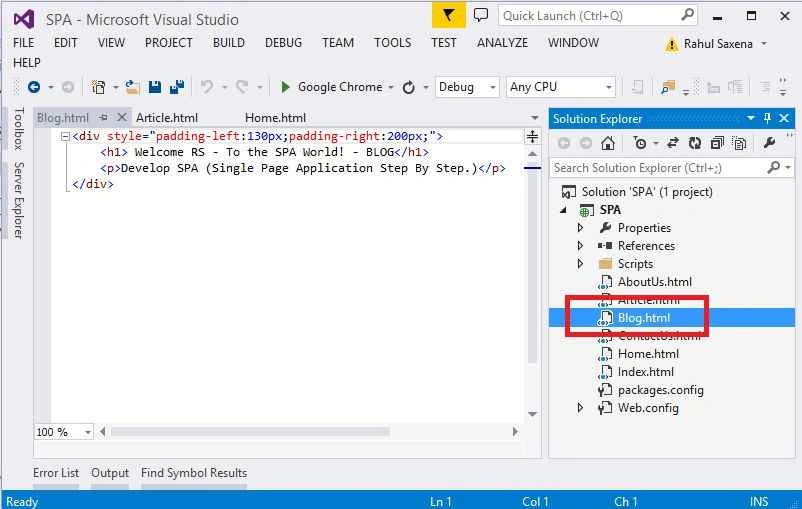
Figure 12: Blog
AboutUs.html
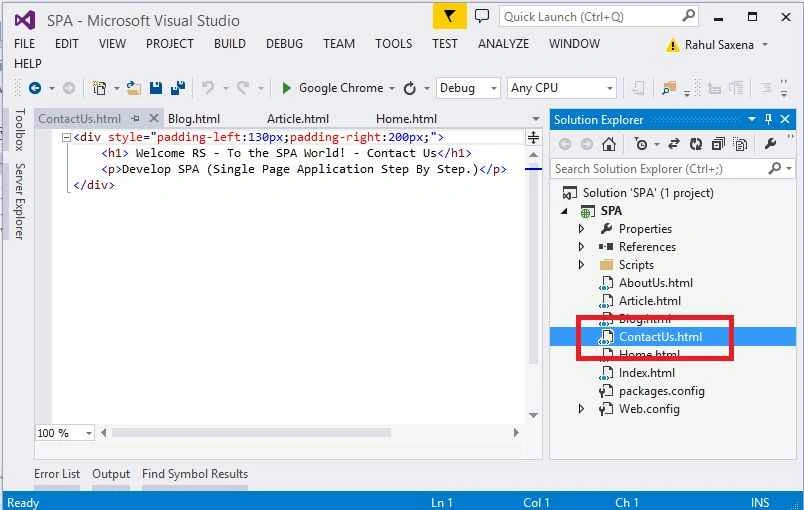
Figure 13: AboutUs
ContactUs.html
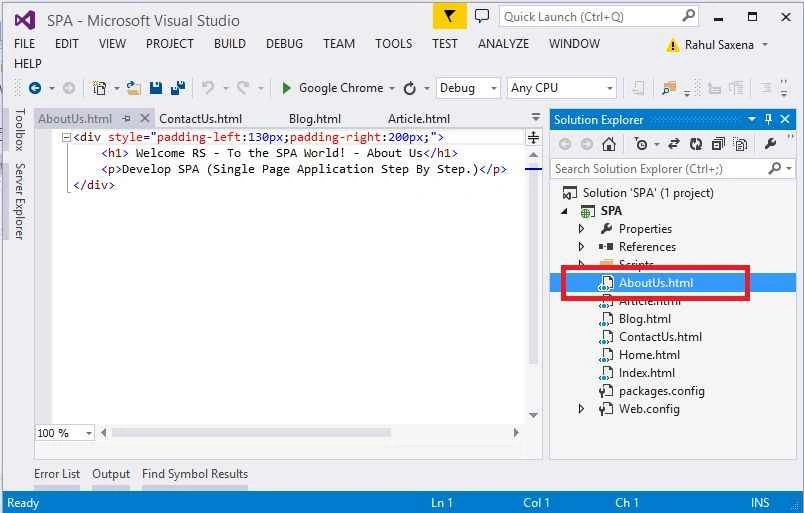
Figure 14: ContactUs
Now open your Index.html and here's the code:
- <!doctype html>
- <html lang="en">
- <head>
- <meta charset="UTF-8">
- <title>Single page web app using Angularjs</title>
- <script src="Scripts/angular.min.js"></script>
- <script src="Scripts/angular-route.min.js"></script>
- <script src="Scripts/MyScript.js"></script>
- <style type="text/css">
- #navcontainer ul
- {
- margin: 0;
- padding: 0;
- list-style-type: none;
- text-align: left;
- padding-top: 4px;
- }
- #navcontainer ul li
- {
- display: inline;
- }
- #navcontainer ul li a
- {
- text-decoration: none;
- padding: .2em 1em;
- color: white;
- background-color: red;
- }
- #navcontainer ul li a:hover {
- color: #fff;
- background-color: #369;
- }
- </style>
- </head>
- <body ng-app="single-page-app">
- <div ng-controller="cfgController">
- <div>
- <table style="width:100%; background-color:skyblue;">
- <tr><td style="background-color:blue; color:white; font-size:30pt; text-align:center; padding:10px; height:50px;">SPA - (Single Page Application - AngularJS)</td></tr>
- <tr>
- <td id="navcontainer">
- <nav>
- <ul>
- <li><a href="#/">Home</a></li>
- <li><a href="#/Article">Articles</a></li>
- <li><a href="#/Blog">Blog</a></li>
- <li><a href="#/ContactUs">Cotact us</a></li>
- <li><a href="#/AboutUs">About us</a></li>
- </ul>
- </nav>
- </td>
- </tr>
- <tr>
- <td style="height:20pt;"></td>
- </tr>
- <tr>
- <td>
- <div ng-view>
- <!--
- This section Will show SPA concept.
- -->
- </div>
- </td>
- </tr>
- <tr>
- <td style="height:20pt;"></td>
- </tr>
- <tr>
- <td>@Copyright : RS</td>
- </tr>
- <tr>
- <td style="height:4pt;"></td>
- </tr>
- </table>
- </div>
- </div>
- </body>
- </html>

Figure 15: Defoult
Now run you application:

Figure 16: Run
Click on Articles Menu and see your URL and content.

Figure 17: Article Menu
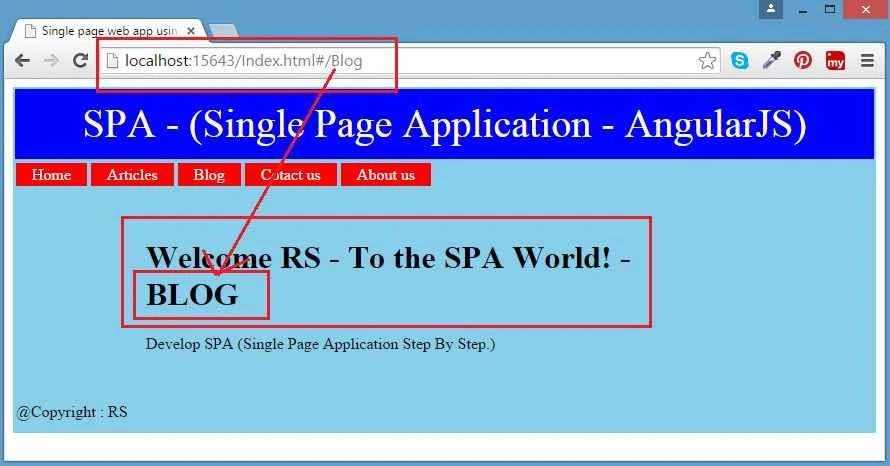
Figure 18: Blog Menu
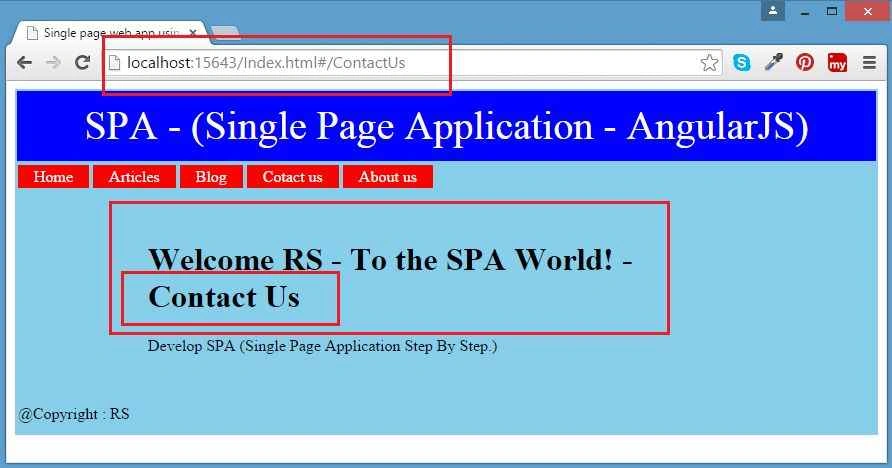
Figure 19: Contact Menu
Figure 20: About Menu
Zeeshan AzimPosted Dec 29, 2015, 8:17 AM
Good Job Rahul
Rahul Kumar SaxenaPosted Sep 23, 2015, 3:39 AM
Thank u Santhakumar Munuswamy...
Santhakumar MunuswamyPosted Sep 22, 2015, 3:12 PM
Good Article. Thanks for sharing
Rahul Kumar SaxenaPosted Sep 22, 2015, 12:34 PM
Thanks Shridhar Sharma
Rahul Kumar SaxenaPosted Sep 22, 2015, 12:34 PM
Thanks Anil Kumar
Shridhar SharmaPosted Sep 22, 2015, 11:54 AM
Nice share sir.Thank you for sharing
Anil KumarPosted Sep 22, 2015, 5:34 AM
nyc1 for learners
Rahul Kumar SaxenaPosted Sep 21, 2015, 11:26 PM
Thanks Syed Shanu.. Yes you are correct .. thanks for Notify me..
Rahul Kumar SaxenaPosted Sep 21, 2015, 11:25 PM
Thanks Rakesh Chavda
Rahul Kumar SaxenaPosted Sep 21, 2015, 11:25 PM
thanks Ajeet Mishra
Rahul Kumar SaxenaPosted Sep 21, 2015, 11:25 PM
Thanks Nilesh Jadav
Rahul Kumar SaxenaPosted Sep 21, 2015, 11:25 PM
Thanks Ankit Bansal
Rahul Kumar SaxenaPosted Sep 21, 2015, 11:25 PM
Thank Sumit Joshi
Rahul Kumar SaxenaPosted Sep 21, 2015, 11:25 PM
Thanks Sibeesh Venu
Syed ShanuPosted Sep 21, 2015, 8:07 PM
Great One Rahul .One Correction In intro i think there is typo for SPA and SAP.
RakeshPosted Sep 21, 2015, 10:14 AM
Nice share sir
Ajeet MishraPosted Sep 21, 2015, 7:10 AM
nice
Nilesh JadavPosted Sep 21, 2015, 6:30 AM
Thanks for sharing !! Nice one
Ankit BansalPosted Sep 21, 2015, 6:14 AM
good one...
Sumit JoshiPosted Sep 21, 2015, 3:26 AM
Thanks for sharing.
Sibeesh VenuPosted Sep 21, 2015, 3:22 AM
Nice Share :)