

Introduction
Before reading this article, please go through some important links given below.
- Quick Start on Microsoft PowerApps
- To Use Template
- To Use Blank App
- To Add Excel File
- To Use Sort And SortByColumn Functions
- To Use Filter, Search, And LookUp Functions
- To Add Contacts
- To Get User Details
- Developing Camera App
- Using Radio Button
- Developing Drawing App
- Using ListBox Control
- Adding Audio And Video Control
- Using Slider Control
- Import And Export Data In Microsoft PowerApps
- Using CheckBox Control
- Using Drop Down Control
In PowerApps, we can develop Login Page using TextBox, Text Input, Button, and Screen Controls.
Login Page
A login, logging in, or logging on, is the entering of identifier information into a system by a user, in order to access that system (e.g., a computer or a website or an app).
A login generally requires the user to enter two pieces of information, a username, and a password. This information is entered into a Login Page.
A username is also referred to as an account name. A password differs from a username. It is intended to be kept a secret.
Here, we will learn how to create a simple login page in Microsoft PowerApps. In this login page, I have used text boxes, buttons, and text input tools for the design part. Coding on each of the tools can be written separately as per user choice and functionality.
Follow the below steps to work with DropDown in PowerApps.
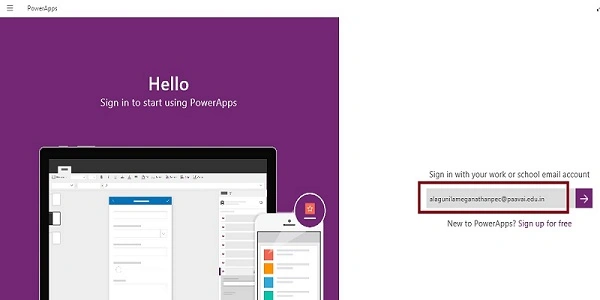
Step 1 Log in to PowerApps
After downloading the PowerApps from Windows Store, here, we need a Microsoft related organization’s Office 365 ID or (MSDN, Microsoft, Skype, Office 365, etc.,), to login with it.
 Step 2 Create a new app in PowerApps
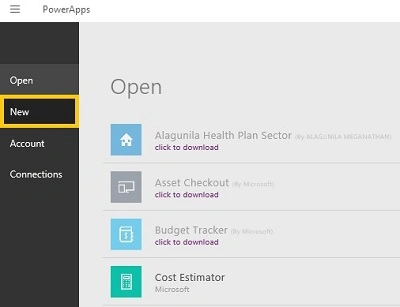
After Login, we will see the Dashboard. There, click on the New button.
Step 2 Create a new app in PowerApps
After Login, we will see the Dashboard. There, click on the New button.
 Step 3
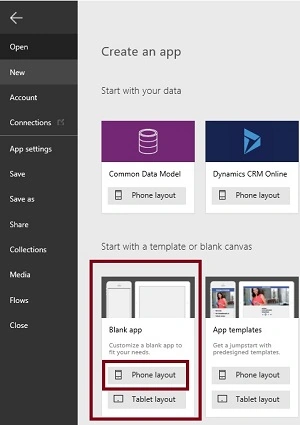
Choose the Blank App.
Step 3
Choose the Blank App.
 Step 4 Design the app
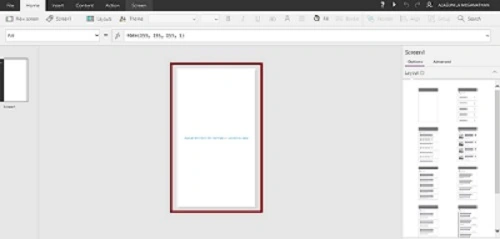
Now, let's start designing the app. On the left side, we can see the individual screens for adding our data. On the right side, we see the list of Layouts. At the top, we see the formula bar. There, you see the Properties of the screen that you select. On the right side, we see the Add Data Source add the External Data Source.
Step 4 Design the app
Now, let's start designing the app. On the left side, we can see the individual screens for adding our data. On the right side, we see the list of Layouts. At the top, we see the formula bar. There, you see the Properties of the screen that you select. On the right side, we see the Add Data Source add the External Data Source.
 Step 5 Designing the Login Page
Design Text Box in the Login Page.
Step 5 Designing the Login Page
Design Text Box in the Login Page.
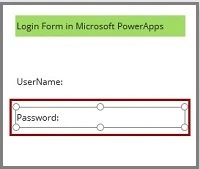
- Go to the Insert menu, then Controls, and drag the Text Control.

- Drop the Text Control on the screen and Change the Text Property as UserName.
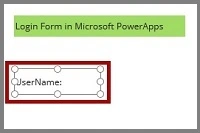
- Similarly, place another Text Control and Change the Text Property as Password
Design Text Input Box in the Login Page
- Go to the Insert menu, then Text, and drag the Text Input Control.
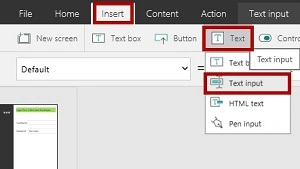
- Drop the Text Input Control on the screen.
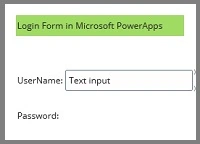
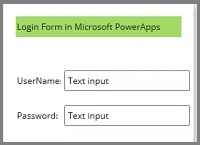
- Similarly, place another Text Input Control.
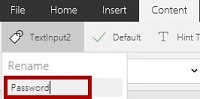
- Rename the Second Text Input control to Password
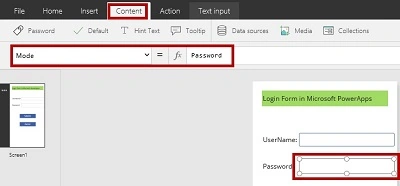
- Select the Password Text Input control and set the mode to Password
Design Button control in the Login Page
- Go to the Insert Menu, then choose Button Control.
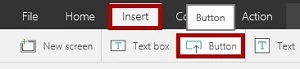
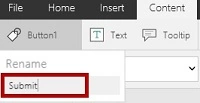
- Drop the Button Control to the screen and change the name to Submit.
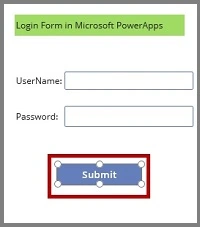
- Rename the Control to Submit
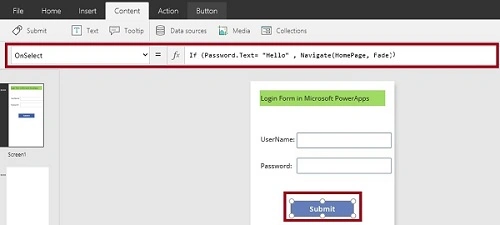
- Add Coding
Select the Button Control and add the following coding.CodingIf (Password.Text= "Hello" , Navigate(HomePage, ScreenTransition.Fade))
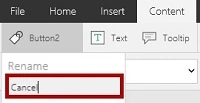
- Place another Button Control.
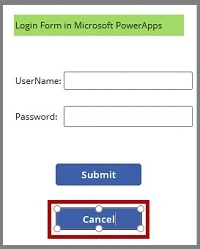
- Rename the control to Cancel
- Add Coding
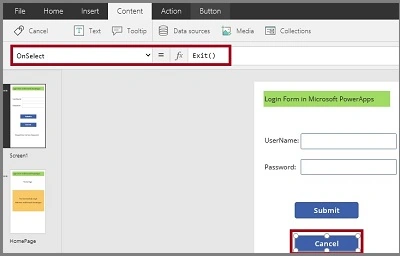
Select the Cancel button and add Exit() to OnSelect Event.
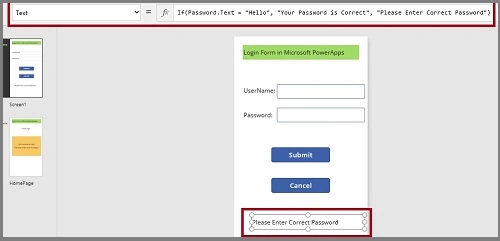
Design Text Box control in the Login Page
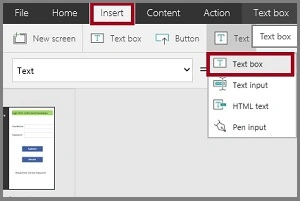
- Go to the Insert Menu, then choose Text, and drag the Text box Control.
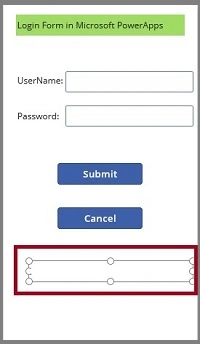
- Drop the Text box Control to the screen.
- Add Coding
Select the Text box Control and add the following coding.CodingIf(Password.Text = "Hello", "Your Password is Correct", "Please Enter Correct Password")
Step 6 Designing the Home Page(Next Page)
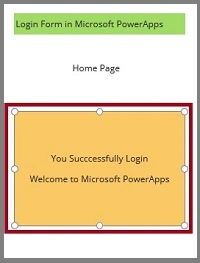
If the Username and Password are correct, the Home Page will open
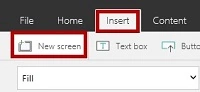
Create a new Screen
- Go to the Insert menu and click on the New Screen.
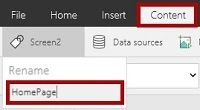
- Rename the Screen to HomePage.
- Place the Text Box.
Go to the Insert and drag the Text box control.
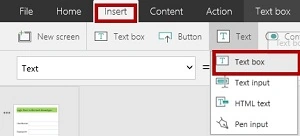
- Drop the Text box and add the text.
Step 7
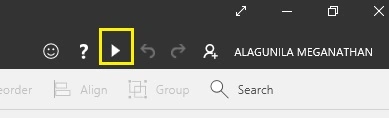
Run the app
 Output 1
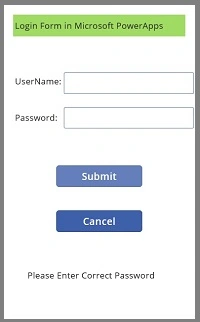
Main Screen
Output 1
Main Screen
 Output 2
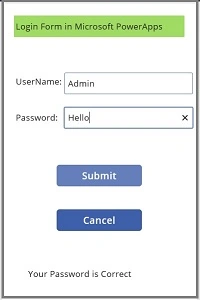
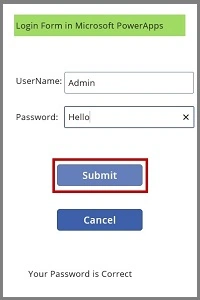
Enter the correct UserName and Password.
Output 2
Enter the correct UserName and Password.
 Output 3
Click on the Submit button.
Output 3
Click on the Submit button.
 Output 4
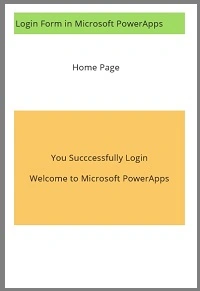
It will open the HomePage.
Output 4
It will open the HomePage.
 Output 5
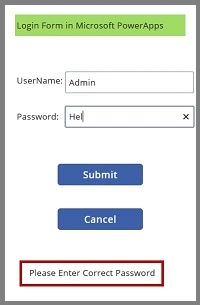
If the password is wrong.
Output 5
If the password is wrong.
 I hope you understood how to develop the Login Page in Microsoft PowerApps and how to run it.
VENKATRAMAN DAKSHINAMURTHYPosted Jul 1, 2021, 8:31 AM
Hello Madam Are you interested in some contract work ?
Jamal WahidjamalPosted May 13, 2020, 11:00 AM
Nice article. Thanks for sharing.
Saikiran ChowdamPosted Nov 6, 2019, 4:04 AM
How to connect to sharepoint list for validation of user and password
MANIKANDNA SELVAMPosted Sep 4, 2019, 11:30 AM
How could we hide the " password" to the users interface
Marga NPosted Jun 26, 2017, 3:33 AM
Nice article! I have a cuestion: How can I validate the Office365 User password?
Anu VPosted Nov 23, 2016, 11:21 PM
Nice article.. Thanks for sharing