

Introduction
In this article I describe how to create a Windows Store App using JavaScript that defines an Object. The sample app demonstates definition of a simple JavaScript object, with methods and defaults being placed on the function prototype, using the Win.Class.define method.
I assume you can create a simple Windows Store App using JavaScript. For more help visit Simple Windows Store Apps using JavaScript.
To start the creation of the app, add two JavaScript pages by right-clicking on the js folder in the Solution Explorer and select Add > new item > JavaScript Page and then provide an appropriate name. In the same way, add one HTML page to your project.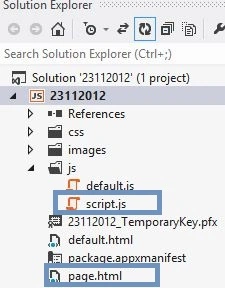
Write the following code in default.html:
<!DOCTYPE html>
<html>
<head>
<meta charset="utf-8" />
<title></title>
<link rel="stylesheet" href="//Microsoft.WinJS.1.0/css/ui-light.css" />
<script src="//Microsoft.WinJS.1.0/js/base.js"></script>
<script src="//Microsoft.WinJS.1.0/js/ui.js"></script>
<link rel="stylesheet" href="/app-utils/app-utils.css" />
<link rel="stylesheet" href="/css/default.css" />
<script src="/js/default.js"></script>
</head>
<body role="application" style="background-color: lightcyan">
<center>
<div id="rootGrid">
<div id="content">
<h1 id="featureLabel"></h1>
<div id="contentHost"></div>
</div>
</div>
</center>
</body>
</html>
Write the following code in default.js:
(function () {
"use strict";
var appTitle = "";
var pages = [
{ url: "page.html" }
];
function activated(eventObject) {
if (eventObject.detail.kind === Windows.ApplicationModel.Activation.ActivationKind.launch) {
eventObject.setPromise(WinJS.UI.processAll().then(function () {
var url = WinJS.Application.sessionState.lastUrl || pages[0].url;
return WinJS.Navigation.navigate(url);
}));
}
}
WinJS.Navigation.addEventListener("navigated", function (eventObject) {
var url = eventObject.detail.location;
var host = document.getElementById("contentHost");
host.winControl && host.winControl.unload && host.winControl.unload();
WinJS.Utilities.empty(host);
eventObject.detail.setPromise(WinJS.UI.Pages.render(url, host, eventObject.detail.state).then(function () {
WinJS.Application.sessionState.lastUrl = url;
}));
});
WinJS.Namespace.define("app", {
appTitle: appTitle,
pages: pages
});
WinJS.Application.addEventListener("activated", activated, false);
WinJS.Application.start();
})();
Write the following code in page.html:
<!DOCTYPE html>
<html>
<head>
<title></title>
<script src="/js/script.js"></script>
</head>
<body>
<div data-win-control="app.pageInput">
<button class="action winClassDefineCreateInstance">Create Instance of Defined Class</button>
<button class="action secondary winClassDefineCreateAndSetProperties">Create Instance and set properties</button>
<br />
<br />
</div>
<div data-win-control="app.pageOutput">
<div class="winClassDefineOutputTable">
<table>
<thead>
<tr>
<th>Member</th>
<th>Value</th>
<th>From Prototype?</th>
</tr>
</thead>
<tbody>
<tr class="winClassDefineX">
<td>X</td>
<td></td>
<td></td>
</tr>
<tr class="winClassDefineY">
<td>Y</td>
<td></td>
<td></td>
</tr>
<tr class="winClassDefineWidth">
<td>Width</td>
<td></td>
<td></td>
</tr>
<tr class="winClassDefineHeight">
<td>Height</td>
<td></td>
<td></td>
</tr>
<tr class="winClassDefineArea">
<td>Area</td>
<td></td>
<td></td>
</tr>
<tr class="winClassDefineToString">
<td>ToString</td>
<td></td>
<td></td>
</tr>
</tbody>
</table>
</div>
</div>
</body>
</html>
Write the following code in script.js:
(function () {
"use strict";
var Rect = WinJS.Class.define(
function () { },
{
x: 0,
y: 0,
width: 0,
height: 0,
area: function () { return this.width * this.height; },
toString: function () {
return "rectangle (" +
[this.x, this.y, this.width, this.height].join(", ") +
")";
}
}
);
function defaultRect() {
WinJS.log && WinJS.log("Default state of new Rect object", "app", "status");
return new Rect();
}
function rectWithPropertyChanges() {
WinJS.log && WinJS.log("Status of rect after properties get set", "app", "status");
var r = new Rect();
r.width = 5;
r.height = 4;
return r;
}
var page = WinJS.UI.Pages.define("page.html", {
ready: function (element, options) {
var root = new WinJS.Utilities.QueryCollection(element);
this.outputTable = root.query(".winClassDefineOutputTable");
this.hideOutputTable();
root.query(".winClassDefineCreateInstance").listen("click", this.showDefaultRect.bind(this));
root.query(".winClassDefineCreateAndSetProperties").listen("click", this.showRectWithPropertyChanges.bind(this));
},
hideOutputTable: function () {
this.outputTable.setStyle("visibility", "hidden");
},
showOutputTable: function () {
this.outputTable.setStyle("visibility", "visible");
},
showDefaultRect: function () {
this.showOutputTable();
this.displayRect(defaultRect());
},
showRectWithPropertyChanges: function () {
this.showOutputTable();
this.displayRect(rectWithPropertyChanges());
},
displayRect: function (rect) {
this.updateRow("X", rect.x, rect.hasOwnProperty("x"));
this.updateRow("Y", rect.y, rect.hasOwnProperty("y"));
this.updateRow("Width", rect.width, rect.hasOwnProperty("width"));
this.updateRow("Height", rect.height, rect.hasOwnProperty("height"));
this.updateRow("Area", rect.area(), rect.hasOwnProperty("area"));
this.updateRow("ToString", rect.toString(), rect.hasOwnProperty("toString"));
},
updateRow: function (rowIdSuffix, propertyValue, isOwnProperty) {
var tr = this.outputTable.query(".winClassDefine" + rowIdSuffix)[0];
tr.cells[1].innerText = propertyValue;
tr.cells[2].innerText = isOwnProperty ? "no" : "yes";
}
});
})();
Output:
Summary
In this app I described how to define a simple Object in a Windows Store App using JavaScript. I hope this article has helped you to understand this topic. Please share if you know more about this. Your feedback and constructive contributions are welcome.
Join the conversation! Your thoughts help the community grow.