

Introduction
You can follow my previous article to learn, what is CSS and why we use CSS: click here.
In CSS, colors are generally used as-
- Using the name of the color. Example- color-red.
- Using the RGB value of color. Example- #ff0000.
- Using the Hex value of the color. Example- #fffff.
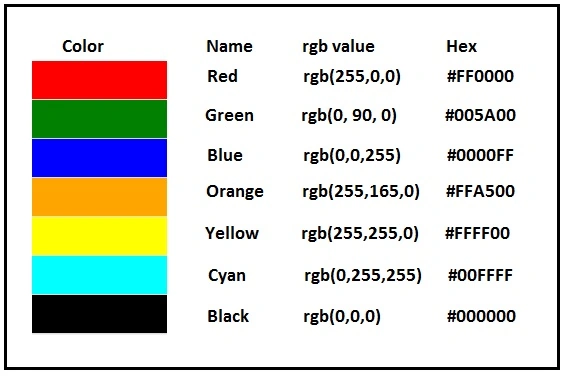
To set the color of an HTML element, the 'color' property is used. We can use the name, RGB and HEX value to change the color of HTML element.
Syntax:
selected_element
{
color: color_name;
}
- <!DOCTYPE html>
- <html>
- <head>
- <style>
- h1 {
- color: blue;
- }
- p {
- color: red;
- }
- </style>
- </head>
- <body>
- <h1>c# corner</h1>
- <p>c-sharpcorner.com</p>
- </body>
- </html>
Output

Background
In CSS, we can set the background, like the following-
- background-colorWe can set the background color, using background-color property and we can set the background of the body or an individual element.Syntaxselected_element{background-color:color_name;}ExampleOutput
- <!DOCTYPE html>
- <html>
- <head>
- <style>
- body {
- background-color: orange;
- }
- h1 {
- color: white;
- }
- </style>
- </head>
- <body>
- <h1>c# corner</h1>
- <p>c-sharpcorner.com</p>
- </body>
- </html>
 For the background color, using RGB, we used Orange color and the RGB value of Orange color is #ffa500.ExampleOutput
- <!DOCTYPE html>
- <html>
- <head>
- <style>
- body {
- background-color: #ffa500;
- }
- h1 {
- color: white;
- }
- </style>
- </head>
- <body>
- <h1>c# corner</h1>
- <p>c-sharpcorner.com</p>
- </body>
- </html>
For the background color, using HEX value, we used Orange color and the Hel value of Orange color is #FFA500.ExampleOutput- <!DOCTYPE html>
- <html>
- <head>
- <style>
- body {
- background-color: #FFA500;
- }
- h1 {
- color: white;
- }
- </style>
- </head>
- <body>
- <h1>c# corner</h1>
- <p>c-sharpcorner.com</p>
- </body>
- </html>
- background-imageTo set an image in the background, the background-image property is used. In CSS, by default, the image is repeated, so it covers the whole page.Syntaxselected_element{background-image:url("url_image");}ExampleOutput
- <!DOCTYPE html>
- <html>
- <head>
- <style>
- body {
- background-image: url("http://csharpcorner.mindcrackerinc.netdna-cdn.com/App_Themes/CSharp/Images/SiteLogo.png");
- }
- </style>
- </head>
- <body>
- <h1>c# corner</h1>
- <p>c-sharpcorner.com</p>
- </body>
- </html>

- <!DOCTYPE html>
- <html>
- <head>
- <style>
- h1 {
- background-image: url("http://csharpcorner.mindcrackerinc.netdna-cdn.com/App_Themes/CSharp/Images/SiteLogo.png");
- }
- </style>
- </head>
- <body>
- <h1>c# corner</h1>
- <p>c-sharpcorner.com</p>
- </body>
- </html>
Output

To repeat the background of a body or an individual element, background-repeat is used.
Syntax
selected_element
{
background-image:url("url_image");
background-repeat;
}
- <!DOCTYPE html>
- <html>
- <head>
- <style>
- body {
- background-image: url("http://csharpcorner.mindcrackerinc.netdna-cdn.com/App_Themes/CSharp/Images/SiteLogo.png");
- backgound-repeat;
- }
- </style>
- </head>
- <body>
- <h1>c# corner</h1>
- <p>c-sharpcorner.com</p>
- </body>
- </html>
Output
Syntax
selected_element
{
background-image: url("image_url");
background-repeat: repeat-x;
}- <!DOCTYPE html>
- <html>
- <head>
- <style>
- body {
- background-image: url("http://csharpcorner.mindcrackerinc.netdna-cdn.com/App_Themes/CSharp/Images/SiteLogo.png");
- background-repeat: repeat-x;
- }
- </style>
- </head>
- <body>
- <h1>c# corner</h1>
- <p>c-sharpcorner.com</p>
- </body>
- </html>
Output

background-repeat in y-direction
Repeat image in x (vertically), using background-repeat:repeat-y property.
Syntax
selected_element
{
background-image: url("image_url");
background-repeat: repeat-y;
}- <!DOCTYPE html>
- <html>
- <head>
- <style>
- body {
- background-image: url("http://csharpcorner.mindcrackerinc.netdna-cdn.com/App_Themes/CSharp/Images/SiteLogo.png");
- background-repeat: repeat-y;
- }
- </style>
- </head>
- <body>
- <h1>c# corner</h1>
- <p>c-sharpcorner.com</p>
- </body>
- </html>
Output

Syntax
selected_element
{
background-image: url("image_url");
background-repeat: no-repeat;
}Example
- <!DOCTYPE html>
- <html>
- <head>
- <style>
- body {
- background-image: url("http://csharpcorner.mindcrackerinc.netdna-cdn.com/App_Themes/CSharp/Images/SiteLogo.png");
- background-repeat: no-repeat;
- }
- </style>
- </head>
- <body>
- <h1>c# corner</h1>
- <p>c-sharpcorner.com</p>
- </body>
- </html>
Output

background-position property
selected_element
{
background-image: url("image_url");
background-repeat: no-repeat;
background-position: right top;
}- <!DOCTYPE html>
- <html>
- <head>
- <style>
- body {
- background-image: url("http://csharpcorner.mindcrackerinc.netdna-cdn.com/App_Themes/CSharp/Images/SiteLogo.png");
- background-repeat: no-repeat;
- background-position: right top;
- }
- </style>
- </head>
- <body>
- <h1>c# corner</h1>
- <p>c-sharpcorner.com</p>
- </body>
- </html>
Output

Conclusion
In this article, we studied CSS - Background, And Colors.
Dipal ShahPosted Sep 2, 2016, 2:04 AM
.test { background: rgba(76, 175, 80, 0.1);}
Dipal ShahPosted Sep 2, 2016, 2:03 AM
There is one more value to apply opacity using rgba method. Syntax is like this: