
This article shows how to allow administrators emergency access to SQL Server via SQL Server Management Studio (SSMS) or via command prompt (SQLCMD utility) when SQL Server is not responding to normal connections or we have misplaced a SQL Server Password. Dedicated Administrator Connection (DAC) is a very important part for an administrator that provides a specific type of tool for solving errors and monitoring, it is also used for performance analysis. We can override our previous known login credentials by SQLCMD login with master database.
Now we can connect to DAC via SSMS by clicking the Database Engine Query button. The Connect to Database Engine dialog will pop out. Type the "admin:" prefix before the server name and you'll be connected to DAC. You can see below:
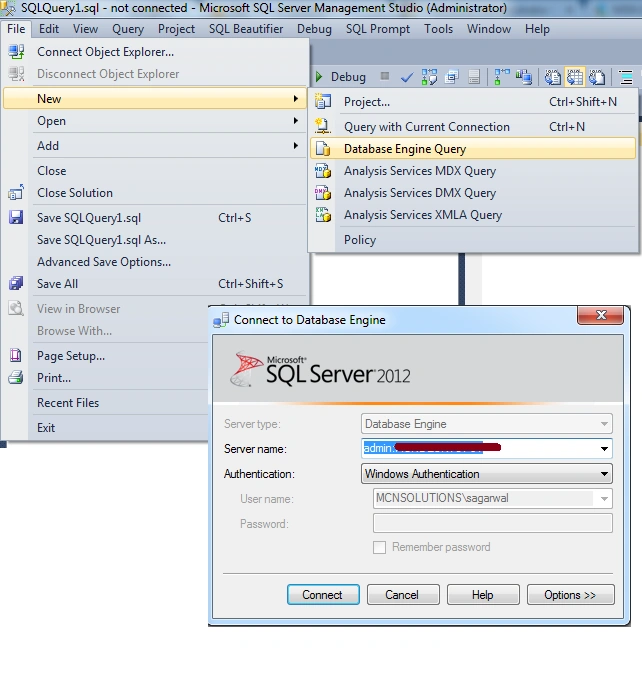
Now SQL Server is connected with DAC.

We can check that we are connected using Dedicated Administrator Connection, as in the following Query.
Note: If you are connected using DAC then the following query will return 1 row.
- USE [master]
- GO
- SELECT * FROM [sys].[dm_exec_connections] ec
- JOIN [sys].[Endpoints] e
- ON ec. [endpoint_id] = e.[endpoint_id]
- WHERE e. [name] = 'Dedicated Admin Connection'
- AND [session_id] = @@spid

For example
We can see the following all databases:
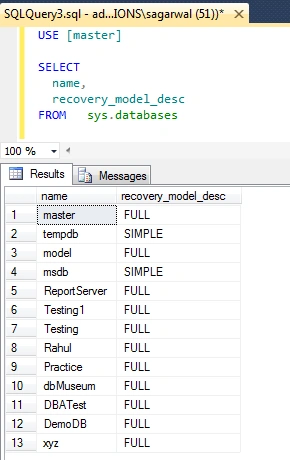
Now we will work on the selected database. We can see the following screen. server is not available but we can work on it using DAC.

Connect to DAC via command prompt (SQLCMD utility)
Start -> All Programs -> Accessories -> Command Prompt
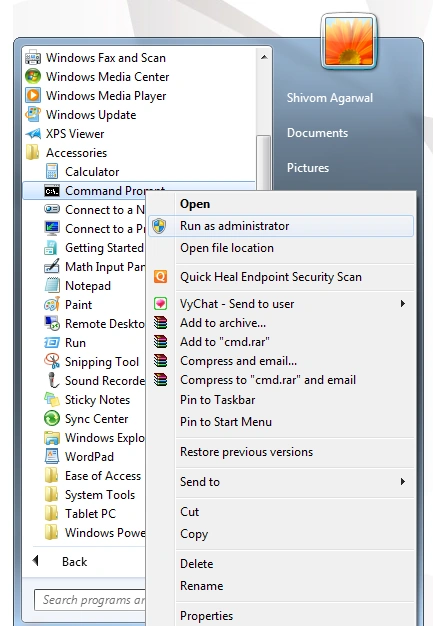
Now we can get all SQLCMD utility using the following command.
Syntax- SQLCMD / ?

Let start to access database using Sqlmd
There are two ways to access the Default Instance.
1. sqlcmd –A –d master
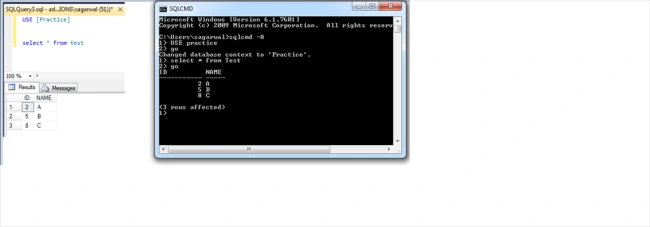
Now we will use the database for an example.
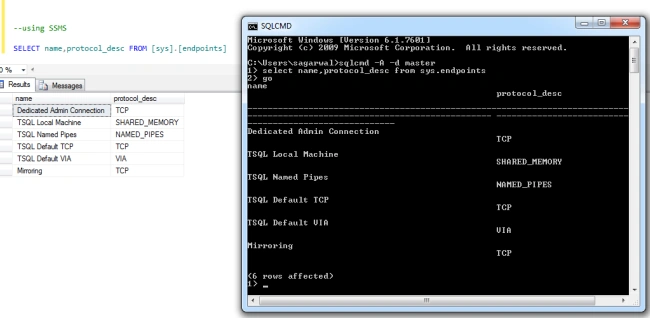
2. c:\> sqlcmd -A
use [assess Database name]
go
For example:
For Named Instance use:
sqlcmd -S -U sa -P <xxx> –A
sqlcmd -A -d master -E -S
-For Change Password
-z new_password
Change password
sqlcmd -U someuser -P abcdParab#12 -z new_Pa$$w0rd12
-Z new_password
Change password and exit
sqlcmd -U someuser -P abcdParab#12 -Z new_Pa$$w0rd12
For using SQLCMD DAC you can use the following actions:
- Run T-SQL scripts
- Run DBCC utility commands
- Access Dynamic Management Views (DMVs)
- Access catalog views
Join the conversation! Your thoughts help the community grow.