

Support for debugging lambda expressions in Visual Studio 2015
Microsoft Visual Studio 2015 introduces many new features. Some features are described below using the diagram and I introduce one of them, support of debugging lambda expressions in Visual Studio 2015.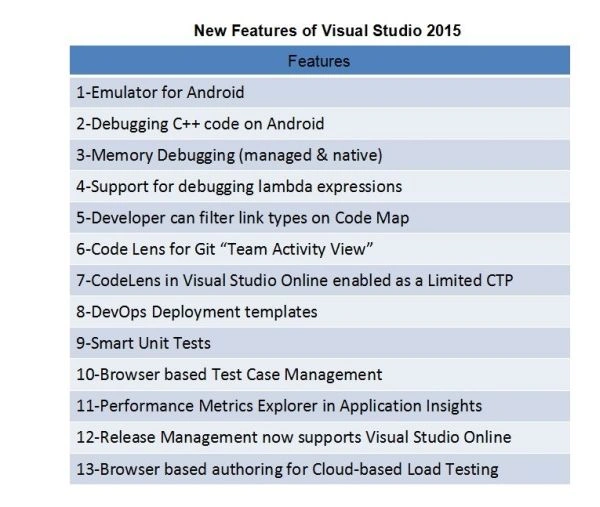
lambda expressions
The term or word lambda expression is a programming concept. It came into existence with C# 3.0. Lambda expressions are used for anonymous methods. With a lambda expression we use an anonymous method very easily. When we compile our code then the lambda expression will be converted into the anonymous method. lambda expressions use the (=>) operator.
For example we write the lambda expression like y => (a+b)+(a*B).
Here the right hand side is known as the lambda input and the right hand side is known as the lambda expression and (=>) known as the lambda operator.
- using System;
- using System.Collections.Generic;
- using System.Linq;
- using System.Text;
- using System.Threading.Tasks;
- class lambda
- {
- //this is a delegate for represent a anonymous method/class
- //delegate is a keyword delegate1 is delegate name
- delegate float deldelegate1(float a, float b);
- static void Main(string[] ags)//entry point of our program
- {
- //anonymous method using expression lambda
- deldelegate1 obj1 = (a, b) => a + b;
- //anonymous method using statement lambda
- deldelegate1 obj2 = (a, b) => { return a * b; };
- float result1 = obj1(2,3);
- float result2 = obj2(2,5);
- Console.WriteLine(result1);
- Console.WriteLine(result2);
- Console.Read();
- }
- }
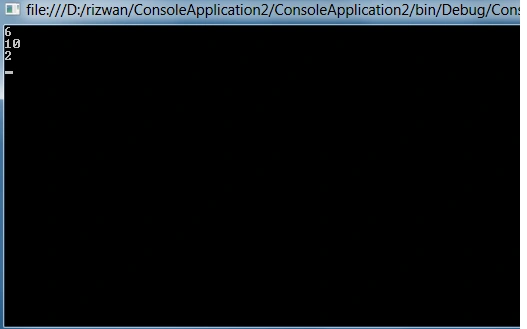
Debugging lambda expressions
Now we discuss how we do something with an expression in Visual Studio 2015 preview.
This is the new feature in Visual Studio 2015 preview that we can debug lambda expressions. Here I explain how to debug a lambda expression in Visual Studio 2015 preview so please use the following procedure.
- Create a console application with your desired name in Visual Studio 2015. Here my console application name is lambda expression project1.
- Now again create another project, a class library. You can use whatever name you want for the library.
Create a function in the library like this.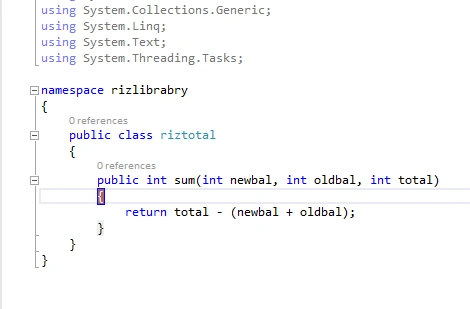
- Debug this library. It will create a DLL file in Solution Explorer.
- Now again create a new project, choose a console application. You can name it as you want. Go to the Solution Explorer window, click on add references, choose the DLL file of your library that you created in the previous step. Add it to your project.
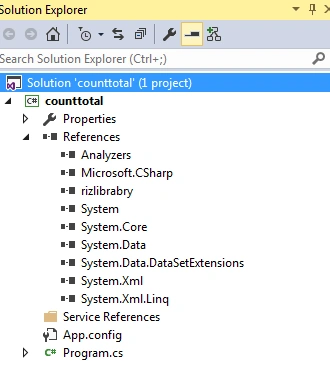
- Now go to the code file of your project and call that function in your project that you make in the class file that you created and add a reference to it.
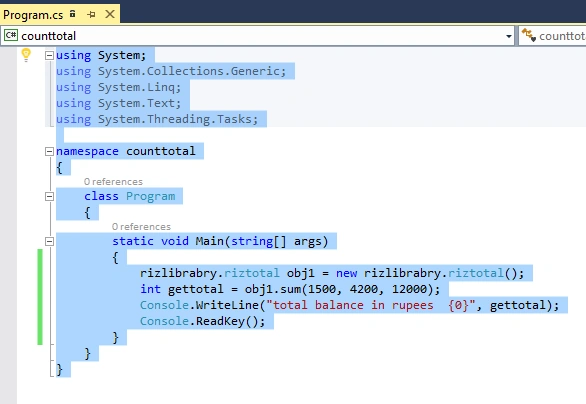
- Now I told you how to debug it.
Add a breakpoint using insert point in your library file. Microsoft Visual Studio provides additional features for setting a breakpoint when you click on your breakpoint.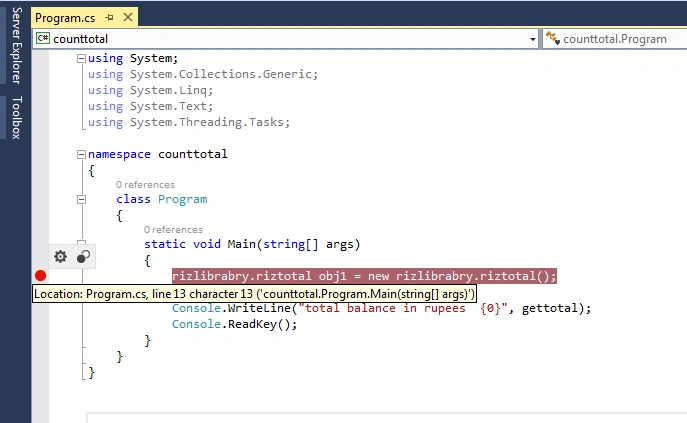
- There are two types of breakpoints in Visual Studio 2015 as you can see in the figure (a)-Conditions (b)-Action.
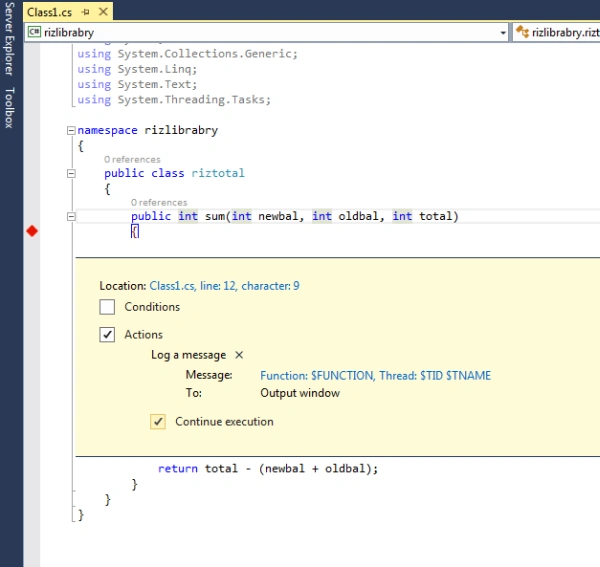
Breakpoint performance during debugging
We can make many types of events in the Conditions section or in the Action section. When you run the given code you can find them easily. When you run the program you get the output rupees 6300. You can also check it at the breakpoint.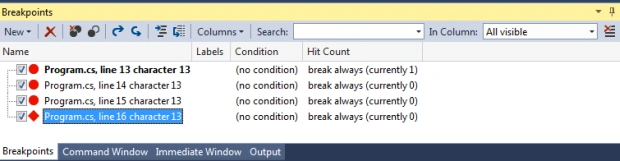
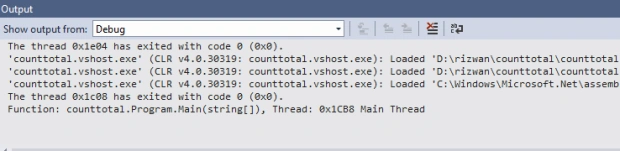
You can add 2 actions during the execution of our breakpoints in Visual Studio 2015.
Output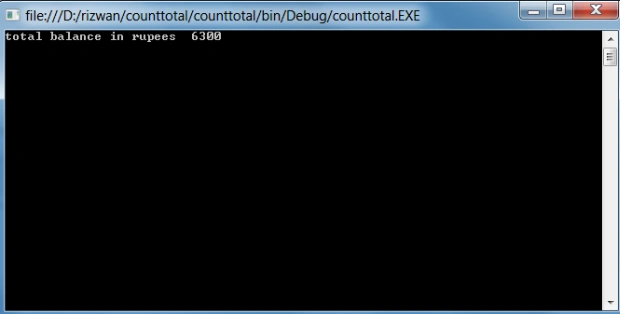
Summary
Finally we can say that Visual Studio 2015 provides good features for debugging a lambda expression or simple program using two types of breakpoints, one is conditional and the other is Action. These two breakpoints types provide different types of features to debug a program. So they make Microsoft Visual Studio 2015 more powerful.
Mahesh ChandPosted Dec 27, 2014, 10:37 AM
Welcome to C# Corner Rizwan. Good to see young guys learning and sharing.