

In this article you will learn in detail about Datepicker:
- How to use / incorporate / integrate a Datepicker ?
- Set custom date format of Datepicker.
- Get date value from Datepicker
- Change date format.
In this we are going to use only four(4) files.
- app.component.html
- app.component.ts
- angular-cli.json
- app.module.ts
Files and Uses
|
SR.
No.
|
FILE NAME | DESCRIPTION |
| 1 | app.component.html | To write html code (UI coding). |
| 2 | app.component.ts | To change the title. |
| 3 | angular-cli.json | To update CSS (style sheet). |
| 4 | app.module.ts | To configure BsDatePickerModule |
Create project called AngularDatePicker
Command: ng new AngularDatePicker
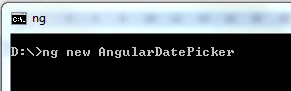
Project created successfully:

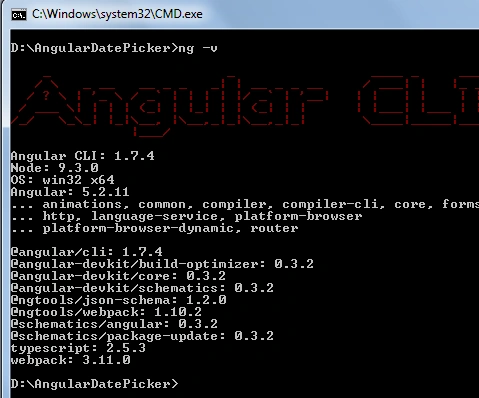
Angular current version detail,
Command: ng -v
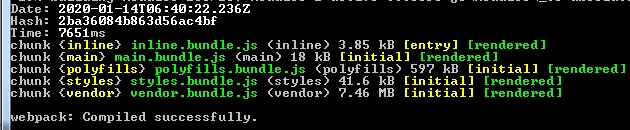
Execute empty project,
Command: ng serve -o
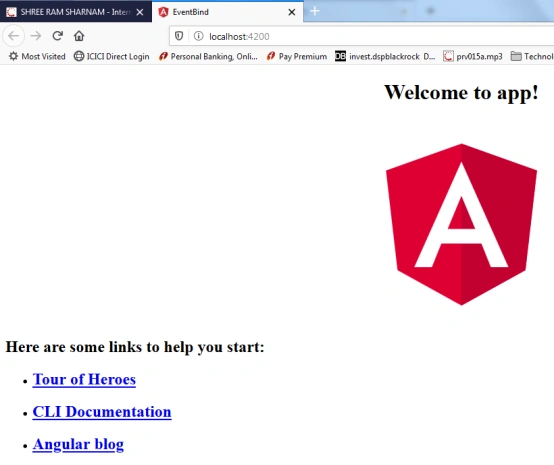
Now you can check your default browser,
Default OUTPUT
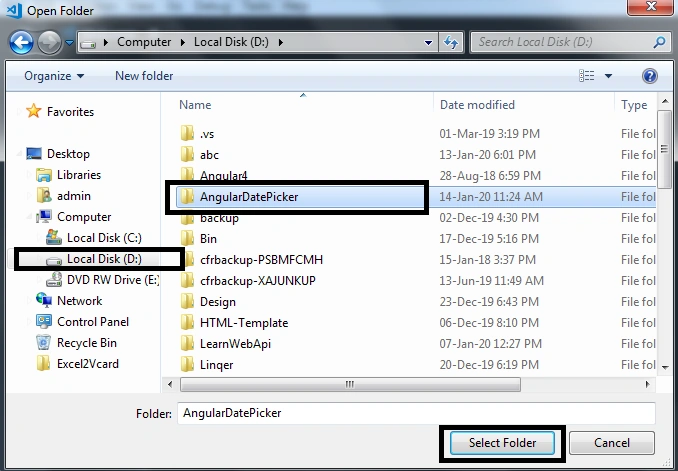
Now we open ANGULARDATEPICKER project inside VS Code.
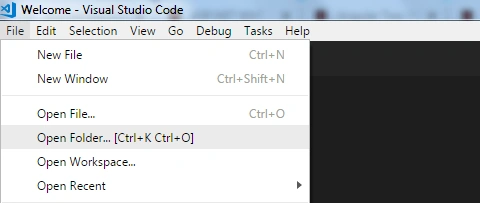
Select OpenFolder option to open the folder files in VISUAL STUDIO CODE.
Expand folder SRC and double click on app.component.ts file.
Now we change the title of App.Component to “Implement Datepicker in Angular”
Your app.component.ts file should look like this,
- import { Component } from '@angular/core';
- @Component({
- selector: 'app-root',
- templateUrl: './app.component.html',
- styleUrls: ['./app.component.css']
- })
- export class AppComponent {
- title = 'Implement Datepicker in Angular';
- }
Now switch to app.component.html file where we write html code.
First remove default code of app.component.html
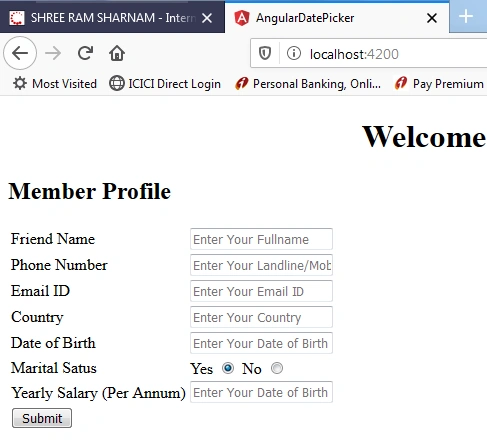
As you can see the below screenshot title has been changed successfully.
- <div style="text-align:center">
- <h1>
- Welcome to {{ title }}!
- </h1>
- </div>
- <h2>Member Profile </h2>
- <table>
- <tr>
- <td>
- Friend Name
- </td>
- <td>
- <input id="txtFriendName" name="FriendName" placeholder="Enter Your Fullname"/>
- </td>
- </tr>
- <tr>
- <td>
- Phone Number
- </td>
- <td>
- <input id="txtPhoneNumber" name="PhoneNumber" placeholder="Enter Your Landline/Mobile Number"/>
- </td>
- </tr>
- <tr>
- <td>
- Email ID
- </td>
- <td>
- <input id="txtEmailID" name="EmailID" placeholder="Enter Your Email ID"/>
- </td>
- </tr>
- <tr>
- <td>
- Country
- </td>
- <td>
- <input id="txtCountry" name="Country" placeholder="Enter Your Country"/>
- </td>
- </tr>
- <tr>
- <td>
- Date of Birth
- </td>
- <td>
- <input id="txtDOB" name="DOB" class="form-control"
- placeholder="Enter Your Date of Birth" type="text"/>
- </td>
- </tr>
- <tr>
- <td>
- Marital Satus
- </td>
- <td>
- Yes
- <input id="rbYes" type="radio" name="IsMarried" value="1" checked/>
- No
- <input id="rbNo" type="radio" name="IsMarried" value="0"/>
- </td>
- </tr>
- <tr>
- <td>
- Yearly Salary (Per Annum)
- </td>
- <td>
- <input id="txtSalaryPerAnnum" name="SalaryPerAnnum" placeholder="Enter Your Date of Birth"/>
- </td>
- </tr>
- <tr>
- <td colspan="2">
- <button (click)="clickMethod()" >Submit</button>
- </td>
- </tr>
- <tr>
- </table>
OUTPUT
Execute the project by ng serve -o
Now we going toward implementing Datepicker using ngx-bootstrap.
How to get Datepicker?
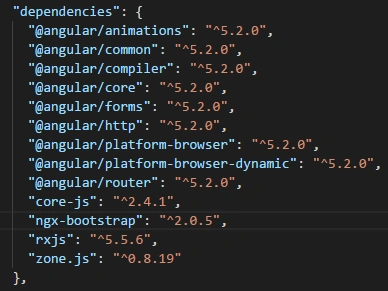
For Datepicker we have to do the following steps:

- npm install ngx-bootstrap -save
You have to execute another command,

- npm install [email protected] --save
Click on package.json file to confirm installation of packages.
Set the css file
Open .angular-cli.json file to set following settings.
- "styles": [
- "../node_modules/ngx-bootstrap/datepicker/bs-datepicker.css",
- "styles.css"
- ],
Import Statement
Open app.module.ts file to set following settings.
- import { BsDatepickerModule } from 'ngx-bootstrap/datepicker';
In @NgModule section do following settings,
- imports: [
- BsDatepickerModule.forRoot(),
- BrowserModule
- ],
HTML File Settings
Base Code,
- <input id="txtDOB" name="DOB" class="form-control" placeholder="Enter Your Date of Birth" type="text"/>
Change to,
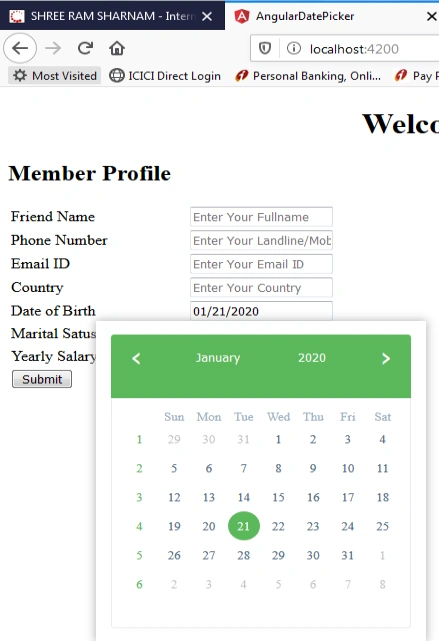
- <input id="txtDOB" name="DOB" class="form-control" placeholder="Enter Your Date of Birth" type="text" bsDatepicker/>
OUTPUT
Execute the project by ng serve -o
The next task is to change date format.
DATE FORMAT
Upate INPUT tag of DOB
- <input id="txtDOB" name="DOB" class="form-control"
- placeholder="Enter Your Date of Birth" type="text" bsDatepicker [(bsValue)]="DOB" value="{{DOB | date :'dd-MMM-yyyy'}}"/>
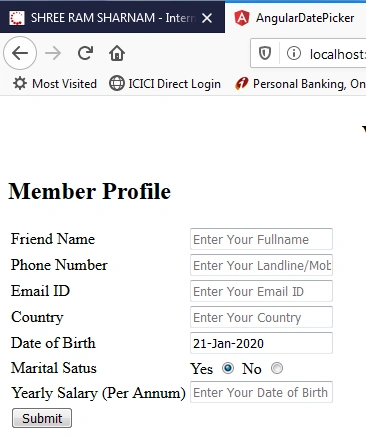
In the above code we had added,
- [(bsValue)]="DOB" value="{{DOB | date :'dd-MMM-yyyy'}}"
OUTPUT
Execute project with the execute command:
- ng serve -o
Full Code
app.component.html Code
- <div style="text-align:center">
- <h1>
- Welcome to {{ title }}!
- </h1>
- </div>
- <h2>Member Profile </h2>
- <table>
- <tr>
- <td>
- Friend Name
- </td>
- <td>
- <input id="txtFriendName" name="FriendName" placeholder="Enter Your Fullname"/>
- </td>
- </tr>
- <tr>
- <td>
- Phone Number
- </td>
- <td>
- <input id="txtPhoneNumber" name="PhoneNumber" placeholder="Enter Your Landline/Mobile Number"/>
- </td>
- </tr>
- <tr>
- <td>
- Email ID
- </td>
- <td>
- <input id="txtEmailID" name="EmailID" placeholder="Enter Your Email ID"/>
- </td>
- </tr>
- <tr>
- <td>
- Country
- </td>
- <td>
- <input id="txtCountry" name="Country" placeholder="Enter Your Country"/>
- </td>
- </tr>
- <tr>
- <td>
- Date of Birth
- </td>
- <td>
- <input id="txtDOB" name="DOB" class="form-control"
- placeholder="Enter Your Date of Birth" type="text" bsDatepicker [(bsValue)]="DOB" value="{{DOB | date :'dd-MMM-yyyy'}}"/>
- </td>
- </tr>
- <tr>
- <td>
- Marital Satus
- </td>
- <td>
- Yes
- <input id="rbYes" type="radio" name="IsMarried" value="1" checked/>
- No
- <input id="rbNo" type="radio" name="IsMarried" value="0"/>
- </td>
- </tr>
- <tr>
- <td>
- Yearly Salary (Per Annum)
- </td>
- <td>
- <input id="txtSalaryPerAnnum" name="SalaryPerAnnum" placeholder="Enter Your Date of Birth"/>
- </td>
- </tr>
- <tr>
- <td colspan="2">
- <button (click)="clickMethod()" >Submit</button>
- </td>
- </tr>
- </table>
app.module.ts Code
- import { BrowserModule } from '@angular/platform-browser';
- import { NgModule } from '@angular/core';
- import { BsDatepickerModule } from 'ngx-bootstrap/datepicker';
- import { AppComponent } from './app.component';
- @NgModule({
- declarations: [
- AppComponent
- ],
- imports: [
- BsDatepickerModule.forRoot(),
- BrowserModule
- ],
- providers: [],
- bootstrap: [AppComponent]
- })
- export class AppModule { }
app.component.ts Code
- import { Component } from '@angular/core';
- @Component({
- selector: 'app-root',
- templateUrl: './app.component.html',
- styleUrls: ['./app.component.css']
- })
- export class AppComponent {
- title = 'Implement Datepicker in Angular';
- }
Happy Coding. . .
Mahmoud SolimanPosted Dec 15, 2020, 11:25 PM
How to open it with button?
Rushi MehtaPosted Jan 27, 2020, 3:51 PM
Very Helpful article. Thanks for sharing
Logesh PalaniPosted Jan 27, 2020, 2:29 PM
Great sir:)
Sourav Kumar DasPosted Jan 25, 2020, 12:26 PM
Nice and useful article Sir.