

Date Object Method In TypeScript: Part 9
Before reading this article, please go through the following articles:
Introduction
The Date object is the key to date and time functionality in TypeScript. If we create it with no argument passed to its constructor, it will contain the date and time of the user's computer. The Date object also provides a number of functions dealing with something called Coordinated Universal Time (UTC), also known as Greenwich Mean Time (GMT) during winter. The World Time Standard is set by the UTC time.
In this article, I am describing the date object's "setFullYear" method in the TypeScript.
setFullYear() Method
In TypeScript, the setFullYear() method of the date object sets the year of the specified date according to the local time. We can also set the month and day of the month by this method.
Syntax
- Date.setFullYear(yearvalue,monthvalue,dayvalue)
- yearValue : It is the required parameter. A year is represented by a four-digit value. For example, in 2012.
- monthValue : It is the optional parameter. Months are represented by an integer value between 0 and 11. 0 is January, 1 is February and so on.
- dayValue : It is an optional parameter. A day of month is represented by an integer between 1 and 31. If you provide the dayValue parameter then you must also provide the monthValue.
Function
- setfullyear() {
- var year = new Date();
- var span = document.createElement("span");
- span.innerText = "Current year is -> " + year + "\n";
- document.body.appendChild(span);
- year.setFullYear(2007);
- var span = document.createElement("span");
- span.style.color = "Blue";
- span.innerText = "After set year is -> " + year + "\n";
- document.body.appendChild(span);
- }
Complete Program
setFullYear.ts
- class setFullYear {
- setfullyear() {
- var year = new Date();
- var span = document.createElement("span");
- span.innerText = "Current year is -> " + year + "\n";
- document.body.appendChild(span);
- year.setFullYear(2007);
- var span = document.createElement("span");
- span.style.color = "Blue";
- span.innerText = "After set year is -> " + year + "\n";
- document.body.appendChild(span);
- }
- }
- window.onload = () => {
- var obj = new setFullYear();
- var bttn = < HTMLButtonElement > (document.getElementById("Button1"));
- bttn.onclick = function() {
- obj.setfullyear();
- }
- };
setFullYear_MethodDemo.htm
- <!DOCTYPE html>
- <html lang="en"
- xmlns="http://www.w3.org/1999/xhtml">
- <head>
- <meta charset="utf-8" />
- <title>TypeScript HTML App</title>
- <link rel="stylesheet" href="app.css" type="text/css" />
- <script src="setFullYear.js"></script>
- </head>
- <body>
- <h3>setFullYear method in TypeScript</h3>
- <div id="content" style="font-weight: normal; font-size: small">Click on button for 6 year ago
- <br />
- <br />
- <input id="Button1" type="button" value="Click" />
- </div>
- </body>
- </html>
setFullYear.js
- var setFullYear = (function() {
- function setFullYear() {}
- setFullYear.prototype.setfullyear = function() {
- var year = new Date();
- var span = document.createElement("span");
- span.innerText = "Current year is -> " + year + "\n";
- document.body.appendChild(span);
- year.setFullYear(2007);
- var span = document.createElement("span");
- span.style.color = "Blue";
- span.innerText = "After set year is -> " + year + "\n";
- document.body.appendChild(span);
- };
- return setFullYear;
- })();
- window.onload = function() {
- var obj = new setFullYear();
- var bttn = (document.getElementById("Button1"));
- bttn.onclick = function() {
- obj.setfullyear();
- };
- };
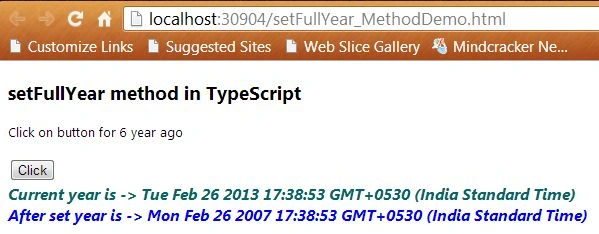
Output
Join the conversation! Your thoughts help the community grow.