
I have been hearing so much about the development of pocket PC applications and how useful they actually are that I decided to develop a pocket PC Application for myself just to see what the difference is between pocket pc applications and desktop applications.
In the beginning I faced a couple of issues, the main problem being how to connect a pocket PC application to a database. Since I could not install the database on a pocket PC and populate it with all my records, I tried to find a way to integrate my pocket PC application with the database. For this purpose I worked on several logics and also tried to find out solutions on the internet but it did not help much except for providing me with some bits and pieces of codes. I could not find any solution which could help me to connect a pocket PC Application to my database. There were some sites I encountered which explained this process but the code was difficult to understand for beginners. I did not want to use that code because I always try to present solutions in a way which is useful for newbie(s).
Finally I came up with an idea to connect our pocket pc application to a database and have discussed it below.
Prepare Yourself For Pocket PC Applications
- Microsoft Visual Studio Beta 2 Release Installed
- Pocket PC Emulator Installed
(you will find it in your dvd:\vs\wcu\ARM\vs_emulator.exe) - Introductory knowledge of C#
Introduction of Pocket PC Application
Before we start, I would like to tell you that a pocket PC is as expensive for me as it is for you guys, so we are going to use a pocket PC Emulator.
First let us concentrate on our main goal. Yes! Our main goal is to connect a pocket PC application to our database. For that we are going to develop the following two systems.
- A Pocket PC Application
- A Webservice that will connect our Pocket PC to the Database
As anyone who has ever built a smart client system knows, the code running on the smart client device is only part of the overall system. Much of the work actually occurs on the servers that support the system. Whether as databases or processing engines, servers must behave and communicate efficiently. Designing a successful smart client system requires an equal amount of attention to be paid to the server design as well as the smart client itself.
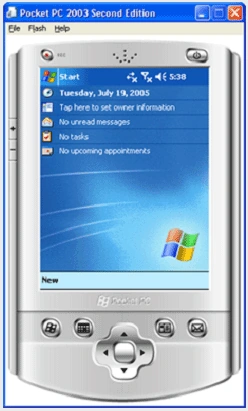
What is Emulator?
An emulator is a computer program or system that accepts the same inputs and produces the same outputs as a real Pocket PC device.
Fig. 1.0
Let's Start Developing The Application!
Step 1: Setting up the database.
The first thing you need to do is to create a database [table: FAQ].
Note: We are using Microsoft SQL server, but you can also use any other database
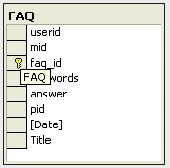
Note: You can use any database for this purpose, All you will need to configure is the connectionString.
Step 2: Creating a webservice.
Since we do not have direct communication with the server, we need to create a webservice in order to transfer data from the server to our pocket pc application.
Our webservice will fetch records from the database server, populate those records in the dataset and then return that dataset.
To create a webservice:
- Open Visual Studio .net 2005
- From the top menu, click File.
- lick New Web Site.
- Click Asp.net Web Service.
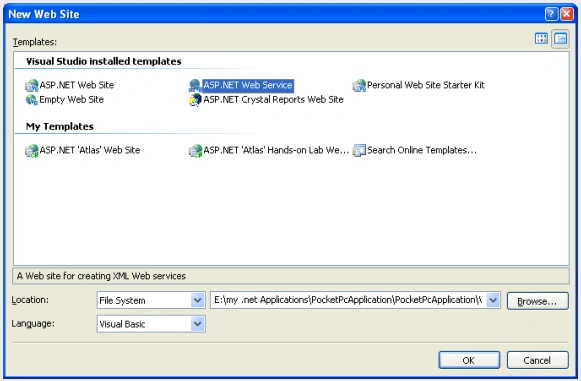
Note: You can name the webservice as you like, but keep in mind if you rename the webservice you will need to rename its references on my code as well.
There you go! After clicking OK on the dialog box shown above, VS .Net 2005 will create the webservice architecture for you, now all you will need to do is to write the code for it as per your need.
5. In the solution explorer double click the service.asmx page.
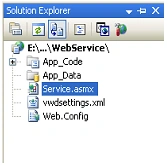
6. Create a webmethod and name it ReturnData().
[WebMethod]
public DataSet ReturnData()
{
String ConnectionString = "Data Source=Danish-it;Initial Catalog=KBFAQ;Persist Security Info=True;User ID=sa;Password=airforce";
SqlConnection SqlCon = new SqlConnection(ConnectionString);
SqlCon.Open();
SqlDataAdapter SqlDa = new SqlDataAdapter("Select keywords,answer,title from FAQ", SqlCon);
DataSet Ds = new DataSet();
SqlDa.Fill(Ds);
return Ds;
}
Note: Test your webservice by pressing the F5 key on your keyboard and then invoking you function.
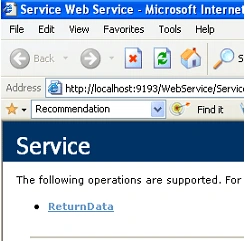
- Click ReturnData.
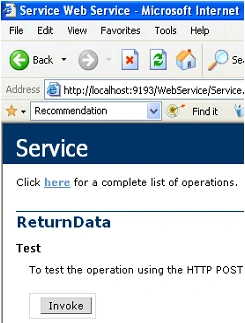
- Click invoke.
- If your browser generates an XML containing the data you have queried for, it means your webservice is working correctly!
Step 3: Creating pocket pc application.
Finally, we are on the last step of creating our pocket pc application.
Don't waste time, lets do it!
- Open Visual Studio .net 2005
- From the top menu, click File.
- Click New Project.
- Expand Visual C# node à Expand Smart Device node
- Click Pocket PC 2003 and select Device Application from the left pane.
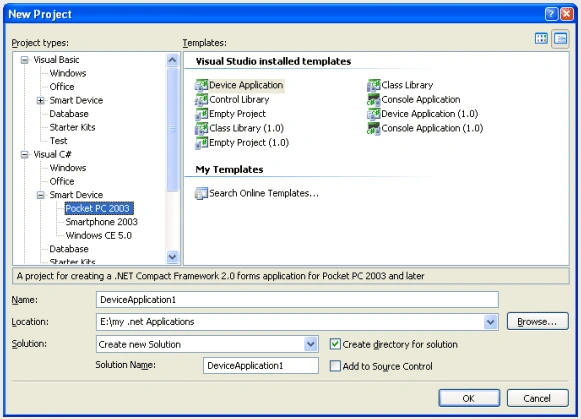
Click OK on the dialog box like the one shown above and let VS .Net 2005 create a device application for you.
Once done, you will see a screen similar to the one below.
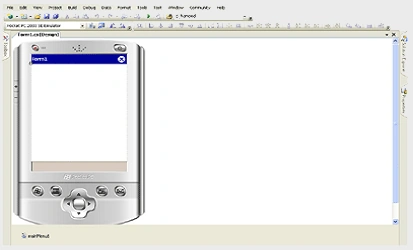
- Place a datagrid and a button on the form.
- Rename the datagrid to myDataGrid
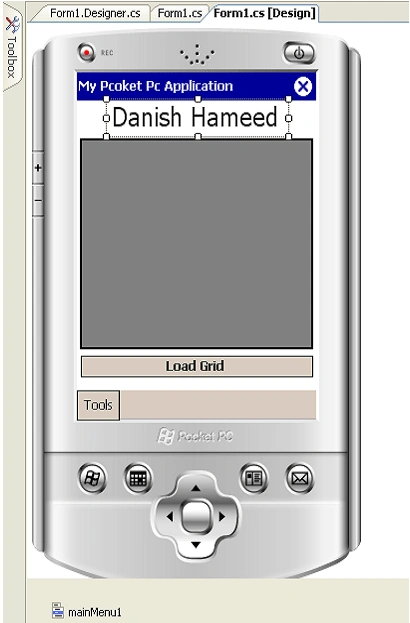
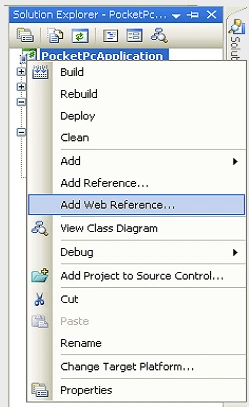
Now, add a webservice reference on the form.
- Right click on the project name and then click Add Web Reference.
You will the see the following screen.
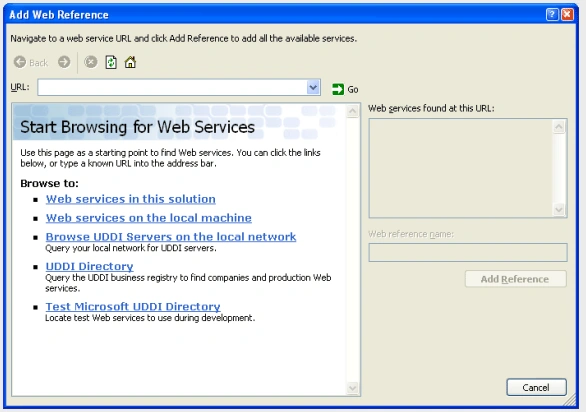
Note: After creating the webservice make sure you create its virtual directory on IIS.
- On the screen like the one shown above, click on Web services on the local machine. Doing so will show the list of all webservices available on your machine.
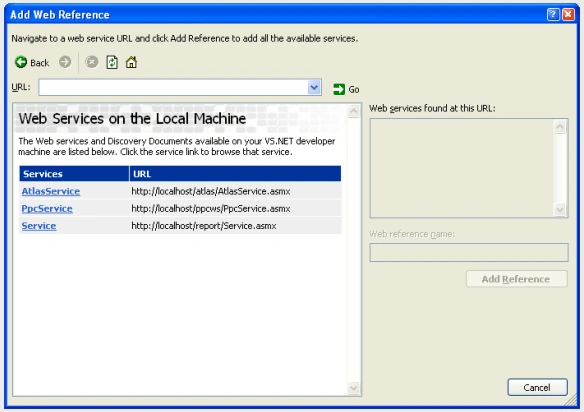
- Clicking on the webservice name you created for your pocket pc project will enable the Web reference name textbox and the Add Reference button on the right.
- Type PpcService in the Web reference name textbox and click the Add Reference button. Now the web reference is added to your local pocket pc application.
- Click on the web reference from the Solution Explorer and then click on the properties window; the current web reference URL path is set to localhost, replace it to your server name.
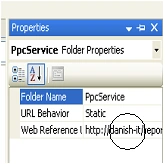
Type the following code in this event.
private
void load_Click(object sender, EventArgs e){
PpcService.Service Ws = new PpcService.Service();
DataSet Ds = new DataSet("danish");
Ds = Ws.ReturnData();
myDataGrid.DataSource = Ds.Tables[0];
myDataGrid.Refresh();
}
Now on pressing the F5 key, VS .Net 2005 will ask you for the emulator settings.
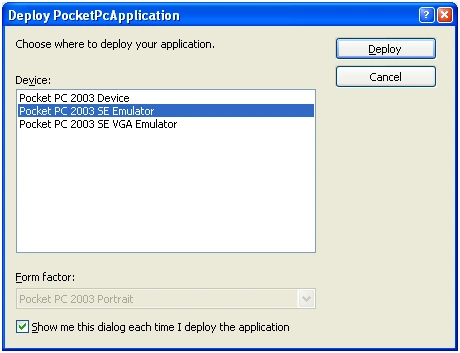
Select Pocket PC 2003 Emulator and click deploy.
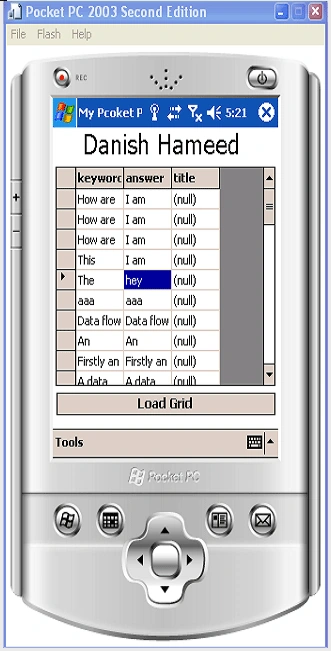
Think, done! Congratulations!
mayur tadviPosted Apr 9, 2012, 6:55 AM
its a very goood work...
shabbir anjumPosted Mar 17, 2010, 7:38 AM
you have solved my many days pending task thanx for that Regard Rizwan
suresh sureshPosted May 19, 2009, 5:39 PM
Simple and Warth...
Rahul ZutshiPosted Feb 4, 2008, 9:57 PM
Hi, I am newbie moving from the world of databases to mobile technology. I was wondering if there were any good articles for me to start from and if there is any website that teaches you how to create and deploy on scanners and pocket pc. Any help is appreciated. Thanks
Sriram PrasadPosted Feb 4, 2008, 10:31 AM
thanks for the article. it is very useful. i have a simple doubt. Is it possible to change the Web Reference URL during runtime from the PDA.? And is it possible to collect the Server IP to which the PDA is connected through USB Cable using active Sync. Please help me in this regard.
Anirudha TamhaneeditedPosted Jan 28, 2008, 8:11 AMEdited Jan 28, 2008, 8:14 AM
The Pocket PC application successfully communicates when ActiveSynch is ON and it is connected through data cable, but when i tried to connect though wireless, it fails to communicate. Please help me out. Thanks, Anirudha
Kanmani Ramya RPosted Oct 9, 2007, 12:46 AM
i tried with this, this was very usefull to me, but getting an error msg "Could not establish connection to network" while running the Pocket PC Appln. Pls get me a soln for this.
nilesh jadhavPosted Jun 6, 2007, 5:33 AM
when i created this application the web service gives me error "object reference not set to an instance of an object" at time of referencing it and when i run this code using my web service's local address it gives me error"cannot establish connection to netwoek" so guide me in same.
Raffy VillamiaPosted Dec 12, 2006, 1:25 AM
I am new to mobile programming, How is it possible to send a message to a pocket pc? By a text message? or just an email? Need your help about this. Thanks Raffy V.
Raffy VillamiaPosted Dec 12, 2006, 12:50 AM
Hi Danish, Can these work using VB.NET? Thanks. Raffy V.
Ryan WhiteeditedPosted May 3, 2006, 8:54 PMEdited Aug 3, 2006, 10:46 AM
Step 1...<?xml:namespace prefix = o ns = "urn:schemas-microsoft-com:office:office" /><o:p></o:p> Install "Active sync" first... this is needed to connect to the Pocket PC (I recommend downloading the latest version here.)<o:p></o:p> <o:p> </o:p> Step 2... <o:p></o:p> Run the program (the emulator should open)<o:p></o:p> <o:p> </o:p> Step 3.. <o:p></o:p> Connect your virtual pocket pc to active sync.<o:p></o:p> Make sure active sync is running and your program.....active sync will say "not connected.<o:p></o:p> in the system tray (by the clock) you will see a new icon... click on the little icon.. it looks like a pda.<o:p></o:p> click on the pocket pc you are running then on the menu and click actions then cradle<o:p></o:p> in active sync go to the menu and click file--> connections settings --> then click connect.<o:p></o:p> active sync should now be connected. (It will say connected.)<o:p></o:p> Step 4...<o:p></o:p> Check to make sure the pocket pc has a connection to the webservice..<o:p></o:p> <o:p> </o:p> try...<o:p></o:p> http://NameOfMyPC/NameOfFolder/Service.asmx<o:p></o:p> or... if you are on a domain try...<o:p></o:p> http://NameOfMyPC.myDomain.net/NameOfFolder/Service.asmx<o:p></o:p> <o:p> </o:p> Step 5... <o:p></o:p> After the address is found stop the pocket pc and change the PpcService URL (in properties) to the address that worked...<o:p></o:p> <o:p> </o:p> it should be something like...<o:p></o:p> <o:p> </o:p> http://NameOfMyPC/NameOfFolder/Service.asmx<o:p></o:p> or... if you are on a domain try...<o:p></o:p> http://NameOfMyPC.myDomain.net/NameOfFolder/Service.asmx <o:p></o:p> <o:p> </o:p> Step 6... <o:p></o:p> Run.. then connect.... then click "load grid"...hopefully this will work for you<o:p></o:p> <o:p> </o:p>
Sana PaulPosted May 3, 2006, 6:38 AM
We are unable to establish a connection with the webservice.We get an error like"Could not establish connection to network."Could you please help with this.
Dana HalabiPosted Mar 26, 2006, 9:32 AM
I find the article very simple and easy. BUT I have an exception "Could not establish a connection to network". Even If I change the localhost with the name of the server or the IP address. And even change the temp url to server name or ip address of the webservice when create it. I have the same exception. BUT also I want to ask is there any internet configuration need to connect the emulater to internet. because when try to invoke the webservice from the internet explorer of the emulater it say I do not have a modem or internet setting. Can you help me please. thanks a lot
Denver HaneeditedPosted Mar 24, 2006, 11:24 PMEdited Nov 7, 2006, 12:58 PM
Your code was very useful.But we are unable to establish a connection with the webservice.We get an error like"Could not establish connection to network."Could you please help with this.
Mahesh ChandPosted Nov 13, 2005, 12:26 PM
Pretty good article in step by step tutorial form. Good job. Keep it up.