

Suppose you want to let the user interact with a Slider but you also want a TextBlock to display its current value, such as in the ColorScroll program. Tasks such as this are so common that Silverlight provides a streamlined mechanism to perform them. This is called a data binding, or just binding. A data binding is a link between two properties of two objects, so that when one property changes, the other is updated with that change. Data bindings are most easily demonstrated using two visual elements such as a Slider and a TextBlock.
Source and Target
In a typical data binding, a property of one object is updated automatically from a property of another object. The source of a data binding is usually given a name:
<Slider Name="slider"... />
You can break out the target property as a property element and assign to it an object of type Binding:
<TextBlock … >
<TextBlock.Text>
<Binding ElementName="slider" Path="Value" />
</TextBlock.Text>
</TextBlock>
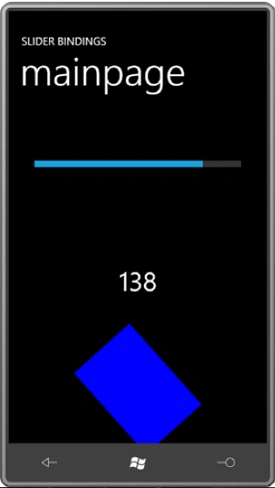
Use the ElementName property to indicate the name of the source element; use the Path property for the name of the source property, which is the Value property of the Slider. The SliderBindings program includes this binding and lets you experiment with some variations. Everything is in the XAML file:
<Grid x:Name="ContentPanel" Grid.Row="1" Margin="12,0,12,0">
<Grid.RowDefinitions>
<RowDefinition Height="*" />
<RowDefinition Height="*" />
<RowDefinition Height="*" />
</Grid.RowDefinitions>
<Slider Name="slider"
Value="90"
Grid.Row="0"
Maximum="180"
Margin="24" />
<TextBlock Name="txtblk"
Text="{Binding ElementName=slider, Path=Value}"
Grid.Row="1"
FontSize="48"
HorizontalAlignment="Center"
VerticalAlignment="Center" />
<Rectangle Grid.Row="2"
Width="{Binding ElementName=slider, Path=Value}"
RenderTransformOrigin="0.5 0.5"
Fill="Blue">
<Rectangle.RenderTransform>
<RotateTransform x:Name="rotate"
Angle="90" />
</Rectangle.RenderTransform>
</Rectangle>
</Grid>
</Grid>
As you manipulate the Slider, the TextBlock displays the current value and the Rectangle height decreases and increases. (The Binding targets the Width property of the Rectangle but the Rectangle is rotated 90 degree)
Binding Converters
Perhaps as you were playing around with the SliderBindings program (or as you gaped in amazement at that screenshot), you were started to see that the TextBlock displays the Slider value sometimes as an integer, sometimes with one or two decimal points, but mostly in the full 15-digit glory of double-precision floating point.
To add a simple converter to SliderBindings, add a new class to the project and call it TruncationConverter. Actually the class is already in the project, and here it is:
namespace SliderBindings
{
public class TruncationConverter : IValueConverter
{
public object Convert(object value, Type targetType,
object parameter, CultureInfo culture)
{
if (value is double)
return Math.Round((double)value);
return value;
}
public object ConvertBack(object value, Type targetType,
object parameter, CultureInfo culture)s
{
return value;
}
}
}
The value argument to the Convert method is the object passing from the source to the target. This method just checks if it's a double. If so, it explicitly casts it to a double for the Math.Round method.
You'll need to reference this class in MainPage.xaml, which means you'll need an XML namespace declaration:
xmlns:local="clr-namespace:SliderBindings"
The TruncationConverter class is then made a resource:
<phone:PhoneApplicationPage.Resources>
<local:TruncationConverter x:Key="truncate" />
...
</phone:PhoneApplicationPage.Resources>
You'll find these additions already in the MainPage.xaml file of the SliderBindings project.
The Binding markup extension then references this resource:
<TextBlock Name="txtblk"
Text="{Binding ElementName=slider, Path=Value, Converter={StaticResource truncate}}" .../>
Join the conversation! Your thoughts help the community grow.