

The source code is in part one of the articles,
Fill the variables
- using DapperRepoWinForm.Forms;
- namespace DapperRepoWinForm {
- static class Program {
- /// <summary>
- /// The main entry point for the application.
- /// </summary>
- [STAThread]
- static void Main() {
- showForm();
- }
- public static void showForm() {
- try {
- //Remenber you must have this file--> c:\conn.xml
- string path = Utilities.Globals.path;
- Utilities.Globals.stringConn = ConnectionDB.xml_conn(path);
- Application.EnableVisualStyles();
- Application.SetCompatibleTextRenderingDefault(false);
- Form1 frm = new Form1();
- frm.Show();
- Application.Run();
- } catch (Exception e) {
- MessageBox.Show(e.Message);
- }
- // Do some more work here
- }
- }
- }
Working with Forms and Controls
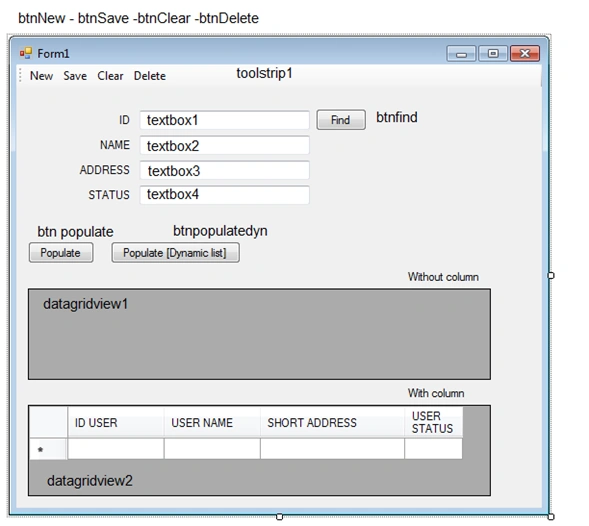
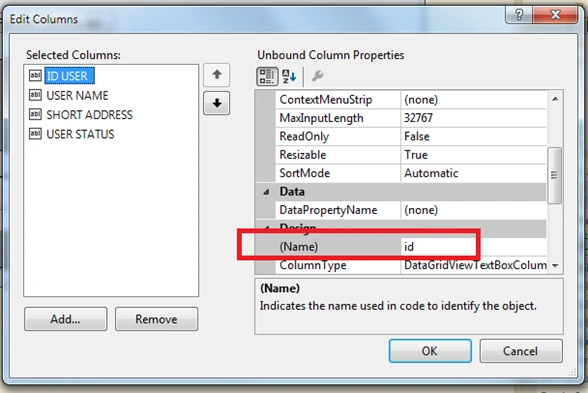
USERNAME = name
SHORT ADDRESS = address
USER STATUS = status
- First we create an _user variable of type ClassObjects.users (); Which we will use in the field of form1
- Second we create a _metod variable of type Bll.users (); Which we will use in the scope of form1 and will
- serve to call the "methods" class BillUsers
- using System.Windows.Forms;
- using System.Collections.Generic;
- using System.Data;
- public partial class Form1: Form {
- ClassObjects.users _user = new ClassObjects.users();
- Bll.users _metod = new Bll.users();
- public Form1() {
- InitializeComponent();
- }
- private void Form1_Load(object sender, System.EventArgs e) {
- }
- }
A function to clean the fields,
- private void cleanform() {
- foreach(Control c in this.Controls) {
- if (c is TextBox) {
- (c as TextBox).Text = string.Empty;
- }
- }
- }
Code for toolstrip´s buttoms
Button Save: Call function to clean form´s fields,
- private void btnNew_Click(object sender, System.EventArgs e) {
- cleanform();
- }
Button Save
- private void btnSave_Click(object sender, System.EventArgs e) {
- _user.id = textBox1.Text;
- _user.name = textBox2.Text;
- _user.address = textBox3.Text;
- _user.status = textBox4.Text;
- string msg = _metod.insertUpdate(_user);
- if (msg == "0") {
- MessageBox.Show("Record added");
- cleanform();
- } else {
- MessageBox.Show(msg);
- }
- }
- private void btnClear_Click(object sender, System.EventArgs e) {
- cleanform();
- }
Delete button
- private void btnDelete_Click(object sender, System.EventArgs e) {
- _user.id = textBox1.Text;
- string msg = _metod.delete(_user);
- if (msg == "0") {
- MessageBox.Show("record deleted");
- cleanform();
- } else {
- MessageBox.Show(msg);
- }
- }
Search button
- private void btnFind_Click(object sender, System.EventArgs e) {
- if (textBox1.Text != "") {
- var items = _metod.findById(textBox1.Text);
- if (items != null) {
- textBox2.Text = items.name;
- textBox3.Text = items.address;
- textBox4.Text = items.status;
- } else {
- MessageBox.Show("Record not found");
- }
- }
- }
Populate Button
- private void btnPopulate_Click(object sender, System.EventArgs e) {
- List < ClassObjects.users > lista = _metod.allRecords(_user);
- dataGridView1.DataSource = lista;
- int i = 0;
- string xx = "";
- dataGridView2.AutoGenerateColumns = false;
- foreach(var prop in _user.GetType().GetProperties()) {
- dataGridView2.Columns[i].DataPropertyName = prop.Name;
- i = i + 1;
- }
- dataGridView2.DataSource = lista;
- }
Populate Dynamics button
- private void btnPopulateDyn_Click(object sender, System.EventArgs e) {
- Utilities.Funciones FG = new Utilities.Funciones();
- var items = _metod.dynamicsList();
- DataTable dt = new DataTable();
- dt = FG.ConvertToDataTable(items);
- dataGridView1.DataSource = dt;
- dataGridView2.AutoGenerateColumns = false;
- for (int i = 0; i < dt.Columns.Count - 1; i++) {
- dataGridView2.Columns[i].DataPropertyName = dt.Columns[i].ColumnName;
- }
- dataGridView2.DataSource = dt;
- }
reb87able .Posted Mar 30, 2017, 3:34 AM
Good job bro thanks for your nice explanation
Former memberPosted Mar 3, 2017, 2:43 AM
Why dapper is called micro ORM ? can u explain the reason when you are working with dapper u suppose to know i guess. what is the difference between ORM and micro ORM ? please share the answer if you know.
Manav PandyaPosted Mar 2, 2017, 11:09 PM
Thanks for sharing sir .....