
Introduction
- getLayoutInflator(): gets the layout object
- inflate(): inflates another layout
- <RelativeLayout xmlns:android="http://schemas.android.com/apk/res/android"
- xmlns:tools="http://schemas.android.com/tools"
- android:layout_width="match_parent"
- android:layout_height="match_parent"
- android:paddingLeft="@dimen/activity_horizontal_margin"
- android:paddingRight="@dimen/activity_horizontal_margin"
- android:paddingTop="@dimen/activity_vertical_margin"
- android:paddingBottom="@dimen/activity_vertical_margin"
- tools:context=".MainActivity">
- <TextView
- android:layout_width="wrap_content"
- android:layout_height="wrap_content"
- android:text="Custom Toast"
- android:textStyle="bold"
- android:textSize="25dp"
- android:textColor="#f14e23"
- android:layout_centerHorizontal="true"
- />
- </RelativeLayout>
Step 3
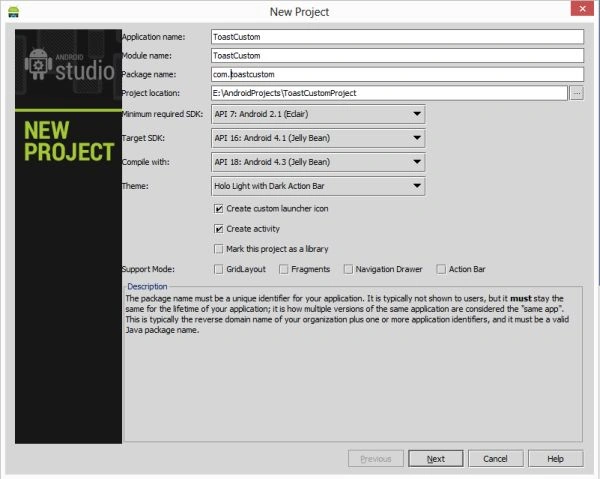
Create another XML file and write this:
- <?xml version="1.0" encoding="utf-8"?>
- <LinearLayout xmlns:android="http://schemas.android.com/apk/res/android"
- android:orientation="vertical"
- android:layout_width="match_parent"
- android:layout_height="match_parent"
- android:id="@+id/custom_Toast"
- android:background="#f14e23">
- <ImageView
- android:layout_width="wrap_content"
- android:layout_height="wrap_content"
- android:id="@+id/imageView"
- android:layout_gravity="center"
- android:background="@drawable/ic_launcher"/>
- <TextView
- android:layout_width="wrap_content"
- android:layout_height="wrap_content"
- android:text="Custom Toast Example"
- android:id="@+id/textView"
- android:layout_gravity="center" />
- </LinearLayout>
Step 4
Create a Java class file with the following code.
For this, you will use LayoutInflator to inflate the layout in another layout. For this you will create an object of LayoutInflator by calling getLayoutInflator() provided by the LayoutInflator. Now get the Layout into the view by calling the inflate method of LayoutInflator.
- package com.customtoast;
- import android.content.Context;
- import android.os.Bundle;
- import android.app.Activity;
- import android.view.Gravity;
- import android.view.LayoutInflater;
- import android.view.Menu;
- import android.view.View;
- import android.view.ViewGroup;
- import android.widget.Toast;
- public class MainActivity extends Activity {
- @Override
- protected void onCreate(Bundle savedInstanceState) {
- super.onCreate(savedInstanceState);
- setContentView(R.layout.activity_main);
- LayoutInflater layoutInflater=getLayoutInflater();
- View layout=layoutInflater.inflate(R.layout.second,(ViewGroup)findViewById(R.id.custom_Toast));
- Toast t=new Toast(getApplicationContext());
- t.setDuration(Toast.LENGTH_LONG);
- t.setGravity(Gravity.CENTER_VERTICAL,0,0);
- t.setView(layout);
- t.show();
- }
- @Override
- public boolean onCreateOptionsMenu(Menu menu) {
- // Inflate the menu; this adds items to the action bar if it is present.
- getMenuInflater().inflate(R.menu.main, menu);
- return true;
- }
- }
Step 5
- <?xml version="1.0" encoding="utf-8"?>
- <manifest xmlns:android="http://schemas.android.com/apk/res/android"
- package="com.customtoast"
- android:versionCode="1"
- android:versionName="1.0" >
- <uses-sdk
- android:minSdkVersion="7"
- android:targetSdkVersion="16" />
- <application
- android:allowBackup="true"
- android:icon="@drawable/ic_launcher"
- android:label="@string/app_name"
- android:theme="@style/AppTheme" >
- <activity
- android:name="com.customtoast.MainActivity"
- android:label="@string/app_name" >
- <intent-filter>
- <action android:name="android.intent.action.MAIN" />
- <category android:name="android.intent.category.LAUNCHER" />
- </intent-filter>
- </activity>
- </application>
- </manifest>
Step 6
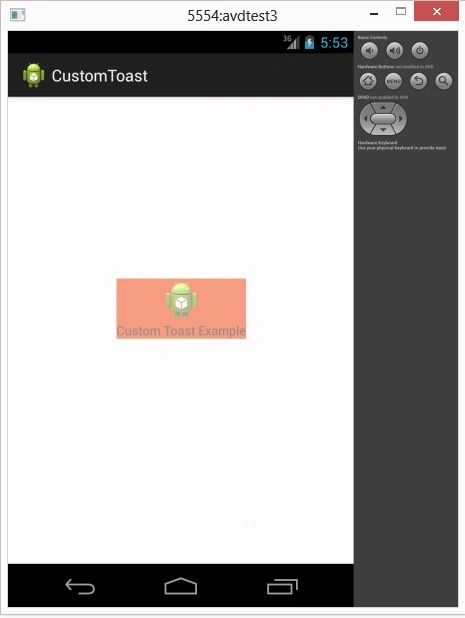
The following is a Custom Toast containing another Layout:
Join the conversation! Your thoughts help the community grow.