

If you want to know how to get started with UI-Grid and how to set up a project in AngularJS and Web API, read the articles given below first.
- UI-Grid With AngularJS And WebAPI
- Export Data In Angular-UI-Grid Using WebAPI
- Filtering In UI-Grid With AngularJS And WebAPI
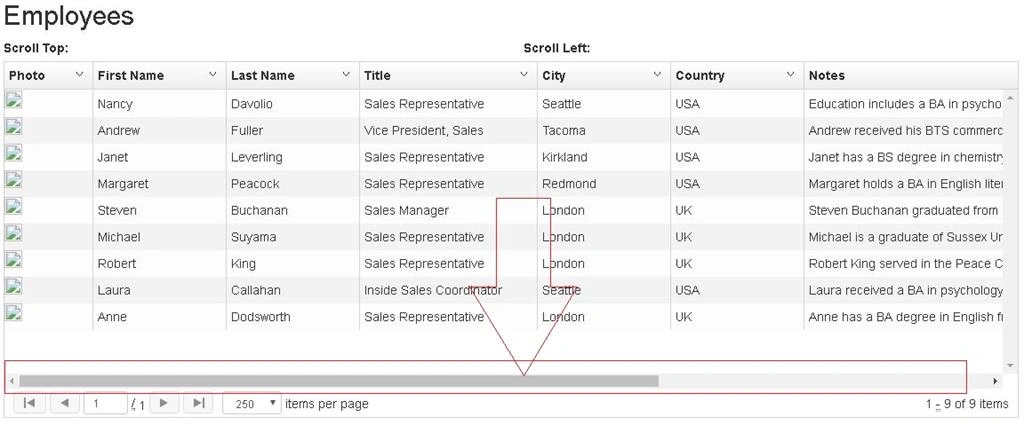
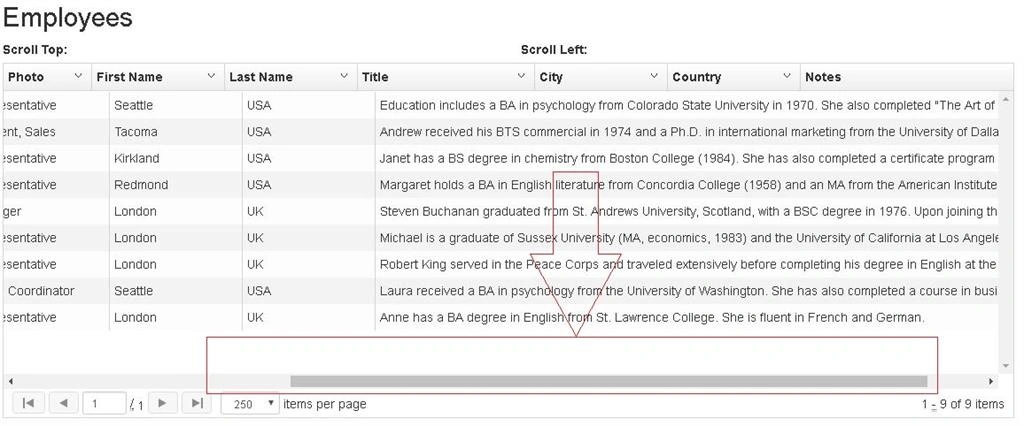
The custom scrolling feature allows you to provide your own scroller function to replace default element, On('scroll') function. It is particularly helpful if you are facing issues with scrolling on devices or slow machines, because it allows you to use third-party scrollers.
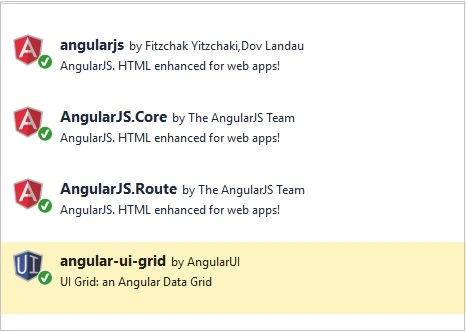
After creating all basic and adding mandatory script, let’s implement custom scrolling on ui-grid. Thus, after adding data in Entity Model, create a Web API to get the data from Entity model.
Web API
Here, my Web API class code is given below.
- public class EmployeesAPIController: ApiController {
- private NORTHWNDEntities db = new NORTHWNDEntities();
- // GET: api/Employees
- public IQueryable < Employee > GetEmployees() {
- return db.Employees;
- }
- // GET: api/Employees/5
- [ResponseType(typeof(Employee))]
- public async Task < IHttpActionResult > GetEmployee(int id) {
- Employee employee = await db.Employees.FindAsync(id);
- if (employee == null) {
- return NotFound();
- }
- return Ok(employee);
- }
- protected override void Dispose(bool disposing) {
- if (disposing) {
- db.Dispose();
- }
- base.Dispose(disposing);
- }
- private bool EmployeeExists(int id) {
- return db.Employees.Count(e => e.EmployeeID == id) > 0;
- }
- }
- var employeeapp = angular.module('employeeapp', ['ui.grid', 'ui.grid.pagination']);
Service
- employeeapp.service("employeeservice", function($http) {
- //Function to call get genre web api call
- this.GetEmployee = function() {
- var req = $http.get('api/EmployeesAPI');
- return req;
- }
- });
- //Controller
- employeeapp.controller("employeecontroller", function($scope, employeeservice, $filter, $window, $interval) {
- GetEmployee();
- function GetEmployee() {
- employeeservice.GetEmployee().then(function(result) {
- $scope.Employees = result.data;
- console.log($scope.Employees);
- }, function(error) {
- $window.alert('Oops! Something went wrong while fetching genre data.');
- })
- }
- //Columns
- $scope.columnDefs = [{
- name: 'photo',
- enableSorting: false,
- field: 'PhotoPath',
- cellTemplate: "<img width=\"50px\" ng-src=\"{{grid.getCellValue(row, col)}}\" lazy-src>",
- enableCellEdit: false,
- enableFiltering: false,
- width: 100
- }, {
- name: 'First Name',
- field: 'FirstName',
- headerCellClass: 'tablesorter-header-inner',
- enableCellEdit: true,
- enableFiltering: true,
- width: 150
- }, {
- name: 'Last Name',
- field: 'LastName',
- headerCellClass: 'tablesorter-header-inner',
- enableCellEdit: true,
- enableFiltering: true,
- width: 150
- }, {
- name: 'Title',
- field: 'Title',
- headerCellClass: 'tablesorter-header-inner',
- enableCellEdit: true,
- enableFiltering: false,
- width: 200
- }, {
- name: 'City',
- field: 'City',
- headerCellClass: 'tablesorter-header-inner',
- enableCellEdit: true,
- enableFiltering: true,
- width: 150
- }, {
- name: 'Country',
- field: 'Country',
- headerCellClass: 'tablesorter-header-inner',
- enableCellEdit: true,
- enableFiltering: true,
- width: 150
- }, {
- name: 'Notes',
- field: 'Notes',
- headerCellClass: 'tablesorter-header-inner',
- enableCellEdit: true,
- enableFiltering: false,
- width: 800
- }];
- //Used to bind ui-grid
- $scope.gridOptions = {
- customScroller: function myScrolling(uiGridViewport, scrollHandler) {
- uiGridViewport.on('scroll', function myScrollingOverride(event) {
- $scope.scroll.top = uiGridViewport[0].scrollTop;
- $scope.scroll.left = uiGridViewport[0].scrollLeft;
- // You should always pass the event to the callback since ui-grid needs it
- scrollHandler(event);
- });
- },
- enableFiltering: false,
- onRegisterApi: function(gridApi) {
- $scope.gridApi = gridApi;
- },
- columnDefs: $scope.columnDefs,
- data: 'Employees',
- };
- });
Now, add a few lines in Global.asax in Application_Start event.
- GlobalConfiguration.Configuration.Formatters.JsonFormatter.SerializerSettings
- .ReferenceLoopHandling = Newtonsoft.Json.ReferenceLoopHandling.Ignore;
- GlobalConfiguration.Configuration.Formatters
- .Remove(GlobalConfiguration.Configuration.Formatters.XmlFormatter);
Bundling
Bundle the required styles and scripts.
Add the bundles given below in BundleConfig.cs
- bundles.Add(new StyleBundle("~/Content/css").Include(
- "~/Content/bootstrap.css",
- "~/Content/site.css",
- "~/Content/ui-grid.css"));
- bundles.Add(new ScriptBundle("~/bundles/uigrid").Include(
- "~/Scripts/ui-grid.min.js"));
- bundles.Add(new ScriptBundle("~/bundles/angular").Include(
- "~/Scripts/angular.min.js",
- "~/Angular/Services/employees.js"));
- @Styles.Render("~/Content/css")
- @Scripts.Render("~/bundles/modernizr")
- @Scripts.Render("~/bundles/jquery")
- @Scripts.Render("~/bundles/bootstrap")
- @Scripts.Render("~/bundles/angular")
- @Scripts.Render("~/bundles/uigrid")
- @RenderSection("scripts", required: false)
- @ {
- ViewBag.Title = "Index";
- Layout = "~/Views/Shared/_Layout.cshtml";
- } < h2 > Employees < /h2> < div ng - app = "employeeapp"
- ng - controller = "employeecontroller" > < div class = "row" > < label class = "col-sm-2" > Scroll Top: < /label> < div class = "col-sm-4" > {
- {
- scroll.top
- }
- } < /div> < label class = "col-sm-2" > Scroll Left: < /label> < div class = "col-sm-4" > {
- {
- scroll.left
- }
- } < /div> < /div> < div ui - grid = "gridOptions"
- ui - grid - pagination ui - grid - selection class = "grid"
- ui - grid - auto - resize > < /div> < /div> < style > .grid {
- width: 100 % ;
- height: 400 px;
- } < /style>
Conclusion
In this article, we have seen how to implement custom scroll bar in angular ui-grid with Web API with an Entity Framework in MVC. If you have any question or comments, drop me a line in the comments section.
Manav PandyaPosted May 30, 2017, 1:30 AM
Thanks for sharing sir .............
Thiruppathi RPosted May 28, 2017, 1:43 PM
Nice article for UI grid...