

Introduction
Creating user-friendly ways to convey massive amounts of data is a continuing difficulty in the wide world of web development. This issue can be resolved by using pagination, a method for breaking up text into manageable sections. Pagination is dividing large data sets into smaller portions called pages. A set amount of content usually appears on each page, providing consumers with an organized and easy-to-navigate method to access content. Pagination, which is frequently seen in product listings, blog archives, and search results, makes navigating vast datasets easier for users.
Common use cases of pagination
Following are the common use cases of pagination.
- Search Results: Search engines and e-commerce platforms often return many results for a user's query. Paginating search results allows users to navigate through various pages of search outcomes, making it easier to find relevant information.
- Data tables and grids: Displaying extensive datasets in tables or grids where showing all entries at once is impractical. Paginating data tables enables users to view a limited number of rows per page, improving readability and navigation.
- Blog posts and articles: Blogs and content-heavy websites with a significant number of articles or blog posts. Paginating articles helps in presenting a manageable number of posts on each page, enhancing the reading experience.
- Comments sections: Platforms with user-generated content, such as social media or discussion forums. Dividing user comments into pages ensures a more structured and accessible way for users to engage in discussions.
- Product Listing: E-commerce websites showcase a large inventory of products in a particular category. Paginating product listings allows users to systematically explore different sets of products without overwhelming them with all items on a single page.
- Administrative dashboard: Applications with administrative interfaces displaying logs, analytics, or user statistics. Breaking down extensive data into pages aids administrators in efficiently managing and analyzing information.
Let's create our pagination step-by-step-
Setting up the HTML structure
Let's create an HTML structure for custom pagination by creating elements for the pagination container, page navigation controls, and placeholders for the content to be paginated.
<!DOCTYPE html>
<html lang="en">

<head>
  <meta charset="UTF-8">
  <meta name="viewport" content="width=device-width, initial-scale=1.0">
  <link href="https://cdn.jsdelivr.net/npm/[email protected]/dist/css/bootstrap.min.css" rel="stylesheet" integrity="sha384-T3c6CoIi6uLrA9TneNEoa7RxnatzjcDSCmG1MXxSR1GAsXEV/Dwwykc2MPK8M2HN" crossorigin="anonymous">
  <link rel="stylesheet" href="css/style.css">
  <title>Custom Pagination</title>
</head>

<body>
  <div class="container">
    <div id="content"></div>
    <div id="pagination"></div>
  </div>
  <script src="https://cdn.jsdelivr.net/npm/[email protected]/dist/js/bootstrap.bundle.min.js" integrity="sha384-C6RzsynM9kWDrMNeT87bh95OGNyZPhcTNXj1NW7RuBCsyN/o0jlpcV8Qyq46cDfL" crossorigin="anonymous"></script>
  <script src="index.js"></script>
</body>

</html>
We have now completed our fundamental HTML framework. Let's now add style.
Styling the pagination components
We'll add styles to enhance the appearance of our pagination components. This includes styling for page buttons, current page indicators, and any additional design elements.
body {
    font-family: 'Arial', sans-serif;
    margin: 20px;
  }

  h2 {
    color: #333;
  }

  ul {
    list-style-type: none;
    padding: 0;
  }

  li {
    border: 1px solid #ccc;
    padding: 10px;
    margin: 5px 0;
  }

  #pagination {
    margin-top: 20px;
  }

  button {
    background-color: #4CAF50;
    color: white;
    border: none;
    padding: 10px 15px;
    text-align: center;
    text-decoration: none;
    display: inline-block;
    font-size: 16px;
    margin: 4px 2px;
    cursor: pointer;
    border-radius: 5px;
  }

  button.active {
    background-color: #45a049;
  }

  button:hover {
    background-color: #45a049;
  }

  #prev,
  #next {
    margin-right: 10px;
  }
Write JavaScript functions for pagination logic
Create a new JavaScript file named index.js.
Initializing Pagination Parameters
In index.js, we'll initialize variables to keep track of the current page, items per page, and total items. This sets the initial state for our pagination.
let currentPage = 1;
const itemsPerPage = 5;
let totalItems;
let promises = [];
let data = [];
document.addEventListener('DOMContentLoaded', function () {
  fetchTotalItemsAndRenderContent();
});
Handling User Interactions (Click Events)
We'll create a function to handle click events on the pagination buttons. This function will update the currentPage variable and re-render the content accordingly.
document.getElementById('pagination').addEventListener('click', function (event) {
  if (event.target.tagName === 'BUTTON') {
    if (event.target.id === 'prev' && currentPage > 1) {
      currentPage--;
    } else if (event.target.id === 'next' && currentPage < Math.ceil(totalItems / itemsPerPage)) {
      currentPage++;
    } else if (event.target.classList.contains('page-number')) {
      currentPage = parseInt(event.target.textContent);
    }

    renderContent();
  }
});
Updating the Content Based on the Selected Page
Finally, we'll create the renderContent function to update the displayed content based on the current page. This function should retrieve the relevant data for the current page and update the content element accordingly.
function renderContent() {
  const contentElement = document.getElementById('content');
  const startIndex = (currentPage - 1) * itemsPerPage;
  const endIndex = Math.min(startIndex + itemsPerPage, totalItems);

  const pageData = data.slice(startIndex, endIndex);

  contentElement.innerHTML = `
    <h2 class="text-center">Great Deals</h2>
    <h5 class="text-end">Page ${currentPage}</h5>
    <ul>
      ${pageData.map(item => `<li style="background-color:#c9c8c8;">
        <div class="row" >
          <div class="col-md-6 col-sm-12">
            <h3>${item.title}</h3>
            <p>${item.description}</p>
            <h5><strong>Price: </strong>${"$"+item.price}</h5>
            <h5><strong>Discount: </strong>${"$"+item.discountPercentage}</h5>
            <h5><strong>Rating: </strong>${item.rating}</h5>
          </div>
          <div class="col-md-6 col-sm-12">
            <img src=${item.thumbnail} alt="product-img" style="border-radius:10px;" />
          <div>
        </div>
      </li>`).join('')}
    </ul>
  `;
  updatePaginationControls();
}

function updatePaginationControls() {
  const paginationElement = document.getElementById('pagination');
  paginationElement.innerHTML = '';

  for (let i = 1; i <= Math.ceil(totalItems / itemsPerPage); i++) {
    const button = document.createElement('button');
    button.textContent = i;
    button.className = i === currentPage ? 'active page-number' : 'page-number';
    paginationElement.appendChild(button);
  }

  const prevButton = document.createElement('button');
  prevButton.textContent = 'Previous';
  prevButton.id = 'prev';
  paginationElement.appendChild(prevButton);

  const nextButton = document.createElement('button');
  nextButton.textContent = 'Next';
  nextButton.id = 'next';
  paginationElement.appendChild(nextButton);
}
Fetching the data from public API
Now create a function to fetch the record from the API. Here we will use the public API of dummyjson.com.
async function fetchTotalItemsAndRenderContent() {
  try {
    for (let i = 0; i < 50; i++) {
      promises.push(
        fetch(`https://dummyjson.com/products/${i + 1}`)
          .then(res => res.json())
          .then(json => {
            json.id = i;
            data.push(json);
          })
      );
    }
    await Promise.all(promises);
    totalItems = data.length;
    renderContent();
  } catch (error) {
    console.error('Error fetching data:', error.message);
  }
}
Now our pagination application is ready. Open your index.html file in any browser, and the output will be as follows.
Output
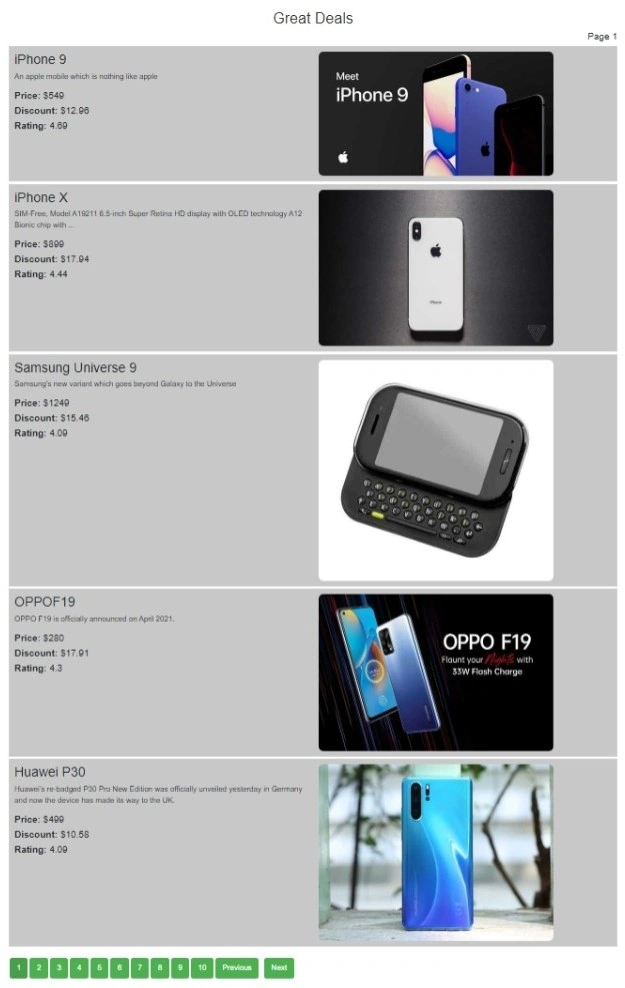
Click on any page number button and see the result.
Conclusion
We have explored the common use cases for pagination, such as search results, data tables, blog posts, comments sections, product listings, and administrative dashboards, and created a custom pagination system using HTML, CSS, and JavaScript, along with an example fetching data from a public API.
Join the conversation! Your thoughts help the community grow.