

Introduction
In this article we will learn about the Custom Message Box control of the Windows Phone toolkit. In our app we can use the default message box to show alerts or messages to the user. But it is very limited. The WP8 toolkit removes the limitations of the default message box by providing a Custom Message Box control. In my last article I have gave a demo of a basic Custom Message Box and in this article we will extend that version. So let's see how to get started with it.
Custom Message Box
Custom Message Box is a control provided in the WP8 toolkit for customizing the interface and content of the message box. It enables you to add various UI elements to the message box that is not possible in the default message box.
In the following demo I have used the following properties of the Custom Message Box:
-
Content
It takes an object as a value. It is displayed in the message box as we see a text in our default message box. String is also an object and can be use it for adding text in the message box. This demo is very specific to point out the usage of this property. In my previous article I used a plain text string but in this demo I'll try to provide a simple download message box type alert by placing the UI elements in the message box. -
Height
To set the height of the message box. It can be set or left to auto fit as per the content size. -
Opacity
To set the opacity of the message box. Value ranging from 0 to 1. -
Left Button Content
It also takes an object as a value. It is the left message button of the message box. -
Right Button Content
It also takes an object as a value. It is the right message button of the message box.
Before you can run the following demo you need to install a WP8 toolkit to your project. It's very easy to do this.
Installing WP8 Toolkit
Use the following procedure to install the WP8 toolkit using Nugget:
-
Open your app project (either an existing one or a new one).
-
From the toolbar select "Tools" -> "NuGet Package Manager" -> "Package Manager Console".
-
Now in the Package Manager Console type the following:
Install-Package WPtoolkit
After typing this you will probably see the log similar to this:
install-package wptoolkit
'WPtoolkit 4.2013.08.16' already installed.
Adding 'WPtoolkit 4.2013.08.16' to Demo.
Successfully added 'WPtoolkit 4.2013.08.16' to Demo. - The next step is to add its reference to the XAML page. To do this just add this line:
xmlns:toolkit="clr-namespace:Microsoft.Phone.Controls;assembly=Microsoft.Phone.Controls.Toolkit"
Demo
The following code demonstrates how to use the Custom Message Box with customized content settings. Here I'm dynamically creating three buttons and one label and then grouping them into one stack panel. That stack panel is placed inside the message box. Overall it will provide you the interface similar to a download alert. So let's see how to do it.
XAML
<phone:PhoneApplicationPage
x:Class="Demo.MainPage"
xmlns="http://schemas.microsoft.com/winfx/2006/xaml/presentation"
xmlns:x="http://schemas.microsoft.com/winfx/2006/xaml"
xmlns:phone="clr-namespace:Microsoft.Phone.Controls;assembly=Microsoft.Phone"
xmlns:shell="clr-namespace:Microsoft.Phone.Shell;assembly=Microsoft.Phone"
xmlns:d="http://schemas.microsoft.com/expression/blend/2008"
xmlns:mc="http://schemas.openxmlformats.org/markup-compatibility/2006"
xmlns:toolkit="clr-namespace:Microsoft.Phone.Controls;assembly=Microsoft.Phone.Controls.Toolkit"
mc:Ignorable="d"
FontFamily="{StaticResource PhoneFontFamilyNormal}"
FontSize="{StaticResource PhoneFontSizeNormal}"
Foreground="{StaticResource PhoneForegroundBrush}"
SupportedOrientations="Portrait" Orientation="Portrait"
shell:SystemTray.IsVisible="True">
<!--LayoutRoot is the root grid where all page content is placed-->
<Grid x:Name="LayoutRoot" Background="Transparent">
<Grid.RowDefinitions>
<RowDefinition Height="Auto"/>
<RowDefinition Height="*"/>
</Grid.RowDefinitions>
<!--TitlePanel contains the name of the application and page title-->
<StackPanel x:Name="TitlePanel" Grid.Row="0" Margin="12,17,0,28">
<TextBlock Text="Demo" Style="{StaticResource PhoneTextNormalStyle}" Margin="12,0"/>
<TextBlock Text="Demo" Margin="9,-7,0,0" FontSize="40" />
</StackPanel>
<!--ContentPanel - place additional content here-->
<Button Content="show message box" Click="openMsgBox" Height="171" VerticalAlignment="Bottom" Margin="0,0,0,258" Grid.Row="1"></Button>
</Grid>
</phone:PhoneApplicationPage>
C# Code Behind
using Microsoft.Phone.Controls;
using System;
using System.Collections.Generic;
using System.Linq;
using System.Net;
using System.Windows;
using System.Windows.Controls;
using System.Diagnostics;
using Microsoft.Phone.Tasks;
using System.Windows.Media;
using System.Windows.Media.Animation;
namespace Demo
{
public partial class MainPage : PhoneApplicationPage
{
// Constructor
public MainPage()
{
InitializeComponent();
}
CustomMessageBox cmb;
private void openMsgBox(object sender, RoutedEventArgs e)
{
StackPanel sp = new StackPanel() { Orientation = System.Windows.Controls.Orientation.Vertical };
sp.Children.Add(new TextBlock(){Text="What to do with this file ?", FontSize=20});
sp.Children.Add(new Button() { Content = "Install" });
Button run = new Button() { Content = "Run" };
sp.Children.Add(run);
sp.Children.Add(new Button() { Content = "Cancel" });
// Create new Custom Message Box instance
cmb = new CustomMessageBox()
{
// Set its content
Content = sp,
Opacity = 0.9,
// Left button of message box Button
LeftButtonContent = "Nice!",
// Right button of message box
RightButtonContent = "Great!"
};
//Show the message box...
cmb.Show();
}
The Show method is used to launch the task.
Output
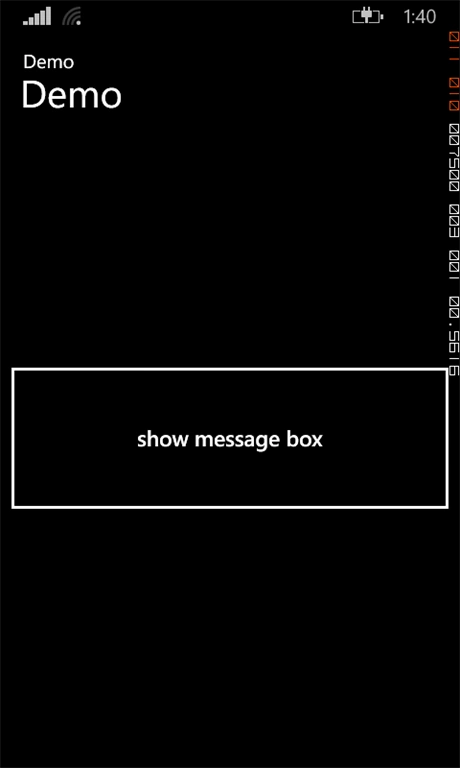
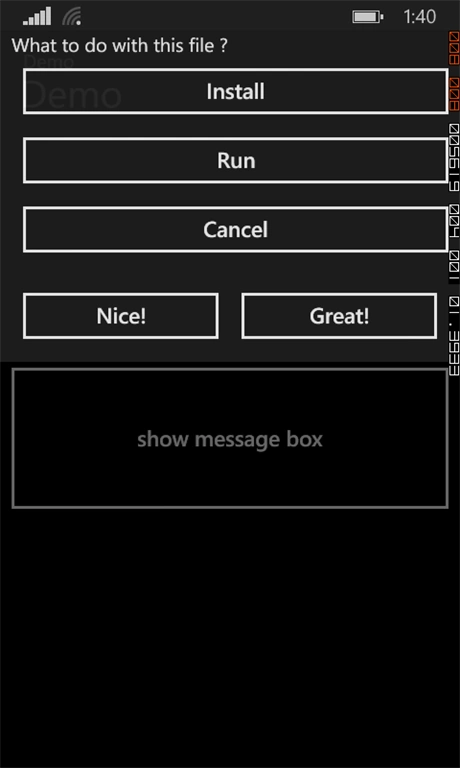
Devendra KumarPosted May 19, 2014, 6:23 AM
Thanks for the article.. It is helpful