

The SharePoint Framework (SPFx) is a new technology that provides full support for client-side SharePoint development.
The SharePoint Development Community (also known as the SharePoint PnP community) is an open-source initiative that controls SharePoint patterns, practices, development documentation, samples, and other relevant open-source initiatives related to SharePoint development.
The first step consists in creating the Sharepoint Framework environnement.
In this article we will understand how to create a webpart with Crud operations for SharePoint List items using SPFx and PnP libraries.
Create the Webpart
- Create a new project directory
md CrudProject - Go to the created directory
Cd CrudProject - Run the Yeoman SharePoint Generator.
yo @microsoft/sharepoint
- Accept the default CrudProject
- Select SharePoint Online only (latest).
- Select Use the current folder for where to place the files.
- Select N to require the extension to be installed on each site explicitly when it's being used.
- Select WebPart as the client-side component type to be created.
- Accept the default CrudProject as the web part name.
- Accept the default CrudProjectfor Crud Operations against Sharepoint List as the web part description.
- Accept the default No javascript web framework as the framework you would like to use.
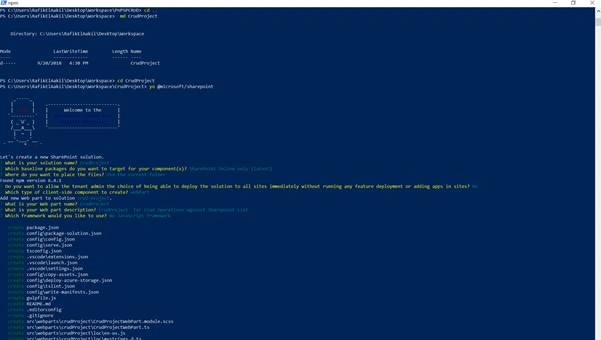
You should see the following message when the scaffold is complete,
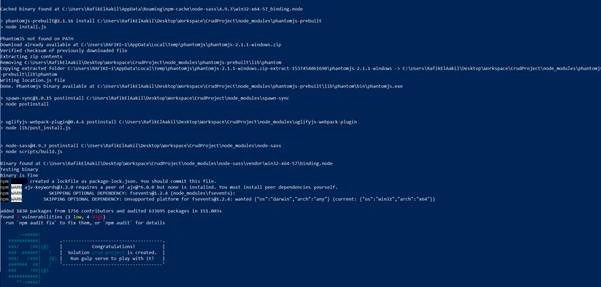
Now after the creation of the initial webpart we have to load PnP JS file with the following command line:
npm install sp-pnp-js –save
Implement Crud Operations
The first step is that we need to load the PnP Library like below:
- import * as pnp from 'sp-pnp-js';
Then we have to create the profileList.
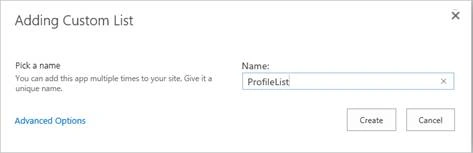
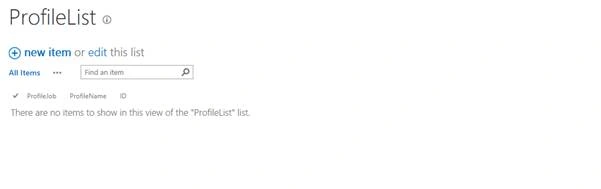
Then add three columns ProfileId, ProfileName, ProfileJob,
We will then create the user interface like below,

An event listener will be associated to each button,
- private AddEventListeners() : void{
- document.getElementById('AddSPItem').addEventListener('click',()=>this.AddSPItem());
- document.getElementById('UpdateSPItem').addEventListener('click',()=>this.UpdateSPItem());
- document.getElementById('DeleteSPItem').addEventListener('click',()=>this.DeleteSPItem());
- }
- he CRUD operations will be implemented using PnP Libraries:
- AddSPItem()
- {
- pnp.sp.web.lists.getByTitle('ProfileList').items.add({
- ProfileName : document.getElementById('ProfileName')["value"],
- ProfileJob : document.getElementById('ProfileJob')["value"]
- });
- alert("Record with Profile Name : "+ document.getElementById('ProfileName')["value"] + " Added !");
- }
- UpdateSPItem()
- {
- var ProfileId = this.domElement.querySelector('input[name = "ProfileId"]:checked')["value"];
- pnp.sp.web.lists.getByTitle("ProfileList").items.getById(ProfileId).update({
- ProfileName : document.getElementById('ProfileName')["value"],
- ProfileJob : document.getElementById('ProfileJob')["value"]
- });
- alert("Record with Profile ID : "+ ProfileId + " Updated !");
- }
- DeleteSPItem()
- {
- var ProfileId = this.domElement.querySelector('input[name = "ProfileId"]:checked')["value"];
- pnp.sp.web.lists.getByTitle("ProfileList").items.getById(ProfileId).delete();
- alert("Record with Profile ID : "+ ProfileId + " Deleted !");
- }
CrudProjectWebPart.ts file
The TypeScript file contents is as shown below,
- import pnp from 'sp-pnp-js';
- import { Version } from '@microsoft/sp-core-library';
- import {
- BaseClientSideWebPart,
- IPropertyPaneConfiguration,
- PropertyPaneTextField
- } from '@microsoft/sp-webpart-base';
- import { escape } from '@microsoft/sp-lodash-subset';
- import styles from './CrudProjectWebPart.module.scss';
- import * as strings from 'CrudProjectWebPartStrings';
- // import { ICrudProjectWebPartProps } from './ICrudProjectWebPartProps';
- export interface ICrudProjectWebPartProps {
- description: string;
- }
- export interface ISPList {
- ID: string;
- ProfileName: string;
- ProfileJob: string;
- }
- export default class CrudProjectWebPart extends BaseClientSideWebPart<ICrudProjectWebPartProps> {
- private AddEventListeners() : void{
- document.getElementById('AddSPItem').addEventListener('click',()=>this.AddSPItem());
- document.getElementById('UpdateSPItem').addEventListener('click',()=>this.UpdateSPItem());
- document.getElementById('DeleteSPItem').addEventListener('click',()=>this.DeleteSPItem());
- }
- private _getSPItems(): Promise<ISPList[]> {
- return pnp.sp.web.lists.getByTitle("ProfileList").items.get().then((response) => {
- return response;
- });
- }
- private getSPItems(): void {
- this._getSPItems()
- .then((response) => {
- this._renderList(response);
- });
- }
- private _renderList(items: ISPList[]): void {
- let html: string = '<table class="TFtable" border=1 width=style="bordercollapse: collapse;">';
- html += `<th></th><th>ProfileId</th><th>Name</th><th>Job</th>`;
- if (items.length>0)
- {
- items.forEach((item: ISPList) => {
- html += `
- <tr>
- <td> <input type="radio" id="ProfileId" name="ProfileId" value="${item.ID}"> <br> </td>
- <td>${item.ID}</td>
- <td>${item.ProfileName}</td>
- <td>${item.ProfileJob}</td>
- </tr>
- `;
- });
- }
- else
- {
- html +="No records...";
- }
- html += `</table>`;
- const listContainer: Element = this.domElement.querySelector('#DivGetItems');
- listContainer.innerHTML = html;
- }
- public render(): void {
- this.domElement.innerHTML = `
- <div class="parentContainer" style="background-color: white">
- <div class="ms-Grid-row ms-bgColor-themeDark ms-fontColor-white ${styles.row}">
- <div class="ms-Grid-col ms-u-lg
- ms-u-xl8 ms-u-xlPush2 ms-u-lgPush1">
- </div>
- </div>
- <div class="ms-Grid-row ms-bgColor-themeDark ms-fontColor-white ${styles.row}">
- <div style="background-color:Black;color:white;text-align: center;font-weight: bold;font-size:
- x;">Profile Details</div>
- </div>
- <div style="background-color: white" >
- <form >
- <br>
- <div data-role="header">
- <h3>Add SharePoint List Items</h3>
- </div>
- <div data-role="main" class="ui-content">
- <div >
- <input id="ProfileName" placeholder="ProfileName"/>
- <input id="ProfileJob" placeholder="ProfileJob"/>
- <button id="AddSPItem" type="submit" >Add</button>
- <button id="UpdateSPItem" type="submit" >Update</button>
- <button id="DeleteSPItem" type="submit" >Delete</button>
- </div>
- </div>
- </form>
- </div>
- <br>
- <div style="background-color: white" id="DivGetItems" />
- </div>
- `;
- this.getSPItems();
- this.AddEventListeners();
- }
- Protected AddSPItem()
- {
- pnp.sp.web.lists.getByTitle('ProfileList').items.add({
- ProfileName : document.getElementById('ProfileName')["value"],
- ProfileJob : document.getElementById('ProfileJob')["value"]
- });
- alert("Record with Profile Name : "+ document.getElementById('ProfileName')["value"] + " Added !");
- }
- Protected UpdateSPItem()
- {
- var ProfileId = this.domElement.querySelector('input[name = "ProfileId"]:checked')["value"];
- pnp.sp.web.lists.getByTitle("ProfileList").items.getById(ProfileId).update({
- ProfileName : document.getElementById('ProfileName')["value"],
- ProfileJob : document.getElementById('ProfileJob')["value"]
- });
- alert("Record with Profile ID : "+ ProfileId + " Updated !");
- }
- Protected DeleteSPItem()
- {
- var ProfileId = this.domElement.querySelector('input[name = "ProfileId"]:checked')["value"];
- pnp.sp.web.lists.getByTitle("ProfileList").items.getById(ProfileId).delete();
- alert("Record with Profile ID : "+ ProfileId + " Deleted !");
- }
- protected get dataVersion(): Version {
- return Version.parse('1.0');
- }
- protected getPropertyPaneConfiguration(): IPropertyPaneConfiguration {
- return {
- pages: [
- {
- header: {
- description: strings.PropertyPaneDescription
- },
- groups: [
- {
- groupName: strings.BasicGroupName,
- groupFields: [
- PropertyPaneTextField('description', {
- label: strings.DescriptionFieldLabel
- })
- ]
- }
- ]
- }
- ]
- };
- }
- }
getSPItems
This will retrieve the list items and display within the div element declared in the render method.
AddEventListeners
This will associate the button’s events to their related methods.
Test the Web part in SharePoint Online
The deployment process can be done through a deployment PowerShell script, which automates the deployment process by handling all the necessary steps including,
- Bundling files
- Packaging the solution
- Connecting to the SharePoint Online
- Adding and publishing the App package to SharePoint Online.
- Adding and publishing the assets files to SharePoint Online.
There are some parameters on the script that have been to set before,
- $url: this is the url of SharePoint online.
- $assestsLib: This is the document library for Assets, I used the default library “SiteAssets/”
Before executing the script, run the following cmdlet,
Install-Module SharePointPnPPowerShellOnline
Then we run the script using the following command,
.\deployment.ps1
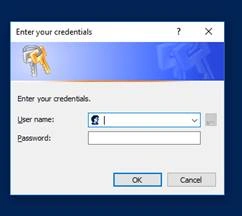
That will automatically ask you to enter the email and password to connect to your SharePoint Online,
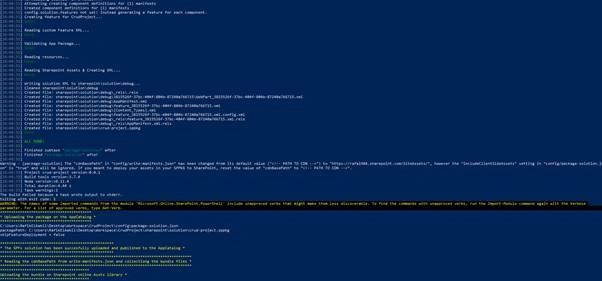
After the script has been executed, you’ll see a Deployment successful message like below,
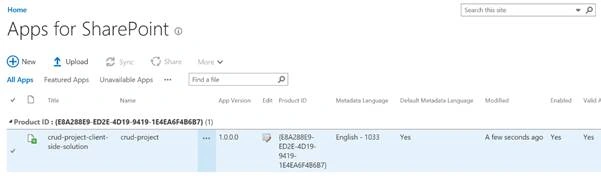
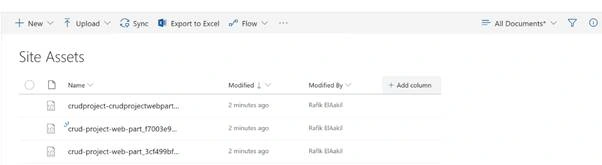
Now you can check that the concerned files are uploaded to the related libraries,
- The Solution package
- The Assets files
Preview the web part
Now, let’s test the Web part in SharePoint online.
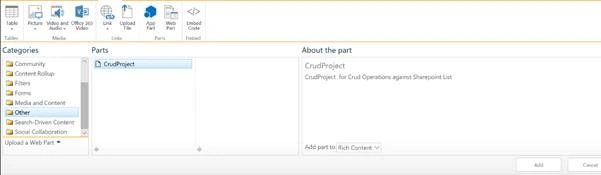
To preview your web part, you can add it on any page,
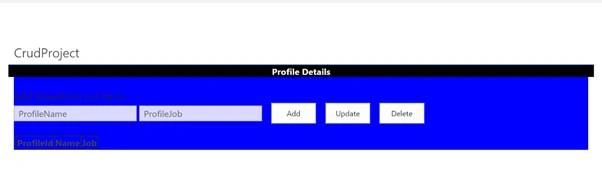
The UI of our webpart will look like below,
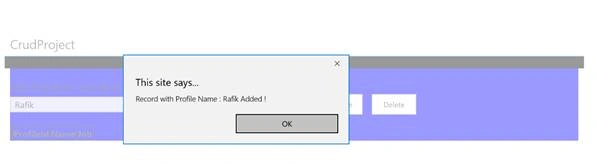
You can add a new profile by inserting the name and the job then click on Add which will create a new user like below,
Then you can see that a new user has been added,
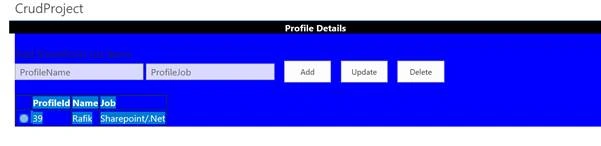
You can update the users anytime by selecting the related profile and updating the information then click on Update button,
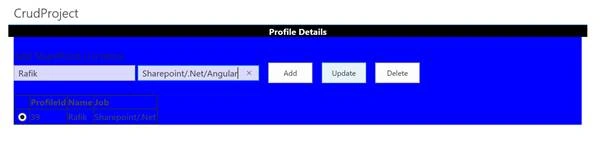
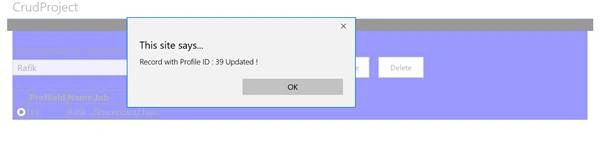
The concerned user has been updated then,
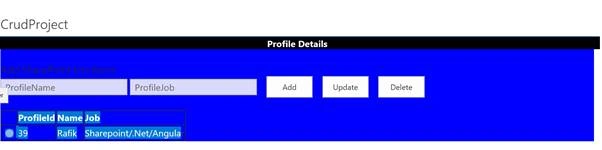
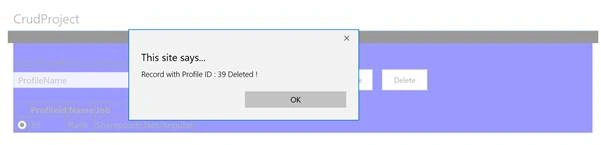
To delete a profile user, you can select the related user then click on delete button,
You can find the project files used in this solution uploaded at GitHub,
- The webpart solution
https://github.com/FullStackRafik/SPFxCrudWebpArt - The deployment script
https://github.com/FullStackRafik/DeploySPFxToSPOnline
Jeevanandham MPosted Oct 12, 2018, 1:15 AM
Thanks for sharing....